Skip to content
ShowU

Mobile Devices

Solve common phone and tablet problems with practical mobile device guides. Find help for charging, battery, storage, apps, updates, calls, connectivity and everyday settings.

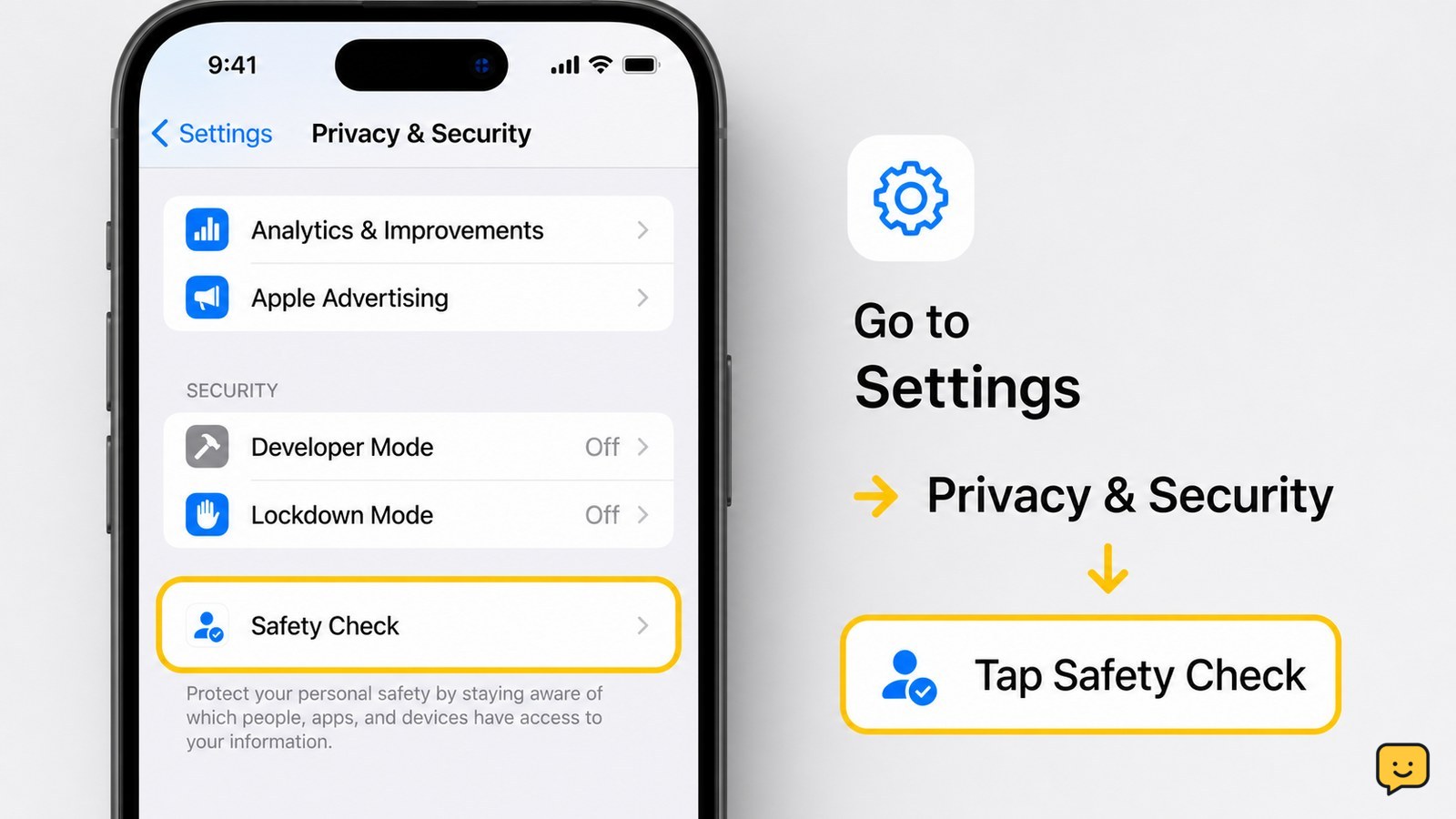
iPhone Settings screen with Privacy & Security and Blocked Contacts visible
Mobile Devices

Where to Find Blocked Numbers on iPhone: Settings

On an iPhone running iOS 26, open Settings, tap Privacy & Security, then tap Blocked Contacts. The list shows blocked phone numbers, contacts, and email addresses. Tap Edit to remove an entry, or tap the add button to block another contact. On earlier iOS versions, check Settings > Phone > Blocked Contacts.
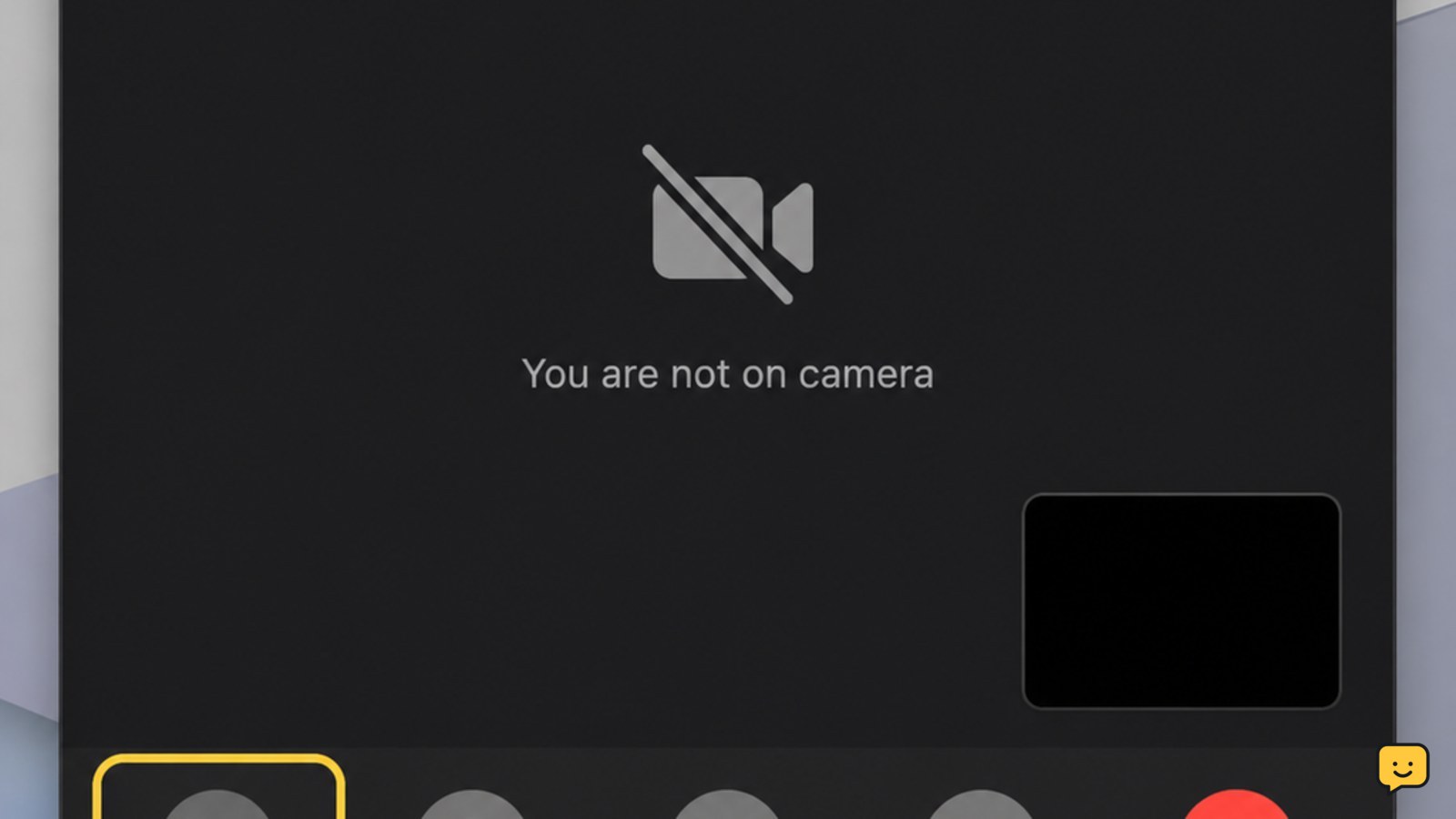
FaceTime call window with the camera paused and video controls visible
Mobile Devices

How to Pause FaceTime: Turn Off Video

To pause FaceTime video, start or answer the call, tap the screen to show the controls, then tap the camera or video button. Your camera turns off while the call and audio continue. Tap the same button again to resume video. On a Mac, move the pointer over the call and click Mute Video.

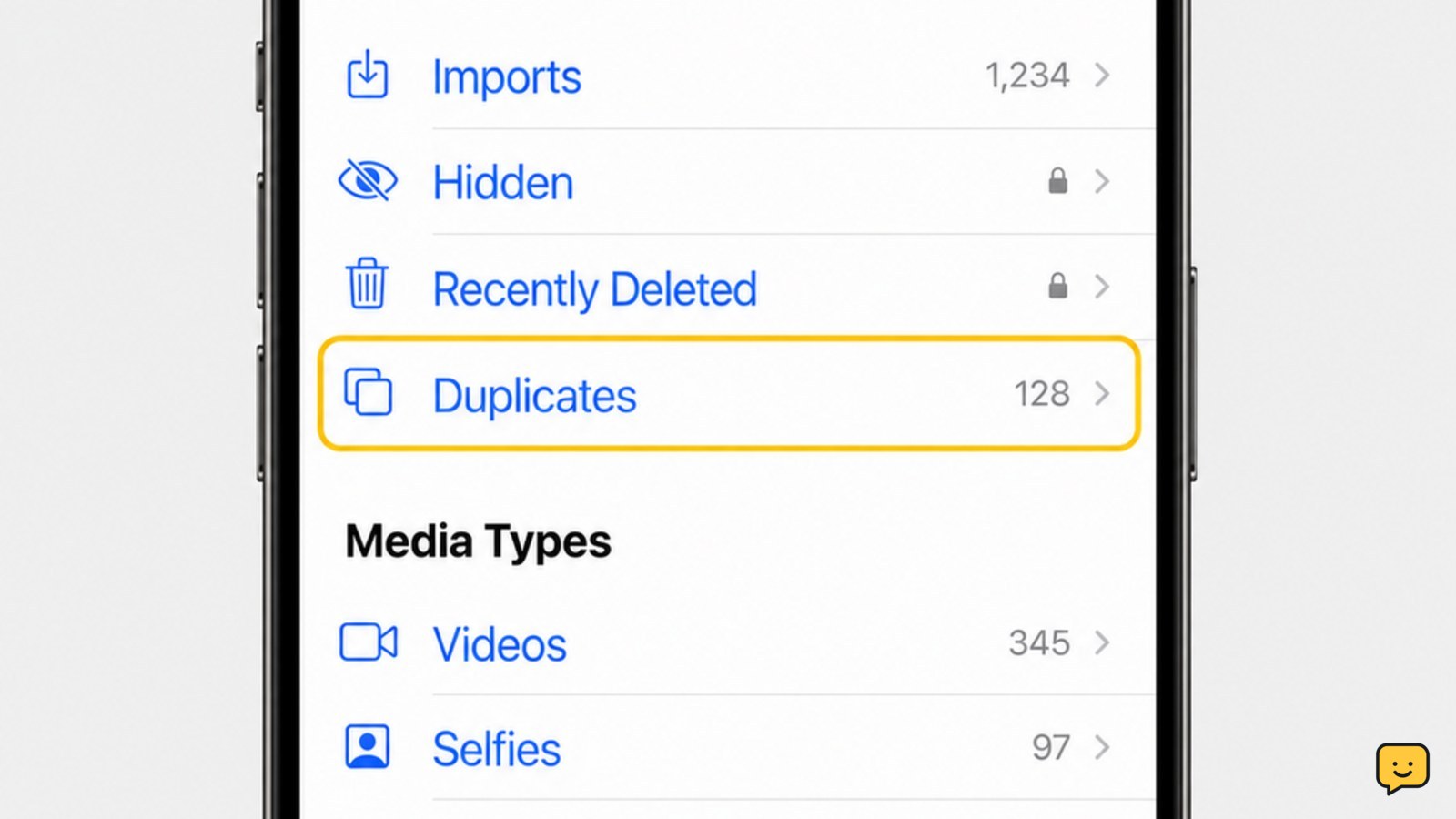
iPhone Photos app showing the Utilities area and Duplicates album
Mobile Devices

How to Delete Duplicate Photos on iPhone

Open Photos, tap Albums, scroll to Utilities, and tap Duplicates. Review each group, tap Merge, then confirm Merge [number] Items. iPhone keeps the best-quality version and moves the extra copies to Recently Deleted. This feature requires iOS 16 or later; if Duplicates is missing, leave the phone locked and connected to power while Photos finishes indexing.

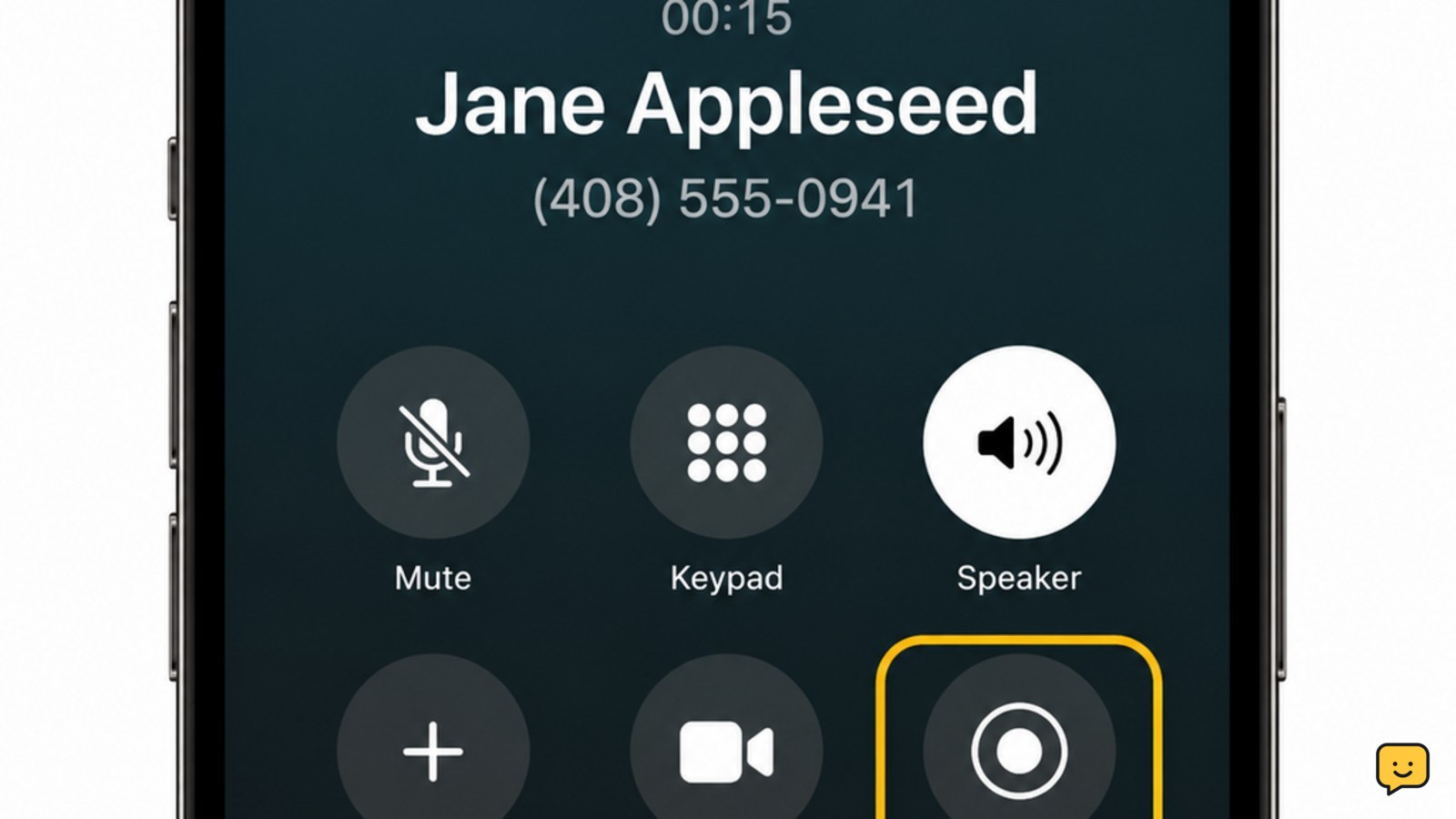
iPhone active call screen with the Call Recording control highlighted
Mobile Devices

How to Record a Call on iPhone: iOS 18.1+

On an iPhone running supported iOS 18.1 or later, open Settings > Apps > Phone, turn on Call Recording, and place or answer a call. After the other person answers, tap the Call Recording button. Both participants hear a recording notice, and the finished recording is saved in the Notes app. Availability varies by region and language.

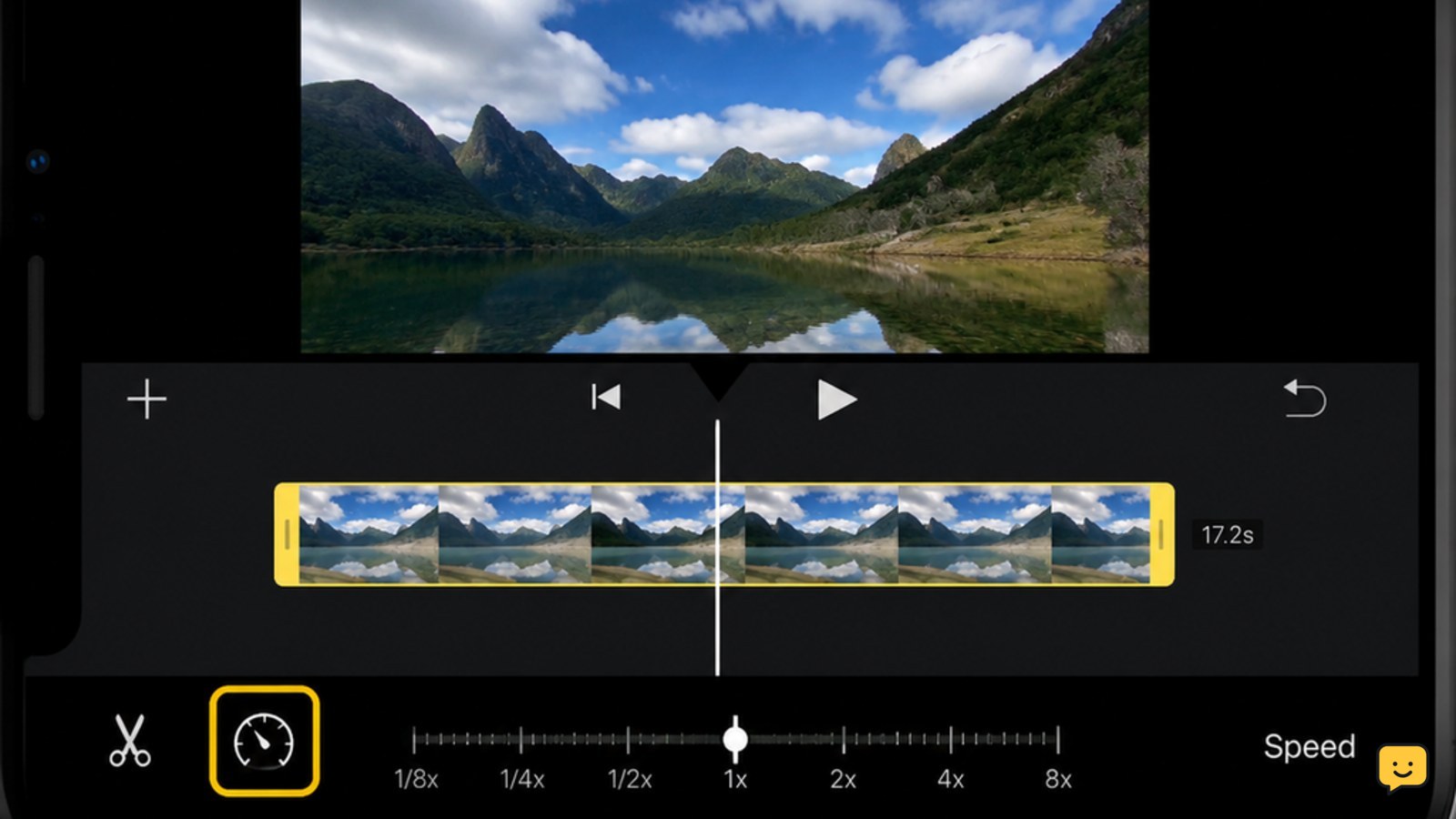
iPhone showing an iMovie video timeline with the speed control selected
Mobile Devices

How to Speed Up a Video on iPhone: iMovie

To speed up a video on iPhone, open iMovie, create a movie project, add the video, tap the clip in the timeline, tap the speedometer button, drag the speed slider to the right, and preview it. Tap Done, then share or save the edited video as a new copy.

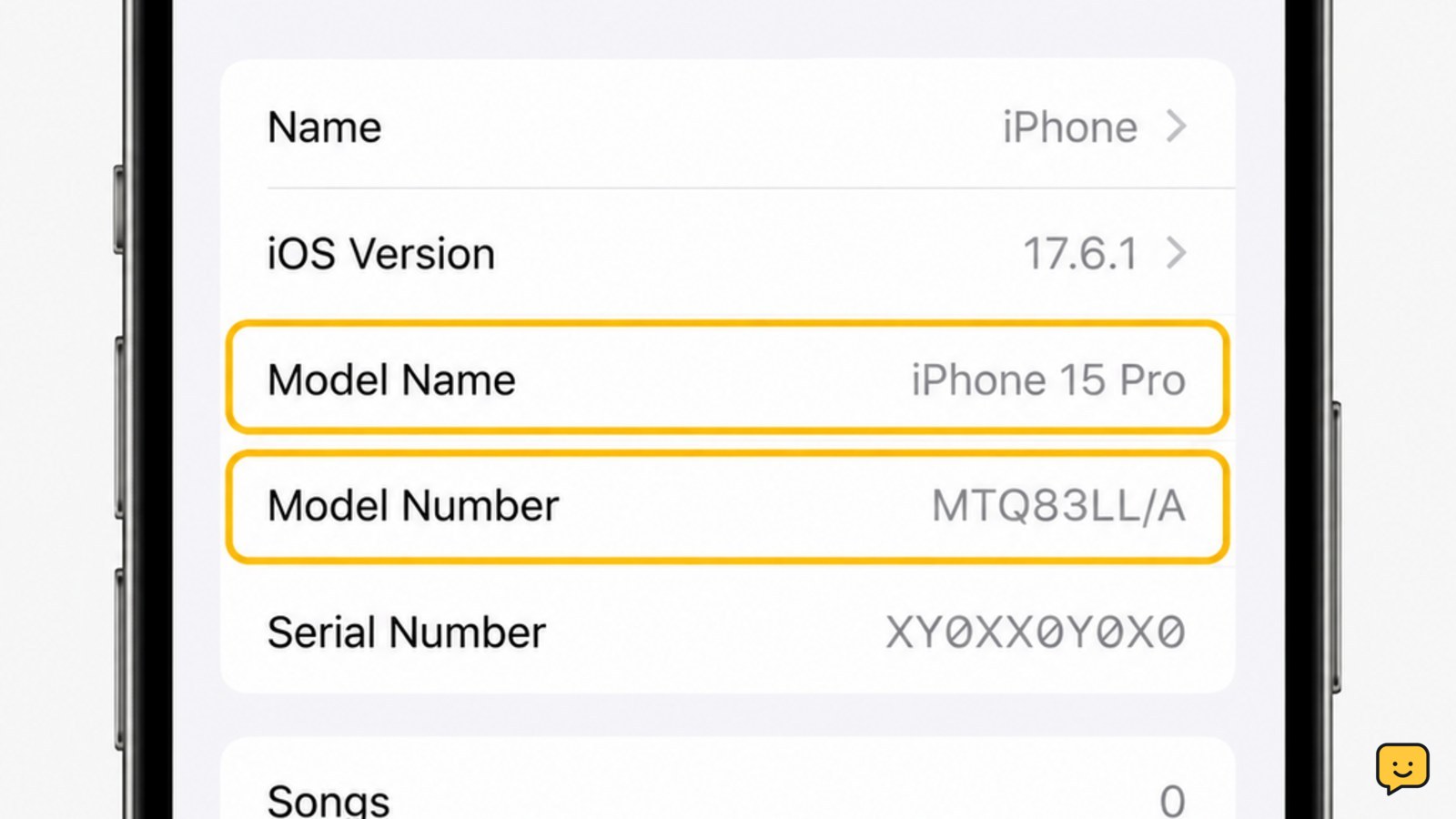
iPhone Settings About screen showing Model Name and Model Number
Mobile Devices

How to Tell What iPhone I Have: Model

Open Settings, tap General, then About. Read the Model Name to see the iPhone you have, such as iPhone 13 or iPhone 15 Pro. For stronger confirmation, tap the value beside Model Number to switch from the part number to the A-number model identifier, then compare it with Apple’s official iPhone model list.

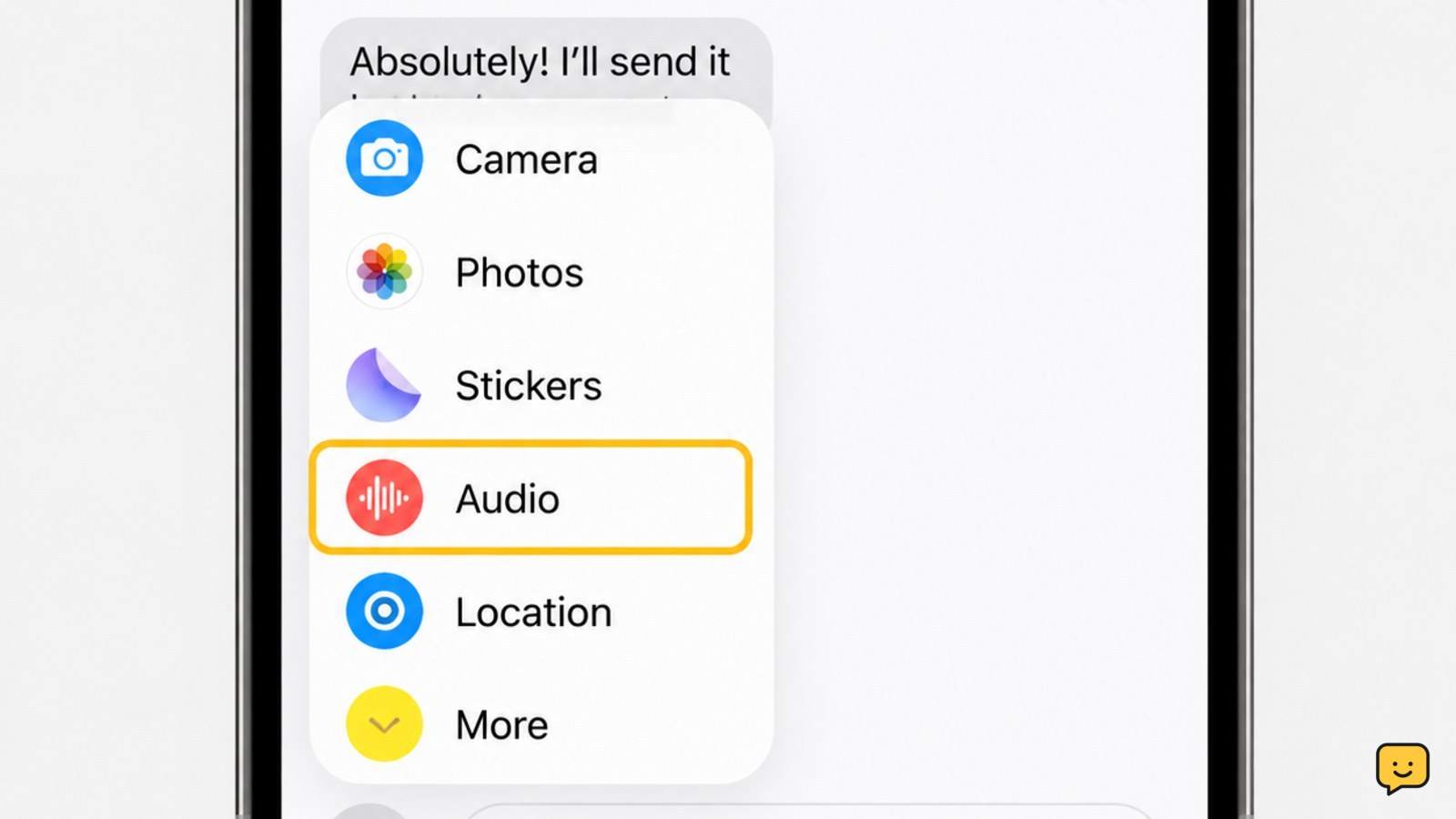
iPhone Messages conversation with the plus menu open and Audio highlighted
Mobile Devices

How to Send a Voice Message on iPhone: Audio

Open Messages and select the conversation. On current iPhones, tap the plus button, choose Audio, tap the record button, speak, stop recording, then tap Send. On some older layouts, touch and hold the audio-message button beside the text field instead. The sent clip appears as a playable audio bubble in the chat.

iPhone displaying Phone, Messages, and FaceTime contact checks with an inconclusive status indicator
Mobile Devices

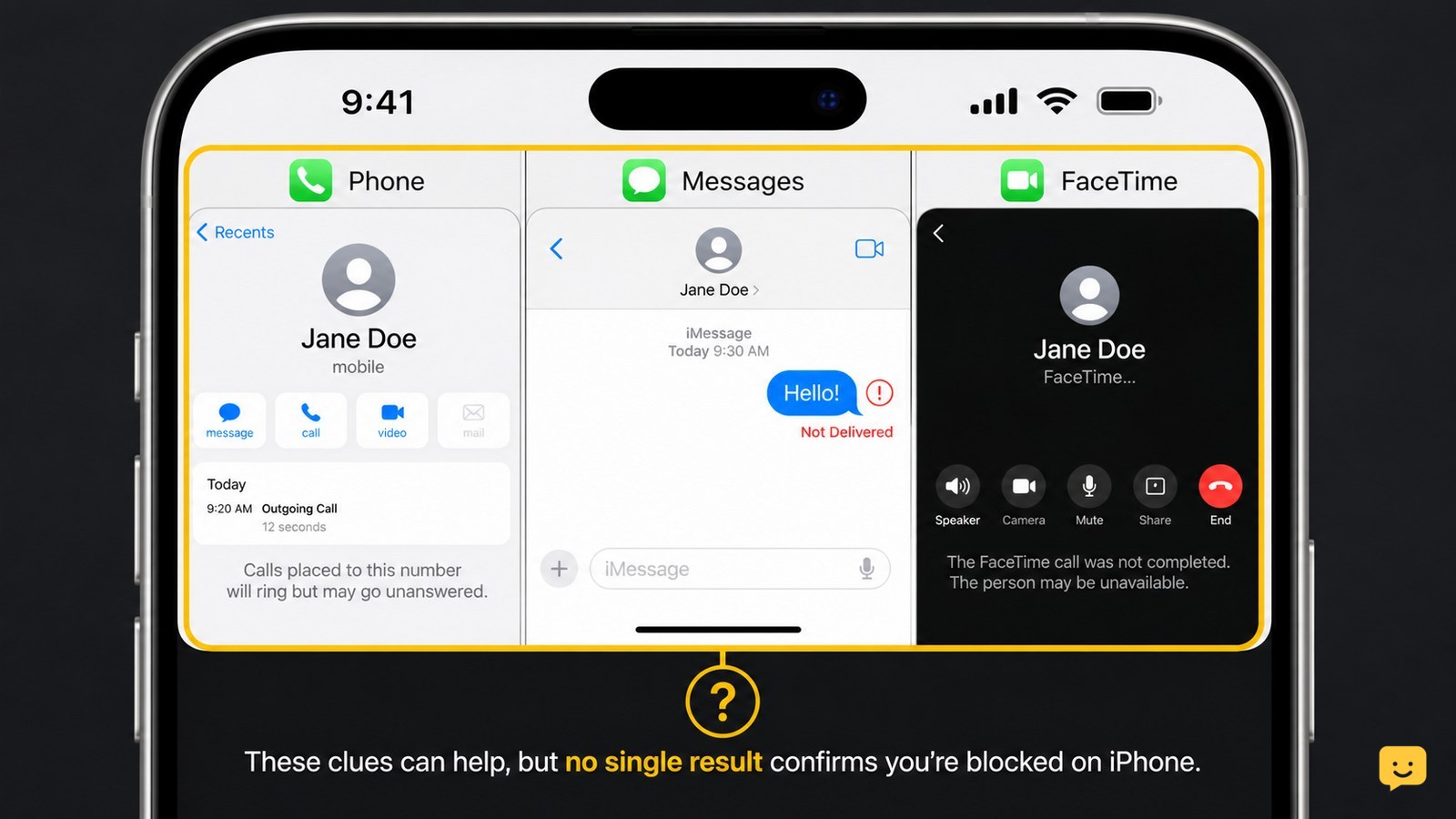
How to Tell If You’re Blocked on iPhone

You cannot confirm an iPhone block from one sign. Calls that go straight to voicemail, iMessages that stop showing Delivered, and FaceTime calls that fail can suggest a block, but the same results can come from a dead phone, poor service, or changed settings. Compare several checks and respect the person’s privacy.

iPhone Messages conversation showing Send Later and a pending scheduled message
Mobile Devices

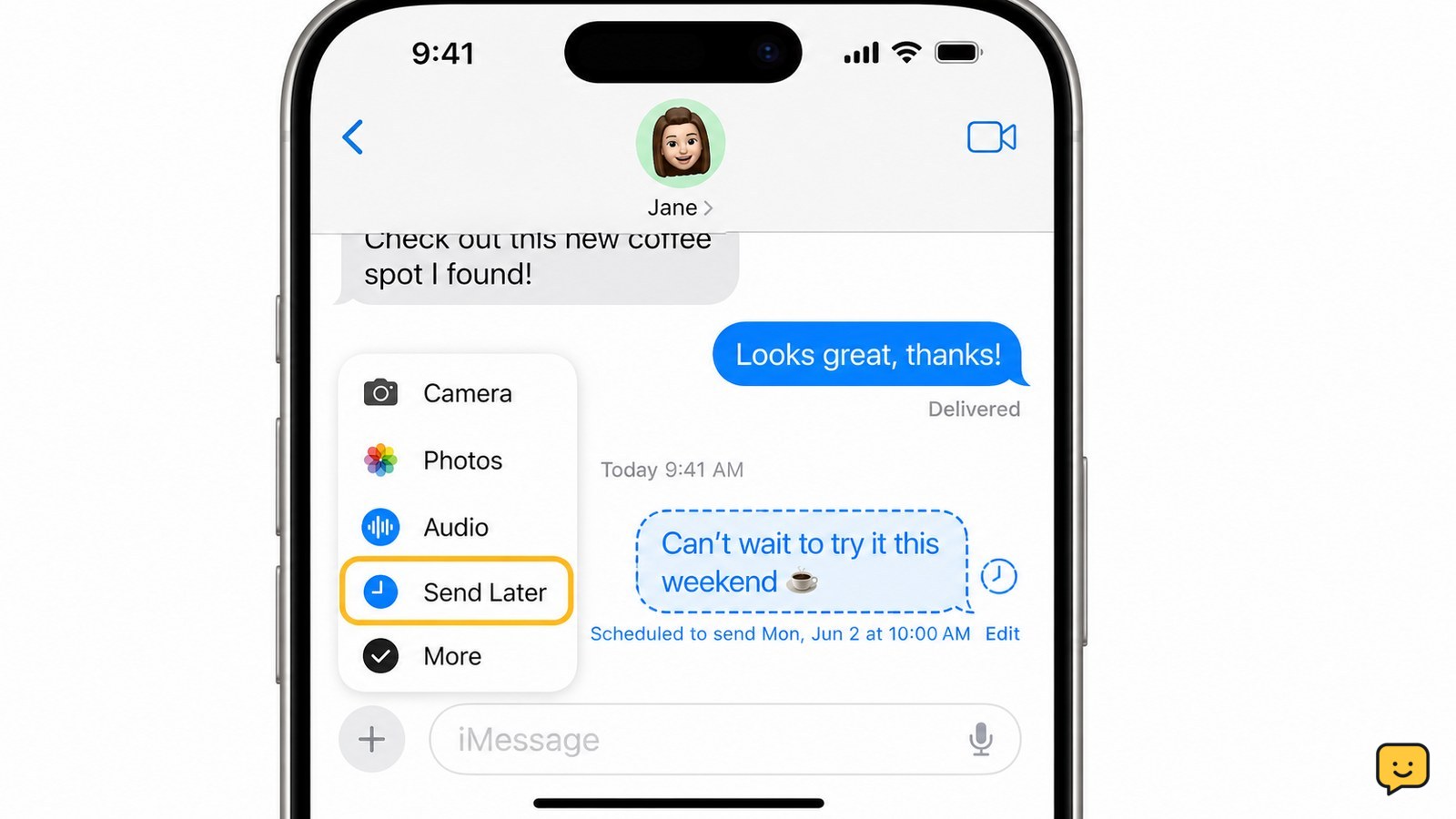
Can You Schedule a Text on iPhone? Yes

Yes. Open the Messages app, choose an iMessage conversation, tap the plus button, select Send Later, choose a date and time, write your message, and tap Send. Apple says iPhone can schedule a message up to 14 days into the future. The scheduled message remains visible in the conversation until it sends.