
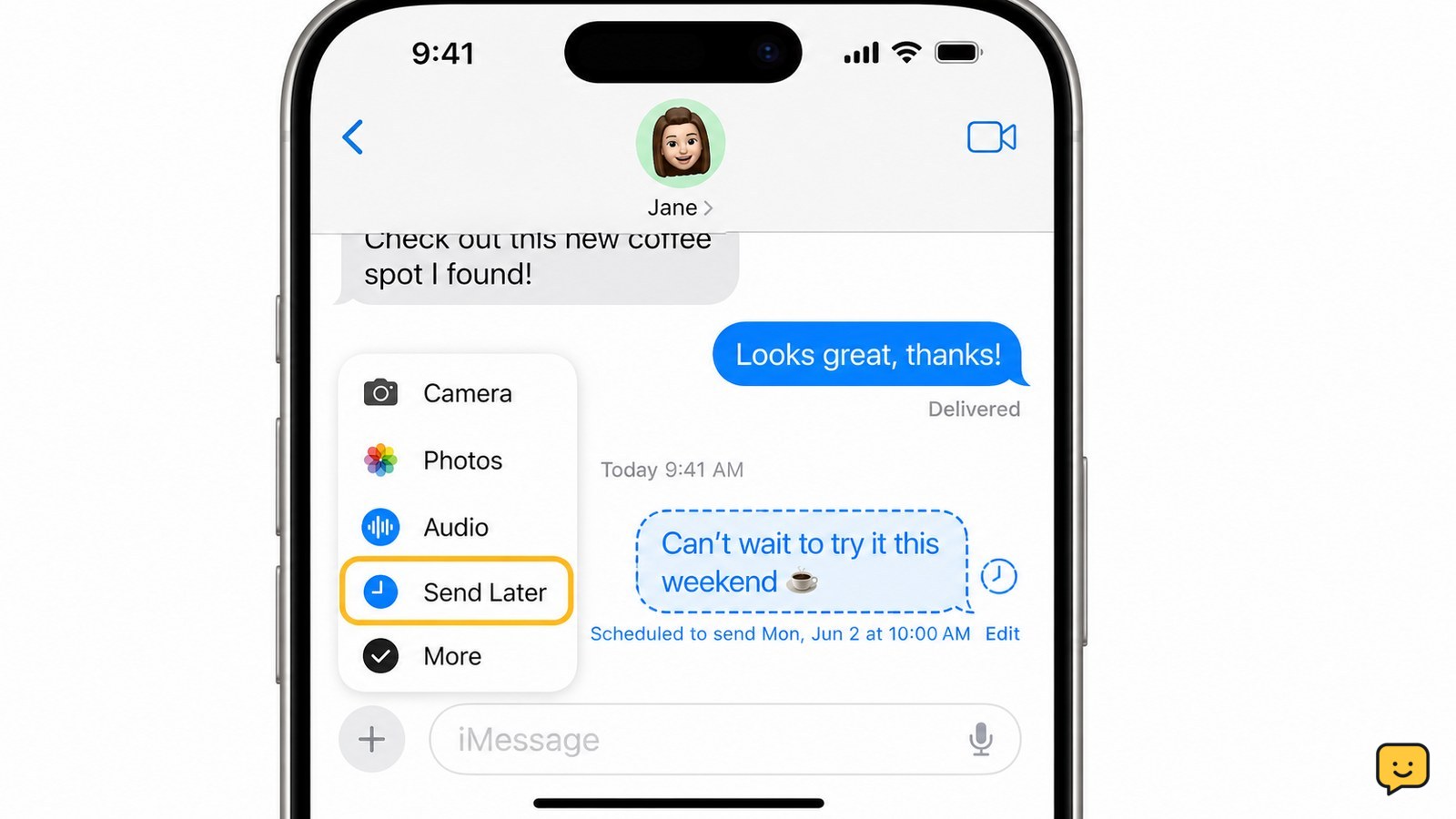
Yes. Open the Messages app, choose an iMessage conversation, tap the plus button, select Send Later, choose a date and time, write your message, and tap Send. Apple says iPhone can schedule a message up to 14 days into the future. The scheduled message remains visible in the conversation until it sends.
Check that the conversation supports scheduled sending
Scheduled sending on iPhone is available through Send Later in Messages for an iMessage conversation. Open Messages and look at the conversation before composing the message. If the conversation does not offer Send Later, the native feature may not apply to that recipient or chat.
Apple Support states that a message can be scheduled up to 14 days into the future. For a message that must arrive reliably at a particular moment, use a normal send and confirm delivery rather than depending on a scheduled message.
Schedule a text in the iPhone Messages app
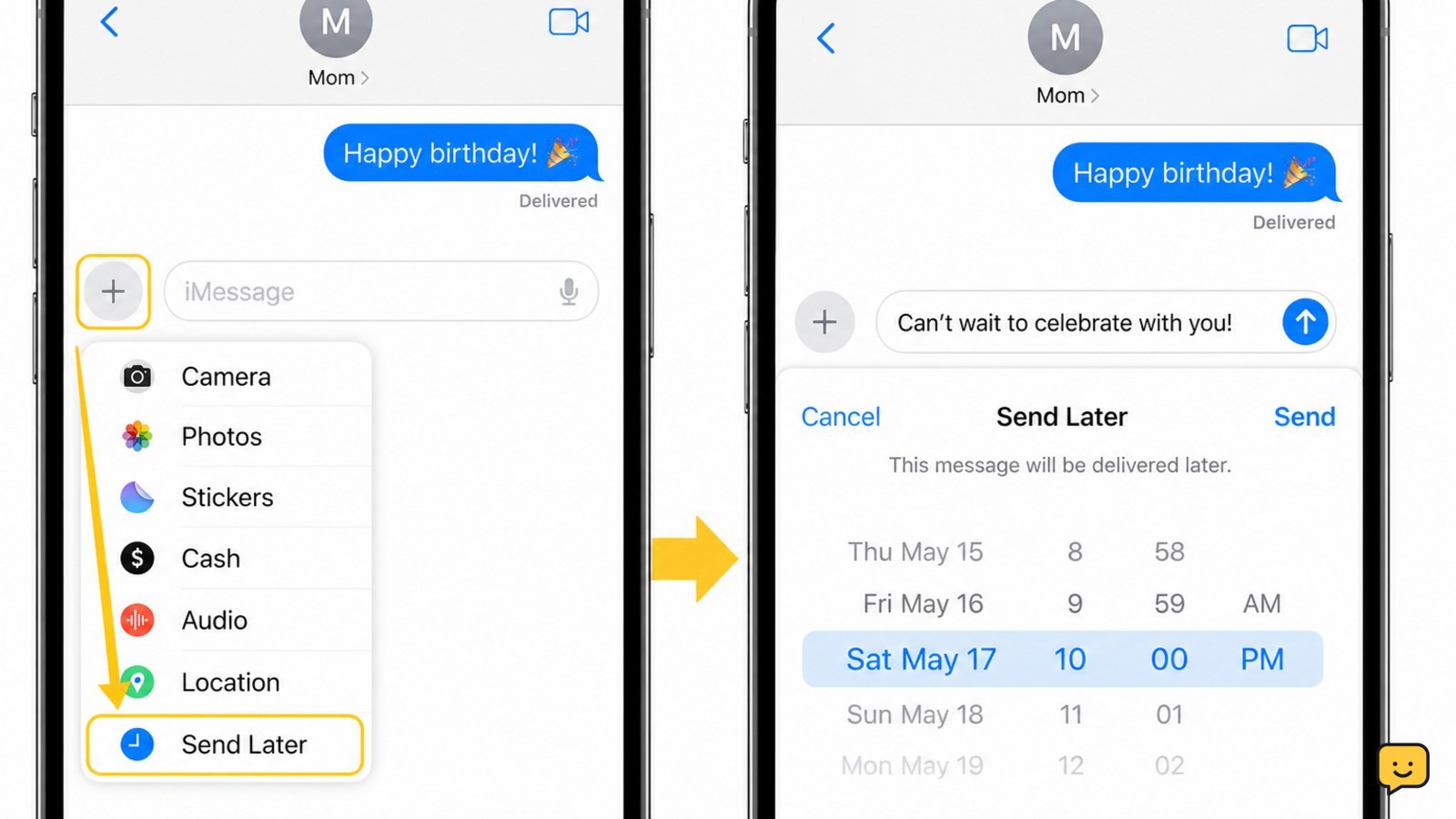
To schedule an iMessage on iPhone, follow this sequence:
- Open the Messages app.
- Open the conversation with the intended recipient.
- Tap the plus button beside the text field.
- Tap Send Later.
- Tap the blue date-and-time control, then choose when the message should send. The selected time must be no more than 14 days ahead, according to Apple Support.
- Tap the text field and write the message.
- Review the recipient, wording, date, and time, then tap Send.
Do not leave the message unsent while expecting it to send automatically. Tapping Send is the step that creates the scheduled message.
Verify the scheduled message and send time
A successful schedule appears inside the conversation as a pending message with its future send time. Check that the message text is correct and that the displayed date and time match your plan.
If the scheduled message does not appear, return to the conversation and repeat the process. If Send Later is not listed, do not tap a different control at random; first confirm that you are in the intended conversation and that the native scheduling option is available there.
Change or cancel a message before it sends
A scheduled message is still pending until its displayed send time. Open the conversation and select the scheduled message to review the available edit or cancellation controls shown by Messages. Confirm the revised date and time before saving any change.
If you cannot find the scheduled message, check the same conversation rather than starting a duplicate message. If the send time has already passed, treat the message as sent and check the conversation for its delivery status.
Use a reminder when Send Later is unavailable
If Messages does not show Send Later for the intended recipient, the safest native alternative is to create a reminder or calendar alert for the time you want to send the text. Include the recipient’s name and the message topic in the reminder, then send the message manually when the alert appears.
This workaround does not send the text automatically. It prevents you from assuming a message was scheduled when no pending message is visible in the conversation.
What to do if the scheduled text does not send
If the displayed send time passes and the message is still pending, check the conversation again for a changed status or an error. Confirm that the iPhone has service or Wi-Fi and that Messages is signed in for iMessage. If the message cannot be sent, send it manually only after checking that a duplicate has not already gone through.
For time-sensitive communication, stop using the scheduled message as the only delivery method. Contact the recipient another way and verify that they received the information.
Frequently asked questions
How far ahead can you schedule a text on iPhone?
You can schedule an iMessage up to 14 days in advance. Apple Support identifies 14 days as the maximum supported scheduling window. If you need a reminder beyond that period, create a calendar event or reminder and send the message manually later.
Can you schedule a text from an iPhone to Android?
The native Send Later option is intended for an iMessage conversation, so it may not be available when the recipient is using Android or the chat is not operating as iMessage. Use a reminder to send the message manually, or use a messaging service that explicitly supports scheduled delivery.
How do you know an iPhone text is scheduled?
A scheduled message remains visible in the conversation with a future send time and pending status. If you do not see the message and its scheduled time, it was not successfully queued. Review the conversation before assuming it will send.
Can you edit or cancel a scheduled iPhone message?
Yes, while the message is still pending, open the scheduled message in its conversation and use the edit or cancellation control that Messages displays. Review the new time or cancellation choice before confirming. After the scheduled time passes, check whether the message has already been sent.
For more help with this topic, use the Mobile Devices guides.


