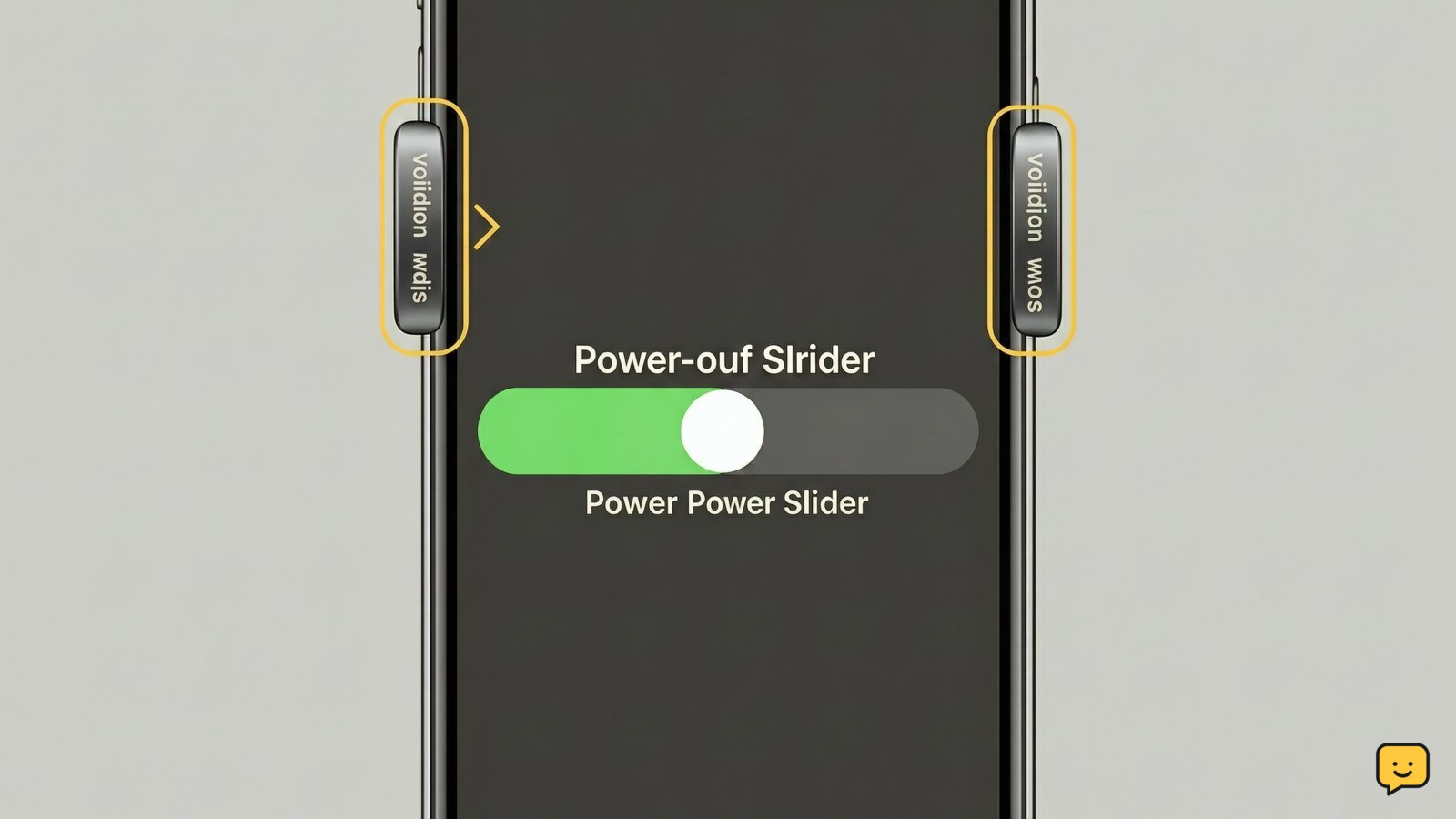
If your iPhone is not receiving texts, check cellular service first, then restart the iPhone and send a test message. Next, review iMessage settings, blocked contacts, message filtering, storage, and your SIM or eSIM. If calls and mobile data also fail, the problem is probably carrier service or network registration rather than Messages alone.
For more help with this topic, use the Mobile Devices guides.
Check signal, Airplane Mode, and the test message
An iPhone with weak or missing cellular service may not receive ordinary SMS texts, even when Wi-Fi works. Look at the status area for your carrier name, signal bars, SOS, or No Service.
- Open Control Center and make sure Airplane Mode is off.
- Move outdoors or to another location with known coverage.
- Ask someone to send a new text message, not just resend an old one.
- Reply to the sender if the message arrives, then ask whether the reply reaches them.
If a new message arrives after moving or turning off Airplane Mode, the issue was probably network registration or coverage. If calls and mobile data also fail, do not spend time changing Messages settings; contact the carrier after confirming there is no local outage.
Restart the iPhone and verify with two message types
Restarting the iPhone refreshes its connection to the cellular network and reloads Messages without deleting conversations. Use the safe iPhone restart steps if you need the button sequence for your model.
- Turn the iPhone off completely.
- Wait about 30 seconds, then turn it on.
- Unlock it and wait for the carrier name or signal bars to return.
- Request one SMS from an Android phone or another non-Apple device and one iMessage from an Apple device.
Receiving both tests confirms that incoming messaging has recovered. Receiving iMessages but not SMS points toward cellular service, SIM or eSIM registration, or carrier SMS support. Receiving SMS but not iMessages points toward iMessage settings or Apple Account routing.
Use safe iPhone restart steps if you need the button sequence for your iPhone model.
Fix iMessage routing and message filtering
iMessage settings affect messages sent between Apple devices, while green-bubble SMS or MMS messages depend on your carrier connection. Open Settings > Apps > Messages; on some iOS versions, Messages may appear directly under Settings.
- Confirm that iMessage is on if you use Apple-device messaging.
- Open Send & Receive and confirm that your phone number is selected under the receiving options.
- Check Unknown & Spam or message-filtering options and review filtered messages in the Messages app.
- Open Blocked Contacts and remove a number only if you recognize it and intend to receive its messages.
FoneLab identifies an iMessage configuration issue as one possible cause when an iPhone cannot receive texts, while Asurion specifically recommends turning off iMessage when a person has moved from an iPhone to another phone. If you recently changed platforms, deregistering iMessage through Apple’s current account tools may be necessary; do not disable it merely because one sender is blocked.
Request a fresh message after each change. If only one contact is affected, check that contact’s current number and whether it is blocked before changing global settings.
Check storage, Messages settings, and software updates
An iPhone with nearly full storage can behave unpredictably, and a pending system update can leave messaging features out of sync. Check Settings > General > iPhone Storage and keep enough free space for normal operation by removing large, nonessential downloads or media.
- Open Settings > Notifications > Messages and confirm notifications are enabled if messages arrive silently rather than failing to appear.
- Open Settings > General > Software Update and install an available update only when the iPhone has power and a reliable Wi-Fi connection.
- Restart the iPhone after the update and request another test message.
Notifications do not control whether a message is delivered, so this branch applies when messages are present in the conversation list but you receive no alert. If the conversation never appears, return to the cellular, iMessage, and SIM checks instead.
Confirm SIM or eSIM status and escalate carrier failures
A missing, inactive, or incorrectly registered SIM or eSIM can prevent SMS delivery while Wi-Fi-based iMessage continues to work. Open Settings > Cellular or Settings > Mobile Data and confirm that your phone line is listed and turned on.
- For a physical SIM, turn the line off if the option appears, restart the iPhone, and turn the line back on. Do not force out a damaged tray.
- For an eSIM, do not delete the cellular plan unless your carrier specifically instructs you; deletion can require carrier reactivation.
- Check whether the iPhone shows SOS, No Service, or a carrier activation warning.
- Call the carrier from another phone and ask them to check SMS service, account status, outage information, and SIM or eSIM registration.
If the carrier confirms service is active but the iPhone still receives neither SMS nor iMessage, back up the phone before considering a network reset or Apple Support appointment. A network reset can remove saved Wi-Fi networks and passwords, so it is a later step, not a first fix.
If your status area shows iPhone showing SOS, check coverage and network registration before changing Messages settings.
Frequently asked questions
Why can my iPhone receive iMessages but not SMS texts?
The cellular connection, SIM or eSIM, or carrier SMS service is the likely cause. iMessages use data through Wi-Fi or mobile data, while SMS depends on the carrier’s texting service. Test with a non-Apple phone, check for SOS or No Service, confirm the cellular line is active, and ask your carrier to verify SMS provisioning.
Why am I not receiving texts from one person on iPhone?
Check that the sender is using your current number, then review the conversation’s contact details and your blocked contacts list. Ask the person to send a new message rather than forwarding an old thread. If other people can reach you, a single-contact routing or blocked-number issue is more likely than a phone-wide failure.
Will resetting network settings delete my text messages?
A network settings reset is intended to remove network configuration, such as saved Wi-Fi networks and passwords, rather than erase conversations. It should not be a first step because it creates extra setup work and may not fix a carrier-side SMS problem. Back up the iPhone and contact the carrier before using it.
What should I do if my old iPhone still receives texts after switching phones?
If you moved from an iPhone to another phone, iMessage may still route Apple-device messages to the old setup. Turn off iMessage on the old iPhone if you still have access, or use Apple’s official deregistration process. Ask an Apple-device contact and a non-Apple contact to send fresh tests afterward.