
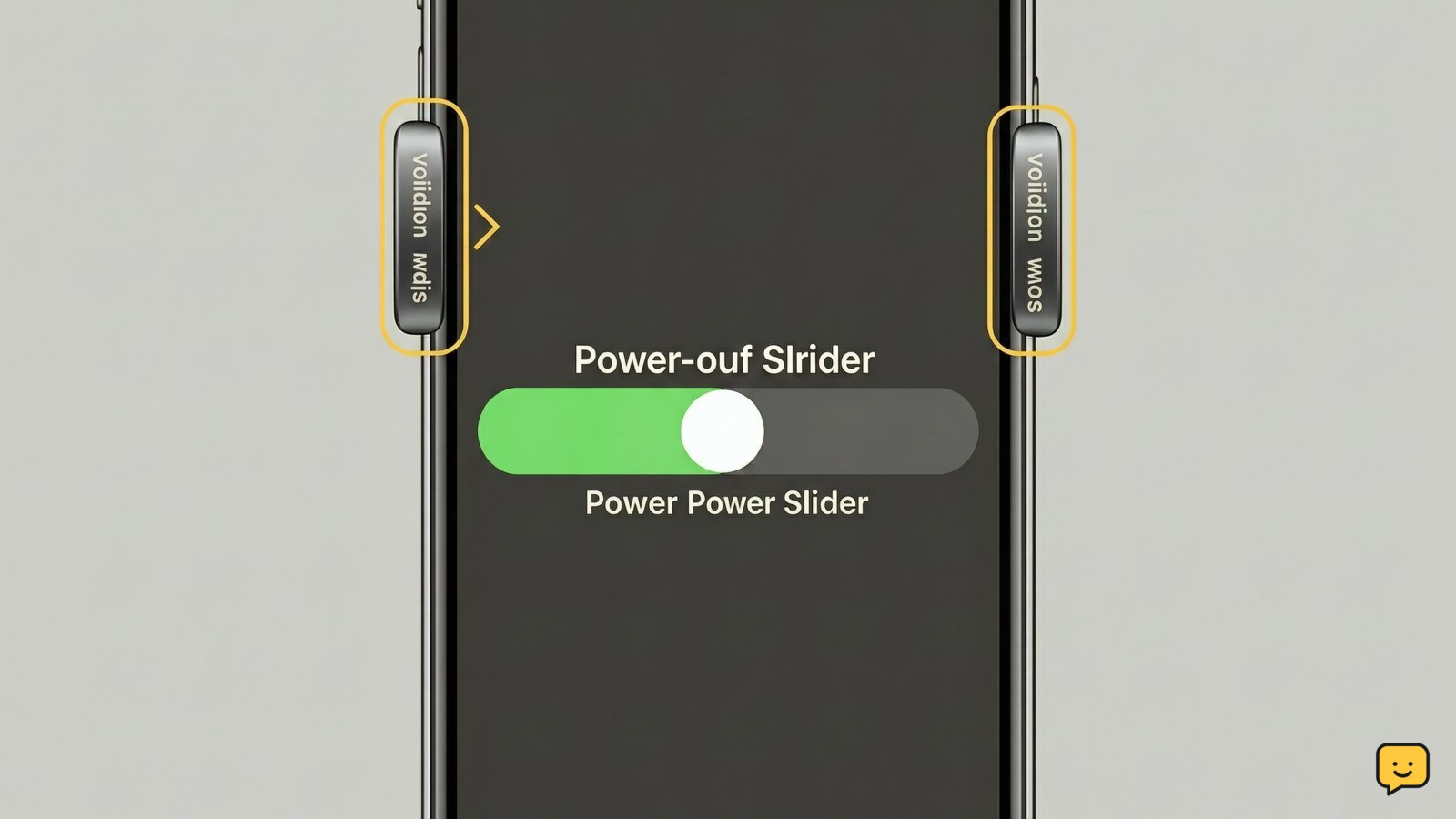
To soft reset a responsive iPhone, press and hold the side button and either volume button until the power-off slider appears. Drag the slider, wait about 30 seconds, then hold the side button until the Apple logo appears. This restarts iOS without erasing your apps, photos, messages, or settings.
For more help with this topic, use the Mobile Devices guides.
Check whether a soft reset applies
A soft reset applies when the iPhone is powered on and responds to taps or buttons, but an app, connection, sound, or general performance is behaving incorrectly. It closes the current iOS session and starts it again; it does not remove personal data.
If the display is completely frozen, the power-off slider never appears, or touch input does not work, skip to the force-restart section. A normal shutdown requires a responsive screen.
Soft reset a Face ID iPhone or iPhone 8 and later
For an iPhone with Face ID or an iPhone 8 or later, shut down from the hardware buttons, then start it again.
- Press and hold the side button and either volume button at the same time.
- Release both buttons when the power-off slider appears.
- Drag slide to power off from left to right.
- Wait about 30 seconds so the screen stays fully off.
- Press and hold the side button until the Apple logo appears, then release it.
Success is visible when the lock screen returns and the iPhone accepts the passcode or Face ID. Open the app or setting that failed and check whether it responds normally.
Soft reset an iPhone with a Home button
On an iPhone 6s, SE, or another model with a physical Home button, press and hold the side button or top button until the power-off slider appears. Drag the slider, wait about 30 seconds, then hold the same side or top button until the Apple logo appears.
If the slider does not appear, confirm that you are holding the power button rather than only pressing it briefly. If the Home button or power button is damaged, do not force it; use Settings if the touchscreen works: Settings > General > Shut Down, then drag the slider.
Verify the restart fixed the symptom
After the lock screen returns, enter the passcode once and test the original problem. Open the affected app, place a test call, reconnect Wi-Fi or Bluetooth, or play a short audio clip, depending on what failed.
A successful soft reset means the iPhone reaches the lock screen without repeated shutdowns, accepts touch input, and performs the test action normally. If only one app still fails, close and reopen that app and check for an available App Store update rather than repeatedly restarting the phone.
If the iPhone became hot while charging or during the restart, disconnect it, remove its case, and move it to a cool, ventilated surface. See what to do about phone overheating while charging before charging again.
See what to do about phone overheating while charging before charging again if the iPhone becomes unusually hot.
Use a force restart when the iPhone is frozen
A force restart is the fallback when the iPhone does not respond to touch or the normal power-off slider cannot be used. Apple Support specifies this button sequence for Face ID models and iPhone 8 or later: press and quickly release volume up, press and quickly release volume down, then press and hold the side button until the Apple logo appears. Release the side button when the logo shows.
Do not confuse this with a factory reset. A force restart does not intentionally erase the iPhone, but it can interrupt unsaved activity. If the phone remains frozen, keeps returning to the Apple logo, or the screen still does not respond after restarting, stop repeating the sequence and follow the next steps for an unresponsive iPhone touchscreen.
Follow the next steps for an unresponsive iPhone touchscreen if touch input remains unavailable after the restart.
Know when a soft reset is not enough
A soft reset cannot repair a failed battery, broken button, damaged display, liquid exposure, or an iOS startup loop. It also will not remove a passcode, Apple Account lock, or carrier restriction.
Stop troubleshooting at home if the iPhone is physically damaged, unusually hot, swollen, wet, or stuck on the Apple logo after several minutes. Arrange Apple Support or qualified repair service, and avoid opening the phone or applying heat. If the device starts normally but the same fault returns repeatedly, back up important data before attempting more involved recovery steps.
Frequently asked questions
Does a soft reset erase everything on an iPhone?
No. A soft reset only shuts the iPhone down and starts it again. It does not erase photos, apps, messages, accounts, or settings. An erase-all-content reset is a separate process and should not be started just because an app or connection is temporarily misbehaving.
What is the difference between a soft reset and a force restart?
A soft reset uses the normal shutdown controls and requires a responsive screen. A force restart uses a button sequence when the iPhone is frozen or the power-off slider cannot be used. Both restart iOS, but a force restart may interrupt unsaved activity.
Why will my iPhone not show the power-off slider?
The iPhone may be frozen, a button may be damaged, or the button combination may not be held long enough. If touch works, use Settings > General > Shut Down. If touch does not work, use the model-specific force-restart sequence instead.
How often should I soft reset my iPhone?
There is no routine schedule. Restart the iPhone when a temporary app, connection, audio, or performance problem does not clear normally. If you need to restart repeatedly for the same symptom, treat that as a sign to check for updates, back up your data, or seek support.


