
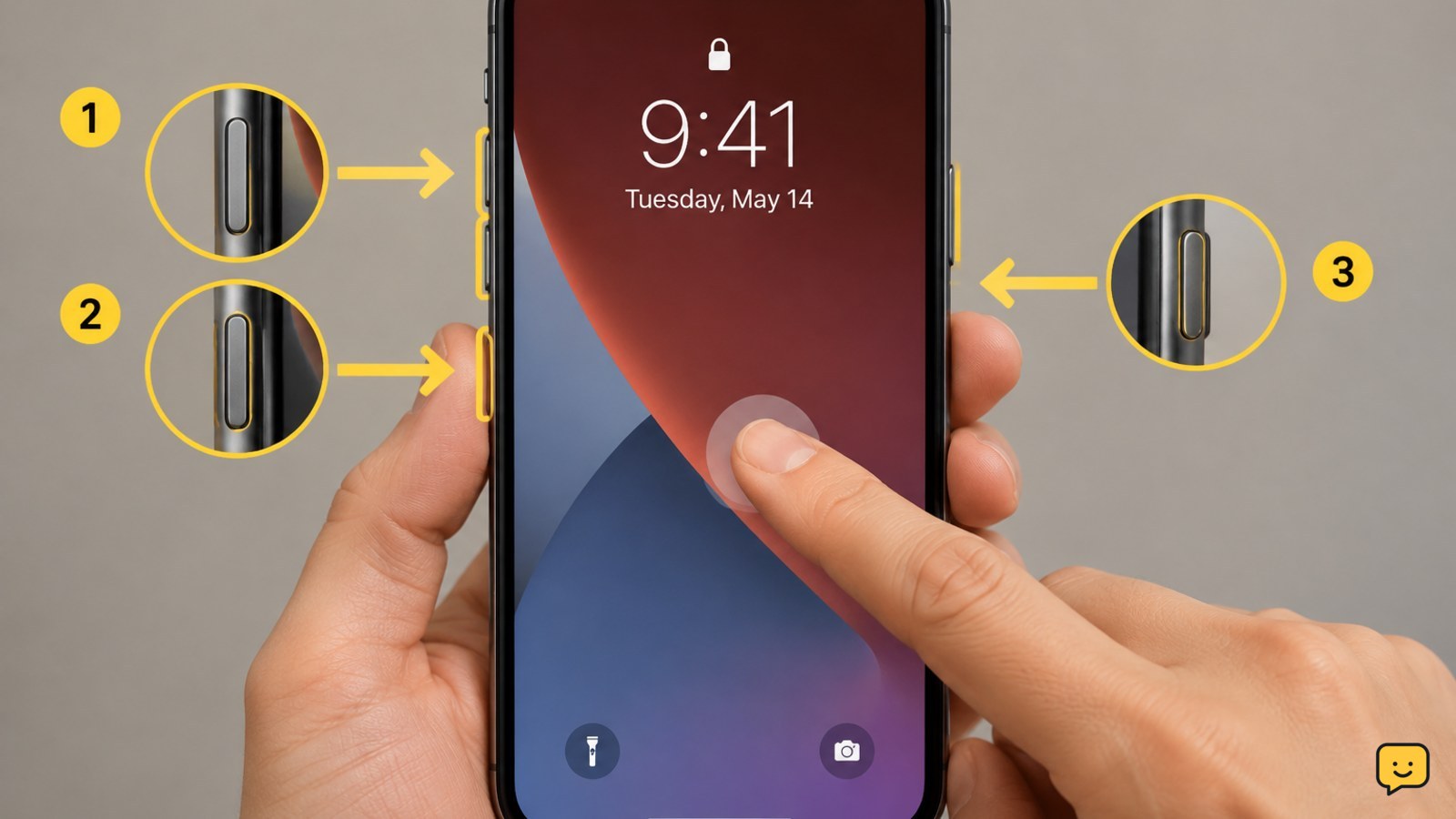
If your iPhone wakes but ignores every tap, first disconnect its charger and accessories, then clean and dry the screen. Try the correct force restart: quickly press Volume Up, quickly press Volume Down, then hold the Side button until the Apple logo appears. If touch still fails after restarting, check for screen damage or a recent repair and arrange service.
Confirm that only touch input has failed
Look for signs that the iPhone is still running. Press the Side button, listen for alerts, switch the Ring/Silent control, or ask someone to call it. If the screen lights up and buttons or sounds work but taps and swipes do nothing, the problem is likely limited to touch input or the display system.
Try one deliberate tap in the middle of the screen and one swipe. If only part of the display responds, note the affected area. A single dead zone, colored line, flicker, or intermittent touch response points more strongly to display hardware than to a temporary lockup.
Verification: Continue when the display is visible but touch remains unavailable. If the iPhone is completely black and gives no response, follow a charging and power-fault diagnosis instead.
Disconnect accessories and dry the screen
Unplug the charging cable and any USB-C or Lightning accessory. Remove a MagSafe battery pack or other attached accessory, then take off a case if it presses against the screen edges. Accessories can also make it harder to tell whether the phone has fully restarted.
Wash and dry your hands. Wipe the display with a soft, lint-free cloth. Moisture, grease, thick screen protectors, and debris around the edges can interfere with touch detection. Do not spray cleaner directly onto the iPhone, use abrasive material, or apply heat.
Wake the phone again with the Side button and test a swipe. Stop this path if the iPhone has been exposed to liquid or shows swelling; power it down if possible and arrange service instead of charging it.
Force-restart the iPhone
A force restart can clear a system freeze without erasing your photos, apps, or other stored data. It does not require working touch input.
- Quickly press and release Volume Up.
- Quickly press and release Volume Down.
- Press and hold the Side button.
- Keep holding the Side button when the screen goes dark. Release it only when the Apple logo appears.
The two volume presses must be quick and separate. If the power-off slider appears, keep holding the Side button rather than dragging the slider. Give the iPhone time to start, then unlock it and test taps across the screen.
For an iPhone 7, press and hold the Side button and Volume Down button together until the Apple logo appears. For an iPhone 6s or earlier, press and hold the Home button and Side or Top button together until the Apple logo appears.
Verification: Touch input is restored if you can enter the passcode, open an app, and swipe in more than one area. If the Apple logo remains on screen, use the recovery guidance in our Apple logo recovery guide.
Check settings and iOS after touch returns
If the screen works after the restart, back up the iPhone before making larger changes. Then open Settings > General > Software Update and install an available update using a reliable Wi-Fi connection and sufficient battery or a charger.
Check Settings > Accessibility > Touch > Touch Accommodations if taps seem delayed, ignored, or inconsistent. Review any enabled touch filters and return them to their normal state if you did not intentionally configure them. Test again after each change rather than changing several settings at once.
If the issue continues but touch remains usable, you can try Settings > General > Transfer or Reset iPhone > Reset > Reset All Settings. This does not delete personal content, but it does return system settings such as network and privacy preferences to their defaults. Do not select Erase All Content and Settings unless you have a current backup and intend to erase the phone.
Failure path: If the touchscreen stops responding again immediately after waking, or the same area remains dead, move to the hardware checks rather than repeatedly resetting settings.
Check for display or repair damage
Inspect the glass, frame, and display edges in bright light. Look for cracks, black areas, lines, flicker, discoloration, a gap between the screen and frame, or touch that fails in a consistent strip. Note whether the problem began after a drop, liquid exposure, screen replacement, or battery repair.
A touchscreen that fails specifically after every wake, especially after a screen replacement, can indicate a display assembly, connector, or repair-related fault. Do not press the display back into place or use adhesive to close a gap. Keep the phone disconnected from accessories and avoid charging it if the battery or screen appears swollen.
Make one final test after the iPhone has restarted: unlock it, open a basic app, and draw several continuous swipes across the entire display. If touch fails in any area, fails after each wake, or cannot be tested because the screen never responds, contact Apple Support or a qualified repair provider. Stop troubleshooting here if hardware symptoms are present.
Frequently asked questions
Why does my iPhone touch screen stop working after waking up?
The most common possibilities are a temporary system freeze, moisture or pressure on the display, an accessory-related problem, or failing screen hardware. Disconnect accessories, clean and dry the display, and force-restart the iPhone. If the failure returns after every wake or affects one consistent area, arrange a hardware inspection.
How do I restart an iPhone when the touchscreen does not work?
Use a force restart. Quickly press and release Volume Up, quickly press and release Volume Down, then hold the Side button until the Apple logo appears. On iPhone 7, hold the Side and Volume Down buttons together. On iPhone 6s or earlier, hold the Home and Side or Top buttons together.
Will a force restart erase my iPhone?
No. A normal force restart is designed to restart the operating system without erasing personal data. It is different from choosing Erase All Content and Settings or restoring the phone. After the iPhone starts, back it up before attempting any larger software recovery.
When should I replace or repair an unresponsive iPhone screen?
Arrange repair when touch fails after every wake, a section of the screen is permanently dead, or the phone has cracks, lines, flicker, liquid exposure, or a recent screen replacement. Seek service immediately if the display is lifting, the phone is swollen or hot, or there is a burnt smell.
Browse more Mobile Devices guides for help with this topic.


