
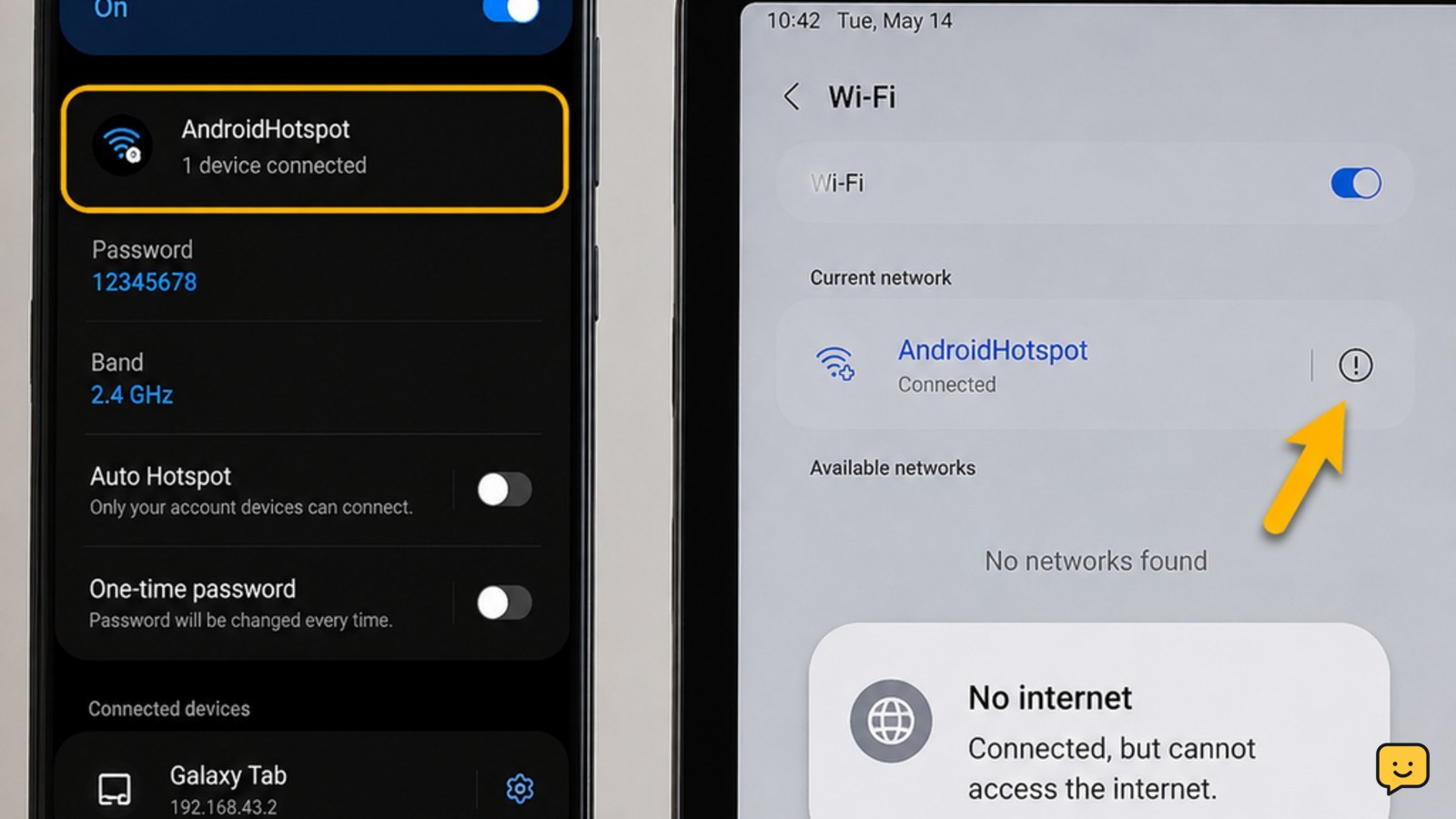
First confirm that the Android phone itself can browse using mobile data. If it cannot, the hotspot is not the main problem. Turn mobile data and the hotspot off and on, restart both devices, then disconnect and reconnect the client device to the hotspot. If only one client still fails, forget the hotspot network and join it again.
Check whether mobile data works on the Android phone
Turn off Wi-Fi on the Android phone so the test uses cellular data. Open a familiar website or app. If it loads, the phone has an internet connection and the problem is limited to hotspot sharing or the receiving device.
If the phone cannot browse over mobile data, turn off Airplane mode, check the cellular signal, and confirm that mobile data is enabled in Settings > Network & internet or the similarly named mobile-network menu. Menu names vary by Android version and manufacturer.
Verification: Continue only when the phone can load a page with Wi-Fi disabled. If mobile data still fails, stop troubleshooting the hotspot and check your carrier account, data allowance, coverage, or a possible service outage.
Restart mobile data and the hotspot connection
On the Android phone, switch Mobile data off, wait a few seconds, and switch it back on. Then open the hotspot control, turn the hotspot off, wait briefly, and turn it on again.
Restart the phone and the tablet or computer that is trying to connect. A restart can clear a temporary cellular registration or Wi-Fi-sharing fault. A troubleshooting reference for an Android hotspot recommends restarting both devices and waiting about 30 seconds before turning them back on.
Verification: On the receiving device, disconnect from the hotspot and reconnect after the phone has fully started. Open a new webpage rather than relying on an already-open page. If the client connects but still reports no internet, continue to the next check.
Reconnect the client device to the Android hotspot
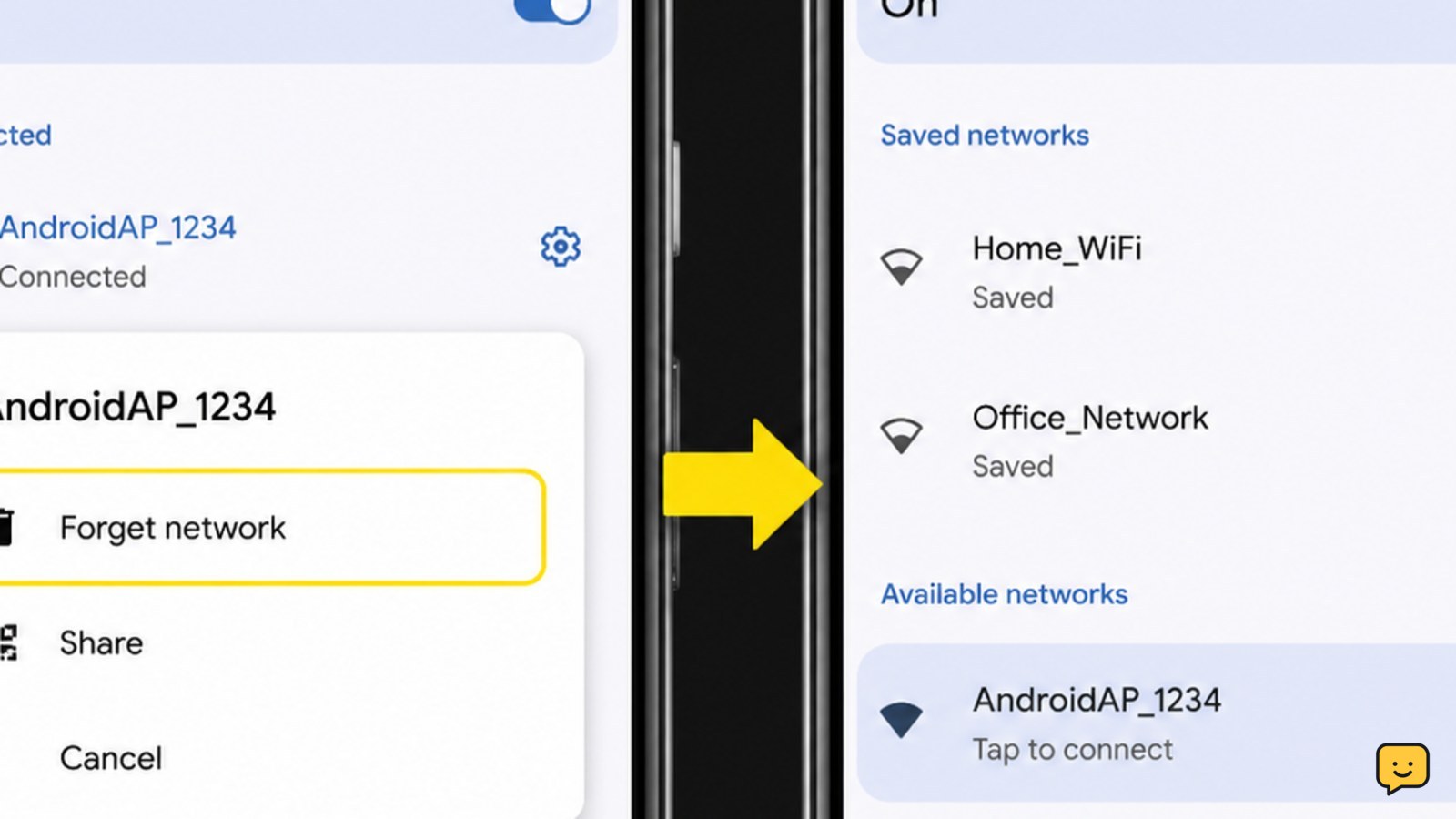
If the hotspot works for another device but not this tablet or computer, remove the saved hotspot profile from the failing client. On most devices, open Wi-Fi settings, select the Android hotspot name, choose Forget or Forget this network, and then join it again.
Enter the current hotspot password carefully. If the password was changed recently, a saved profile may still contain the old credentials even though the network name looks correct.
Verification: The client should show a connected Wi-Fi state and load a new webpage. If it connects but no sites open, test another app or website. One failing app may have its own offline, DNS, or account problem rather than a hotspot problem.
Separate a hotspot problem from a carrier or data-limit problem
Test the hotspot with a second nearby device, if available. If both devices connect to the hotspot but neither can reach the internet, the issue is more likely on the Android phone, mobile plan, or carrier network.
Check whether the phone displays a warning about data usage, a restricted connection, or a missing cellular signal. Some plans allow phone data but restrict tethering, while other plans limit hotspot data separately. The exact wording and controls depend on the carrier and Android model.
If the phone browses normally but every hotspot client fails, turn the hotspot off and on once more after confirming the phone has cellular service. If the failure continues, contact the carrier and ask whether tethering is enabled and whether there is a local outage.
Reset network settings only after simpler fixes fail
Use a network reset as a last resort, not as the first step. On many Android phones, the control is under Settings > System > Reset options, with a label such as Reset Wi-Fi, mobile & Bluetooth. Samsung and other manufacturers may place it under a general management or reset menu.
Read the confirmation screen before accepting. A network reset can remove saved Wi-Fi networks, paired Bluetooth devices, and some cellular-network settings. It does not normally erase photos, messages, or installed apps, but the exact reset options vary by device.
After the phone restarts or finishes the reset, confirm that mobile data works first. Then enable the hotspot, join it from the client device, and test a new webpage.
Failure path: If mobile data works on the phone but the hotspot still provides no internet after a network reset, do not repeatedly reset the phone. The remaining causes are more likely carrier tethering restrictions, a device-specific software fault, or hardware trouble. Contact the phone manufacturer or carrier.
Frequently asked questions
Why does my device say connected to the Android hotspot but have no internet?
The Wi-Fi link can be active even when the phone is not sharing a working cellular connection. First test mobile data on the Android phone with Wi-Fi disabled. If the phone itself has no internet, check signal, mobile-data settings, carrier service, and hotspot eligibility. If the phone works normally, reconnect the client device and test another device.
What should I do if only one laptop or tablet cannot use the hotspot?
Forget the Android hotspot network on that device and join it again with the current password. This removes a stale Wi-Fi profile that may be connected under outdated settings. If other devices work normally, focus on the affected laptop or tablet rather than resetting the phone.
Will resetting Android network settings delete my photos?
A network-settings reset is intended to remove connection data, not personal files. It may delete saved Wi-Fi networks, Bluetooth pairings, and related network settings, so you will need to reconnect those devices afterward. Read the reset screen on your specific Android model before confirming.
When should I contact my mobile carrier about hotspot internet?
Contact the carrier when the phone can use mobile data but every hotspot client fails, especially if the plan may restrict tethering or hotspot data separately. Also contact the carrier when the phone cannot use mobile data after a restart and shows weak, missing, or inconsistent cellular service.
Browse more Mobile Devices guides for help with this topic.


