Windows 11 External Monitor Not Detected: Fix It
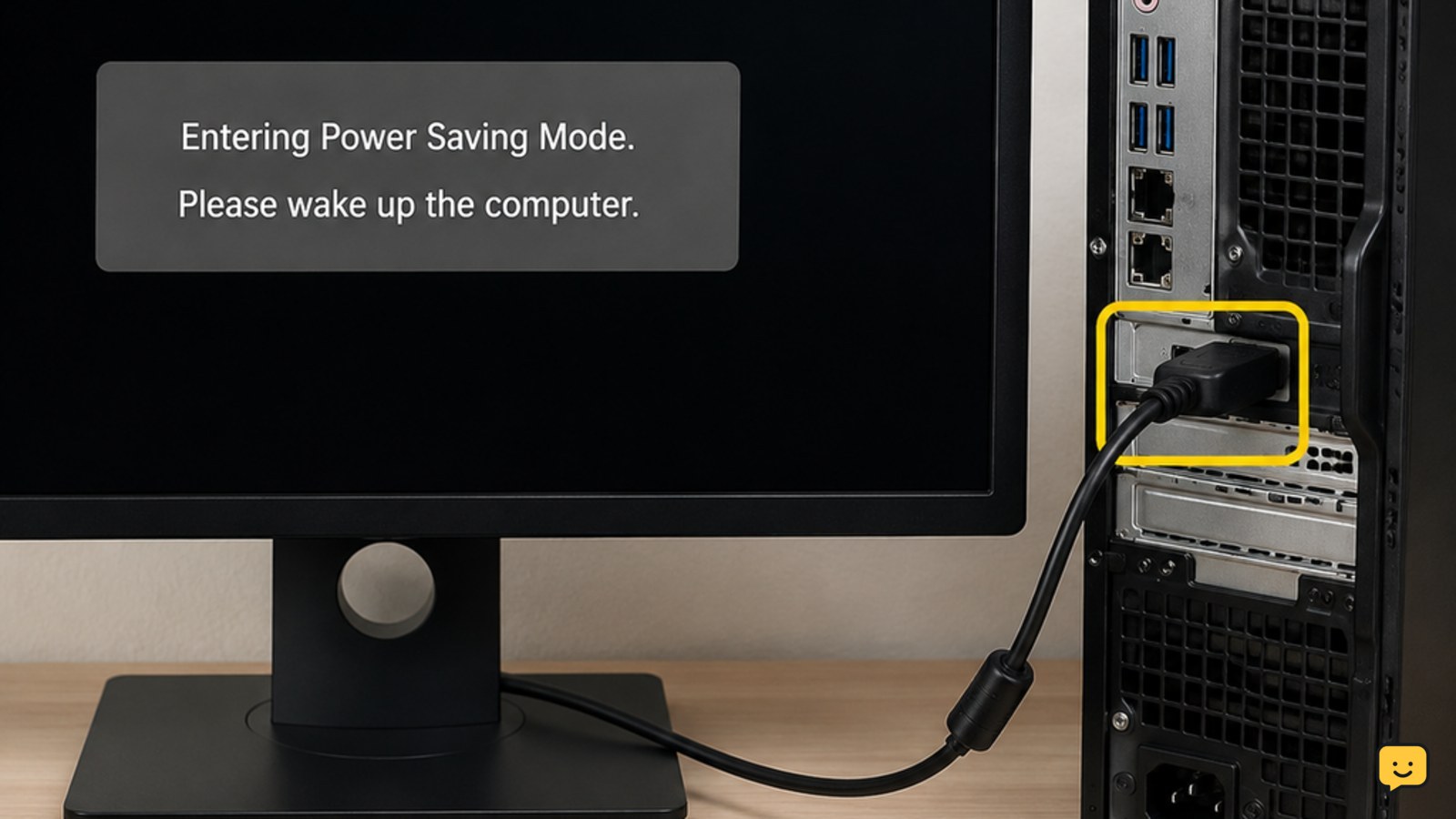
Fix a Windows 11 external monitor that is not detected. Check cables, monitor input, display detection, projection mode, and graphics drivers with safe checks.
Fix computer, laptop and internet problems with step-by-step guides for Windows, Wi-Fi, routers, browsers, peripherals, performance and reliable everyday connectivity.
Fix a Windows 11 external monitor that is not detected. Check cables, monitor input, display detection, projection mode, and graphics drivers with safe checks.
Fix a missing Windows 11 taskbar: restart Explorer, turn off auto-hide, repair Windows files, and restore the desktop without deleting personal files, safely.
Fix laptop keyboard keys that type wrong, repeat, or stop responding. Check Num Lock, keyboard layout, debris, drivers, and hardware safely on Windows.
Bluetooth vanished from Windows 11 Settings? Check Airplane Mode, Device Manager, drivers, services, updates, and hardware detection safely.
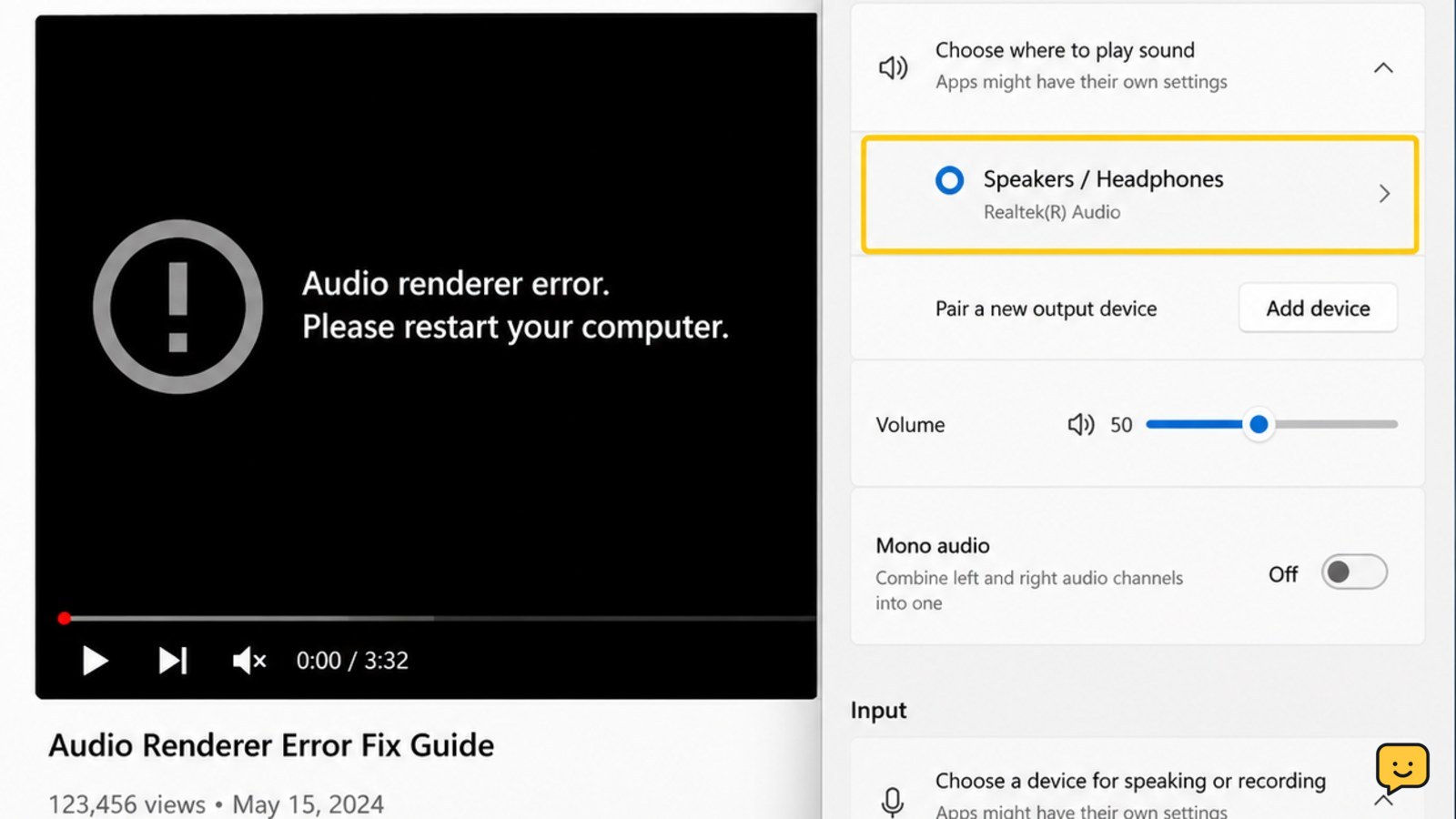
No sound output on your Windows 11 PC? Check the selected device, mute settings, HDMI or Bluetooth routing, drivers, and audio services safely.
Fix a laptop that will not wake from sleep by testing the display, power, keyboard, drivers, and hibernation settings before restarting safely.
Windows 11 search misses files you can see? Check indexed folders, permissions, the Windows Search service, and rebuild the index safely.
Fix the Windows 11 reset error safely. Back up important files, repair system components, use the recovery environment, and choose cloud or local reinstall.
Fix Windows 11 when downloaded files keep asking you to choose an app. Identify the file type, set a safe default, and avoid risky downloads.
Make an external hard drive appear in Windows 11 safely. Check the cable, power, USB connection, drive letter, partitions, and Disk Management.