
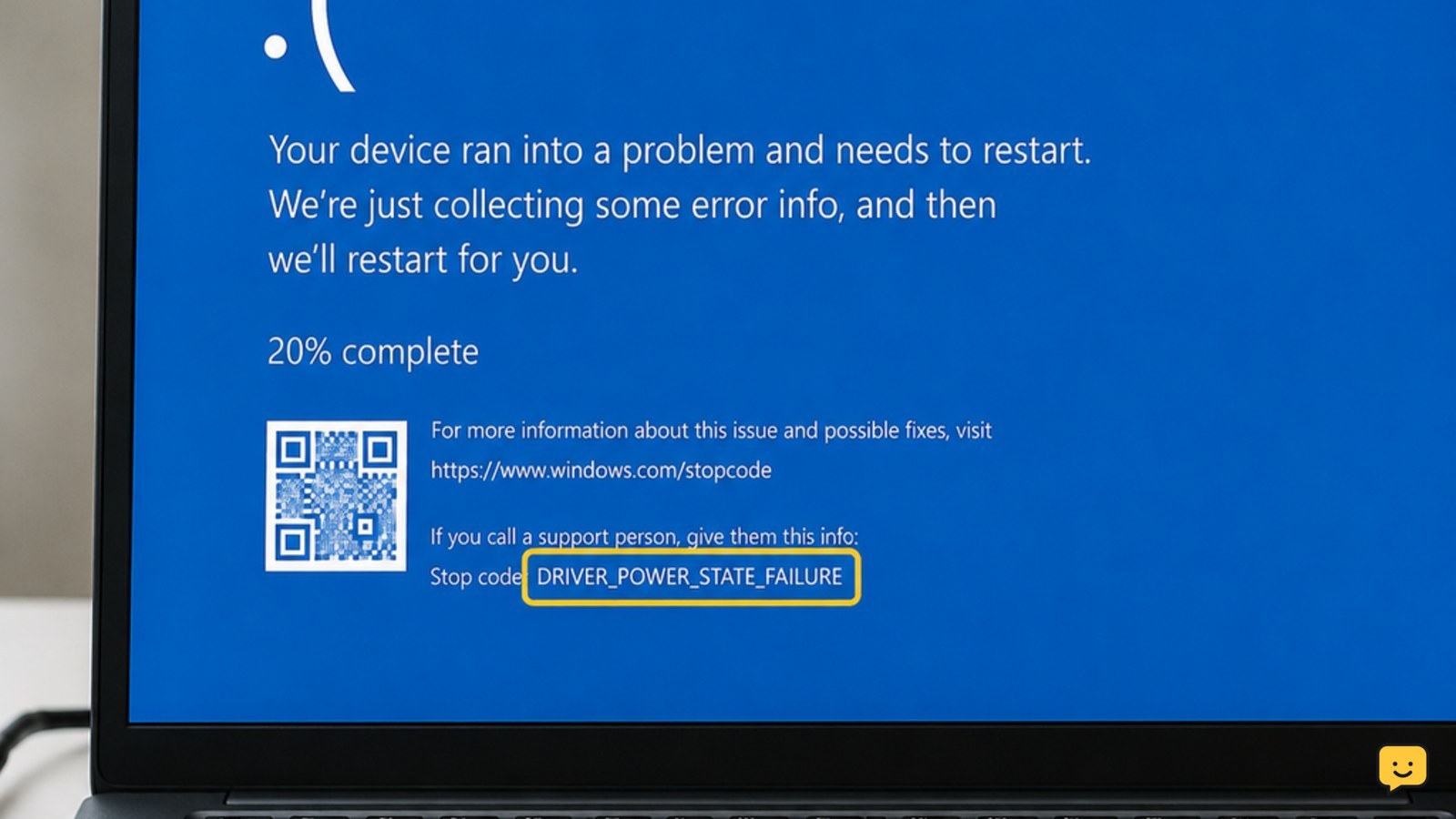
DRIVER_POWER_STATE_FAILURE usually means a Windows driver did not handle a sleep, shutdown, restart, or power-state change correctly. Disconnect unnecessary USB devices, restart, and update or roll back the most recently changed graphics, network, storage, or chipset driver. If Windows will not start normally, use Safe Mode to remove the recent change before trying broader repairs.
For more help with this topic, use the Computers Internet guides.
Identify when the blue screen appears
DRIVER_POWER_STATE_FAILURE is most useful as a timing clue: the crash often appears while Windows is sleeping, waking, shutting down, restarting, or changing power modes. A recently installed or updated driver is the first practical suspect, particularly for graphics or network hardware, although storage, chipset, Bluetooth, USB, and other device drivers can also be involved.
Write down when the failure happens and whether a device was connected immediately beforehand. If the blue screen names a specific file, search for that file in the manufacturer’s support documentation rather than deleting it. If there is no file name, start with the most recent driver or hardware change.
Remove external devices and restart
Disconnecting nonessential peripherals tests whether a USB, dock, storage device, printer, controller, or adapter is failing during a power transition.
- Shut down Windows normally if possible.
- Unplug nonessential USB devices, hubs, docks, external drives, and adapters. Leave the keyboard, mouse, display, and charger connected as needed.
- Start the PC and use it through the action that previously caused the crash, such as restart or sleep.
If the error does not return, reconnect devices one at a time and repeat the same test. The last device connected before the next crash is a strong lead. If the blue screen returns with everything external disconnected, continue with driver recovery.
For recurring wireless symptoms, the checks in Windows 11 Wi-Fi troubleshooting can help separate a network-adapter driver problem from a router or signal problem.
For recurring wireless symptoms, the checks in Windows 11 Wi-Fi troubleshooting can help separate a network-adapter driver problem from a router or signal problem.
Update or roll back the suspected driver
Updating a damaged or incompatible driver can correct a power-transition failure; rolling it back is safer when the problem began immediately after an update.
- Right-click Start and open Device Manager.
- Expand the category suggested by the blue screen or recent change: Display adapters, Network adapters, Bluetooth, Storage controllers, or Universal Serial Bus controllers.
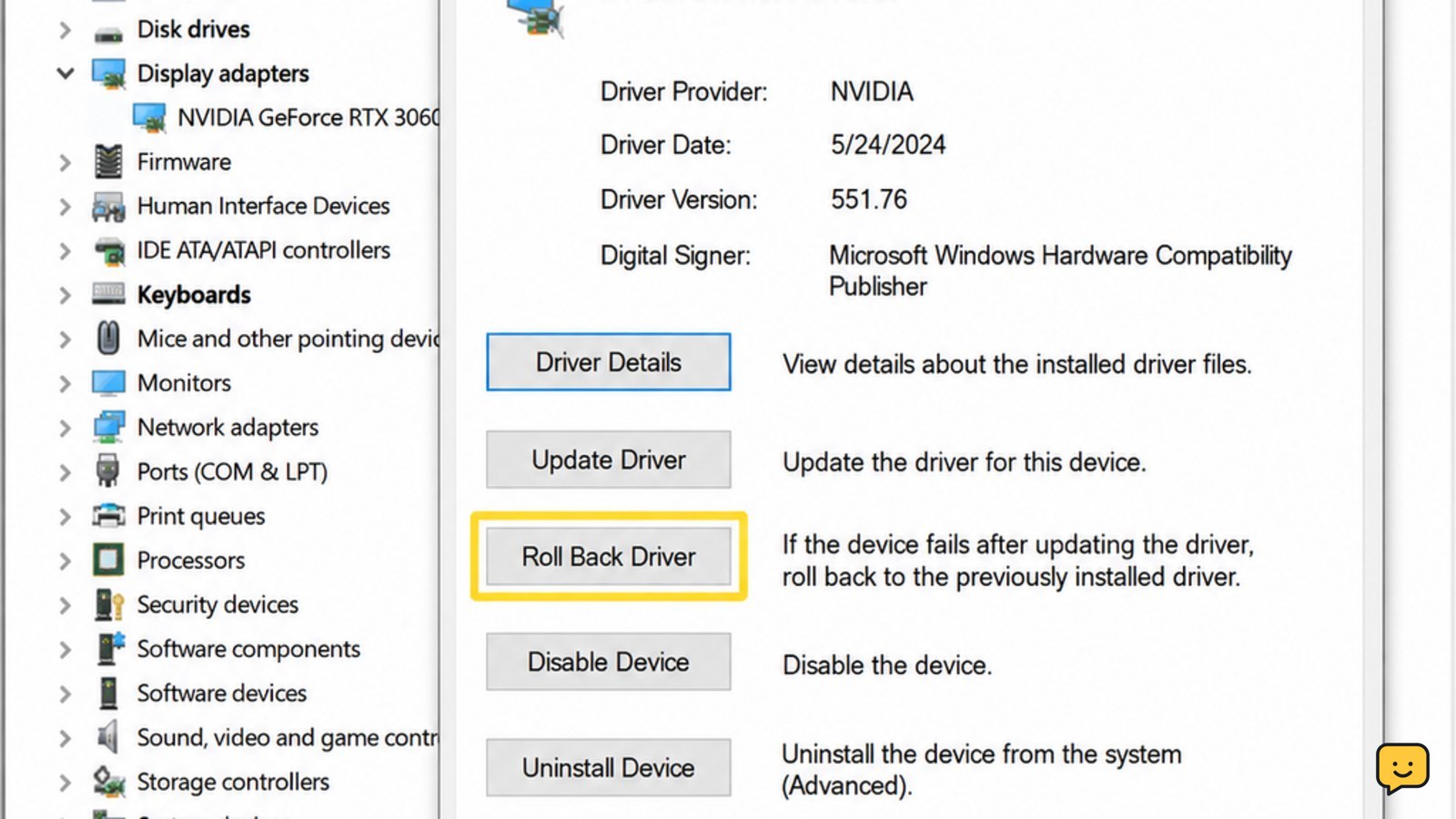
- Right-click the suspected device and choose Properties. On the Driver tab, record the provider, date, and version.
- Choose Update Driver, then use Windows Update or an installer downloaded from the PC or component manufacturer’s official support page.
- If the failure began after a driver update and Roll Back Driver is available, select it, choose a reason, and restart.
Vision Computers identifies graphics and network drivers as common fixes and recommends updating or rolling back the offending driver. Prefer the computer manufacturer’s package when a laptop or prebuilt desktop uses customized power management.
Verify the change by restarting twice and testing sleep or shutdown. Success means Windows completes the transition without another blue screen and the device continues working after sign-in. If the update fails, restore the previous driver or use System Restore instead of installing several unrelated drivers at once.
Use Safe Mode when Windows crashes before sign-in
Safe Mode loads a limited set of drivers, so it helps determine whether a normal-startup driver is causing the power-state failure.
- From the sign-in screen or Start menu, hold Shift while choosing Restart.
- Select Troubleshoot, then Advanced options, Startup Settings, and Restart.
- After the options appear, press 4 or F4 for Safe Mode. Use 5 or F5 only when you specifically need networking.
- In Safe Mode, use Device Manager to roll back or uninstall the recently changed device driver. Restart normally afterward.
If Windows cannot reach the recovery menu, interrupt startup only by holding the power button after Windows begins loading, and repeat this no more than needed to open Windows Recovery Environment. Do not repeatedly force power off while updates or disk repairs are running.
A black screen in Safe Mode may be a display-selection or graphics-driver issue. Use the recovery and display checks in the Safe Mode black-screen guide before removing additional drivers.
Verify that the PC reaches the normal desktop and that the original sleep, restart, or shutdown action now completes. If Safe Mode also crashes, the issue may be hardware, firmware, or deeper Windows corruption rather than one ordinary startup driver.
A black screen in Safe Mode may be a display-selection or graphics-driver issue; use the Safe Mode black-screen guide before removing additional drivers.
Adjust power settings and Fast Startup
Power settings can expose a driver that fails only when hardware is suspended or resumed, but changing them is a diagnostic step rather than a permanent cure.
- Open Settings and search for power. Review the active power mode and choose a standard balanced setting if a vendor performance utility recently changed it.
- Open Control Panel, search for Power Options, and select Choose what the power buttons do.
- Select Change settings that are currently unavailable, then temporarily clear Turn on fast startup if it is enabled. Save the change and shut down completely.
- Start the PC and test shutdown, restart, sleep, and wake separately. Record which transition succeeds or fails.
HP’s documented troubleshooting discussion lists power-setting checks and disabling Fast Startup among the steps used for this failure. Menu availability depends on the Windows version and device configuration.
If disabling Fast Startup stops the crash, leave it off while you update or roll back the suspected driver. If it changes nothing, restore your preferred setting and continue with system repair or manufacturer diagnostics instead of changing many power options at once.
Repair Windows and check hardware clues
Windows repair is appropriate when driver changes do not resolve the crash, while hardware diagnostics are appropriate when the error is accompanied by missing devices, freezes, or failures in Safe Mode.
- Open Settings > Windows Update and install available Windows updates, then restart.
- Open Windows Terminal (Admin) or Command Prompt (Admin) and run
sfc /scannow. Wait for it to finish before closing the window. - If Windows reports that it found errors it could not repair, run
DISM /Online /Cleanup-Image /RestoreHealth, restart, and runsfc /scannowagain. - Use the PC manufacturer’s built-in diagnostics or support utility for memory, storage, battery, and system-board checks.
Do not interpret a successful system-file scan as proof that hardware is healthy. A drive that disappears from firmware or Windows, repeated memory errors, or a crash that survives Safe Mode needs hardware-focused service. For a missing internal drive, use BIOS and disk-detection checks before reinstalling Windows.
Verify the result over several normal restarts and at least one sleep-and-wake cycle. The repair is successful only when the blue screen stays absent and all essential devices work normally. Back up important files before any reset, repair install, drive replacement, or firmware update.
For a missing internal drive, use BIOS and disk-detection checks before reinstalling Windows.
Frequently asked questions
What causes DRIVER_POWER_STATE_FAILURE?
A driver that does not respond correctly during sleep, wake, shutdown, restart, or another power transition is the usual cause. Recent graphics, network, storage, chipset, Bluetooth, USB, or dock-driver changes are useful leads. The error can also result from firmware, damaged Windows files, or failing hardware, so repeated crashes after driver rollback should not be treated as a simple software problem.
Can I fix driver power state failure without Safe Mode?
Yes. If Windows remains usable, disconnect external devices, update or roll back the recent driver in Device Manager, install Windows updates, and temporarily disable Fast Startup. Safe Mode becomes necessary when the crash happens before sign-in, repeats too quickly to make changes, or prevents Device Manager from staying open.
Should I update every driver to fix this blue screen?
No. Start with the driver named on the blue screen or the driver changed immediately before the problem. Updating unrelated drivers at the same time removes useful clues and can introduce new incompatibilities. Use official Windows or manufacturer packages, record the previous version, and test after each meaningful change.
What if the blue screen keeps returning after a driver rollback?
If rollback, peripheral removal, power checks, and Windows repair do not stop the crash, back up important files and run the manufacturer’s memory, storage, battery, and system-board diagnostics. Stop using the PC if it overheats, makes unusual drive sounds, loses a drive, or cannot remain stable long enough to protect your data.


