Valorant Error or Won’t Launch? Find the Right Fix
Valorant error or not opening? Identify the code or symptom, then use the right launch, Vanguard, connection, update or crash fix without guessing.
Fix Valorant screen tearing by matching refresh settings, testing VSync, limiting FPS, updating graphics drivers, and repairing game files when needed.
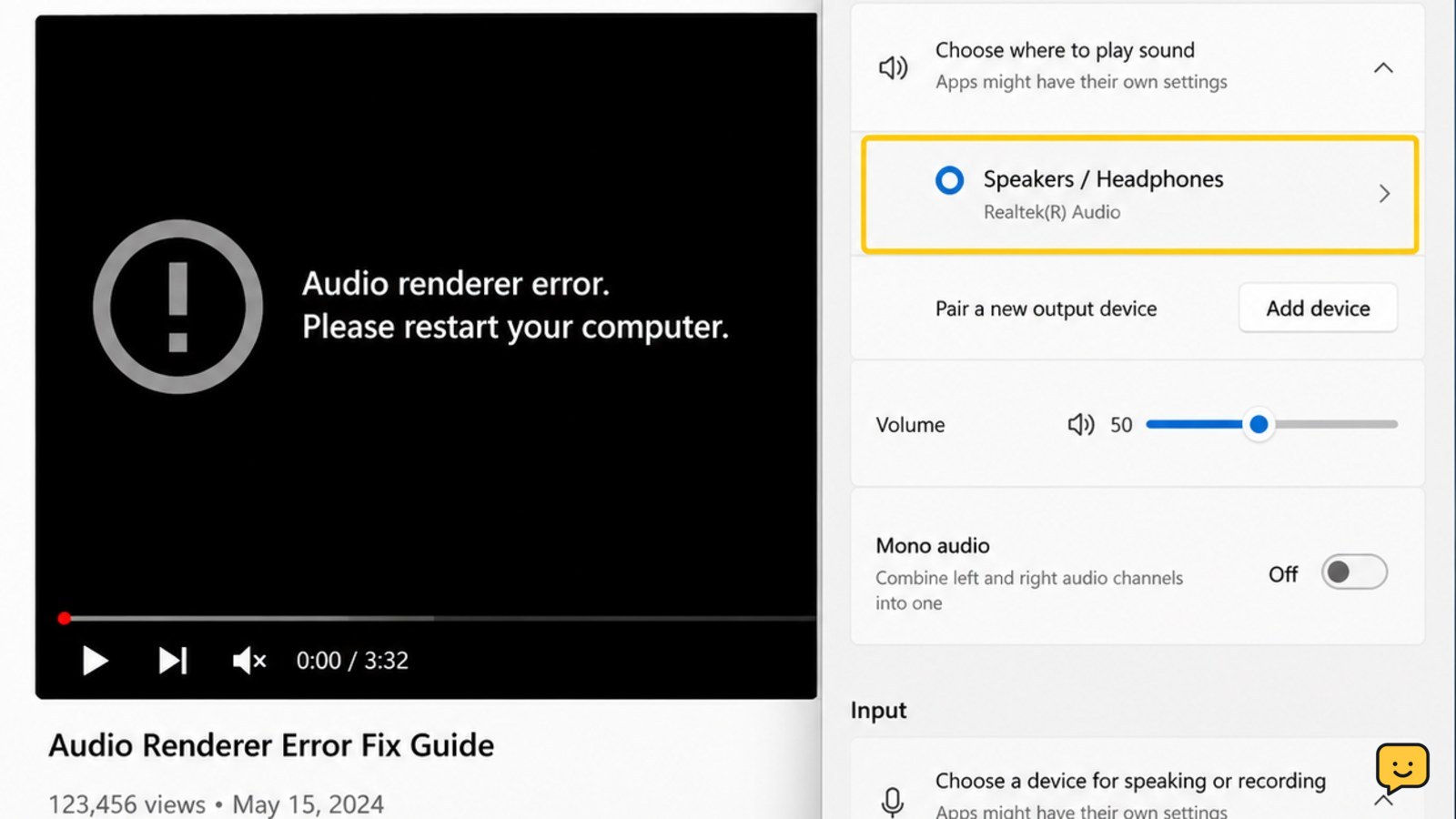
Fix Valorant game sound through headphones by checking Windows output, headset volume, and Settings > Audio > Device Settings, then verify the result safely.
Fix Valorant voice chat not working for teammates by checking Team Voice Chat, microphone input, mute states, Windows audio, and a safe test before ranked.
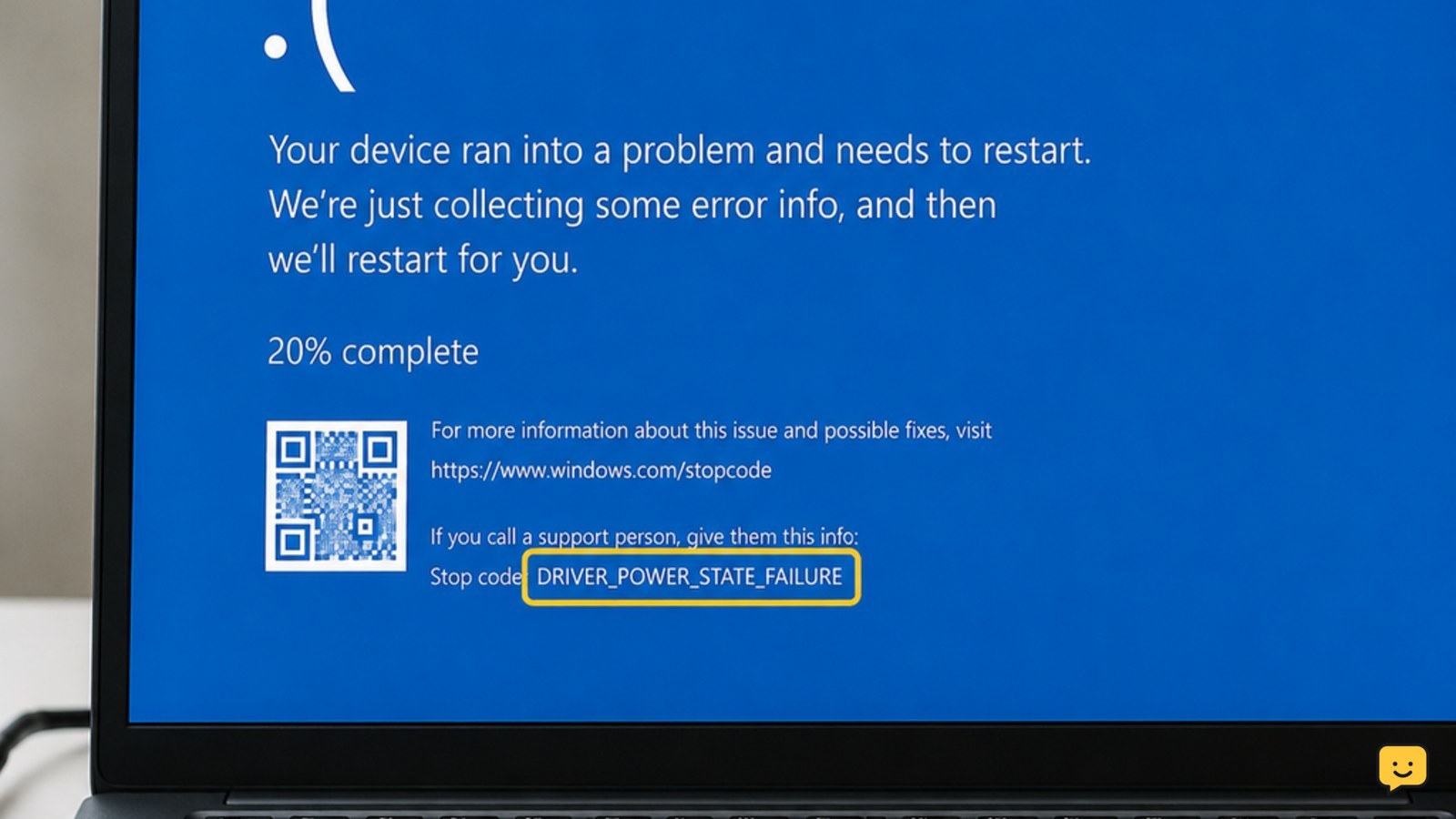
Valorant keeps crashing at startup or during matches? Isolate Vanguard, drivers, overlays, heat, memory and damaged game files with these ordered fixes.
Find why Valorant FPS is low on a gaming PC and fix drops caused by graphics settings, background load, overheating, drivers, or unstable frame pacing.
Fix a missing Windows 11 taskbar: restart Explorer, turn off auto-hide, repair Windows files, and restore the desktop without deleting personal files, safely.
Valorant crosshair is not visible? Restore it in Crosshair settings, improve contrast, reset the profile, and verify it in the Practice Range on PC.
Fix Valorant sensitivity that resets after restarting by checking config files, permissions, Riot profiles, cloud conflicts, and clean-save results on Windows.
Can’t queue for Competitive in Valorant? Check account level, placement, party rules, penalties, server outages, and account-specific restrictions.