
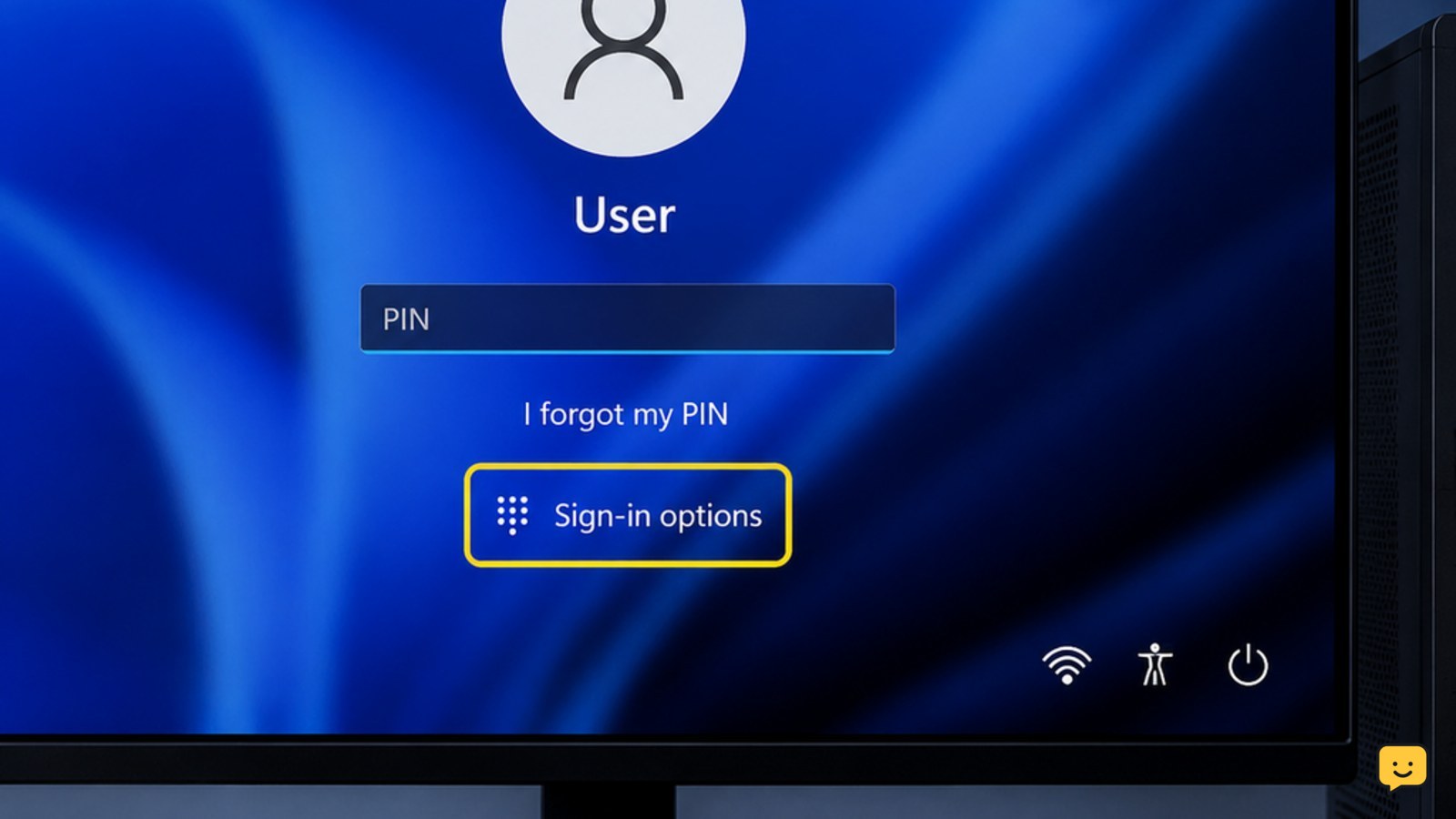
If Windows says “incorrect PIN entered,” stop guessing and confirm that you are entering the Windows Hello PIN for the selected account, not the account password. Restart the PC once, then choose Sign-in options to try your password. If the PIN still fails, select “I forgot my PIN” and follow the account-verification steps. Do not continue after a lockout warning.
For more help with this topic, use the Computers Internet guides.
Check whether Windows is asking for a PIN or password
Windows sign-in can request a Windows Hello PIN or the account password, and they are not interchangeable. A PIN is normally entered from the PIN field on the sign-in screen; the password option appears separately under Sign-in options.
- Look at the account name shown on the sign-in screen.
- Confirm that the selected account is yours.
- Check the input field and icon. If it is a PIN field, enter only the digits you set for that PC.
- If the keyboard appears to miss digits, turn Num Lock on or use the on-screen keypad if Windows provides one.
Success check: Windows accepts the PIN and opens the desktop. If it rejects the entry again, do not keep trying random combinations; continue with the recovery steps below.
Restart Windows once before trying the PIN again
Restarting the Windows device is the first documented check for an incorrect Windows Hello PIN error, according to the Paxos Knowledge Base. It can clear a temporary sign-in state without changing your PIN or account data.
- On the sign-in screen, select the Power button.
- Choose Restart.
- Wait for Windows to return to the sign-in screen.
- Select the same account and enter the PIN once, carefully.
Success check: The desktop loads without another PIN error. If Windows shows a delay or lockout message instead, stop entering the PIN and wait for the displayed period to expire.
Use your account password through Sign-in options
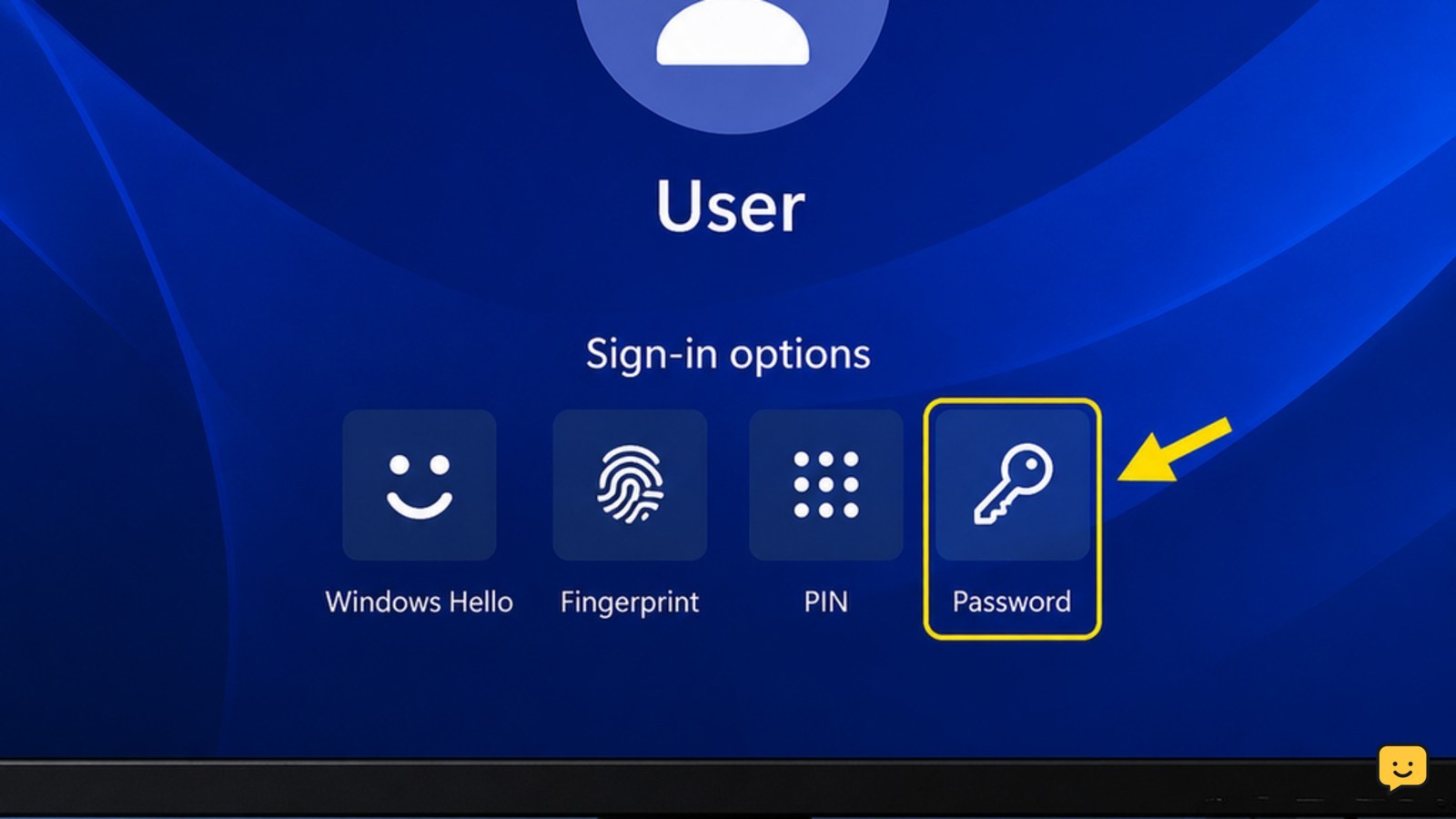
If the PIN is rejected, Windows may still allow access with the account password through Sign-in options. The password is different from the local Windows Hello PIN.
- Select Sign-in options beneath the sign-in field.
- Choose the key or password icon rather than the PIN icon.
- Enter the password for the displayed Windows or Microsoft account.
- Select the arrow or press Enter.
Success check: Windows opens the desktop using the password. If the password is also rejected, verify the account name and keyboard layout rather than repeatedly guessing.
If the password option is missing, the PC may be configured to require Windows Hello or may be managed by an organization. Do not try to disable that requirement with unofficial tools.
Reset the Windows Hello PIN with “I forgot my PIN”
The supported recovery path for a forgotten or rejected Windows Hello PIN is the I forgot my PIN option, when Windows displays it. The Paxos Knowledge Base identifies this option as the PIN-reset route.
- From the sign-in screen, select I forgot my PIN.
- Read the account shown and confirm that it is yours.
- Complete the identity verification requested by Windows, such as entering the account password or using an available verification method.
- Create a new PIN when Windows presents the reset screen.
- Return to sign-in and test the new PIN once.
Success check: The new PIN is accepted and Windows opens the account. A PIN reset may require an internet connection or account verification; if the verification screen cannot load, connect the PC to a trusted network and try the reset again.
If I forgot my PIN is unavailable, use the password method first. If neither recovery option works, stop before changing security settings or deleting account data.
Choose the safe next step when the PIN reset fails
A failed PIN reset usually means Windows cannot complete account verification, the account is managed, or the sign-in method is not available for that device. The safest next action depends on what Windows shows.
- Reset option loops or returns to sign-in: restart once, connect to a trusted network, and try the reset only one more time.
- Password sign-in works: sign in with the password, then open Settings and review Accounts and Sign-in options to set or change Windows Hello according to the available controls.
- Work or school account: contact the organization’s administrator because its sign-in policy may control PIN setup.
- No verification method is available: use the official account-recovery process for the account owner. Do not use bypass utilities.
Stop condition: If Windows begins enforcing a lockout delay, the account is unfamiliar, or ownership cannot be verified, leave the device at the sign-in screen and seek authorized support.
Verify that the new sign-in method works
Successful recovery is confirmed when Windows accepts the chosen sign-in method and opens the correct account without another incorrect-PIN message.
- Confirm that the desktop belongs to the expected Windows account.
- Lock the PC with Windows key + L.
- Test the newly created PIN or the password once.
- Check that the sign-in screen shows the expected account and available sign-in options.
If the new PIN works after locking the PC, the recovery is complete. If the same error returns immediately, stop repeated attempts and use the authorized administrator or account-recovery route instead.
Frequently asked questions
Is a Windows PIN the same as my Microsoft account password?
No. A Windows Hello PIN is a separate sign-in method for that Windows device, while the password belongs to the Windows or Microsoft account. Select Sign-in options and choose the password icon to test the account password without changing the PIN.
What should I do if Windows locks me out after incorrect PIN attempts?
Stop entering the PIN and follow the waiting period shown on the screen. After the delay, use Sign-in options for password access or choose I forgot my PIN if Windows offers it. Do not try random PINs or third-party bypass tools.
Why is “I forgot my PIN” missing?
The reset link may be unavailable for that account, device configuration, or organization-managed PC. Try Sign-in options and the password icon first. If the computer belongs to work or school, contact its administrator rather than changing security settings.
Can I fix an incorrect PIN message without deleting my files?
Usually, yes. Restarting, using the account password, or resetting Windows Hello changes the sign-in method rather than removing personal files. Avoid recovery or reset options that erase the PC unless an authorized technician confirms that they are necessary and your data is backed up.


