
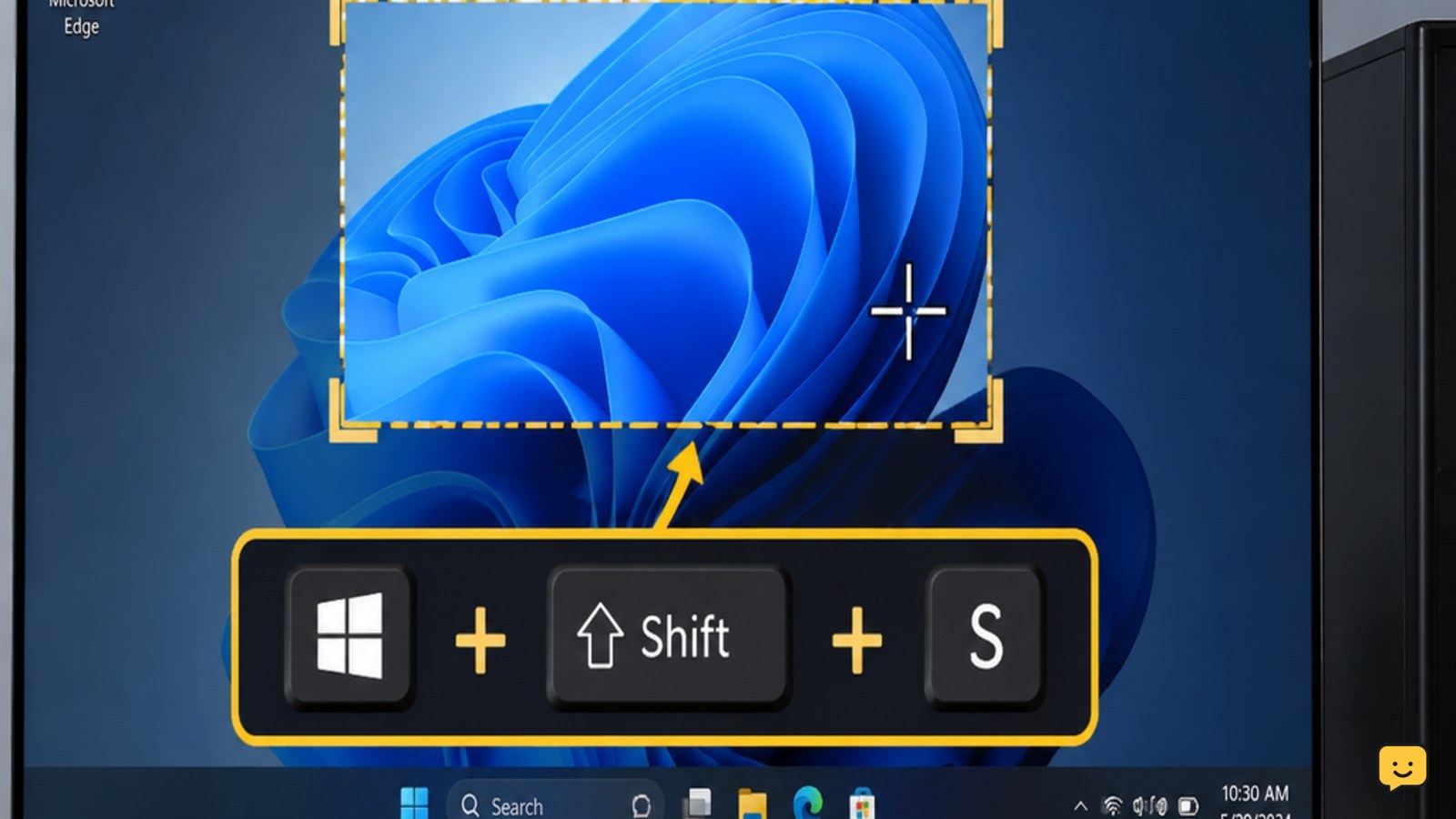
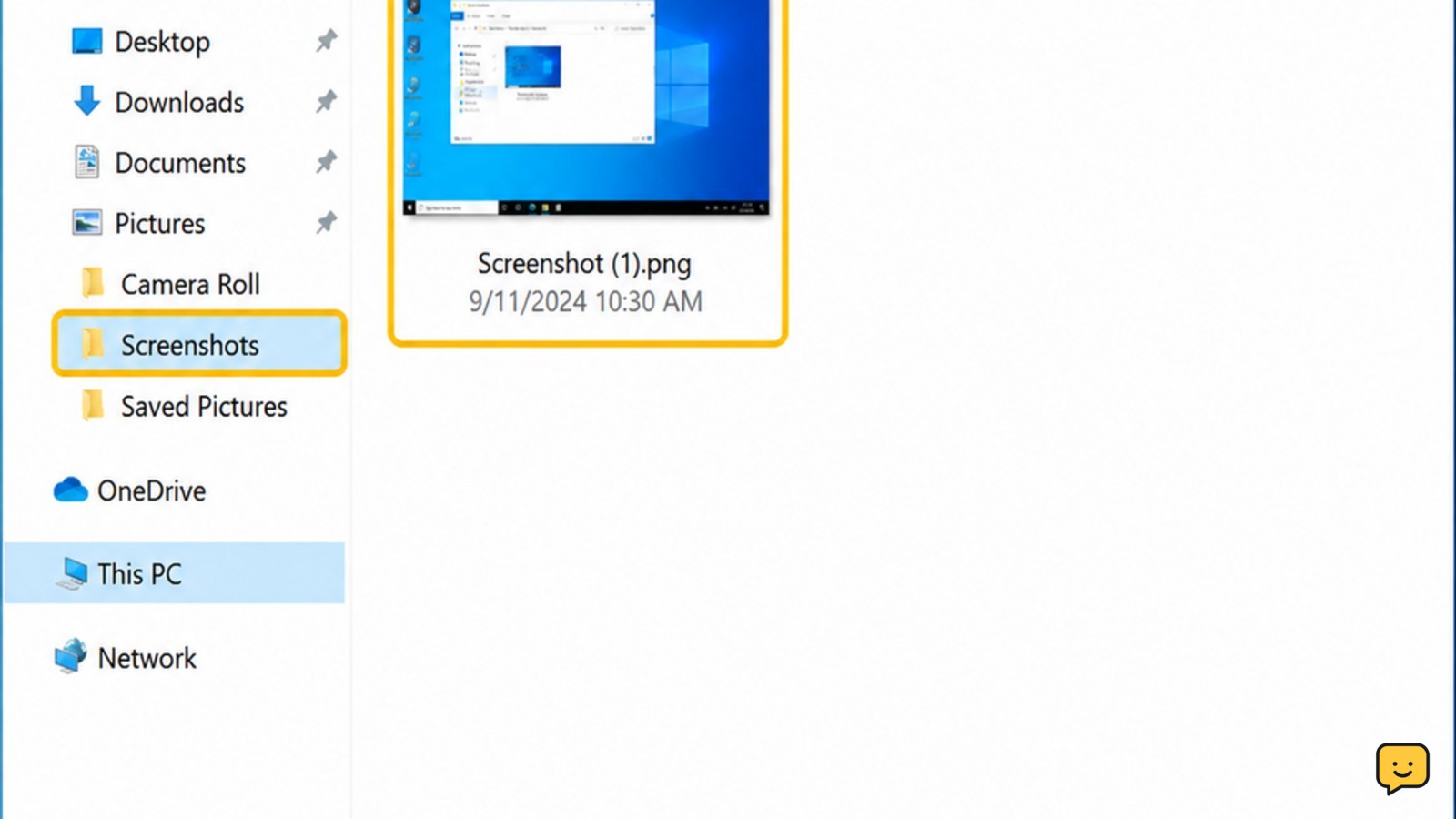
On a Windows PC, press Windows + Shift + S to select part of the screen, then click the preview to save or edit it. For the whole screen, press Windows + PrtScn; Windows saves the image in Pictures > Screenshots. Pressing PrtScn alone copies the screen so you can paste it into Paint, Word, or an email.
For more help with this topic, use the Computers Internet guides.
Choose the screenshot shortcut for the result you need
A Windows PC offers different screenshot shortcuts for a selected area, an active window, the full desktop, or a copy ready to paste.
| What you want | Shortcut | What happens |
|---|---|---|
| Selected area | Windows + Shift + S | Opens the Snipping Tool overlay so you can select part of the screen. |
| Entire screen saved | Windows + PrtScn | Captures the full screen and saves it automatically. |
| Entire screen copied | PrtScn | Copies the image to the clipboard for pasting into another app. |
| Active window copied | Alt + PrtScn | Copies only the window currently in focus. |
For most people, Windows + Shift + S is the best starting point because it lets you choose exactly what appears in the image.
Capture part of the screen with Windows + Shift + S
Windows + Shift + S opens a screen overlay where you can choose the area to capture.
- Open the page, app, message, or other content you want to capture.
- Press Windows + Shift + S at the same time.
- When the screen dims and the Snipping Tool toolbar appears, choose a capture shape. Rectangular snip is the usual choice.
- Click and drag around the content you want. Release the mouse button to take the screenshot.
- Select the notification or preview that appears, then use the Save button to choose a folder and file name.
Microsoft Support identifies this shortcut as the way to open the Snipping Tool capture overlay. A successful capture produces a visible preview or notification; if you do not see one, check the failure steps below.
Save the entire PC screen automatically
Windows + PrtScn captures the complete screen and saves the result without requiring you to paste it into another program.
- Arrange the desktop or open windows exactly as you want them to appear.
- Press Windows + PrtScn.
- Look for a brief screen dimming effect. This indicates that Windows captured the display.
- Open File Explorer and select Pictures > Screenshots.
- Open the newest image and confirm that it shows the intended screen.
If your keyboard labels the key PrtSc or requires an Fn key, try Windows + Fn + PrtSc. The exact key combination varies by laptop keyboard design.
Copy a screenshot so you can paste it
PrtScn copies the full display to the Windows clipboard, while Alt + PrtScn copies only the active window.
- Click the window you want to capture if you are using Alt + PrtScn.
- Press PrtScn for the whole screen, or Alt + PrtScn for the active window.
- Open Paint, Word, an image editor, or another app that accepts images.
- Press Ctrl + V to paste the screenshot.
- Save the pasted image if you need a file that remains available after the clipboard changes.
eSafety Commissioner guidance also describes Print Screen as copying the screen image. Clipboard captures are temporary, so save the image before copying something else.
Find and edit a screenshot in Snipping Tool
Snipping Tool lets you review a capture before saving it, which is useful when the screenshot needs cropping, marking, or a quick privacy check.
- After taking a snip, select the notification or preview.
- Review the image for unwanted tabs, notifications, names, or private details.
- Use the available editing controls if you need to mark or crop the image.
- Select Save, choose a known folder, and confirm the image format and file name.
Verify the result by opening the saved file from File Explorer. If it opens and shows the intended content at the expected size, the screenshot was saved successfully.
Fix a screenshot shortcut that does not work
If a Windows screenshot shortcut produces no visible result, identify whether the problem is the keyboard, the capture method, or the save location.
- No overlay appears: open the Start menu, search for Snipping Tool, and open it manually. Select the capture option from the app.
- PrtScn does nothing: try holding Fn, especially on a laptop with shared function keys. You can also use the Snipping Tool with the mouse.
- The image is not in Pictures > Screenshots: use PrtScn, open Paint, press Ctrl + V, and save the image yourself.
- The wrong window appears: click the intended window before using Alt + PrtScn, or select the area manually with Windows + Shift + S.
- A protected video or app shows a blank or altered image: stop and check that app’s permitted capture or export options. Do not attempt to bypass its restrictions.
Test with a harmless desktop area after each change. If the on-screen keyboard or an external keyboard also fails, restart Windows and use Snipping Tool from the Start menu. Stop if the issue continues and you need to capture sensitive or time-critical information; use the app’s built-in export or contact the device administrator.
Frequently asked questions
Where are screenshots saved on a Windows PC?
Screenshots taken with Windows + PrtScn are normally saved in File Explorer under Pictures > Screenshots. If you used PrtScn alone or Windows + Shift + S, the image may only be copied or shown in a preview until you save it manually.
How do I screenshot only one window on a PC?
Click the window so it is active, then press Alt + PrtScn. Windows copies that window to the clipboard. Open Paint or another image-enabled app, press Ctrl + V, and save the result.
How do I take a screenshot without a Print Screen key?
Press Windows + Shift + S and select the area with your mouse. You can also open Snipping Tool from the Start menu and start a capture there. These options do not require a dedicated Print Screen key.
Why does my screenshot look different from the screen?
The shortcut may have captured the active window instead of the full desktop, or a notification may have appeared during capture. Use Windows + Shift + S to select the exact area, and close temporary pop-ups before trying again.


