
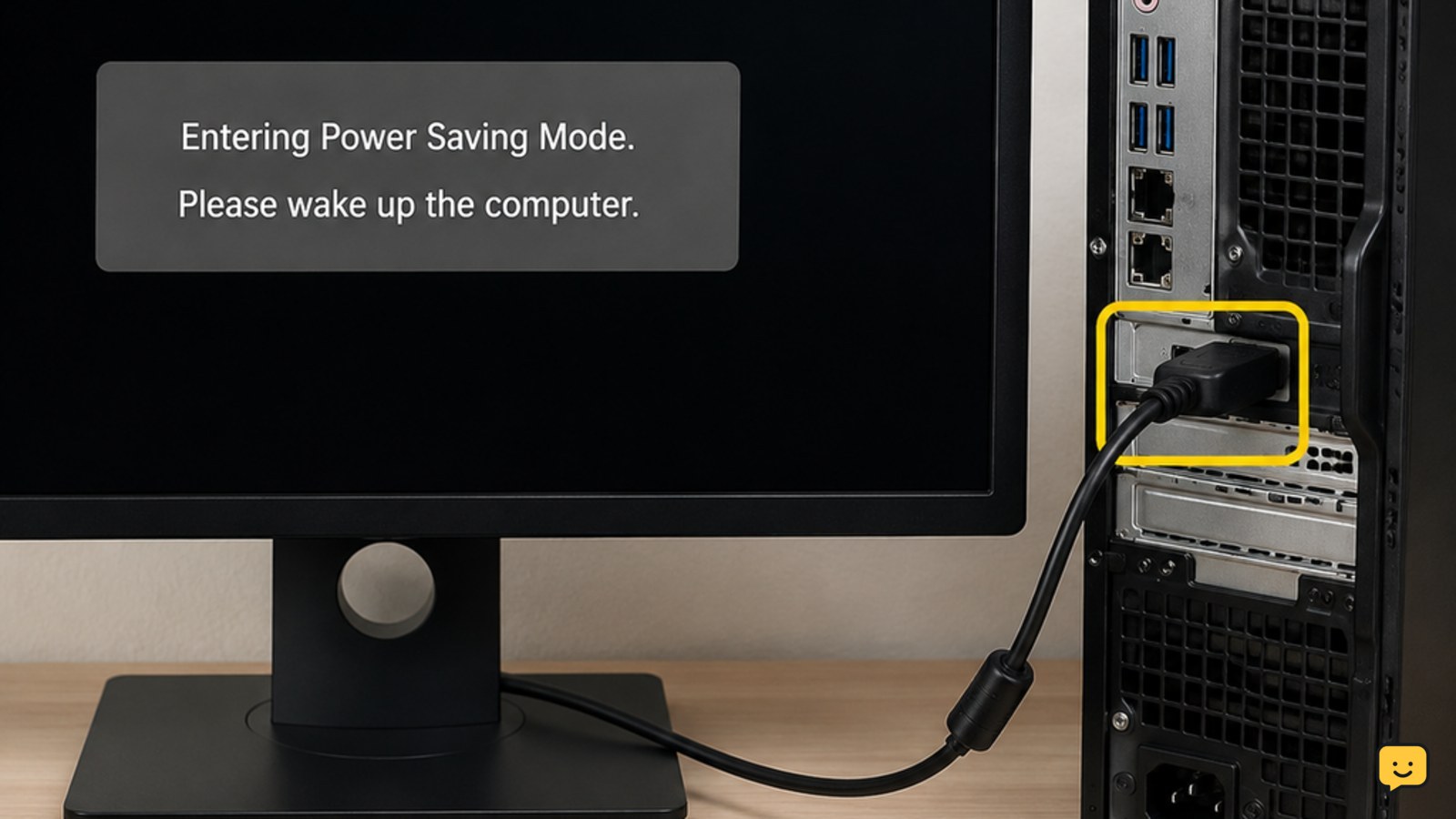
A Dell computer entering power saving mode usually means the monitor has lost its video signal, not that the monitor itself has failed. Wake the PC, confirm the monitor’s selected input and cable connection, then restart the computer. If no Dell logo ever appears, treat it as a startup or hardware problem rather than a Windows power-setting problem.
For more help with this topic, use the Computers Internet guides.
Check whether the Dell monitor has lost its signal
A Dell monitor shows a power-saving message when it is powered but cannot detect a usable signal from the computer. Dell Community guidance describes this state as a missing video-card signal, so first separate a display-path issue from a normal Windows sleep timeout.
- Move the mouse, press a keyboard key, then press the Dell computer’s power button once. Wait up to 30 seconds.
- Look for startup signs: a lit power button, fan noise, keyboard backlight, drive activity, or a Dell logo.
- Press the monitor’s menu button. If its own menu appears clearly, the panel has power and the investigation should focus on the signal path or computer startup.
- If the message appears only after the computer has been idle and the picture returns immediately after input, skip to the Windows timeout section.
Success check: The screen shows the Dell logo, Windows sign-in screen, or desktop. If the monitor menu will not appear, test the monitor’s power outlet and power cable before continuing.
Reconnect the monitor cable and select the matching input
The Dell monitor can enter power saving mode if its selected HDMI, DisplayPort, USB-C, or VGA input does not match the cable carrying the computer’s video signal. A loose or faulty cable produces the same visible symptom.
- Turn off the Dell computer and monitor.
- Unplug and firmly reconnect the video cable at both ends. Do not force a connector; its shape and latch should align naturally.
- Use the monitor’s Input Source control to select the port actually in use, such as HDMI 1 or DisplayPort.
- For a desktop with a separate graphics card, connect the monitor to the graphics-card ports lower on the rear panel, not the motherboard video ports near the USB ports.
- If available, test one known-working cable or one different monitor input at a time. Do not change several variables together.
- Turn on the monitor first, then start the computer.
Success check: The monitor identifies the active input and shows a startup image. A Dell Community troubleshooting thread also identifies no video-card signal as the reason the monitor moves into power saving mode.
Failure path: If another monitor or TV shows an image with the same computer, the original monitor, its cable, or its chosen input is the likely branch. If the Dell monitor works with another device but not this computer, continue with the computer checks.
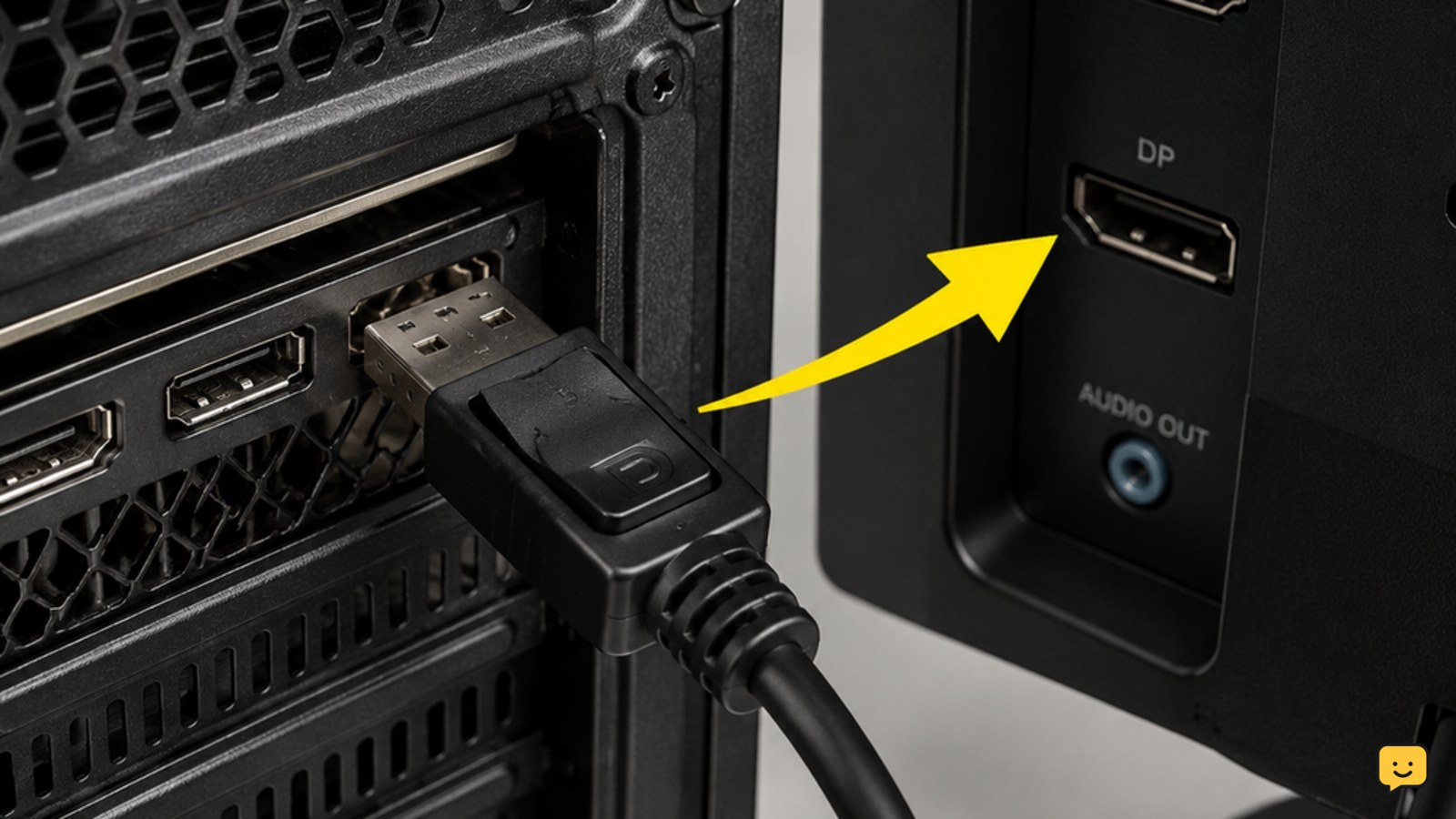
Test the display connection before changing Windows
A display that cannot show the Dell logo cannot be fixed by changing Windows power options, because Windows has not yet taken control of the screen. Test the physical display connection and startup image first.
If Windows detects neither a working external screen nor a second display after the computer reaches the desktop, use this guide for Windows 11 external monitor detection to check projection mode and display detection.
- Disconnect docks, adapters, USB display devices, capture devices, and all nonessential peripherals.
- Connect one monitor directly to the Dell computer with one cable.
- On a laptop, disconnect any external monitor and start it with the lid open. Increase brightness using the keyboard brightness control if the built-in screen looks black.
- On a desktop, try a different supported output on the same graphics card only after shutting the computer down.
Success check: A Dell logo, BIOS screen, or Windows loading image appears on one display. Reconnect accessories one at a time after that image is stable to identify an adapter, dock, or cable that interrupts the signal.
If Windows detects neither a working external screen nor a second display after the computer reaches the desktop, use this guide for Windows 11 external monitor detection to check projection mode and display detection.
Perform a safe power reset
A power reset clears residual electrical state that can prevent a Dell computer from re-establishing a display signal after sleep or a failed startup. It does not erase files or change Windows settings.
- Shut down the computer by holding its power button for about 10 seconds only if it is unresponsive.
- Unplug the AC adapter or desktop power cord. For a laptop, also disconnect external devices.
- Hold the computer’s power button for 15 to 20 seconds.
- Reconnect only the original Dell-compatible power adapter or the desktop power cord, plus one monitor.
- Start the computer and wait for a Dell logo before reconnecting other devices.
Success check: The monitor exits power saving mode and shows startup information. If the power LED is off, the charger light is off, or the computer has no startup signs, follow the separate Dell laptop power checks before investigating sleep settings.
If the power LED is off, the charger light is off, or the computer has no startup signs, follow the separate Dell laptop power checks before investigating sleep settings.
Set Windows screen and sleep timeouts after video returns
Windows power settings matter only when the display reliably returns after startup but goes dark sooner than you want during inactivity. On current Windows 11 systems, open Settings > System > Power & battery > Screen, sleep & hibernate timeouts.
- Set a longer value for Turn my screen off after while testing.
- Set a longer value for Make my device sleep after, or choose an option appropriate for your power use.
- On a laptop, check both battery and plugged-in values when they are shown.
- Close Settings, leave the computer idle for the selected period, then wake it with the keyboard or power button.
Success check: The display remains on for the chosen interval, then wakes to the sign-in or desktop screen. If it still switches to power saving mode while you are actively using the computer, the cause is more likely the cable, monitor input, graphics connection, or a system fault than the idle timeout.
Run Dell pre-boot diagnostics when no image returns
Dell pre-boot diagnostics can help distinguish a Windows issue from a computer hardware problem when the monitor remains in power saving mode and no normal startup picture appears. Start the computer and repeatedly tap F12; if a boot menu becomes visible, choose Diagnostics.
- Record any validation code, error code, and message exactly as displayed.
- Let the test complete without disconnecting power.
- If diagnostics report a video, memory, or other hardware error, stop routine troubleshooting and provide the code to Dell support or a repair provider.
- If diagnostics pass and Windows loads afterward, install applicable Dell and graphics updates through Dell SupportAssist or the Dell support site for the exact service tag, then retest normal sleep and wake behavior.
Failure path: If F12 never produces an image and a known-good monitor and cable also remain blank, do not repeatedly force restarts or open the case. The computer needs a hardware-level assessment.
If startup also shows a missing-drive message or diagnostics report a storage problem, use the focused Dell hard disk detection checks and avoid changes that could risk unbacked-up files.
If startup also shows a missing-drive message or diagnostics report a storage problem, use the focused Dell hard disk detection checks and avoid changes that could risk unbacked-up files.
Frequently asked questions
Why does my Dell monitor say entering power save mode when the computer is on?
It means the monitor is not detecting a usable video signal on its selected input. The computer may be asleep, but a loose cable, wrong input, graphics-output problem, failed startup, or unresponsive system can cause the same message. Check for a Dell logo before changing Windows settings.
Can I turn off power saving mode on a Dell monitor?
Usually, no monitor setting needs to be disabled. Power saving is a normal response to an absent signal. If the screen sleeps only during inactivity and wakes normally, adjust Windows screen and sleep timeouts. If it appears during active use or before Windows starts, check the cable, input, and computer startup instead.
What does it mean if the Dell logo never appears?
No Dell logo means the issue is happening before Windows loads, so Windows power options are not the cause. Test one direct monitor connection, perform the power reset, and try F12 diagnostics. Stop and seek service if known-good display equipment still shows no startup image.
Should I replace the monitor cable first?
A cable is a sensible low-risk test when the monitor menu works and the computer otherwise seems to start. Reseat it first, confirm the monitor input, then test one known-working compatible cable. Do not assume the cable is faulty if no display appears with multiple monitors and cables.


