
Start by checking whether other devices also lose Wi-Fi, then reconnect the PC to the network and update its Wi-Fi driver. If only this PC drops out, turn off adapter power saving and test the other router band. Use Windows network reset only after the earlier checks do not help.
First, find out whether the PC or the Wi-Fi is failing
Check a phone or another computer on the same Wi-Fi when the Windows 11 PC disconnects. Also look at the PC’s Wi-Fi list: a network that disappears entirely points to a different issue than one that remains visible but will not stay connected.
- If other devices stay online while this PC drops, continue with the Windows and adapter checks below.
- If multiple devices disconnect at the same time, restart the router: unplug its power, wait about 30 seconds, reconnect it, and wait for its normal connection lights. Test again.
- If the PC disconnects only in one room, move it closer to the router for a short test. A stable connection nearby suggests range or interference rather than a Windows setting.
Verify: Use the PC normally for several minutes after the test. If more than one device still drops after a router restart, stop here and investigate the router or internet service instead.
Reconnect to the saved Wi-Fi network
A saved network profile can be worth rebuilding before making deeper changes. Disconnecting and reconnecting also confirms that the PC is joining the intended network, not briefly switching to a weaker saved network nearby.
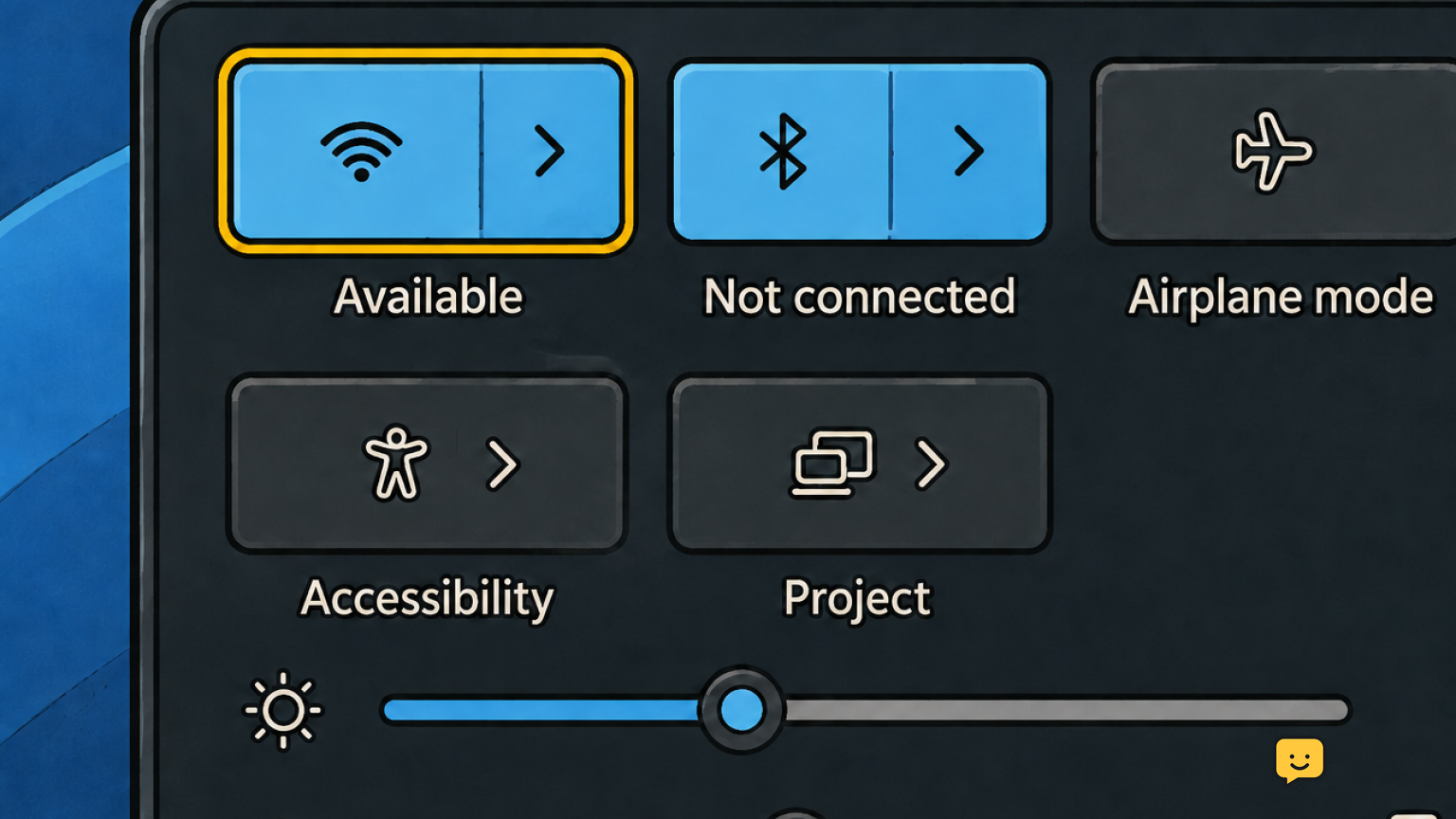
- Select the network, volume, or battery area on the taskbar, then select the Wi-Fi arrow.
- Select your network and choose Disconnect, if shown. Wait a few seconds, then select it again and choose Connect.
- If dropouts continue, open Settings > Network & internet > Wi-Fi > Manage known networks.
- Select the problem network, choose Forget, then return to the Wi-Fi list and connect again with its password.
- In Manage known networks, review unused nearby networks. Turn off automatic connection for networks you do not want the PC to join automatically.
Verify: Restart the PC, reconnect to your home network, and see whether it remains connected through a normal browsing or video call session. If it still drops, leave the network connected and continue.
Update the Wi-Fi adapter driver
An outdated or unstable wireless driver can cause repeated disconnects. Start with the PC maker’s support site when available, because laptop makers may provide a driver tailored to a specific wireless card. Windows can also search for a driver through Device Manager.
- Right-click Start and choose Device Manager.
- Expand Network adapters and identify the wireless adapter. Its name commonly includes terms such as Wi-Fi, Wireless, WLAN, Intel, Realtek, Qualcomm, or MediaTek.
- Right-click the wireless adapter and choose Update driver, then follow the on-screen option to search for a driver.
- If the PC maker provides a newer driver for your exact model, install that version and restart the PC.
Failure path: If disconnects started immediately after a driver update, open the adapter’s Properties, check the Driver tab, and use Roll Back Driver only if Windows makes that option available. Restart and retest.
Verify: After the restart, check Device Manager again for a warning icon on the adapter. If there is an error icon, or the adapter vanishes, stop and contact the PC or adapter manufacturer.
Prevent Windows from powering down the Wi-Fi adapter
Windows power management can turn off hardware to save energy. On a PC that disconnects after sitting idle, waking from sleep, or running on battery, preventing the wireless adapter from being powered down is a useful targeted test.
- Open Device Manager and expand Network adapters.
- Right-click the Wi-Fi adapter and choose Properties.
- Open the Power Management tab.
- Clear Allow the computer to turn off this device to save power, if the option appears.
- Select OK, restart the PC, and test the connection after it has been idle.
If you do not see a Power Management tab: Do not force a workaround. The adapter driver may not expose that setting; move on to the router-band test.
Verify: Leave the PC connected but idle for the period when it usually fails. If it now stays online, the power setting was likely contributing to the dropout.
Test the other Wi-Fi band and reduce signal problems
Many routers offer 2.4 GHz and 5 GHz Wi-Fi. The faster 5 GHz band can have shorter range through walls, while 2.4 GHz can reach farther but may face more local congestion. Testing each band is safer than changing advanced router settings without a clear result.
- Stand near the router and test the current network for several minutes.
- If the router lists separate network names for 2.4 GHz and 5 GHz, connect the PC to the other one and test again in the same location.
- If both bands share one name, check the router app or web interface only if you have administrator permission. Look for a way to identify or temporarily separate the bands for testing.
- Keep the router in an open area and away from large metal objects where possible. Retest from the room where disconnects are most common.
Verify: A connection that is stable on one band but not the other identifies a useful router-side clue. Leave the PC on the stable band and contact the router maker if you need help with permanent band settings.
Use Network reset as the last Windows step
Network reset reinstalls network adapters and returns networking components to their default state. It can clear a stubborn Windows networking problem, but it is more disruptive than the earlier steps. Expect a restart and be prepared to reconnect to Wi-Fi and set up custom network software again.
- Open Settings > Network & internet > Advanced network settings.
- Find Network reset and select it.
- Read the warning, choose Reset now, and confirm.
- Let the PC restart. Reconnect to your Wi-Fi network and test it before reinstalling or changing anything else.
Verify: If the PC remains connected after the reset but later drops only on your home Wi-Fi, return to the router-band and signal checks. If it disconnects on several known-good Wi-Fi networks after reset and driver updates, stop troubleshooting settings and arrange support for the wireless adapter.
Frequently asked questions
Why does my Windows 11 PC disconnect from Wi-Fi but my phone stays connected?
This usually points to the PC rather than the router. Reconnect or forget and re-add the saved network first, then update the Wi-Fi adapter driver and disable its power-saving option if it is available. Testing the PC on another Wi-Fi network can further confirm the cause.
Should I use 2.4 GHz or 5 GHz for a Windows 11 PC that keeps dropping Wi-Fi?
Use the band that stays stable where you use the PC. Test both bands near the router and again in the problem room. A 5 GHz connection may be faster close to the router, while 2.4 GHz may remain usable farther away or through more walls.
Will Network reset delete my files in Windows 11?
No. Network reset changes networking components rather than personal files. It does restart the PC and can require you to reconnect to Wi-Fi or set up custom networking software again, so use it only after simpler reconnect, driver, and power-management checks.
What should I do if Wi-Fi disappears completely from my Windows 11 PC?
Check Device Manager first. If the wireless adapter is missing, disabled, or marked with a warning icon, restart the PC and install the correct driver from the PC manufacturer. Stop further setting changes if no Wi-Fi networks appear after that, as the adapter may need manufacturer support.
Browse more Computers & Internet guides for help with this topic.


