
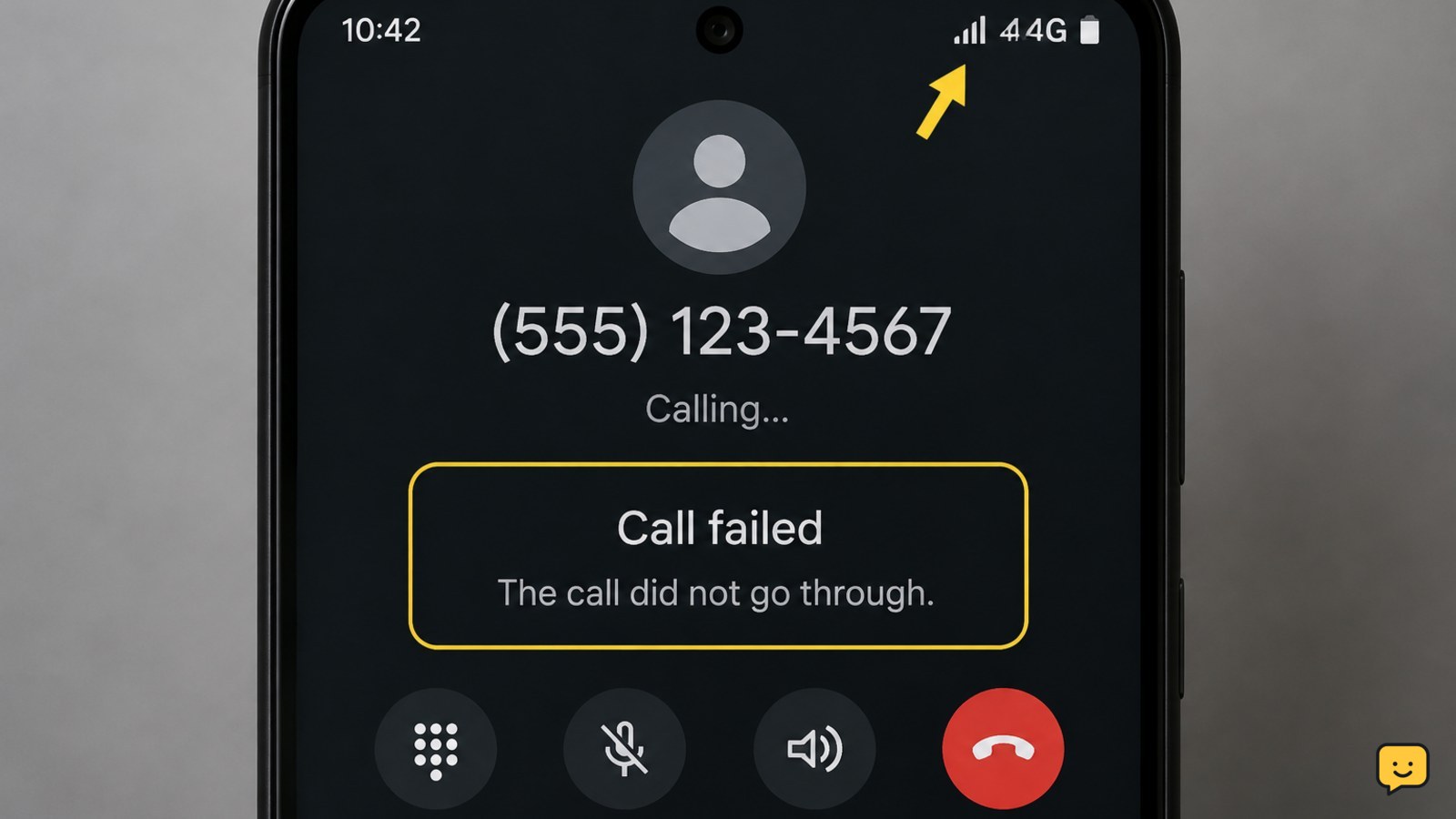
Your Android phone can receive calls but fail to make them when outgoing service is restricted, a call-barring setting is active, the SIM has a problem, or the phone is only partially registered on the mobile network. Check the exact error, turn off Airplane mode, verify the SIM and calling settings, then contact your carrier if the issue remains.
Check what happens when you dial
Start with the failure message because it helps separate an account restriction from a phone or network problem. Try one normal number saved in your contacts and one number entered manually. Notice whether the call ends immediately, displays “Not registered on network,” asks for a PIN, plays a recording, or simply stays silent.
If only one contact fails, check that the number is correct and that it is not being dialed through an incompatible format. If every outgoing call fails but incoming calls still work, continue with the carrier and network checks below.
Rule out a carrier restriction first
Receiving calls does not prove that outgoing calling is enabled. A carrier may restrict outgoing service because of an unpaid balance, a suspended line, a recently changed plan, a provisioning error, or a temporary network problem.
- Check your carrier’s account app or website for a service warning, suspended line, or payment issue.
- Confirm that the correct phone number and SIM or eSIM line are active on the account.
- Ask the carrier to verify outgoing voice service and network registration, not just incoming calls.
Tell the carrier the exact error and when the problem began. If the carrier confirms a restriction, stop troubleshooting the phone and follow its account or service instructions. Verify success by placing a normal call after the carrier confirms the line is active.
Check Airplane mode and calling settings
Open Settings and make sure Airplane mode is off. If it is already off, turn it on for about 10 seconds, turn it off, and wait for the signal indicator to return. This forces the phone to attempt a fresh mobile connection.
Open the Phone app’s settings and look for options such as Call barring, Fixed dialing numbers, or a default calling SIM on dual-SIM phones. Turn off a restriction only when you recognize it and know the required PIN or account authority. Do not guess a SIM PIN or call-barring code; repeated incorrect attempts can lock the service.
On a dual-SIM phone, select the active line for outgoing calls or choose “Ask every time” if that option is available. Place a test call. If the call works, the wrong line was selected. If no option is present, menu names may differ by manufacturer and Android version.
Check the SIM or eSIM status
Go to Settings > Network and internet, Connections, or a similarly named menu, then open SIM or mobile-network settings. Confirm that the intended SIM is enabled and that the phone displays a carrier name or mobile signal.
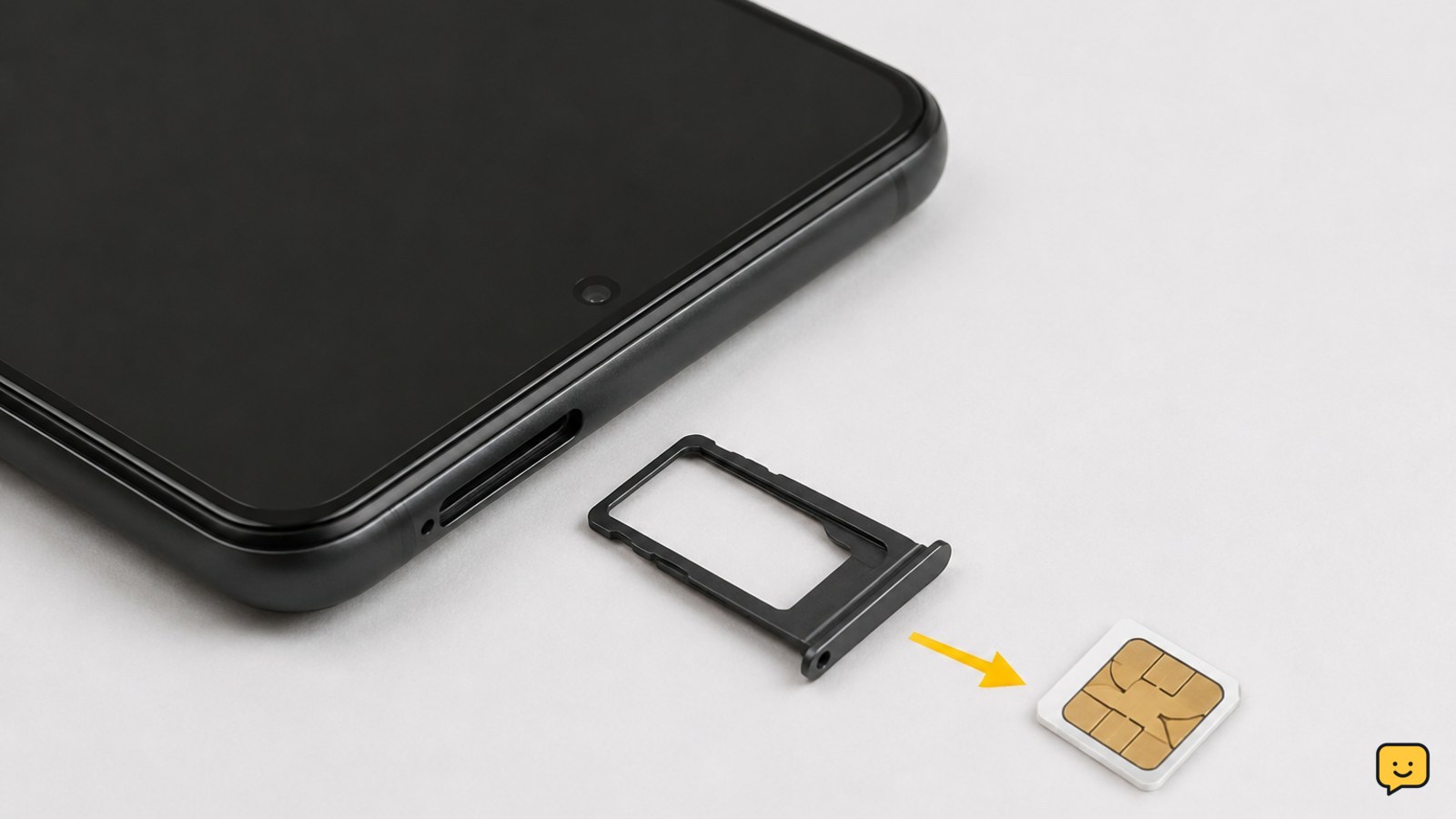
- For a physical SIM, power the phone off before removing it. Inspect the card and tray for dirt, bending, or damage.
- Reinsert the card in the correct orientation, power on the phone, and wait for the network name to appear.
- For an eSIM, do not delete the profile. Confirm that the line is enabled and contact the carrier if the profile is missing or inactive.
Verify with an outgoing call. If the SIM works in another compatible phone, the original phone may have a hardware or configuration problem. If another working SIM also fails in this phone, continue with network registration and manufacturer support.
Refresh network registration
Restart the phone normally and wait until the signal indicator and carrier name return. Then open mobile-network settings and check whether network selection is set to automatic. Manual selection can leave a phone attached to an unavailable network after travel or a coverage change.
If your phone offers a preferred network type, use the carrier-recommended setting rather than forcing an older or unsupported mode. Voice service can fail when the phone is not registered correctly for the available network, even though another part of the cellular connection appears to work.
Test from a different location. If calls work elsewhere, the original location may have weak coverage or a local network fault. If the phone shows “Emergency calls only,” “No service,” or “Not registered on network” everywhere, contact the carrier and provide the phone model, SIM type, location, and exact message.
When the basic fixes do not work
Install any pending Android or carrier-system update, then restart and test again. Avoid changing several advanced network settings at once because that makes the cause harder to identify.
As a last software check, use the phone’s Reset mobile network settings or Reset Wi-Fi, mobile, and Bluetooth option if your manufacturer provides it. Read the warning first: this can remove saved Wi-Fi networks and Bluetooth pairings. It should not be your first step, and it will not fix a suspended line or a defective SIM.
If outgoing calls still fail, stop resetting settings. Give the carrier the failed-call time, exact message, signal status, and SIM or eSIM details. If the carrier confirms the account and line are normal, contact the phone manufacturer or an authorized repair provider. A hardware inspection may be needed if multiple working SIMs fail in the same phone.
Confirm the fix safely
The problem is resolved only when the phone can place a normal outgoing call and receive a reply from the other person. Also confirm that the correct SIM is shown as active, the carrier name remains visible after a restart, and the failure message does not return.
Do not use an emergency number as a test. If you need emergency help and ordinary service is unavailable, follow the emergency instructions for your location and provide your location clearly.
Frequently asked questions
Can a blocked outgoing line still receive calls on Android?
Yes. A carrier can restrict outgoing service while incoming calls continue to work. Check the carrier account for suspension, payment, plan, or provisioning problems, and ask support to verify outgoing voice service specifically.
Why does my Android phone say “Not registered on network” when I call?
The phone is not correctly registered with the carrier for cellular service. Restart it, confirm the SIM or eSIM is enabled, use automatic network selection, and test in another location. If the message remains, contact the carrier.
Can Airplane mode stop outgoing calls but allow incoming calls?
Usually, Airplane mode disables both directions of cellular calling. However, Wi-Fi calling or a delayed network state can make the symptoms confusing. Turn Airplane mode off, toggle it briefly, wait for the carrier name to return, and test again.
Should I remove and reinsert my Android SIM card?
Yes, for a physical SIM, but power the phone off first. Inspect the card and tray, reinsert the card correctly, and wait for the carrier name to appear. Do not remove an eSIM profile; ask the carrier to restore or reprovision it instead.
Will resetting network settings fix failed outgoing calls?
It can fix a damaged or inconsistent network configuration, but it will not repair a suspended account, defective SIM, or carrier outage. Use it only after checking the carrier, SIM, and network-registration status, and expect saved Wi-Fi and Bluetooth connections to be removed.
Browse more Mobile Devices guides for help with this topic.


