
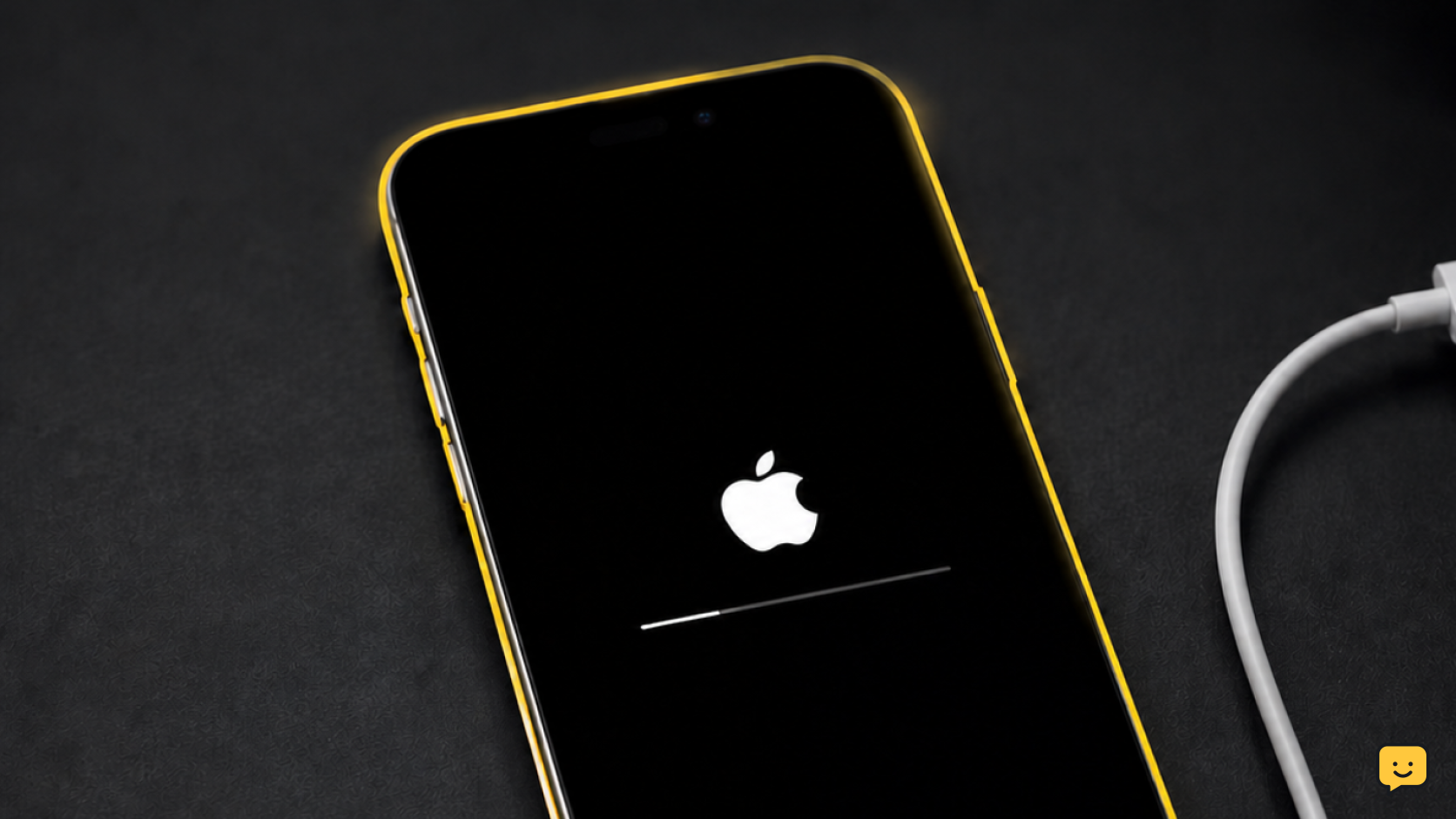
First, give an iPhone with a moving progress bar time to finish. If it has not moved for at least an hour, force-restart the iPhone. If it returns to the Apple logo or will not start, connect it to a computer, enter recovery mode, and choose Update first. Restore is the last option because it erases the iPhone.
Start with the safe checks
This guide applies when an iPhone shows only the Apple logo, repeatedly restarts at the logo, or remains on an Apple logo with a progress bar after an iOS update. It is not for an iPhone that starts normally but has one app or feature problem.
If the progress bar is still advancing, leave the iPhone on power and wait. Apple advises action when the bar has not moved for at least one hour. Do not erase the iPhone just because the first startup after an update is slower than usual.
If the bar is frozen or the iPhone is looping, continue with a force restart. This does not erase your content.
1. Force-restart the iPhone
A force restart interrupts a stalled startup and asks iPhone to boot again. Use the button sequence for the iPhone family below, then release the buttons when the Apple logo appears.
- iPhone 8, iPhone SE (2nd or 3rd generation), and later: Press and quickly release Volume Up. Press and quickly release Volume Down. Then press and hold the Side button until the Apple logo appears.
- iPhone 7 or iPhone 7 Plus: Press and hold the Side button and Volume Down button together until the Apple logo appears.
- iPhone 6s, iPhone SE (1st generation), and earlier: Press and hold the Home button and Side or Top button together until the Apple logo appears.
Check the result: If the Lock Screen appears, unlock the iPhone, connect to Wi-Fi and power, then check Settings > General > Software Update. If it remains on the logo, returns to the logo repeatedly, or does not finish starting, use recovery mode.
2. Connect the iPhone to a computer
Use a direct USB connection to a Mac or Windows PC. On a Mac running macOS Catalina or later, open Finder. On Windows, open the Apple Devices app; iTunes may be used on systems that still use it.
Unlocking the iPhone is not required for recovery mode. If the computer does not react when the cable is connected, try another USB port and a cable that supports data, not only charging. Avoid hubs and adapters while diagnosing the problem.
Continue only when: Finder, Apple Devices, or iTunes is open and the cable connection is secure.
3. Put the iPhone into recovery mode
With the iPhone connected to the computer, perform the same button sequence used for a force restart, but keep holding when the Apple logo appears. Release only when you see the recovery-mode screen, which shows a cable pointing toward a computer.
- iPhone 8, iPhone SE (2nd or 3rd generation), and later: Quickly press Volume Up, quickly press Volume Down, then hold the Side button until the recovery-mode screen appears.
- iPhone 7 or iPhone 7 Plus: Hold the Side button and Volume Down together until the recovery-mode screen appears.
- iPhone 6s, iPhone SE (1st generation), and earlier: Hold Home and the Side or Top button together until the recovery-mode screen appears.
The computer should display a message that the iPhone needs to be updated or restored. If the iPhone simply returns to the Apple logo, repeat the sequence and continue holding longer.
4. Choose Update before Restore
When the computer offers Update or Restore, choose Update first. The computer downloads and reinstalls iOS while attempting to keep your personal data intact. Keep the iPhone connected until the process finishes.
If the download takes longer than 15 minutes, the iPhone can leave recovery mode and return to the Apple logo. That does not mean the attempt failed. After the download completes, put the iPhone back into recovery mode and select Update again.
Check the result: A successful update ends at the Hello screen or Lock Screen. If prompted, enter the device passcode and Apple Account credentials. Then confirm your photos, messages, and apps are present before deleting any backup.
5. Restore only when Update fails
Select Restore only if Update fails, the computer reports that the iPhone cannot be updated, or the iPhone continues to loop after a completed update attempt. Restore erases the iPhone, installs the current compatible iOS version, and returns it to setup.
- Read the erase warning in Finder, Apple Devices, or iTunes.
- Select Restore and leave the iPhone connected until it restarts to the Hello screen.
- Set up the iPhone and sign in with the Apple Account previously used on it if Activation Lock requests it.
- Choose a recent iCloud or computer backup during setup, if one is available.
Verification: The recovery is complete when setup finishes, the iPhone stays on without restarting, and calls, Wi-Fi, and apps work normally. If no backup exists, do not expect erased local data to return after a restore.
If recovery mode does not work
Try the recovery-mode update once more with a different known-good data cable, another USB port, or another computer. Make sure the computer software is current and that the iPhone remains connected throughout the attempt.
If the computer never recognizes the iPhone, recovery mode will not stay on screen, or repeated update and restore attempts show an error, stop repeating the process. The issue may require hardware assessment, especially after a drop, liquid exposure, battery swelling, or overheating.
Contact Apple Support or an authorized service provider for next steps. Tell them whether the issue began during the update, whether the iPhone is detected by a computer, and whether recovery-mode Update or Restore produced an error.
Frequently asked questions
How long should an iPhone stay on the Apple logo after an update?
Wait if the progress bar is still moving. If the bar has not moved for at least one hour, Apple recommends taking action, starting with a force restart. A logo without a moving bar that repeatedly reappears also points to a stalled startup.
Will recovery-mode Update erase my iPhone?
No, Update is the recovery-mode choice intended to reinstall iOS while preserving your data. It is still wise to verify your content after the iPhone starts. Restore is different: it erases the iPhone before reinstalling iOS.
Why does my iPhone leave recovery mode while the computer downloads iOS?
This can happen when the download takes longer than 15 minutes. Let the download finish, then put the iPhone back into recovery mode and choose Update again. Keep the computer open and use a stable internet connection.
What if Finder, Apple Devices, or iTunes does not detect my iPhone?
Try a direct connection with another data-capable cable, USB port, or computer. Do not use a hub while testing. If the iPhone cannot be detected by multiple working setups, or it has physical or liquid damage, stop and seek authorized service.
Does restoring an iPhone remove Activation Lock?
No. Restore erases the iPhone but does not remove Activation Lock. During setup, the iPhone may require the Apple Account and password previously associated with the device. Only the legitimate account owner can complete that verification.
Browse more Mobile Devices guides for help with this topic.


