
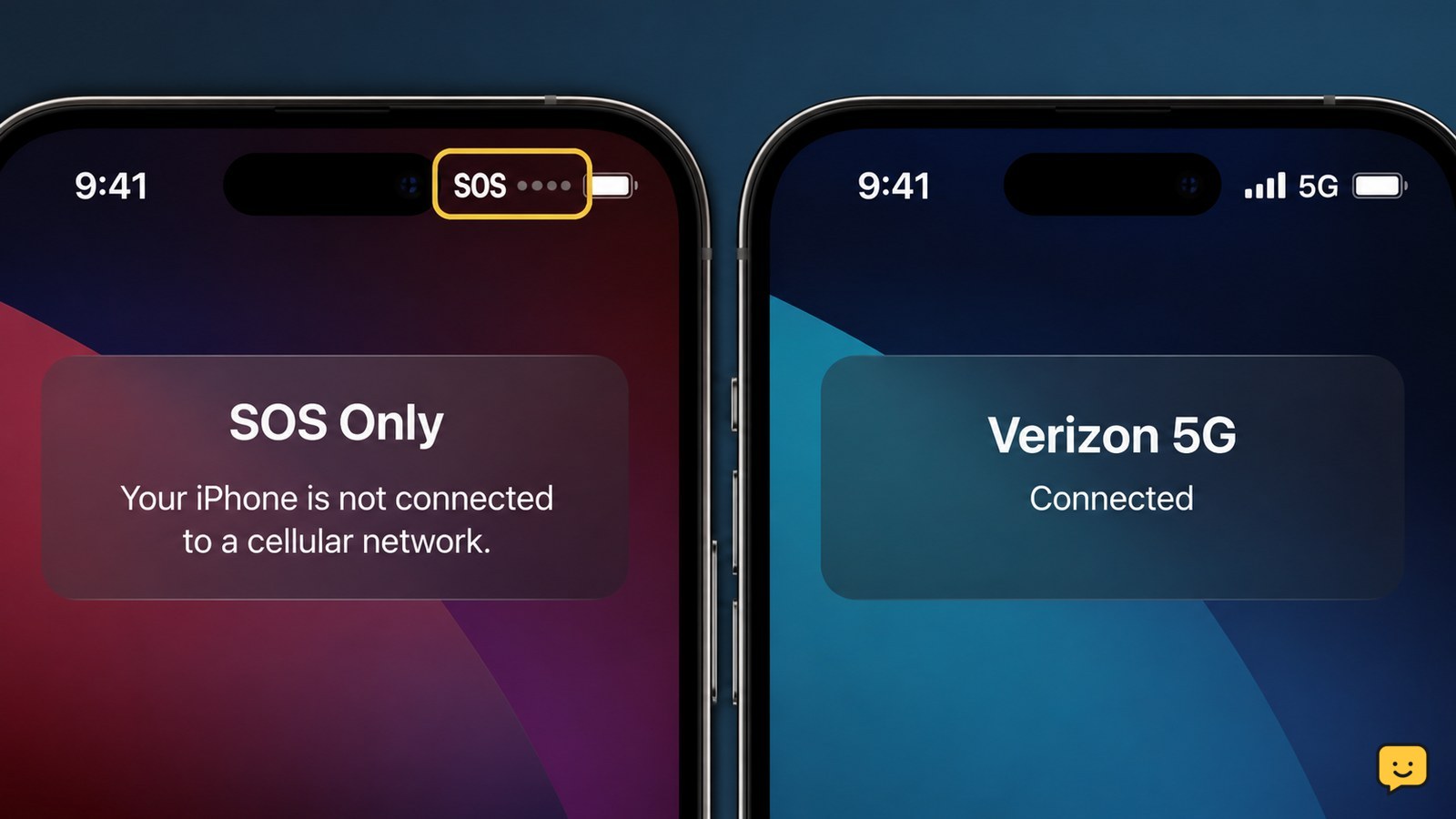
Your phone is on SOS because it cannot connect to your carrier’s regular mobile network. It may still support emergency calls, but normal calls, texts and mobile data can fail. The usual causes are weak coverage, a carrier outage, Airplane Mode, a disabled SIM or eSIM, account restrictions, or a network-selection problem.
Check whether SOS is caused by coverage or an outage
SOS on an iPhone or Android phone usually means the device cannot register with your carrier’s normal network, so start by separating a local signal problem from a wider service failure.
| What you observe | Likely cause | Next action |
|---|---|---|
| SOS appears in one building or remote area | Weak or blocked coverage | Move outside or to a higher, clearer location. |
| Several people using the same carrier lose service | Carrier outage or maintenance | Check the carrier’s service-status page or contact support over Wi-Fi. |
| Only your phone shows SOS | SIM, eSIM, account or phone-setting issue | Continue with the checks below. |
Apple’s support guidance treats SOS, No Service and Searching as cellular-connection states rather than evidence that the phone itself is necessarily broken. If the carrier name and signal bars return after moving locations, test a call, text and mobile-data connection before changing anything else.
Turn Airplane Mode off and restart the phone
Airplane Mode can leave cellular service disabled, while a restart can make the phone register with the carrier again after a temporary connection failure.
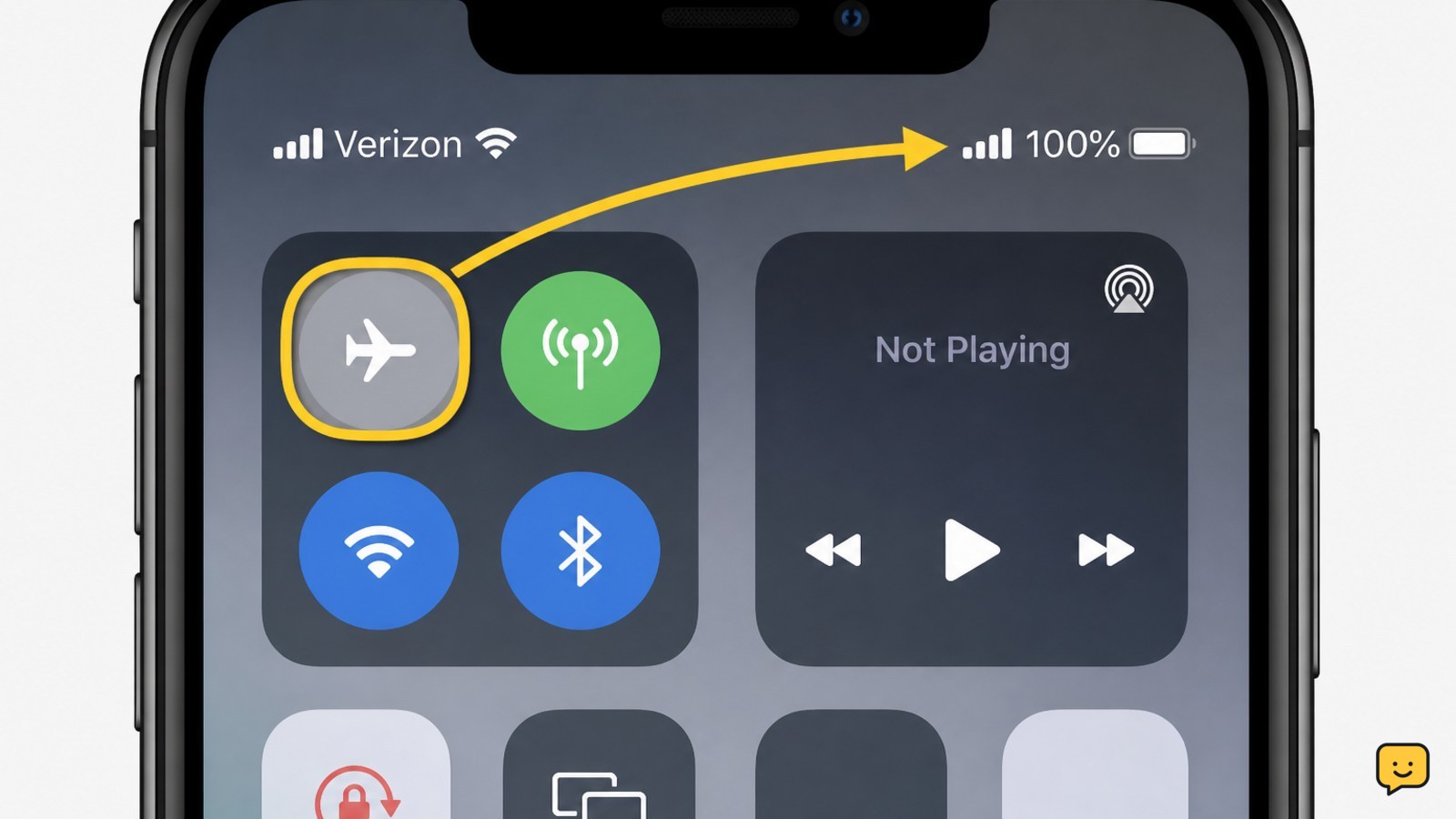
- Open Control Center on an iPhone by swiping down from the upper-right corner, or open Quick Settings on Android by swiping down from the top.
- Check the airplane symbol. If it is highlighted, tap it to turn Airplane Mode off.
- Wait about 30 seconds, then turn Airplane Mode on.
- Wait another 30 seconds and turn it off again.
- Restart the phone using its normal power menu.
Verify the result: wait for the carrier name or signal bars to appear, then place a regular call and open a webpage with Wi-Fi turned off. If SOS remains after the restart, continue rather than repeating the same cycle.
Confirm that the SIM or eSIM line is active
A disabled, misplaced or unprovisioned SIM or eSIM can prevent the phone from joining the carrier network even when coverage is available.
On iPhone: open Settings > Cellular or Settings > Mobile Service. Select the affected line and confirm that it is turned on. If you use two lines, check which line is set for calls and mobile data.
On Android: open Settings > Network & internet > SIMs or a similarly named SIM manager or Mobile network screen. Confirm that the SIM is enabled and that mobile data is assigned to the intended line. Android menu names vary by manufacturer and software version.
If the phone uses a physical SIM, power it off before removing the tray. Check that the card sits flat and that the tray closes without force. If the SIM is visibly damaged, missing, or still not detected, ask the carrier for a replacement or eSIM reactivation.
Check network selection, roaming and carrier settings
Automatic network selection normally lets the phone choose the correct carrier, but manual selection or travel-related settings can leave it registered to an unavailable network.
- On iPhone, open Settings > Cellular > Network Selection and turn Automatic on when that option is available.
- On Android, open Settings > Network & internet or Connections > Mobile networks, then choose Network operators or Automatically select network.
- If you are outside your normal coverage area, check whether your plan supports roaming. Do not enable roaming charges without confirming the plan terms.
- On iPhone, connect to Wi-Fi and open Settings > General > About. If a carrier-settings update appears, install it.
If automatic selection is already enabled and SOS continues, do not repeatedly choose random networks. The carrier may need to reprovision the line or correct a roaming restriction.
Verify service after each change and choose the next fix
The phone is recovered only when it reconnects to the carrier and passes a real-world test; a temporary signal icon alone is not enough.
- Turn Wi-Fi off temporarily.
- Confirm that SOS has changed to the carrier name, signal bars or a normal cellular indicator.
- Place a regular phone call.
- Send a text message and load a webpage using mobile data.
If all three tests work, the problem was probably a temporary registration or coverage issue. If calls work but data does not, check the selected mobile-data line, data allowance and carrier account rather than treating it as a complete SOS failure.
If SOS returns immediately, check the carrier account for suspension, a recently changed SIM, an unpaid balance, an unfinished number transfer or an outage. Have the phone number, account details and SIM or eSIM information ready when contacting the carrier. If the carrier confirms the line and network are working, back up the phone and arrange manufacturer or repair support; avoid a factory reset unless a support technician specifically recommends it after data is protected.
Frequently asked questions
Can I make an emergency call when my phone says SOS?
Often, yes, if a compatible nearby network is available, but emergency-call behavior depends on the country, carrier and available coverage. SOS does not guarantee that an emergency call will connect. If help is needed, try the phone’s emergency-calling screen and use another phone or available emergency method if the call fails.
Does SOS mean my phone has been hacked?
No. SOS normally indicates a cellular registration problem, not an account takeover or phone hack. Check coverage, carrier status, Airplane Mode and the SIM or eSIM line first. Treat unexpected account messages separately: contact the carrier through its official app or website and do not share verification codes with unsolicited callers.
Why does my phone show SOS after I traveled?
After travel, the phone may be outside your carrier’s coverage, unable to roam, or set to a network that is unavailable in the new location. Turn on automatic network selection, confirm that your plan supports roaming, and contact the carrier if the line needs activation for the destination.
Can I still use Wi-Fi while my phone is on SOS?
Yes. SOS affects the normal mobile connection, not necessarily Wi-Fi or Bluetooth. Connect to trusted Wi-Fi to message people, check a carrier outage page or contact support. Wi-Fi calling may work only if it was already supported and enabled by your carrier and phone.
For more help with this topic, use the Mobile Devices guides.


