
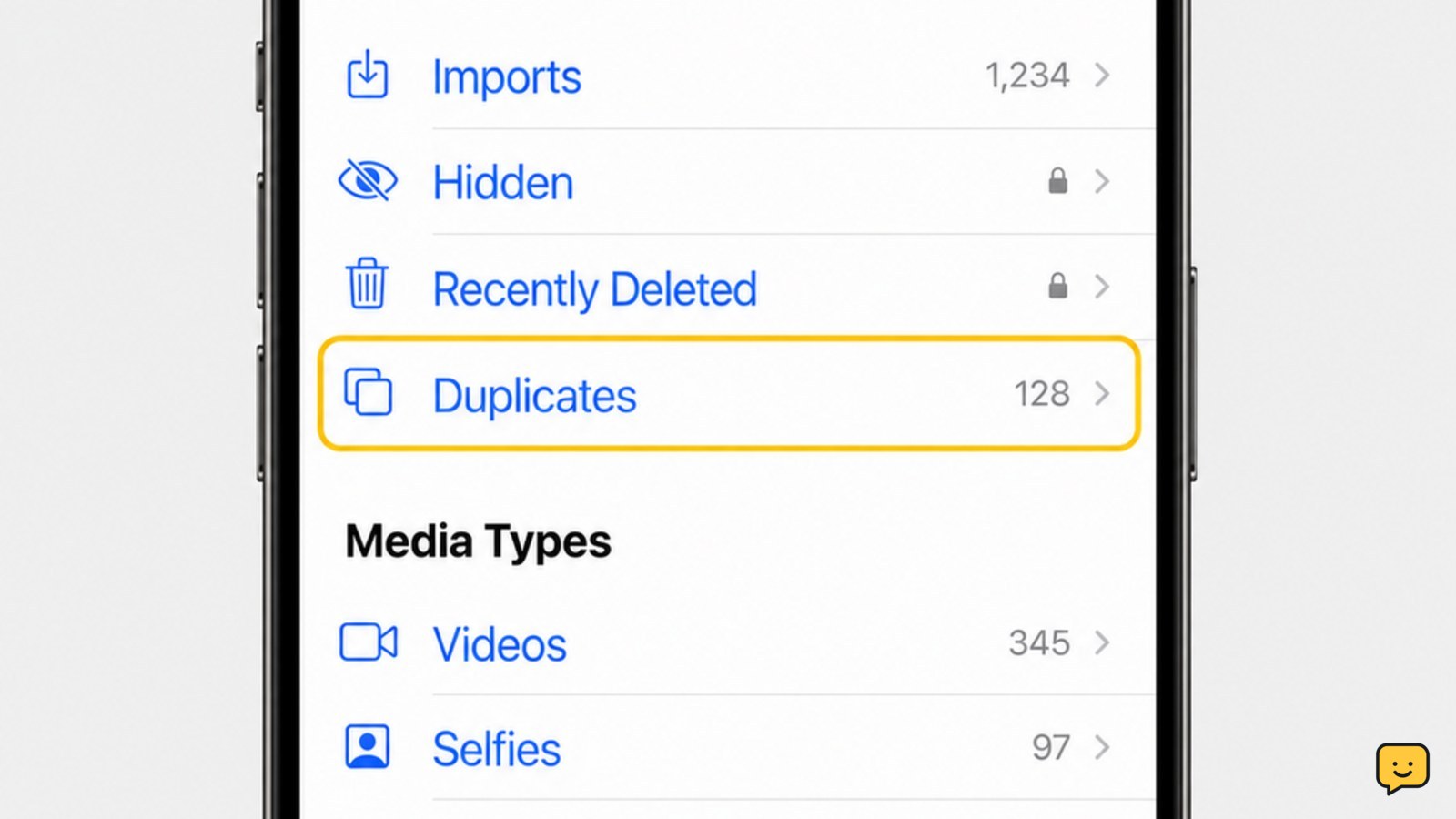
Open Photos, tap Albums, scroll to Utilities, and tap Duplicates. Review each group, tap Merge, then confirm Merge [number] Items. iPhone keeps the best-quality version and moves the extra copies to Recently Deleted. This feature requires iOS 16 or later; if Duplicates is missing, leave the phone locked and connected to power while Photos finishes indexing.
For more help with this topic, use the Mobile Devices guides.
Find the Duplicates album in Photos
The iPhone Photos app lists detected duplicate photos and videos in Albums > Utilities > Duplicates. Open Photos, tap Albums, scroll to Utilities, and tap Duplicates.
Apple provides this built-in duplicate-detection feature on iOS 16 and later. If Photos displays no groups, that means it has not found any matches yet or indexing is still in progress; it does not prove that every visually similar photo is a duplicate.
If Duplicates does not appear, update iOS if your iPhone supports it, then connect the iPhone to power and leave it locked. Apple says duplicate detection may need time to finish processing the library. Do not delete photos manually while that process is still running.
Review each match before merging
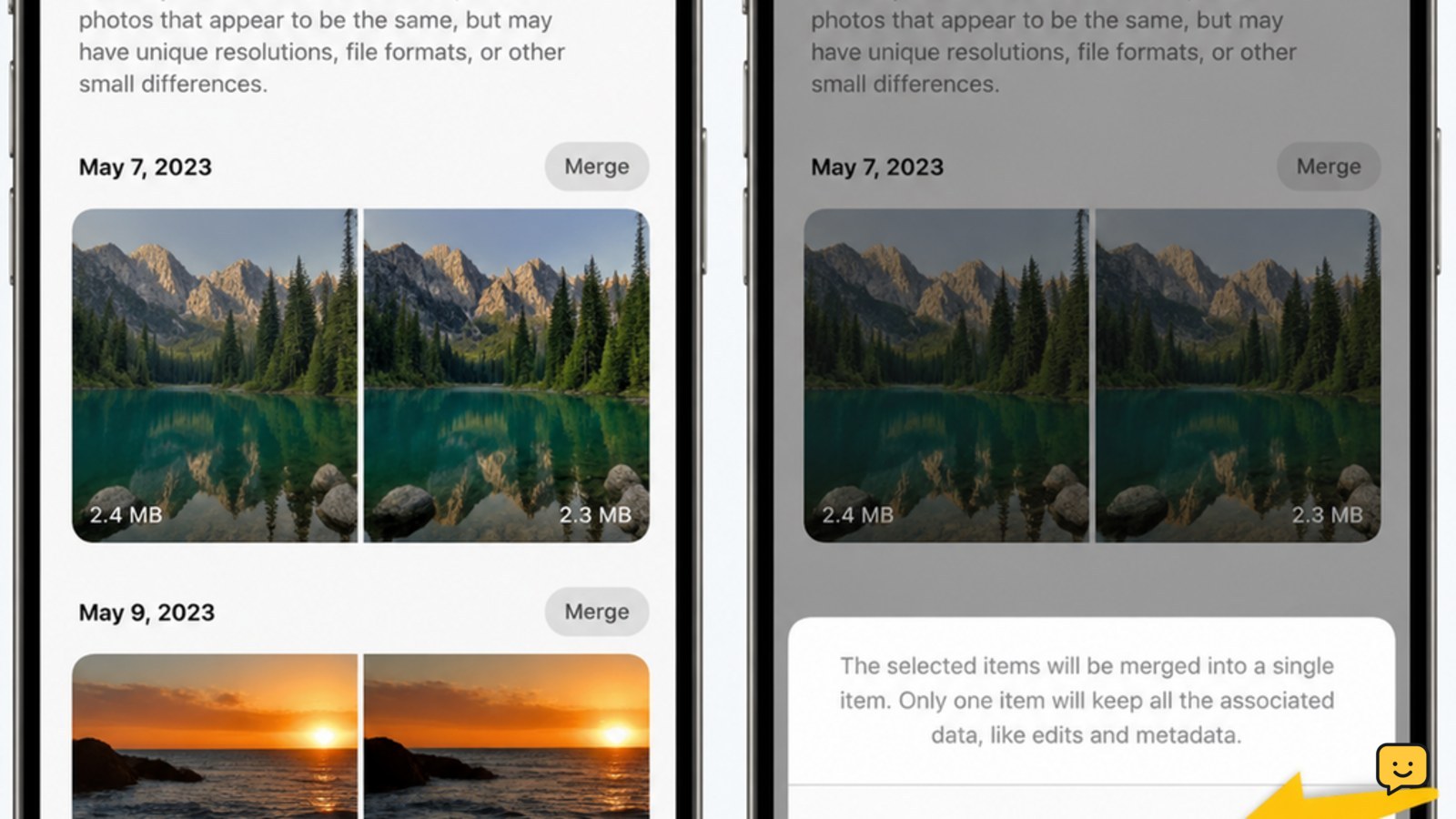
The Duplicates album groups photos or videos that Photos considers duplicate items, but you still need to inspect every group. Tap a group to compare the images full-screen, including their visible details, edits, resolution, and dates.
- Keep the version with the better image quality or the information you need.
- Check that the files are genuinely duplicates rather than two similar burst photos or separate edits.
- Swipe through the group and deselect any item that should remain separate.
- Return to the album when a group is uncertain and leave it unchanged.
Apple’s merge action combines duplicate information and keeps one version, generally the highest-quality copy. The other copies move to Recently Deleted, so merging is reversible for a limited period.
Merge duplicate photos and videos
To remove a confirmed duplicate group, tap Merge beside the group, then tap Merge [number] Items to confirm. For several groups, use Select, choose only the groups you have reviewed, and tap Merge.
After the confirmation, the group should disappear from Duplicates and one photo or video should remain in the main library. Repeat the review-and-merge process instead of selecting every group blindly; Photos can identify matches, but it cannot determine which memories you personally want to keep.
For a large library, work in smaller batches. This makes it easier to notice an incorrect match and reduces the chance of deleting an item before iCloud Photos has finished syncing.
Verify the library and Recently Deleted
Verification confirms that the merge changed the intended items without removing the retained copy. Search for the subject or open the relevant date in Library, then confirm that one correct version remains and opens at full size.
Next, open Albums > Utilities > Recently Deleted. The removed copies should be listed there. Leave them in Recently Deleted until you have checked the retained image on every device that uses the same iCloud Photos library.
Items in Recently Deleted are held temporarily before automatic removal. If you are certain the copies are unwanted and need the space immediately, select only those items and use Delete or Delete All. That permanent action cannot be undone, so do not use it as part of the initial merge.
What to do if Duplicates is missing or incomplete
If the Duplicates album is missing, first confirm the iPhone is on iOS 16 or later and give Photos time to index while the phone is locked and charging. Restarting the iPhone can help if Photos is unresponsive, but it will not create matches that the app cannot identify.
If some obvious-looking copies are absent, compare their file details and content. Photos detects duplicate items, not every photo that looks alike; cropped versions, edited versions, screenshots, burst shots, and resized exports may not be grouped. Review those manually in the library before deleting them.
If iCloud Photos is paused or storage is full, resolve that condition before a large cleanup. The phone storage breakdown can show whether photos, apps, or downloads are using the available space.
When the iPhone still has too little room to process the library, see ways to get more iPhone storage before removing important originals.
Check the phone storage breakdown to see whether photos are actually the main cause of the storage warning.
Frequently asked questions
Can I delete all duplicate photos at once on iPhone?
Yes, you can use Select in the Duplicates album, choose reviewed groups, and tap Merge. Review the groups first because the app’s matches may include similar-looking images you want to keep separately. Avoid confirming every group without checking the photos.
Does merging duplicates delete the original photo?
Merging keeps one version and moves the extra copies to Recently Deleted. The retained image should remain in your library, while the removed items can usually be recovered from Recently Deleted during its retention period. Verify the result before permanently deleting anything.
Why can’t I find Duplicates in iPhone Photos?
The Duplicates album requires iOS 16 or later and may not appear until Photos finishes indexing your library. Connect the iPhone to power, lock it, and allow processing time. If it still does not appear, check the iOS version and look for paused iCloud or storage conditions.
Does deleting duplicate photos from my iPhone delete them from iCloud?
If iCloud Photos is enabled, deleting or merging photos syncs the change to other devices using that library. Check the retained version on a synced device before emptying Recently Deleted. Do not permanently remove copies until you are sure the iCloud result is correct.


