
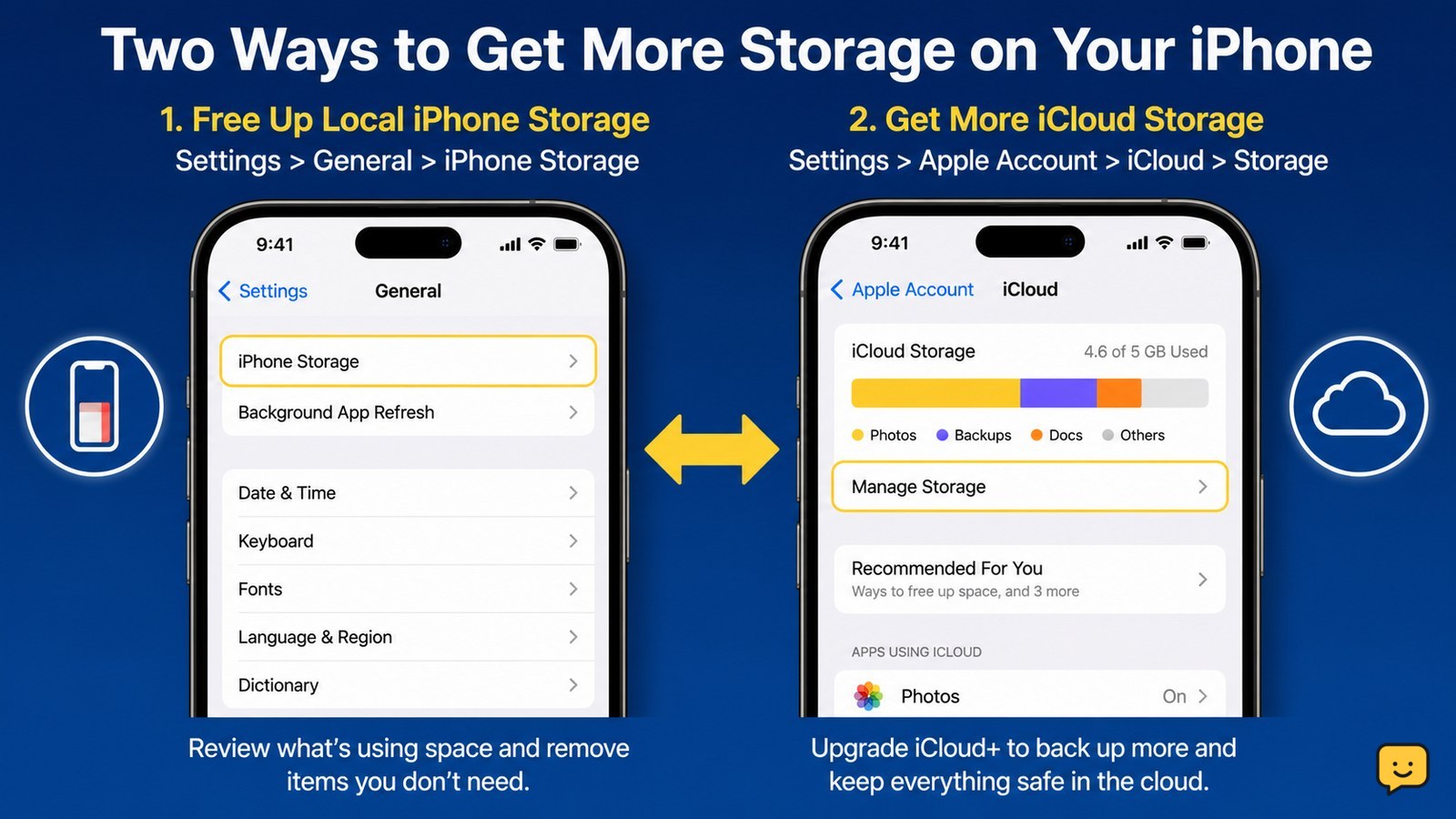
You can get more usable space on an iPhone by checking Settings > General > iPhone Storage, then deleting or offloading large apps, removing downloaded media, and clearing unwanted photos and videos. For extra cloud capacity, use Settings > [your name] > iCloud > Storage > Change Storage Plan or Get More Storage. iCloud storage does not add built-in iPhone capacity.
Check which storage is full
iPhone storage and iCloud storage are separate, so first identify which one is limiting you. For space used on the device, open Settings > General > iPhone Storage. The storage bar and app list show what is occupying the phone, including apps, photos, messages and downloaded media.
If the warning appears while backing up or syncing, check Settings > [your name] > iCloud instead. A full iCloud account needs cloud cleanup or a larger iCloud+ plan; it does not mean the phone’s physical capacity has increased or decreased.
Free space from the iPhone Storage screen
The iPhone Storage screen identifies the largest removable items, making it the safest place to start. Tap a large app and review its size and available actions before changing anything.
- Delete an app when you no longer need it. This removes the app and its locally stored data, so check for saved projects or downloads first.
- Offload an app when you want to remove the app itself while keeping its documents and data available for reinstalling later, if iOS offers that option.
- Remove offline downloads from streaming, music, podcast, reading or travel apps. These files can be large even when the app itself is small.
- Review large message attachments and other data categories, deleting only items you recognize and no longer need.
Verify the result: return to the storage screen and wait for the used-space estimate to refresh. The available-space figure should increase, although the amount may update gradually.
Move photos and videos before deleting them
Photos and videos often need the most space, but deleting them is safe only after you verify another copy. Apple-related storage guidance summarized by Asurion recommends moving photos and videos to cloud or computer storage before removing them from the iPhone.
- Copy or sync the selected photos and videos to a trusted cloud service or computer.
- Open the destination and confirm that several important files play or open correctly. Check dates and albums if those details matter.
- Delete only the confirmed duplicates from the iPhone.
- Check the Photos app’s recently deleted area if the space does not return after deletion. Keep items there until you are certain the backup is usable, then remove them permanently if needed.
Stop and restore from the backup if a copied file will not open, a video is incomplete or the destination does not contain the expected number of items.
Upgrade iCloud when cloud storage is the problem
iCloud+ adds cloud storage for backups, synced photos and other iCloud data; it does not add built-in iPhone storage. Apple lists the current path as Settings > [your name] > iCloud > Storage > Change Storage Plan or Get More Storage.
- Open Settings and tap your name at the top.
- Tap iCloud, then Storage.
- Choose Change Storage Plan or Get More Storage.
- Review the plan and price shown for your Apple Account, then confirm only if you need additional cloud capacity.
Verify the result: the iCloud storage meter should show more available cloud space after the change. If the iPhone itself still says storage is full, return to Settings > General > iPhone Storage and remove or move local files instead.
Verify the space and handle a failed cleanup
After each cleanup, reopen Settings > General > iPhone Storage and compare the available-space figure with the earlier amount. Test the task that failed, such as taking a photo, installing an app or downloading an attachment.
If the number has not changed, wait briefly for iOS to recalculate, then restart the iPhone and check again. Look for large downloads, recently deleted photos or another app that has become the new largest item. Do not repeatedly delete personal files when the storage bar remains unchanged; preserve your data and seek Apple Support if system storage is unexpectedly large or the screen does not refresh.
Frequently asked questions
Does buying iCloud storage give an iPhone more storage?
No. iCloud+ increases cloud capacity for backups, synced photos and other iCloud data, but it does not increase the iPhone’s built-in storage for apps and local files. If Settings > General > iPhone Storage is full, delete, offload or move local content.
What should you delete first when iPhone storage is full?
Start with items you can replace: large offline videos, music or podcast downloads, unused apps and duplicate photos or videos that have been verified elsewhere. Check Settings > General > iPhone Storage first so you target the largest space users instead of deleting files at random.
Can an iPhone use external storage?
An external drive can hold copies of photos, videos and documents, but it does not expand the iPhone’s built-in capacity for installing apps. Use a compatible connection and verify that transferred files open correctly before deleting the originals.
Why is my iPhone still full after deleting files?
The storage estimate may need time to refresh, and deleted photos may remain in the recently deleted area. Recheck the iPhone Storage screen after a short wait and restart the phone. If the figure remains unchanged or system storage is unusually large, stop deleting personal data and contact Apple Support.
For more help with this topic, use the Mobile Devices guides.


