
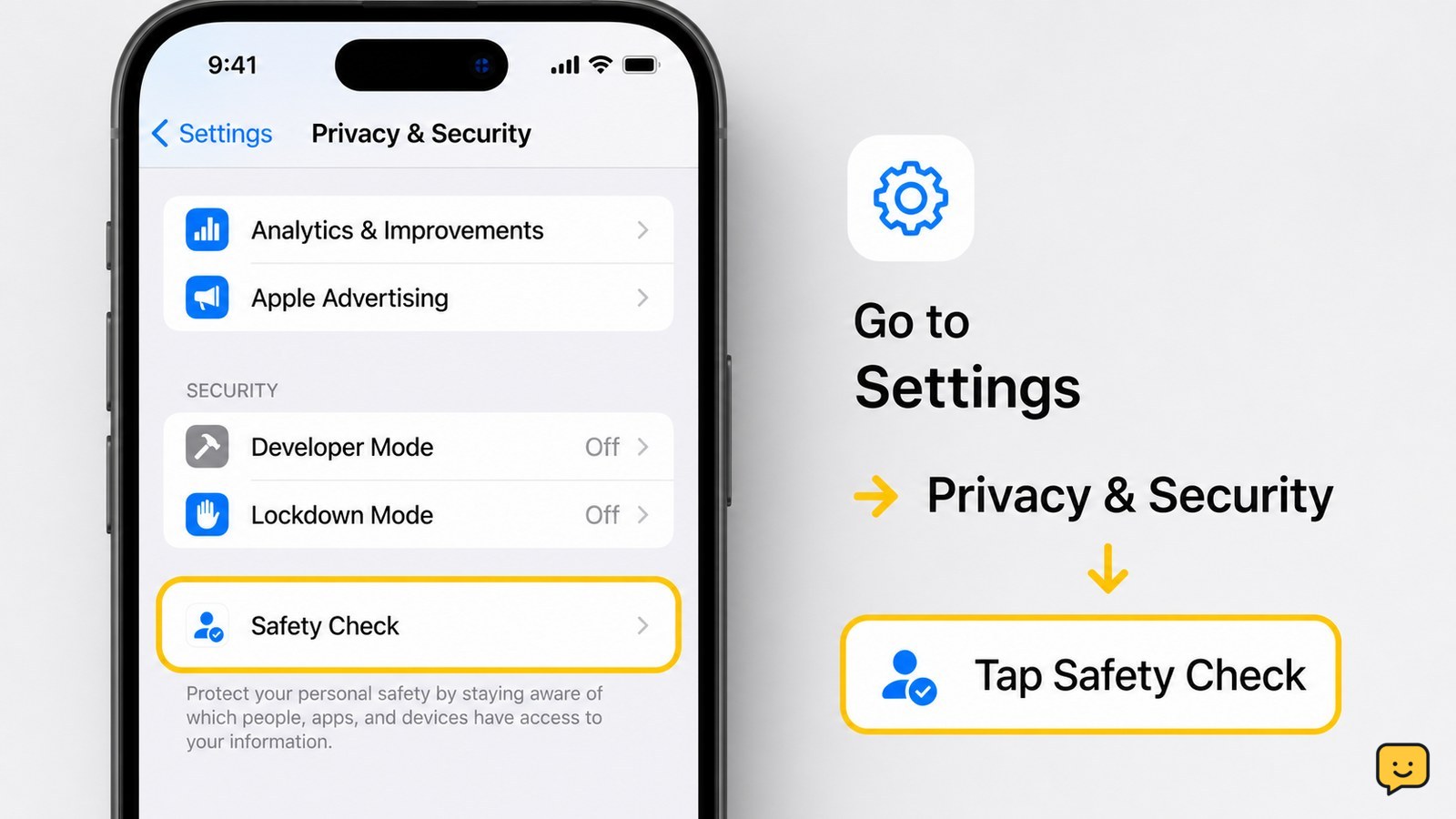
No single symptom proves that an iPhone is hacked. Check for unfamiliar Apple Account devices or activity, unknown apps, configuration profiles, unexpected sharing access and Apple threat notifications. Use Settings > Privacy & Security > Safety Check, secure your Apple Account from a trusted device, and treat browser pop-ups claiming your iPhone is hacked as untrusted warnings.
Check Apple Account devices and recent activity
Your Apple Account is the first place to check because an unfamiliar signed-in device can expose data even when the iPhone itself has not been modified. Open Settings, tap your name, and review the device list. Look for an iPhone, iPad, Mac or browser session that you do not recognize. Also check for password changes, new trusted phone numbers, unfamiliar purchases or messages that were not yours.
If you find an unknown device, record its name and details, then remove it from the account if you are certain it is not yours. From a different trusted device, change your Apple Account password and confirm two-factor authentication details. Sign out of other sessions when Apple offers that option.
Verification: the device list should contain only equipment you recognize, and account recovery details should match your current information. If an unknown device returns, or you cannot change the password, stop using the affected account for sensitive activity and contact Apple Support.
Run Safety Check for sharing and access
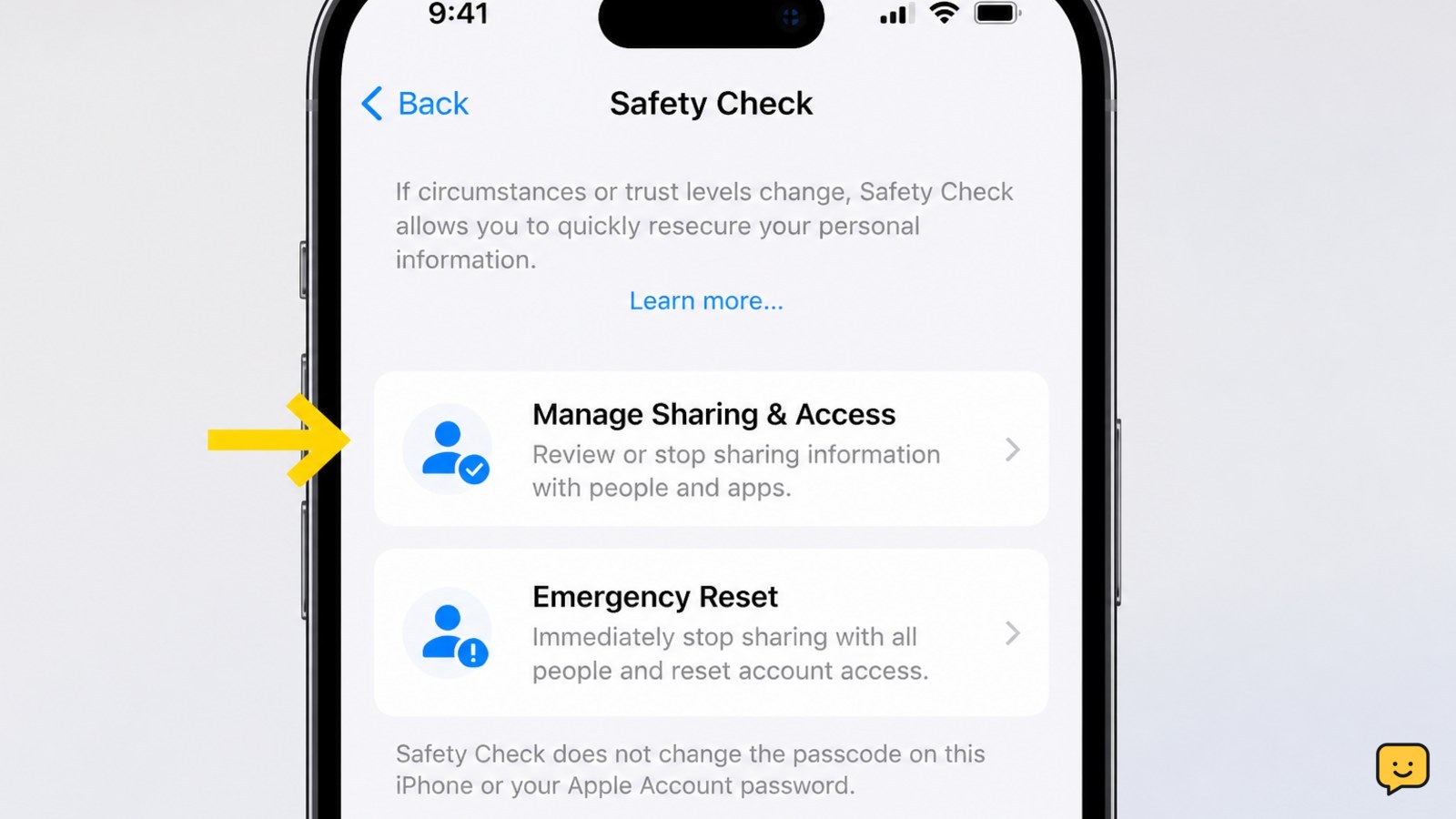
Safety Check helps identify people, apps and devices that may have access to your information or location. On supported iOS versions, go to Settings > Privacy & Security > Safety Check. Review Manage Sharing & Access carefully, or use Emergency Reset only when you need to stop sharing immediately.
Check which people can see your location, which apps can access sensitive information, and which devices are connected to your Apple Account. Remove access you do not recognize, but do not remove a school, work or family arrangement until you confirm that it is unauthorized.
McAfee identifies Safety Check as an iPhone tool for reviewing sharing and access. If Safety Check is not shown, your iOS version or device configuration may use different controls; review Settings > Privacy & Security manually and check Apple Account devices instead.
Find unfamiliar apps and configuration profiles
Unknown apps and configuration profiles are meaningful checks because they can change what the phone does or what information an app can reach. Swipe through the Home Screen and App Library, then open Settings > General > iPhone Storage to compare installed apps with what you remember downloading. Remove an app only when you are sure it is unwanted and not required by work, school or a security service.
Next, open Settings > General > VPN & Device Management. An unfamiliar configuration profile, mobile-device-management entry or VPN deserves investigation. Bitdefender lists unfamiliar apps and unknown configuration profiles among the signs worth checking.
Failure path: if a profile cannot be removed, or the phone is managed by an organization, stop rather than trying to bypass the control. Ask the administrator to verify it. If the profile is clearly unauthorized, contact Apple Support before erasing the phone.
Separate real warning signs from ordinary iPhone problems
Battery drain, heat, crashes or unusual data use alone do not confirm that an iPhone is hacked. These symptoms can also come from a recent update, weak cellular coverage, intensive apps, aging hardware or a full storage drive. Check Settings > Battery to see which apps used the most power, and compare the result with your normal use.
Look for combinations rather than one symptom: an unfamiliar app or profile together with unexpected account activity is more concerning than heat by itself. ESET and Forbes describe rapid battery loss, overheating and unusual behavior as warning signs, but those symptoms still require another check before you conclude the phone was compromised.
Review your carrier account separately if calls or texts behave strangely. A service problem is not the same as an iPhone compromise; for cellular symptoms such as SOS or lost service, use your carrier’s outage and SIM or eSIM checks instead.
Respond to Apple alerts and suspicious pop-ups
An Apple threat notification is more serious than a web page claiming that your iPhone is hacked. ESET describes Apple’s threat notifications as a serious warning for users Apple believes may have been targeted by advanced attacks. Do not dismiss a genuine notification as ordinary advertising; follow Apple’s instructions, update the iPhone and contact Apple Support through an official channel.
A pop-up that appears while browsing, uses alarming language, tells you to call a number or asks you to install an app is not proof that the iPhone is hacked. Close the tab or browser, avoid the displayed phone number, and do not provide your passcode, Apple Account password or verification code. The Apple Community discussion supplied for this topic shows that this type of pop-up is a common source of concern, not independent evidence of compromise.
Verification: use Settings and your Apple Account directly rather than following links in the alert. If official account checks are clean and no unknown app or profile is present, the pop-up was likely a deceptive web warning.
Secure the iPhone after a confirmed or likely compromise
If you confirm unauthorized access, secure the Apple Account before relying on the iPhone again. From a trusted device, change the Apple Account password to a unique one, review trusted phone numbers and remove unknown devices. Change passwords for email, banking, messaging and social accounts that were used on the iPhone, starting with the email account that can reset other passwords.
Install available iOS updates from Settings > General > Software Update, remove confirmed unwanted apps or profiles, and review two-factor authentication prompts. Check bank, carrier and email accounts for changes you did not make.
If suspicious access continues after account security is restored, back up only essential personal data, contact Apple Support, and ask whether erasing and setting up the iPhone again is appropriate. Do not restore an unknown configuration profile or reinstall an app that triggered the concern.
Frequently asked questions
Is an iPhone hacked if the battery drains quickly?
No. Fast battery drain alone is not proof of hacking. Check Settings > Battery for an unusually active app, recent iOS activity, weak cellular coverage or an aging battery. Treat the symptom as more concerning when it appears with an unknown app, profile or Apple Account activity you did not authorize.
What does an Apple threat notification mean?
An Apple threat notification is a serious account or device-security warning, not the same as a random browser pop-up. Do not use links in messages to respond. Open Apple settings directly, update the iPhone, secure the Apple Account from a trusted device and contact Apple Support through its official website or support app.
Can a website tell me that my iPhone is hacked?
No. A website cannot reliably inspect your iPhone simply by showing a pop-up. Close pages that demand a call, payment, passcode or app installation. Check Apple Account devices, Safety Check, installed apps and profiles through Settings instead.
Should I factory-reset an iPhone that may be hacked?
Not as the first step. Record unfamiliar activity, secure the Apple Account and preserve evidence before erasing the phone. A reset may be appropriate if suspicious behavior continues or Apple Support recommends it, but restore only from a trusted backup and reinstall apps carefully.
For more help with this topic, use the Mobile Devices guides.


