
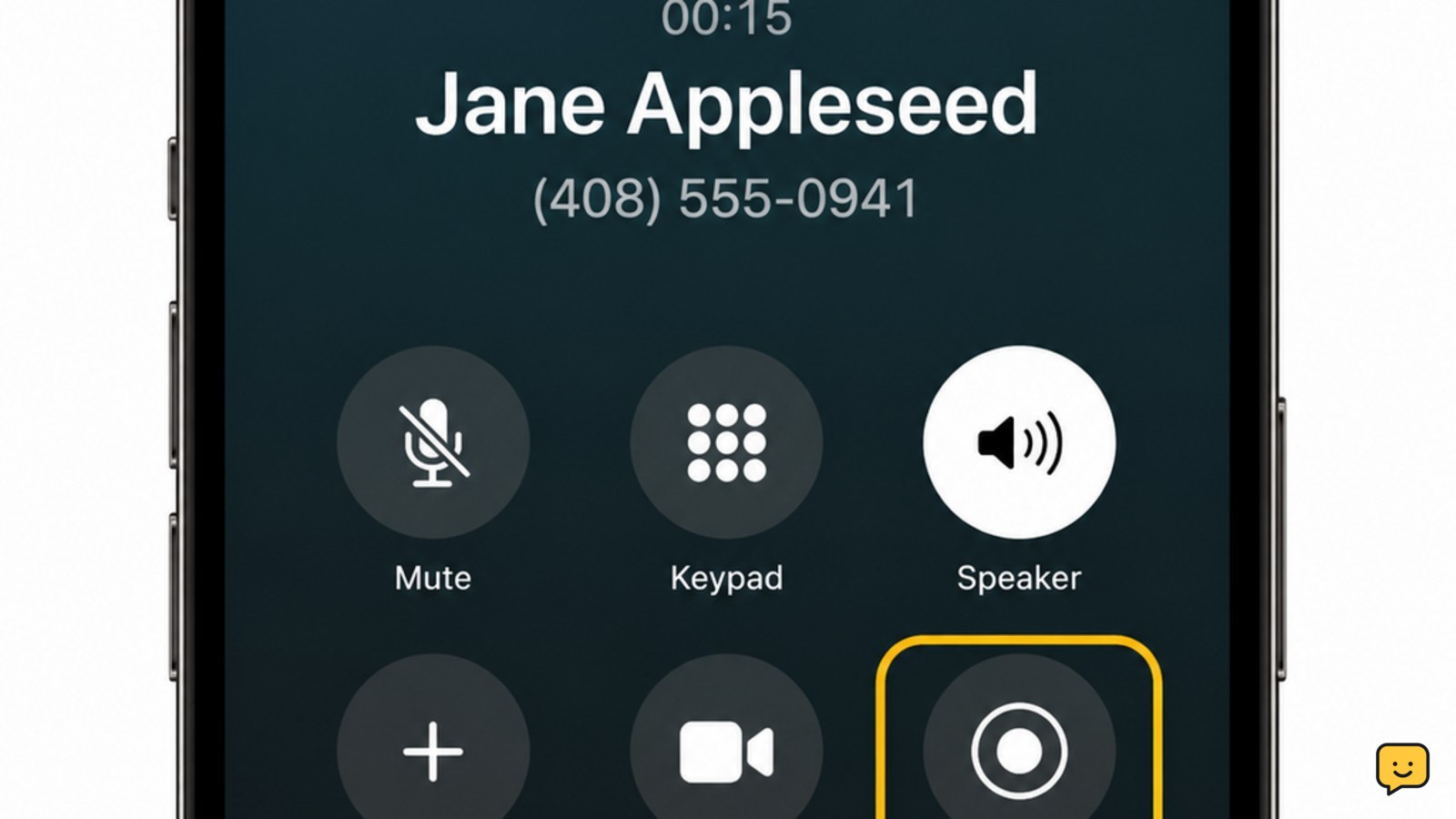
On an iPhone running supported iOS 18.1 or later, open Settings > Apps > Phone, turn on Call Recording, and place or answer a call. After the other person answers, tap the Call Recording button. Both participants hear a recording notice, and the finished recording is saved in the Notes app. Availability varies by region and language.
For more help with this topic, use the Mobile Devices guides.
Check iPhone compatibility and recording availability
iPhone Call Recording requires a supported iOS 18.1 or later configuration, and Apple’s availability can depend on region and language.
- Open Settings.
- Tap Apps, then Phone. On some iOS layouts, you may reach Phone directly from Settings.
- Look for Call Recording. If it is present, open it and turn on the switch.
Verify: the Call Recording setting remains enabled when you leave and return to the Phone settings. If the option is not listed, update iOS, restart the iPhone, and check again. Do not assume that a third-party recorder can capture both sides of a cellular call reliably.
Start recording after the call connects
The iPhone Phone app starts a call recording from the active call screen after the other person answers.
- Place or answer a call in the Phone app.
- Wait until the call connects.
- Tap the Call Recording control on the call screen.
- Allow the recording notice to play before continuing the conversation.
Apple’s built-in process gives the participants an audible notice that recording has started. A recording control or status indicator should remain visible during the call, which confirms that capture is active.
To stop: tap the stop control on the call screen or end the call. If the recording button does not appear, end the call and check the compatibility and availability steps rather than relying on an unconfirmed recording.
Find and verify the saved call recording
A completed iPhone call recording is saved in the Notes app, where you can play it back and review its details.
- Open Notes.
- Look for the note created for the recorded call, usually in the recording or call-related folder shown by your iPhone.
- Tap the audio control and play the beginning, middle, and end of the file.
- Confirm that both sides of the conversation are audible and that the call identity and date are correct.
Success looks like: the audio starts without an error, the call duration is plausible, and the conversation is understandable throughout. Rename the note if needed, then keep it in a protected account or delete it when it is no longer necessary.
What to do if Call Recording is missing or fails
If iPhone Call Recording is unavailable or produces no usable file, the cause is usually feature availability, an unsupported software configuration, or a failure to start recording from the connected-call screen.
- Missing setting: install the latest available iOS update, restart the iPhone, and check Settings > Apps > Phone again. If it remains absent, stop; the feature may be restricted in your region or language.
- Missing call control: confirm that the call has been answered and that Call Recording is enabled before trying again.
- Recording not found: search Notes for the call date or contact, then check that the call actually ended after recording was started.
- Poor audio: replay the file with Bluetooth disconnected and check whether the original call had microphone or speaker problems. Do not treat a silent or partial file as a complete record.
For a call that cannot use Apple’s built-in feature, ask everyone for consent before considering a conference-recording service or recording the call through a second device. Those alternatives may have separate privacy, quality, and legal limits.
If the saved file has weak or missing speech, use this iPhone microphone troubleshooting guide to check the microphone before recording again.
Frequently asked questions
Which iPhones can record phone calls?
Supported iPhones running iOS 18.1 or later can use built-in Call Recording where Apple makes the feature available. The setting can also depend on region and language. Check Settings > Apps > Phone for Call Recording; if it is absent after updating, the feature is not currently available in that configuration.
Does the other person know when an iPhone call is recorded?
Yes. Apple’s built-in call recording plays an audible notice to the participants when recording starts. You should also tell the other person first and follow applicable consent laws, which can require permission from everyone on the call.
Where does an iPhone save a recorded call?
The recording is saved in the Notes app after the call ends. Open Notes, find the note associated with the call, and play several parts of the audio to confirm that the file is complete before storing or sharing it.
Can Voice Memos record a phone call on iPhone?
Voice Memos is not the built-in method described here for capturing both sides of a cellular call. Use Call Recording when the option is available. If it is unavailable, use an agreed, lawful alternative such as a conference-recording service or a second device, and verify the result immediately.


