
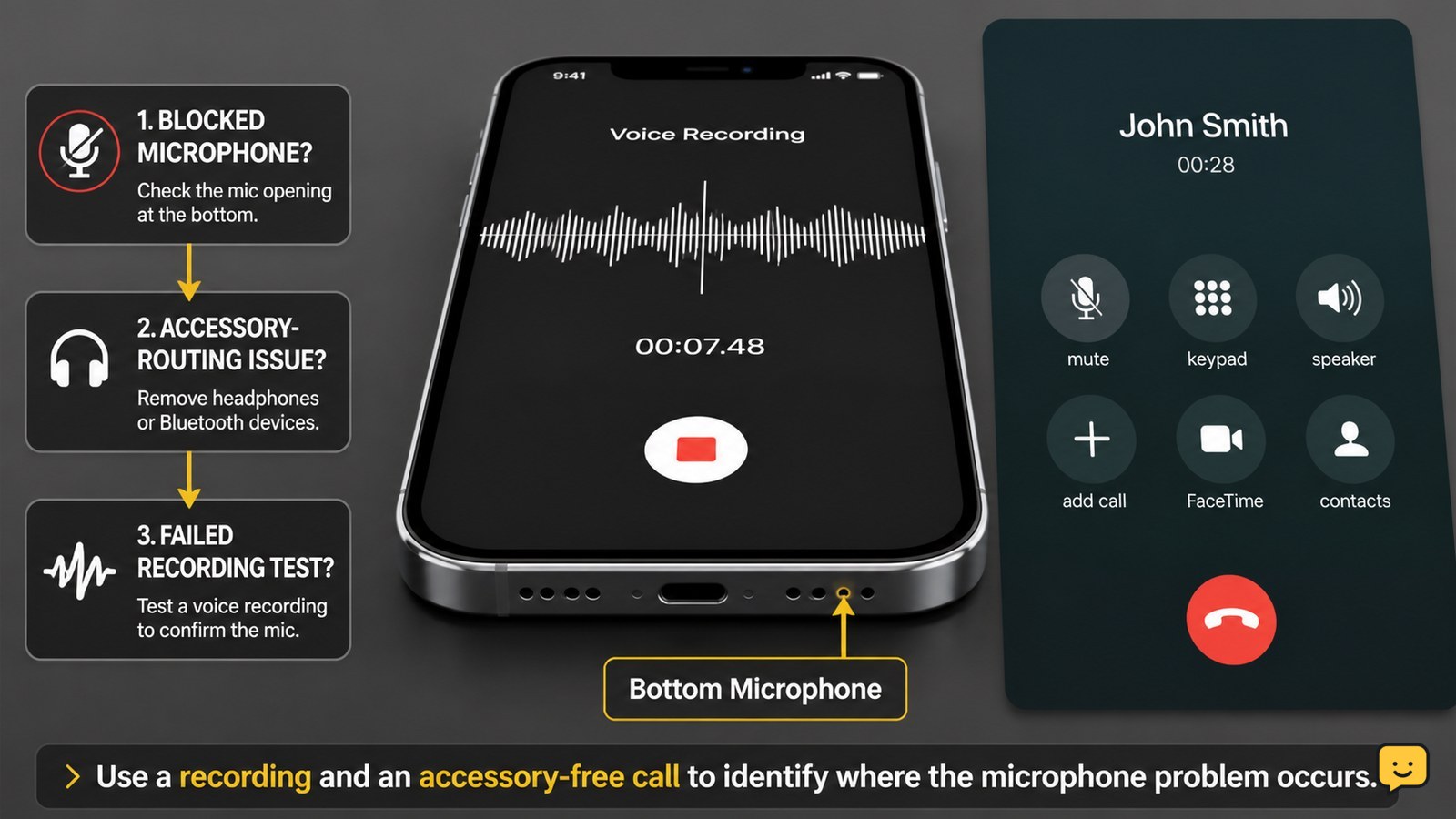
If your phone microphone is not working during calls, first turn off call mute, disconnect Bluetooth, remove any case or film covering the microphone, and gently clear the mic opening. Restart the phone, check microphone permission for the affected app, then record a voice memo. If recordings also have no sound, stop after basic cleaning and arrange service.
Check mute, Bluetooth, and call routing first
A phone microphone can appear broken when the call is muted or audio is being routed through another device. During a call, look for the microphone button and tap it once if it shows muted. Raise the call volume, but remember that volume controls do not turn the microphone on.
- Disconnect Bluetooth from Quick Settings or Control Center.
- Unplug any wired headset or USB-C accessory.
- End the call and make a new call without earbuds or a car system.
Verify: Ask the other person whether your voice is clear for at least 10 seconds. If the microphone works only after Bluetooth is disconnected, inspect the headset or car connection instead of changing phone settings.
Remove anything covering the microphone opening
A case, protective film, lint, or pocket debris can block the microphone opening used during calls. The opening may be on the bottom edge, near the charging port, or elsewhere on the frame depending on the phone model; do not assume every small hole is a microphone.
- Remove the case and any loose protective film.
- Use a bright light to inspect the openings without poking them.
- Hold the phone with the opening facing downward and use a clean, dry, soft brush to lift visible debris from the outside.
Do not scrape the mesh or blow moisture into the phone. Anecdotal repair discussions and troubleshooting demonstrations commonly recommend checking a blocked opening, but the exact microphone location is model-specific. Consult the phone maker’s hardware diagram or manual if you are unsure.
Verify: Record a short voice memo after cleaning. Clear speech means the obstruction was a likely cause; silence, crackling, or very faint audio requires the next checks.
Use a recording to separate call problems from microphone failure
A voice recording is the fastest decision point: if recordings are clear but calls are silent, the microphone hardware is probably functioning and the problem is more likely limited to call routing, an app, or carrier calling.
- Open the built-in Recorder, Voice Memos, or Camera app.
- Record yourself speaking normally for 10 seconds.
- Play the recording through the phone speaker.
- Repeat once in a different app if the first test is inconclusive.
Clear recordings but silent calls: test a regular cellular call, a Wi-Fi calling call, and one internet calling app if available. If only one app fails, focus on that app’s permission and update status. No sound in every recording: continue with permissions and a restart, then stop if the fault remains.
Restart the phone and restore microphone permission
A full restart can clear a temporary audio-service or app state problem, while microphone permission controls whether individual apps can capture sound. A troubleshooting video specifically lists force restart, call settings, and app fixes as separate checks; menu names vary by phone and software version.
- Restart the phone normally. If the screen is frozen, use the model-specific forced-restart button sequence from the manufacturer.
- On iPhone, open Settings > Privacy & Security > Microphone and enable access for the affected app.
- On Android, open Settings > Security and privacy > Privacy > Permission manager > Microphone, then allow the affected app while using it. Some Android versions place this under Apps > Permissions.
- Open the app again and accept the microphone request if it appears.
Verify: Make a test call or record again. If the permission switch is unavailable, immediately turns off, or the built-in Recorder also fails, do not keep changing unrelated permissions; move to the hardware decision below.
Decide when the phone needs service
If the microphone fails in calls, recordings, and multiple apps after accessory removal, gentle cleaning, a restart, and permission checks, hardware damage becomes more likely. This is an inference from the failed cross-app tests, not a confirmation without inspection.
Arrange service when the problem began after a drop, liquid exposure, charging-port damage, screen or battery repair, or a software update and remains after the basic checks. An Apple Community report describes a microphone fault associated by the poster with an update, but community reports are not a diagnosis; install only an official system update offered for your exact model and back up first.
Before service, save important photos and messages, note whether speakerphone changes the symptom, and write down which recordings failed. If speakerphone works but normal calls do not, tell the technician; different phone microphones or call paths may be involved. Do not dismantle the phone or use a factory reset as a first repair.
Frequently asked questions
Why does my phone microphone work in recordings but not during calls?
The microphone hardware may be working, while call audio is affected by mute, Bluetooth, a headset, Wi-Fi calling, carrier calling, or the Phone app. Disconnect accessories, check the in-call microphone button, restart the phone, and test both a regular cellular call and an internet calling app. If only one calling method fails, contact the carrier or app support before seeking hardware repair.
How do I know which microphone on my phone is blocked?
You usually cannot identify every microphone opening by appearance alone because locations differ by model. Use the manufacturer’s manual or hardware diagram, then inspect the listed opening under bright light. Remove the case and brush only the exterior gently. Test a voice recording afterward. Never insert a pin or liquid into a small hole because it may damage a microphone or another internal component.
Why can nobody hear me only when speakerphone is off?
That pattern can indicate that different microphones or audio paths are used for normal calls and speakerphone. Remove the case, disconnect Bluetooth, restart the phone, and compare a voice memo with a normal call. If recordings and speakerphone are clear but ordinary calls remain silent, document the pattern and contact the phone maker or carrier for model-specific diagnosis.
Should I factory-reset my phone to fix a failed microphone?
No. A factory reset is not a first-line microphone repair and erases local data. First test without accessories, inspect the opening, restart the phone, check microphone permissions, and compare recordings with calls. Back up your data before any reset, and use it only if the manufacturer or a qualified technician recommends it after software causes have been narrowed down.
Browse more Mobile Devices guides for help with this topic.


