
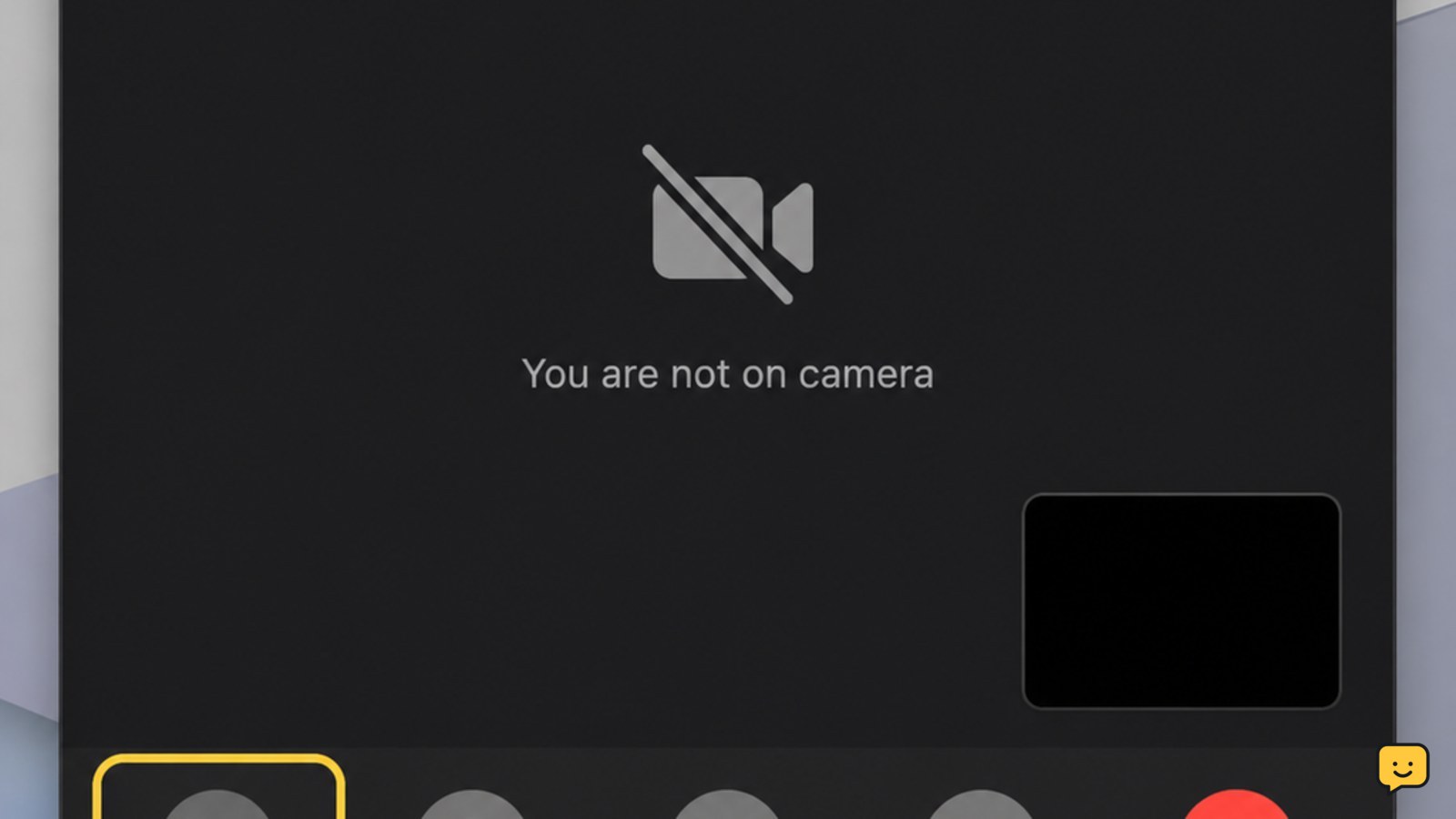
To pause FaceTime video, start or answer the call, tap the screen to show the controls, then tap the camera or video button. Your camera turns off while the call and audio continue. Tap the same button again to resume video. On a Mac, move the pointer over the call and click Mute Video.
For more help with this topic, use the Mobile Devices guides.
Turn off FaceTime video on iPhone or iPad
On an iPhone or iPad, pausing FaceTime means turning off your camera while leaving the call connected.
- During the FaceTime call, tap the screen once to reveal the call controls.
- Tap the camera or video button. Depending on the interface, it may appear as a video-camera icon or as a control that turns video off.
- Keep talking while your video is paused. The other person should still be able to hear you unless you also mute the microphone.
Apple describes this behavior as temporarily turning off the camera while people in the call can still hear you. The video button is separate from the microphone button, so check that you changed the camera control rather than mute.
Verify that your camera is paused
Your FaceTime camera is paused when your live camera image no longer appears to the other person and the camera control shows that video is off.
- Tap the call screen if the controls are hidden.
- Look for the changed camera or video icon and ask the other person whether your video has stopped.
- Keep the call connected for an audio-only conversation.
For privacy-sensitive situations, do not rely on a hidden control bar as proof. Confirm the camera-off state before moving out of view or handling anything private. If you cannot tell which control changed, end the call instead of assuming the camera is paused.
Resume FaceTime video when ready
To resume FaceTime video, show the call controls and tap the camera or video button again.
- Tap the iPhone or iPad screen, or move the pointer over the FaceTime window on a Mac.
- Tap or click the same camera control used to pause video.
- Wait for your live preview to return, then confirm with the other person that they can see you.
If the preview does not return, check whether the camera control still indicates that video is off. Tap it once more only if the state did not change. Repeatedly tapping without checking can make it harder to tell whether the camera is on.
Pause FaceTime video on a Mac
On a Mac, Apple’s FaceTime guide says to pause your camera by clicking the Mute Video button during the call.
- Move the pointer over the FaceTime call window to display the controls.
- Click Mute Video.
- Leave the microphone active if you want to continue speaking.
Apple says this temporarily turns off your camera while everyone in the call can still hear each other. Click the same control again to restore video, then check that your live camera image returns.
What to do if the video control is missing
If the FaceTime camera control is missing, first reveal the controls and confirm that you are still in an active call.
- Tap the screen on an iPhone or iPad, or move the pointer over the call window on a Mac.
- Check that the call has not ended and that you are not viewing a notification or another app instead of the call controls.
- On a Mac, look specifically for Mute Video; on iPhone or iPad, look for the camera or video control.
If the control remains unavailable, use the device’s normal call controls to end the call and place a new FaceTime call. Do not change privacy permissions during a call unless you understand the effect: camera access settings can affect FaceTime beyond this single pause.
Choose the right alternative to pausing
Turning off video is the right choice when you want to keep the conversation going without sharing a live camera view.
- Need silence: tap or click the microphone control instead, but remember that this leaves your video visible.
- Need to leave the conversation: end the FaceTime call; turning off video does not pause the call itself.
- Need privacy immediately: turn off the camera and verify the result before handling private information.
Do not close the FaceTime app or enable Airplane Mode as a substitute. Those actions can interrupt the call rather than temporarily stopping video.
Frequently asked questions
Does pausing FaceTime end the call?
No. Turning off the FaceTime camera keeps the call connected and normally leaves audio available. To stop the conversation entirely, use the end-call button.
Can the other person still hear me when FaceTime video is paused?
Yes. Pausing video is separate from muting the microphone. The other person can still hear you unless you also tap or click the microphone control.
How do I turn my FaceTime camera back on?
Show the call controls and tap the camera or video button again. On a Mac, move the pointer over the call and click the video control again. Confirm that your live preview returns.
Why can’t I find the pause button in FaceTime?
FaceTime may not label the feature Pause. Look for the camera or video control on iPhone and iPad, or Mute Video on Mac. Reveal hidden controls by tapping the screen or moving the pointer over the call.


