
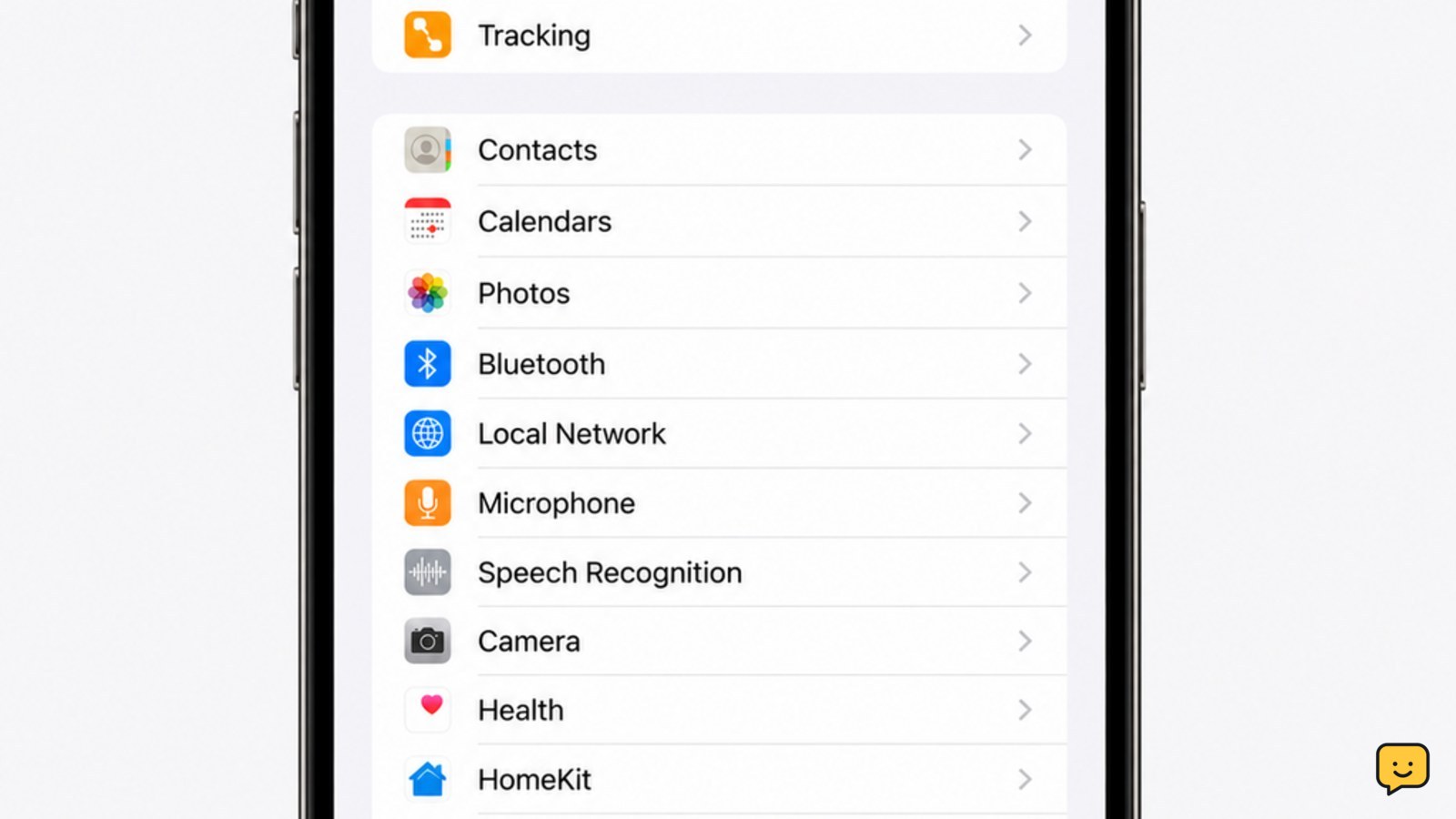
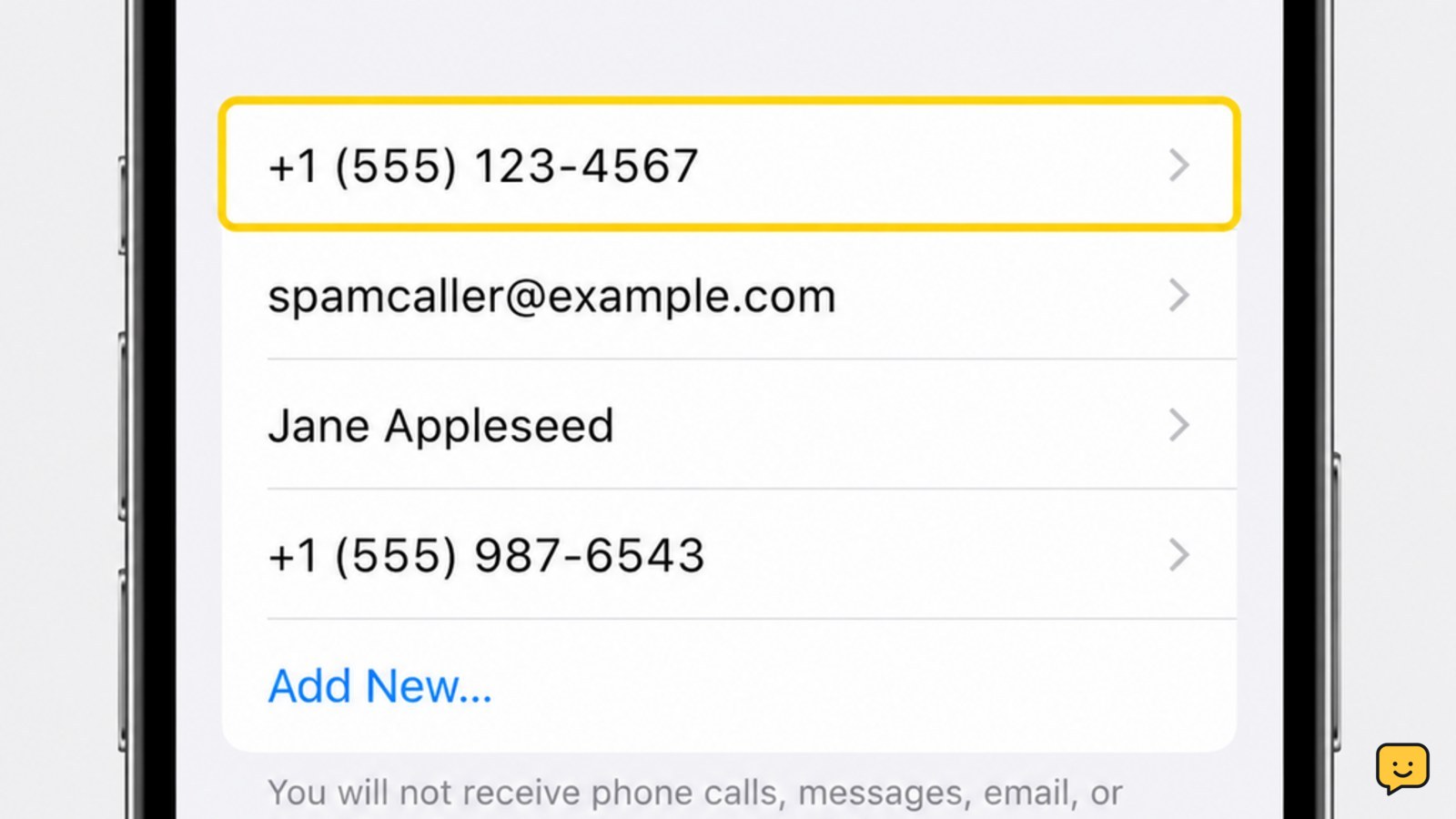
On an iPhone running iOS 26, open Settings, tap Privacy & Security, then tap Blocked Contacts. The list shows blocked phone numbers, contacts, and email addresses. Tap Edit to remove an entry, or tap the add button to block another contact. On earlier iOS versions, check Settings > Phone > Blocked Contacts.
For more help with this topic, use the Mobile Devices guides.
Find Blocked Contacts in iOS 26 Settings
On iOS 26, the iPhone blocked-number list is under Settings > Privacy & Security > Blocked Contacts. Apple Support identifies this as the current location for managing blocked phone numbers, contacts, and email addresses.
- Open Settings.
- Tap Privacy & Security.
- Tap Blocked Contacts.
You should now see a list of blocked entries. Phone numbers may appear with a saved contact name or as a number alone. This list applies across Apple communication features that use the device’s blocked-contact controls.
Verify the result: Confirm that the number, contact, or email address you were looking for appears in the list. If it is listed, the block is active on this iPhone.
Use the Older Phone Settings Path
On an earlier iOS release, blocked numbers may be listed under Settings > Phone > Blocked Contacts instead of Privacy & Security.
- Open Settings.
- Scroll down and tap Phone.
- Tap Blocked Contacts.
If you do not see the Phone option or the blocked list there, return to the main Settings screen and use the search field for Blocked Contacts. Search can reveal the setting even when Apple has moved it between iOS versions.
Do not confuse Silence Unknown Callers with blocked contacts. Silencing changes how calls from unknown numbers are handled; it does not show which specific numbers you blocked.
Remove a Number From the Blocked List
The iPhone Blocked Contacts screen lets you remove a saved block without deleting the contact or its conversation history.
- Open the blocked list using the current or older Settings path.
- Tap Edit.
- Tap the remove control beside the number or contact.
- Tap Unblock or the confirmation control shown by your iOS version.
- Tap Done if it appears.
Verify the result: Search the list again. The removed entry should no longer appear. Removing the block does not automatically restore missed calls or previously filtered messages.
Only remove an entry when you intend to receive calls, messages, or FaceTime requests from it again. If the contact is unwanted, leave the block in place.
Add a Number When the List Is Open
The Blocked Contacts screen can also add a contact or number directly, although the exact add control can vary by iOS version.
- Open Settings > Privacy & Security > Blocked Contacts, or use Settings > Phone > Blocked Contacts on an older release.
- Tap the add button or Add New if shown.
- Select the contact you want to block.
Verify the result: The selected contact should appear in the blocked list. If you need to block a number from a recent call instead, open the Phone app, tap Recents, tap the info button beside the call, and look for the blocking control.
Stop if the number is unfamiliar and your goal is only to reduce spam. Review call-filtering options before blocking a legitimate caller you may need to reach.
What to Do if a Number Is Missing
If a number is not in Blocked Contacts, the iPhone has not recorded that exact entry in the list you are viewing.
- Check both Settings paths described above, depending on your iOS version.
- Search for the number with and without its country code if it is saved in more than one format.
- Check whether the behavior comes from Silence Unknown Callers, a carrier spam filter, or a third-party call-screening app instead of an iPhone block.
- Review the relevant app’s own blocked or filtered list if the problem occurs only in that app.
A missing entry does not prove that every call from that person will ring. Carrier filtering and app-level controls can act independently of Apple’s blocked-contact list. Do not repeatedly unblock and reblock a contact while investigating; record the setting that changes and contact the carrier or app provider if filtering continues.
If you are checking whether another person blocked your number, see these signs someone blocked you on iPhone: signs someone blocked you
Frequently asked questions
Are blocked numbers stored in the Phone app?
Usually, no. On current iOS, Apple places the shared blocked list in Settings > Privacy & Security > Blocked Contacts. Earlier releases may show it under Settings > Phone > Blocked Contacts. The Phone app can still provide a shortcut to block a number from a recent call.
Can I see blocked numbers without unblocking them?
Yes. Opening Blocked Contacts only displays the list and does not change it. Use the current Privacy & Security path or the older Phone path, then leave the screen without tapping Edit or a remove control.
Does blocking a number delete the contact?
No. Blocking prevents communication from that entry but does not delete the saved contact. Removing the block also does not erase the contact, call history, or message thread, though it will not restore communications that were missed while the block was active.
Why can a blocked caller still leave a voicemail?
A blocked phone number can still be able to leave a voicemail, depending on the iPhone and carrier behavior. The call may not produce a normal incoming-call alert. If unwanted calls continue, review carrier spam protection and voicemail options rather than assuming the iPhone block failed.


