Computers & Internet
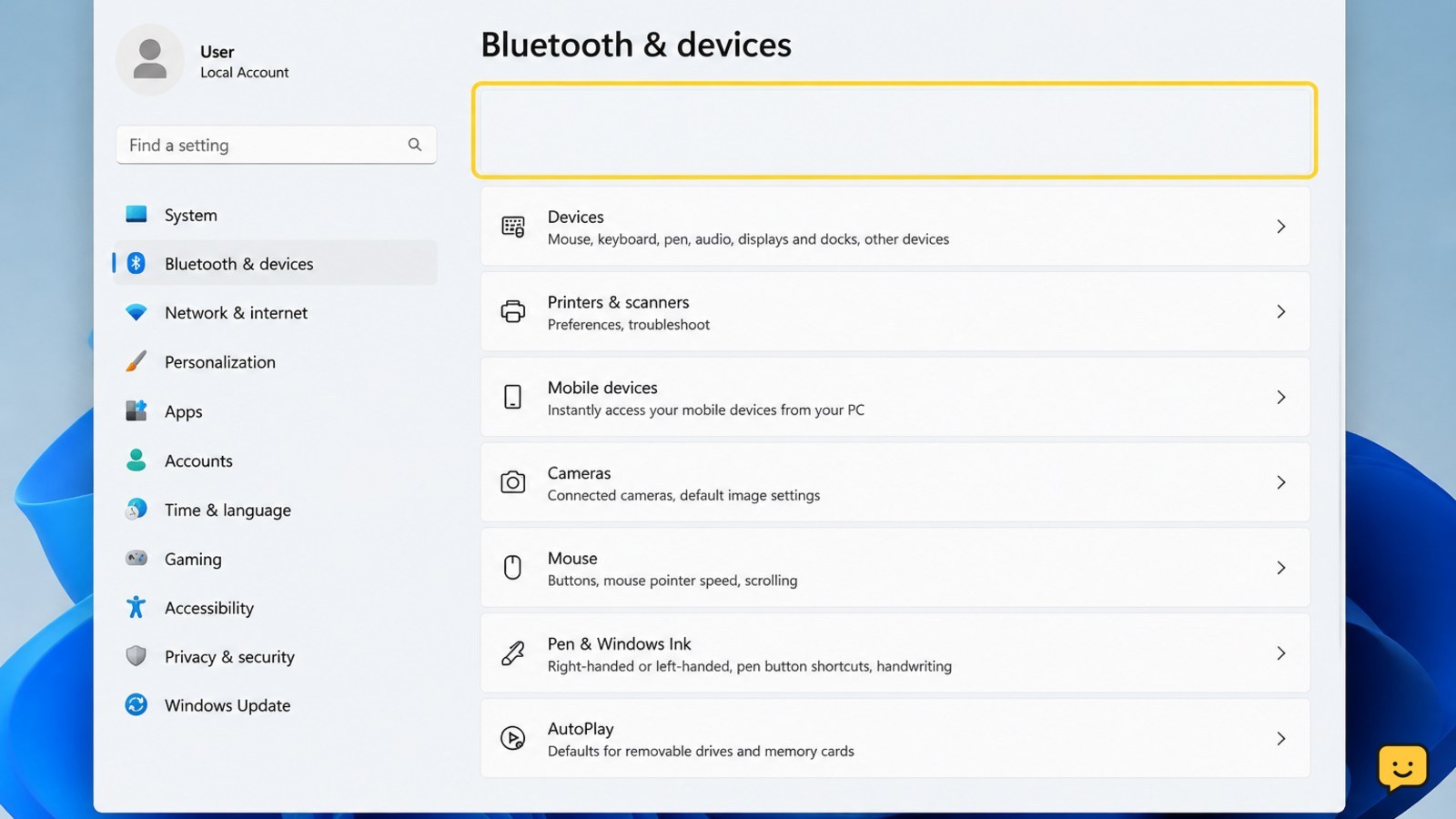
Windows 11 Bluetooth Disappeared From Settings: Fix It
Bluetooth vanished from Windows 11 Settings? Check Airplane Mode, Device Manager, drivers, services, updates, and hardware detection safely.
Fix everyday electronics with clear guides for phones, computers, Wi-Fi, TVs and smart devices. Browse practical troubleshooting, setup and performance help for the devices you use.
Bluetooth vanished from Windows 11 Settings? Check Airplane Mode, Device Manager, drivers, services, updates, and hardware detection safely.
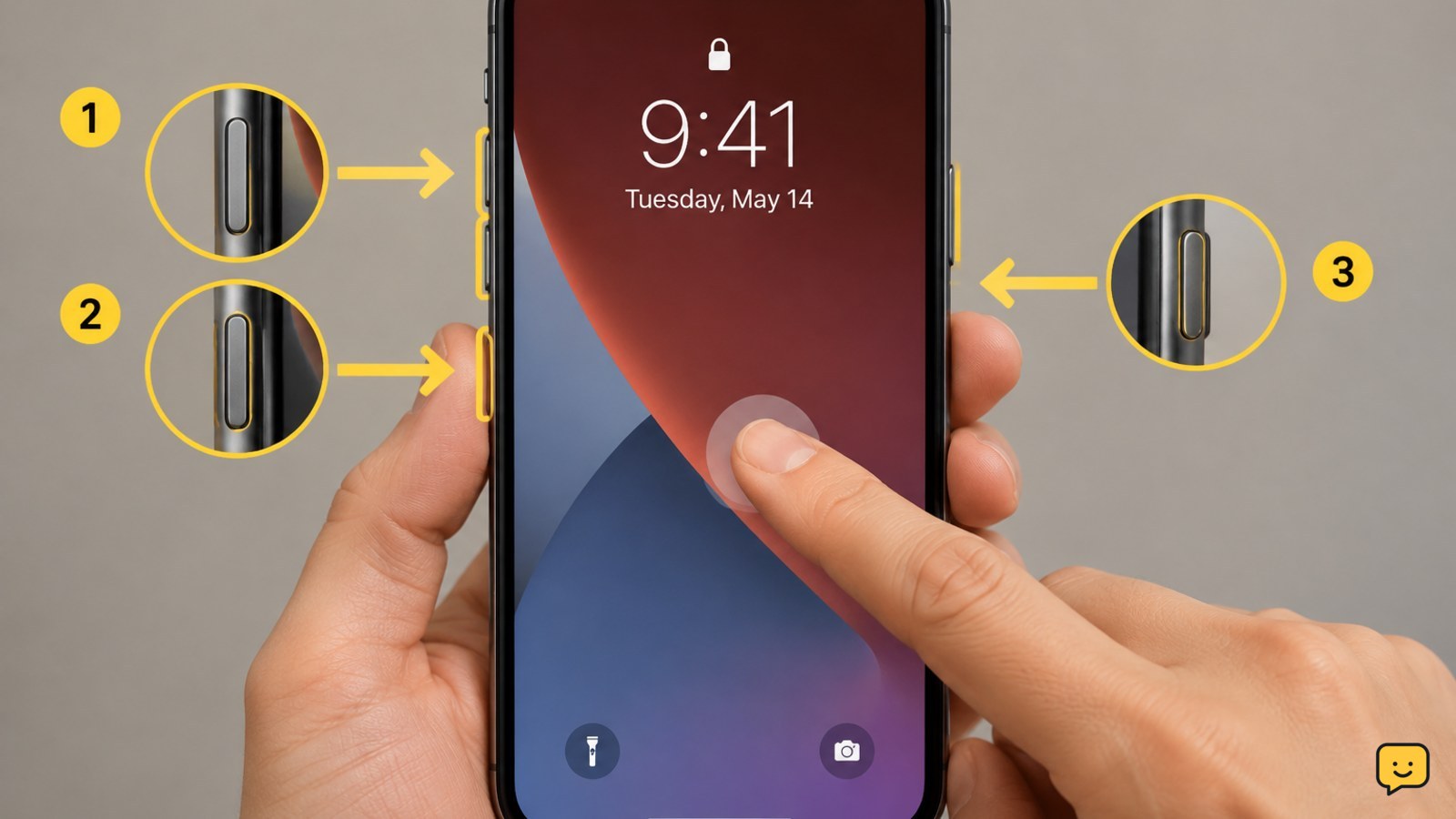
Fix an iPhone touchscreen that stops responding after waking up. Try a force restart, disconnect accessories, check settings, and identify hardware faults safely.
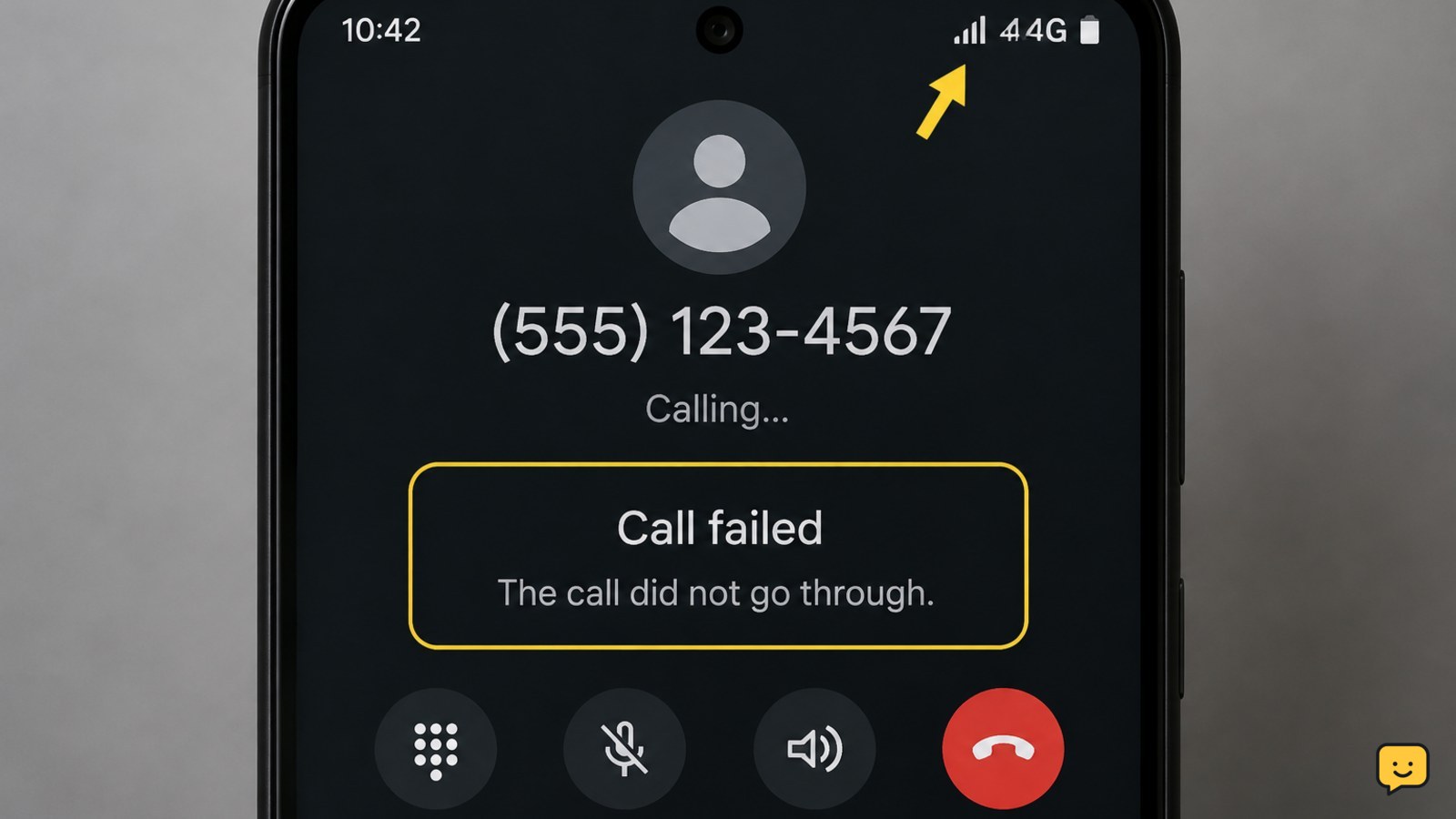
Android receives calls but cannot place them? Check carrier restrictions, call settings, SIM status, airplane mode, and network registration with safe steps.
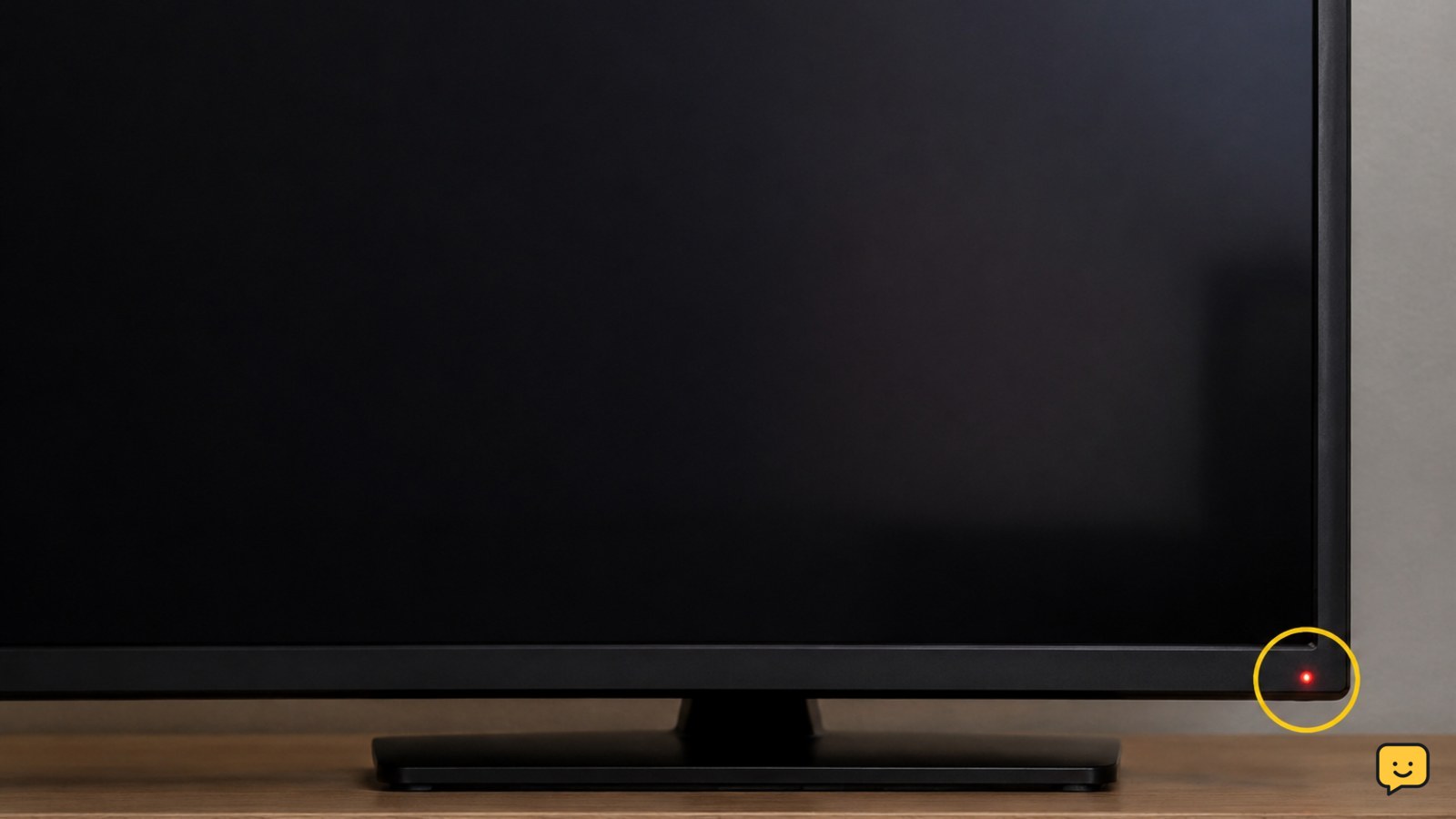
A standby light means your smart TV is receiving power. Test the remote, TV button, input, power cycle, outlet, and hardware safely to find the fault.
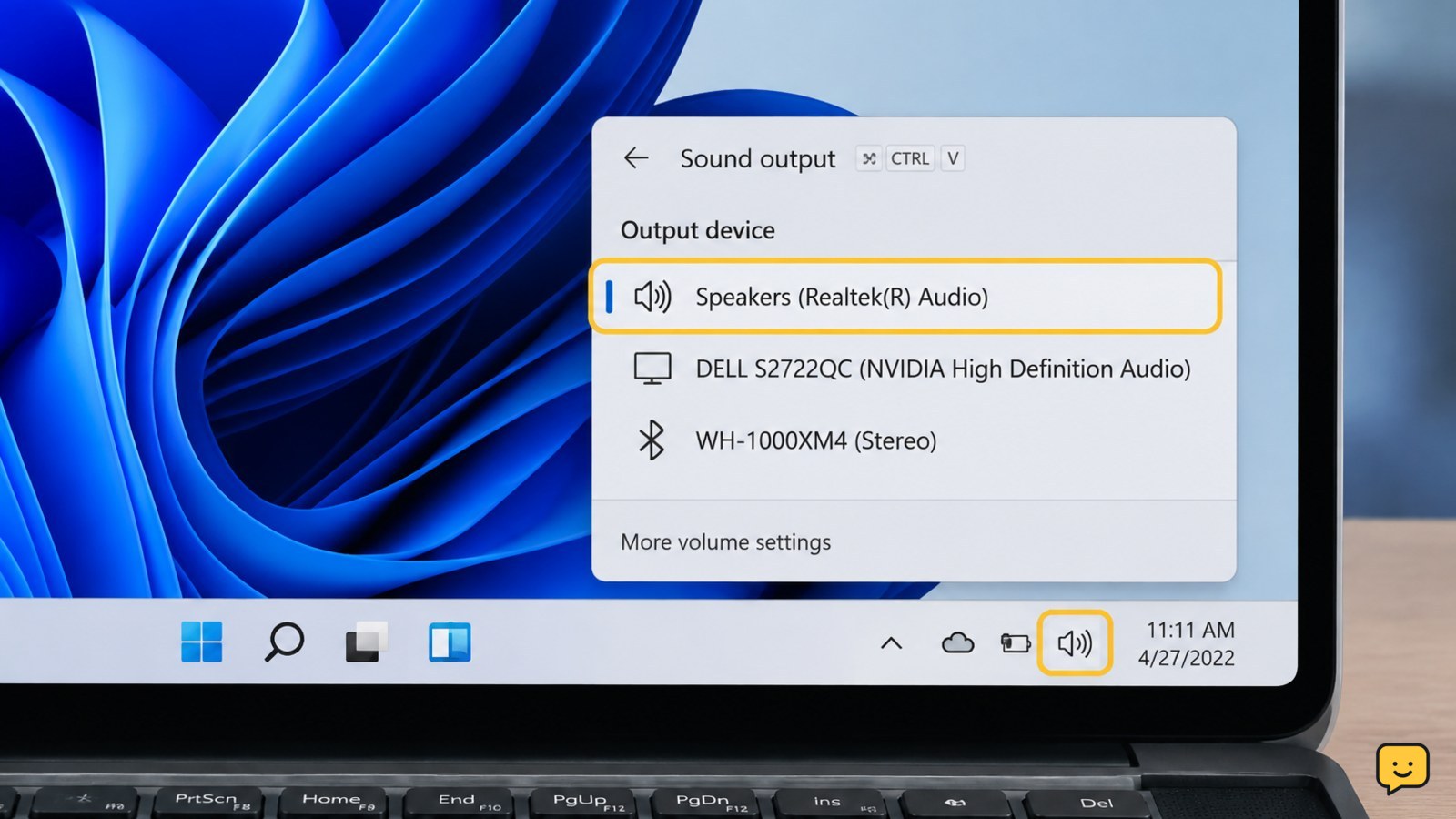
No sound output on your Windows 11 PC? Check the selected device, mute settings, HDMI or Bluetooth routing, drivers, and audio services safely.
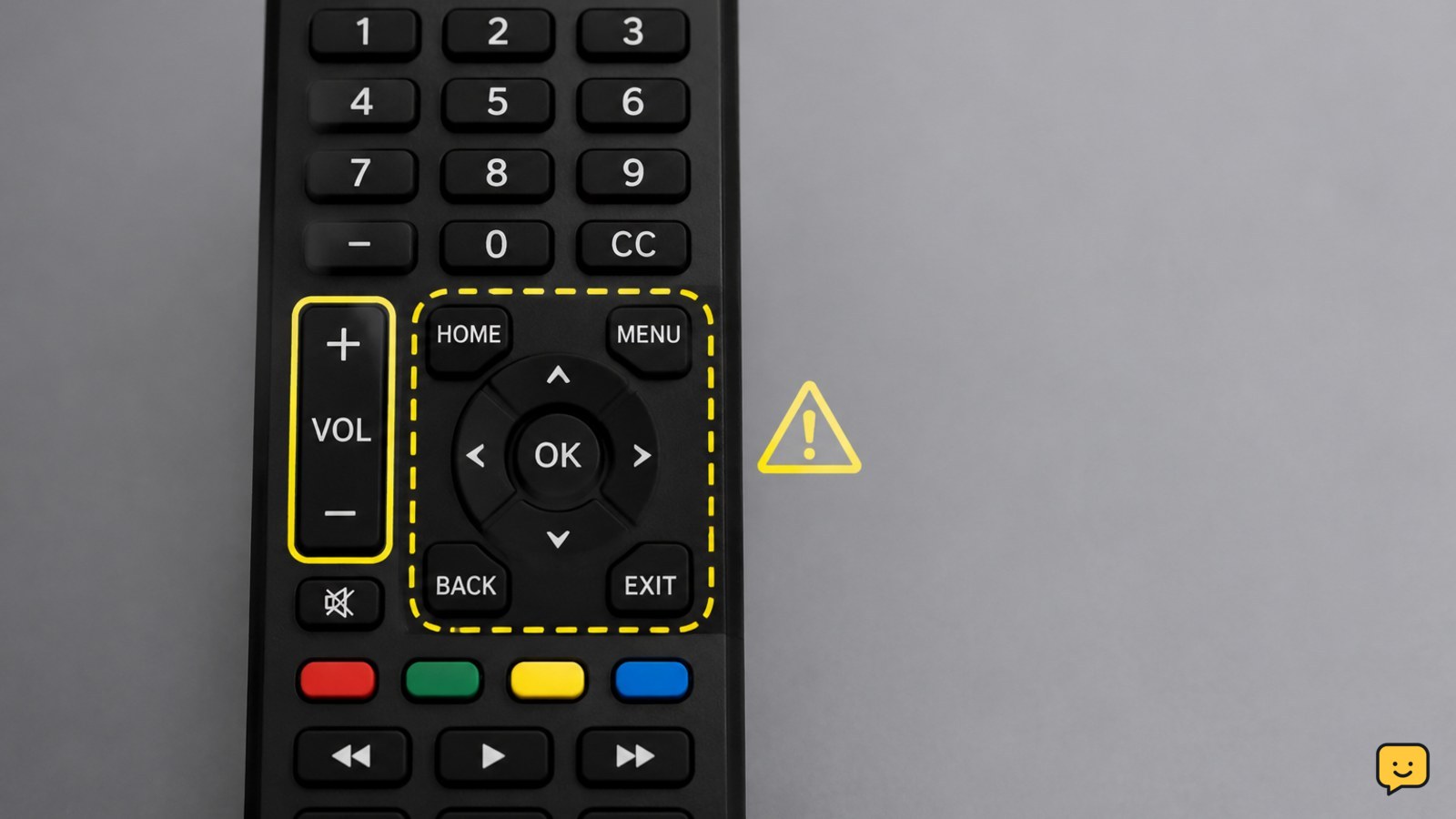
Fix a smart TV remote that changes volume but will not open or navigate the menu. Check batteries, mode, pairing, reset steps, and TV controls safely.
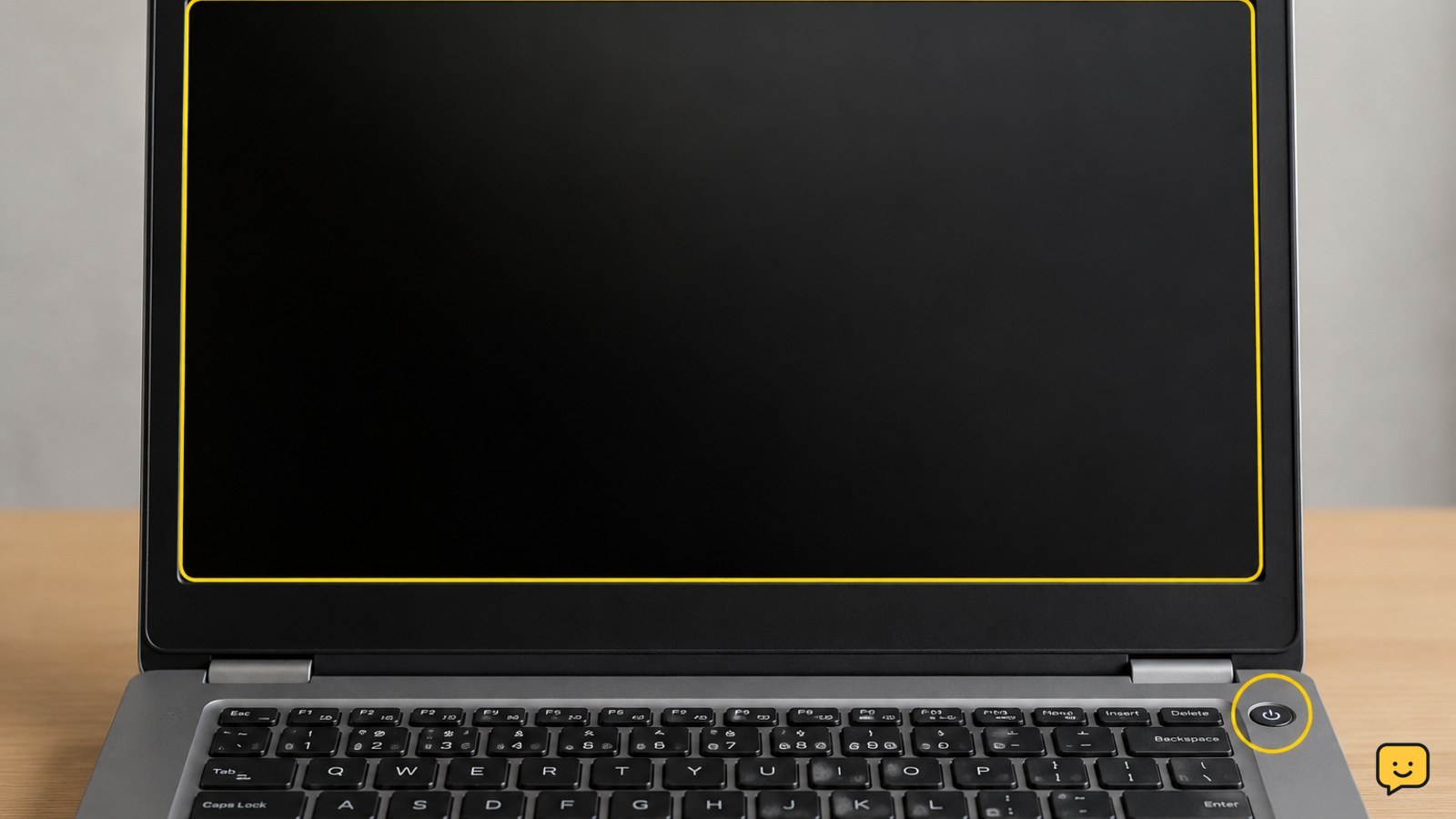
Fix a laptop that will not wake from sleep by testing the display, power, keyboard, drivers, and hibernation settings before restarting safely.
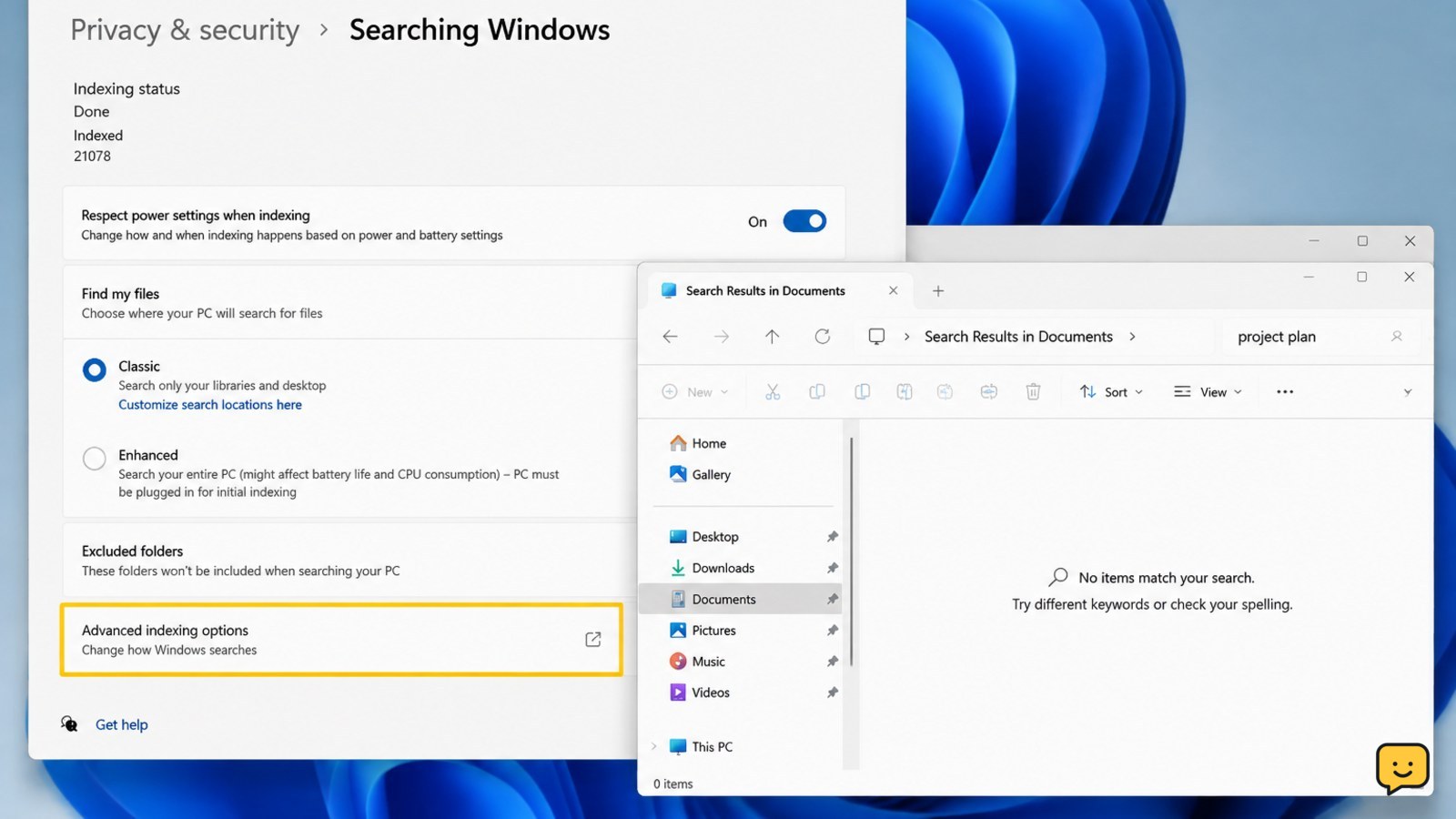
Windows 11 search misses files you can see? Check indexed folders, permissions, the Windows Search service, and rebuild the index safely.
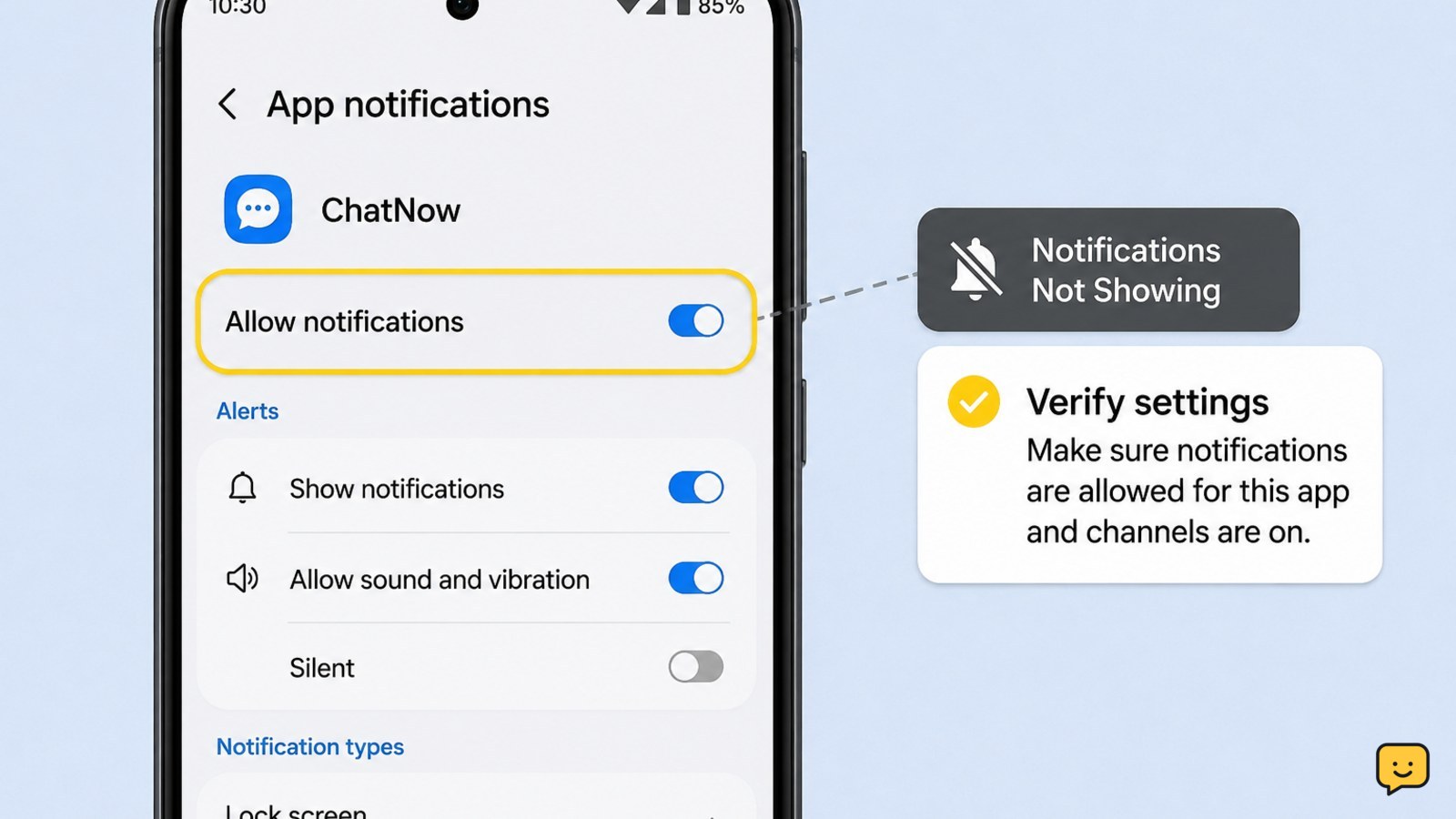
Fix Android phone notifications stopped appearing for one app by checking permissions, notification channels, battery limits, Do Not Disturb, and app data.
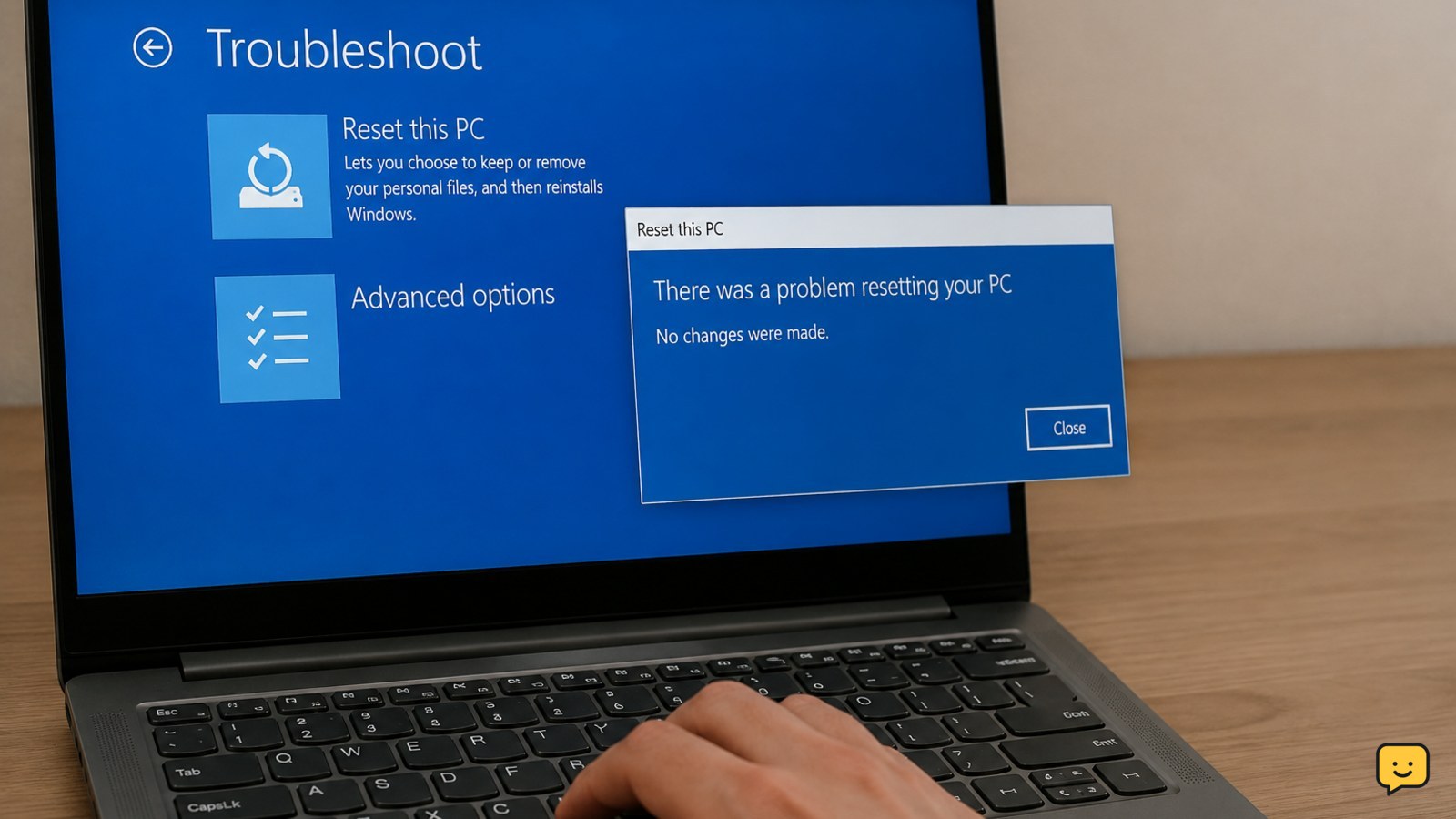
Fix the Windows 11 reset error safely. Back up important files, repair system components, use the recovery environment, and choose cloud or local reinstall.