
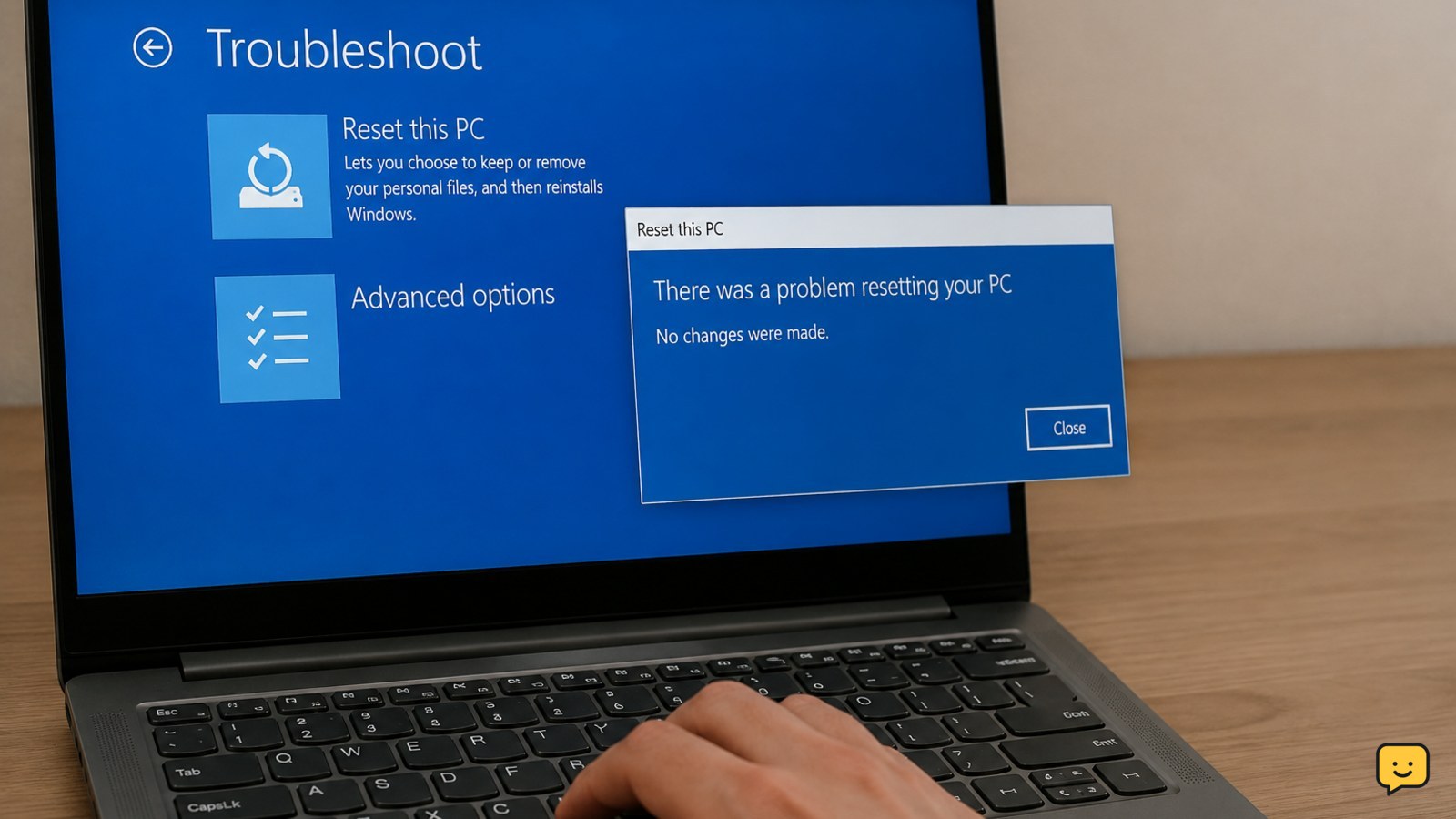
Back up important files before trying again, then run the reset from Windows Recovery Environment. If it still fails, repair Windows with DISM and System File Checker, check the recovery configuration, and retry using Cloud download instead of Local reinstall when internet access is reliable. Stop before any reset if your backup, BitLocker key, or hardware health is uncertain.
1. Confirm what the reset error means
The message usually appears as “There was a problem resetting your PC. No changes were made.” It means the attempted reset did not complete; it does not confirm that your files are safe or that the underlying Windows problem is fixed.
This guide applies when Windows 11 still opens, when it reaches the recovery menu, or when Reset this PC fails before making a noticeable change. If the computer cannot stay powered on, the internal drive is missing, or Windows shows repeated hardware errors, treat the problem as a possible hardware failure instead of repeatedly starting a reset.
Do not keep retrying blindly. First protect your files, then change one recovery variable at a time so you can identify whether the failure is caused by the normal Windows interface, recovery tools, damaged system files, or the reinstall source.
2. Back up and check the recovery prerequisites
Sign in normally if possible and open File Explorer. Copy necessary files from common locations such as Desktop, Documents, Pictures, Videos, Downloads, and any custom folders. Also check application-specific folders and locally stored email, game saves, or project files.
Use a second device to confirm that the copied files are readable. If the PC cannot boot normally, use another computer and an appropriate recovery or file-copy method rather than selecting a destructive reset as a first step.
Make sure the system drive has enough free space for Windows to stage recovery files, and keep the PC on stable power. Remove external storage that is not part of the backup. If encryption is enabled, have the recovery key ready before entering advanced startup.
Verification: Continue only when your backup opens elsewhere, the power connection is secure, and you know whether you want to keep personal files or erase the PC completely.
3. Run Reset this PC from Windows Recovery Environment
Running the reset from the recovery environment can help when the reset launched inside the normal desktop cannot use its recovery components correctly.
- Open Settings, select System, then Recovery.
- Next to Advanced startup, select Restart now. You can also hold Shift while selecting Restart from the Power menu.
- Choose Troubleshoot, then Reset this PC.
- Select Keep my files if you need personal files to remain, or select Remove everything only after completing and verifying a separate backup.
- When offered a reinstall source, choose the option that best matches the checks in the next section.
The recovery menu may request the BitLocker recovery key. Enter it only if it belongs to this PC and came from a trusted account or organization record.
Verification: A successful reset continues through preparation and installation, then reaches the Windows setup screens. Do not power off while the progress screen is active unless the manufacturer’s support instructions specifically direct you to do so.
Failure path: If the same error returns with no changes made, cancel further reset attempts and repair Windows before trying again.
4. Repair Windows system files before retrying
If Windows still starts, use an administrator Command Prompt or Windows Terminal. Run these commands one at a time and wait for each operation to finish:
DISM /Online /Cleanup-Image /RestoreHealth
 sfc /scannow
DISM checks and repairs the Windows component store that system recovery relies on. System File Checker then checks protected Windows files and replaces damaged copies when possible. Restart the PC after both commands complete, even if one reports that it found and repaired problems.
Run the commands from normal Windows first. If Windows will not start, do not guess drive letters in the recovery environment; the Windows partition may not be assigned the usual letter. Use the built-in recovery options or manufacturer support unless you can identify the correct Windows volume confidently.
Verification: Retry the reset from Settings > System > Recovery or from Windows Recovery Environment. If the reset succeeds, continue through setup and check that the backed-up files are available afterward.
Failure path: If DISM or SFC reports that it could not repair files, restart once and run the failed command again. If repair still fails, move to the reinstall-source choice rather than repeatedly forcing the same local reset.
5. Choose Cloud download or Local reinstall
Cloud download obtains a fresh Windows installation image over the internet. Prefer it when the PC has reliable, unmetered internet and you suspect the recovery files stored on the computer are damaged or incomplete.
Local reinstall uses files already stored on the PC. It can be faster and avoids a large download, but it may fail again if those local recovery files are the cause of the problem.
- Choose Cloud download when local recovery has failed, the internet connection is stable, and the PC has enough time and power for the download.
- Choose Local reinstall when the internet is unavailable or unreliable and Windows system-file repair completed successfully.
Read every confirmation screen carefully. “Keep my files” normally preserves personal files but removes applications and resets settings; it is not a substitute for a backup. “Remove everything” is appropriate only when you have deliberately prepared the PC for complete erasure.
Verification: After setup, open File Explorer, confirm the expected personal files, install required updates, and reinstall applications from their official sources. If the PC is being sold or given away, do not sign back into personal accounts during the final handoff process.
6. What to do if every reset attempt fails
Stop repeating the reset if it fails from both the desktop and Windows Recovery Environment, especially after DISM and SFC have completed. Repeated failures can indicate damaged recovery media, a storage problem, or a Windows installation that needs a more complete reinstall.
With your backup verified, use Microsoft’s official Windows 11 installation media or the computer manufacturer’s recovery media. Follow the instructions for your exact PC model and edition. A clean installation can erase the system drive, so confirm the target disk and keep the backup disconnected until you are certain which data must be preserved.
If the drive disappears from firmware settings, reports serious errors, or cannot complete installation, stop. Have the storage hardware tested or replaced before attempting another Windows installation.
Frequently asked questions
Will Reset this PC delete my personal files?
It depends on the option you choose. Keep my files is intended to preserve personal files while removing applications and resetting settings, but you should still make a separate backup first. Remove everything is destructive and can erase personal data from the Windows installation. Never choose it until you have verified that necessary files exist somewhere else.
Should I choose Cloud download or Local reinstall?
Choose Cloud download when your internet connection is reliable and the local recovery files may be damaged. Choose Local reinstall when internet access is unavailable or unreliable and Windows repair completed successfully. Cloud download takes longer and uses data, while Local reinstall may repeat the same failure if the files stored on the PC are corrupted.
Can I fix the reset error without resetting Windows?
Yes. Back up your files, then run DISM with RestoreHealth followed by sfc /scannow from an administrator terminal. Restart and try the reset again from Windows Recovery Environment. If the repair commands cannot complete or the reset fails again, stop repeating the attempt and use official installation media or professional support.
Why is Windows asking for a BitLocker recovery key?
Windows may request the key when recovery needs access to an encrypted drive. Find the key through the Microsoft account associated with the PC or through the organization that manages it. Do not guess or use a key from another device. If you cannot locate the correct key, stop before proceeding with recovery actions that could make file access more difficult.
What should I do if the PC fails to reset after Cloud download too?
Do not keep retrying the same reset. Confirm the backup, disconnect unnecessary devices, and check whether the internal drive shows errors or disappears. If the storage hardware appears healthy, use official Windows 11 installation media or the manufacturer’s recovery media. If the drive reports serious errors, have it tested before reinstalling Windows.
Browse more Computers & Internet guides for help with this topic.


