
There is usually no sound output on a Windows 11 PC because Windows is using the wrong playback device, the volume is muted, or an HDMI or Bluetooth connection has redirected audio. A disabled device, faulty driver, or stopped Windows Audio service can also prevent sound. Check routing and mute states first, then test drivers and services.
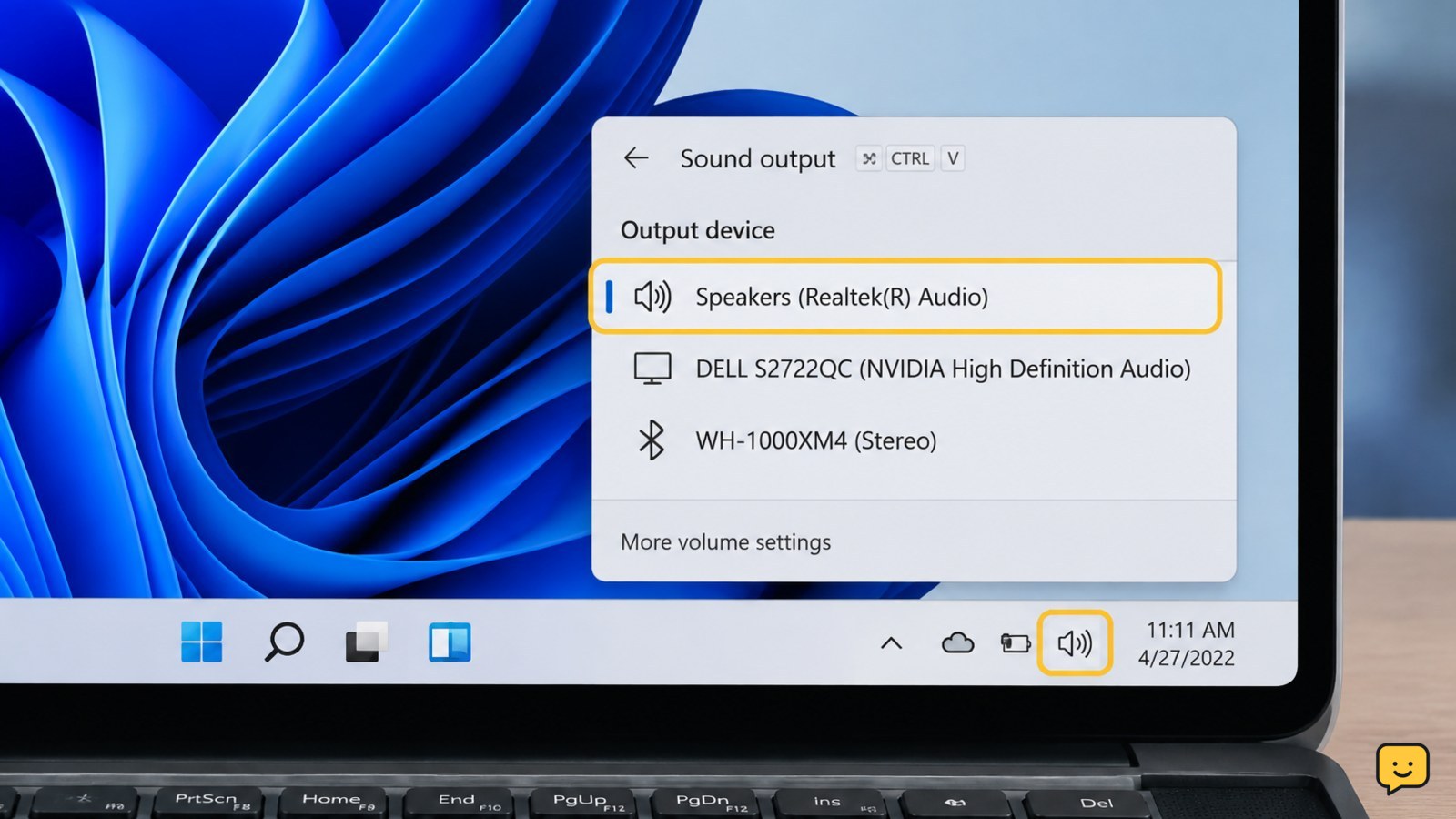
1. Check the selected output device
Windows can send sound to built-in speakers, a monitor, a USB headset, a soundbar, or a paired Bluetooth device. A recent HDMI connection or Bluetooth reconnection may have changed the destination.
- Select the speaker icon on the right side of the taskbar.
- Select the output-device button beside the volume slider.
- Choose the speakers or headphones you actually want to use.
- Raise the volume slightly and play a familiar video or system sound.
Verify: The selected device should show as connected, and the volume indicator should respond while audio plays. If the device is missing, continue to the connection checks below.
2. Remove mute states and app-specific volume limits
There are several separate mute controls in Windows 11. The main volume may be active while an individual app, headset, or monitor remains muted.
- Open the taskbar speaker control and make sure the speaker button is not muted.
- Move the volume slider above zero.
- Right-click the speaker icon and open Volume mixer.
- Under Apps, raise the affected app’s volume and clear its mute button.
- Check the physical mute key on your keyboard and the volume buttons on the speakers or headset.
Verify: Test more than one source, such as a browser video and a Windows notification. If only one app remains silent, repair or reset that app instead of changing system drivers.
3. Check HDMI, DisplayPort, USB, and Bluetooth routing
External displays often appear as audio devices. Bluetooth headphones can also take priority after they reconnect, even when you expect sound from the PC speakers.
- Disconnect the HDMI, DisplayPort, or USB audio device temporarily.
- Open the output-device list again and select the built-in speakers or wired headphones.
- For Bluetooth, open Settings > Bluetooth & devices and confirm the headphones show as connected.
- If the headphones connect but stay silent, disconnect them, turn them off and on, then reconnect.
- Test with a wired headset or the built-in speakers.
For Bluetooth pairing and output selection, see how to connect Bluetooth headphones to Windows 11.
Verify: Sound should follow the device selected in the output list. If a monitor has no speakers, selecting its HDMI audio output will not produce sound from the monitor itself.
4. Run Windows 11’s audio troubleshooter
The built-in troubleshooter can identify a muted device, an unavailable endpoint, or a basic configuration problem without changing unrelated settings.
- Open Settings > System > Troubleshoot > Other troubleshooters.
- Find Audio or Playing Audio and select Run.
- Follow the suggested checks and accept a correction only when it matches your setup.
- Restart the PC if Windows requests it.
Verify: Play audio after the troubleshooter finishes. If Windows reports that no audio device is available, proceed to Device Manager and services rather than repeatedly running the same check.
5. Inspect and refresh the audio driver
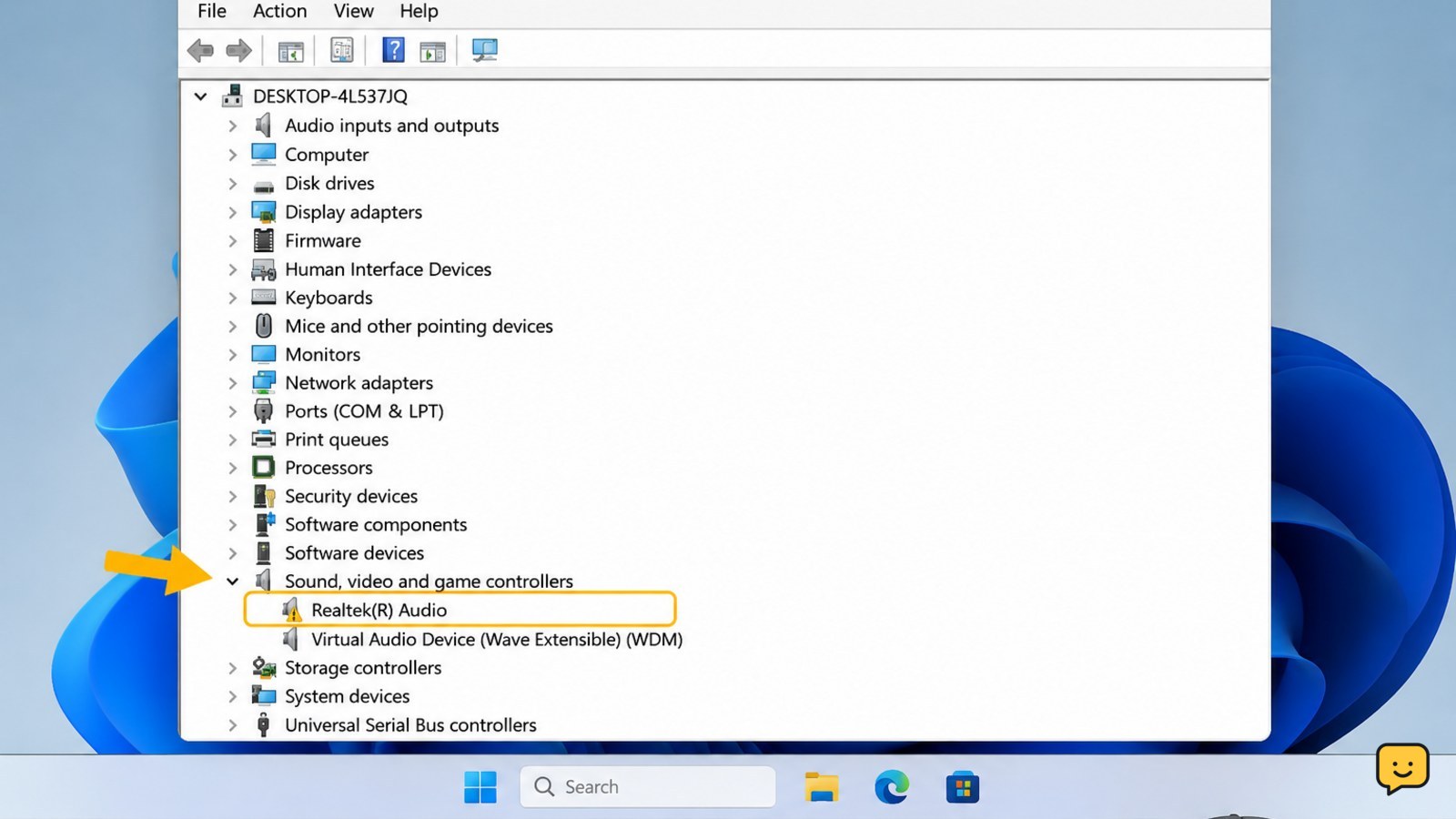
A disabled, missing, or recently damaged driver can stop Windows from detecting an audio endpoint. Use Device Manager to inspect the device before downloading anything.
- Right-click Start and open Device Manager.
- Expand Sound, video and game controllers.
- Look for the audio device and any warning symbol.
- Right-click it, choose Enable device if that option appears, then restart Windows.
- If the problem started after an update, open Properties > Driver and use Roll Back Driver when available.
- If no rollback is available, choose Update driver and let Windows search automatically.
Use the PC or motherboard manufacturer’s support page for a compatible driver if Windows cannot find one. Do not use a random driver-download site.
Verify: The audio device should appear without a warning symbol, and the output list should contain a usable speaker or headset. If the device is still absent, continue to the service check.
6. Restart the Windows audio services
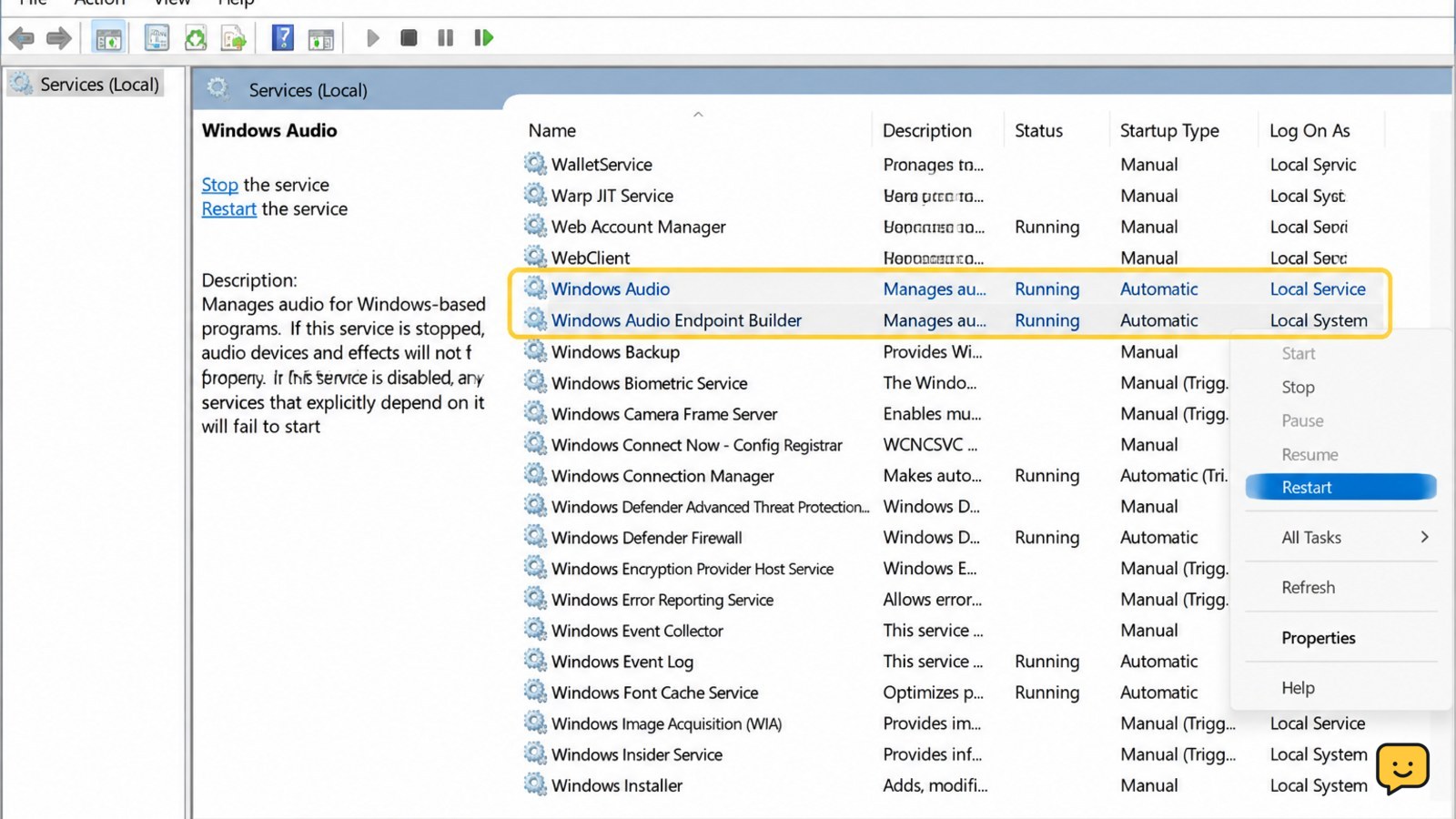
Windows audio depends on background services. If an audio service is stopped or stuck, restarting it can restore sound without changing your files.
- Press Windows key + R, type
services.msc, and press Enter. - Find Windows Audio.
- Right-click it and choose Restart. If it is stopped, choose Start.
- Repeat the check for Windows Audio Endpoint Builder.
- Close the Services window and test a sound source.
Verify: The services should show a running status, and Windows should retain a selectable output device after a restart. If a service repeatedly stops, install pending Windows updates and check the manufacturer’s audio driver.
7. Isolate a hardware or application fault
If Windows shows a normal output device but every source remains silent, isolate the fault before making deeper changes.
- Test a different pair of headphones or speakers on the same computer.
- Test the original device on another computer, phone, or audio source.
- Try another USB port or a different audio cable when applicable.
- Check whether sound works in more than one app.
If another audio device works, the original speakers, headset, cable, or adapter is the likely cause. If no audio device works and the driver and services are normal, the computer’s audio hardware or port may need service.
Stop: Do not open the PC or continue electrical testing if there is visible damage, liquid exposure, heat, or a burning smell.
Frequently asked questions
Why does Windows 11 show no output device?
Windows 11 usually shows no output device when the audio driver is disabled, missing, or not communicating with the hardware. Check Device Manager under Sound, video and game controllers, restart Windows Audio and Windows Audio Endpoint Builder, and reconnect HDMI, USB, or Bluetooth equipment. If the device remains absent, install the compatible driver from the PC or motherboard manufacturer’s support page.
Why is there no sound from my monitor through HDMI?
The monitor may not have built-in speakers, or Windows may still be using another output. Select the monitor’s HDMI or DisplayPort audio device from the taskbar speaker control, raise the monitor’s physical volume, and confirm that the monitor is not muted. If the monitor has no speakers, select PC speakers, a headset, or an external soundbar instead.
Why are my Bluetooth headphones connected but silent on Windows 11?
Connected Bluetooth headphones may not be selected as the active output device. Open the taskbar output list and choose the headphones, then check their battery, physical mute state, and Volume mixer level. If they remain silent, disconnect and reconnect them in Bluetooth & devices, then test another audio source.
Can a Windows 11 update cause the sound to stop working?
Yes, an update can expose an incompatible or damaged audio driver. In Device Manager, open the audio device’s Properties and check the Driver tab. Use Roll Back Driver if the option is available and the problem began after an update; otherwise, install the current compatible driver from the computer manufacturer’s official support page.
Browse more Computers & Internet guides for help with this topic.


