If a smart TV remote controls volume but not the menu, replace or reseat its batteries, confirm it is controlling the TV rather than a connected device, and restart the TV. Bluetooth remotes may need to be unpaired and paired again. If the remote has an IR mode, test it with a clear line of sight. Stop before a factory reset unless you are ready to restore TV settings and apps.
Confirm what is and is not working
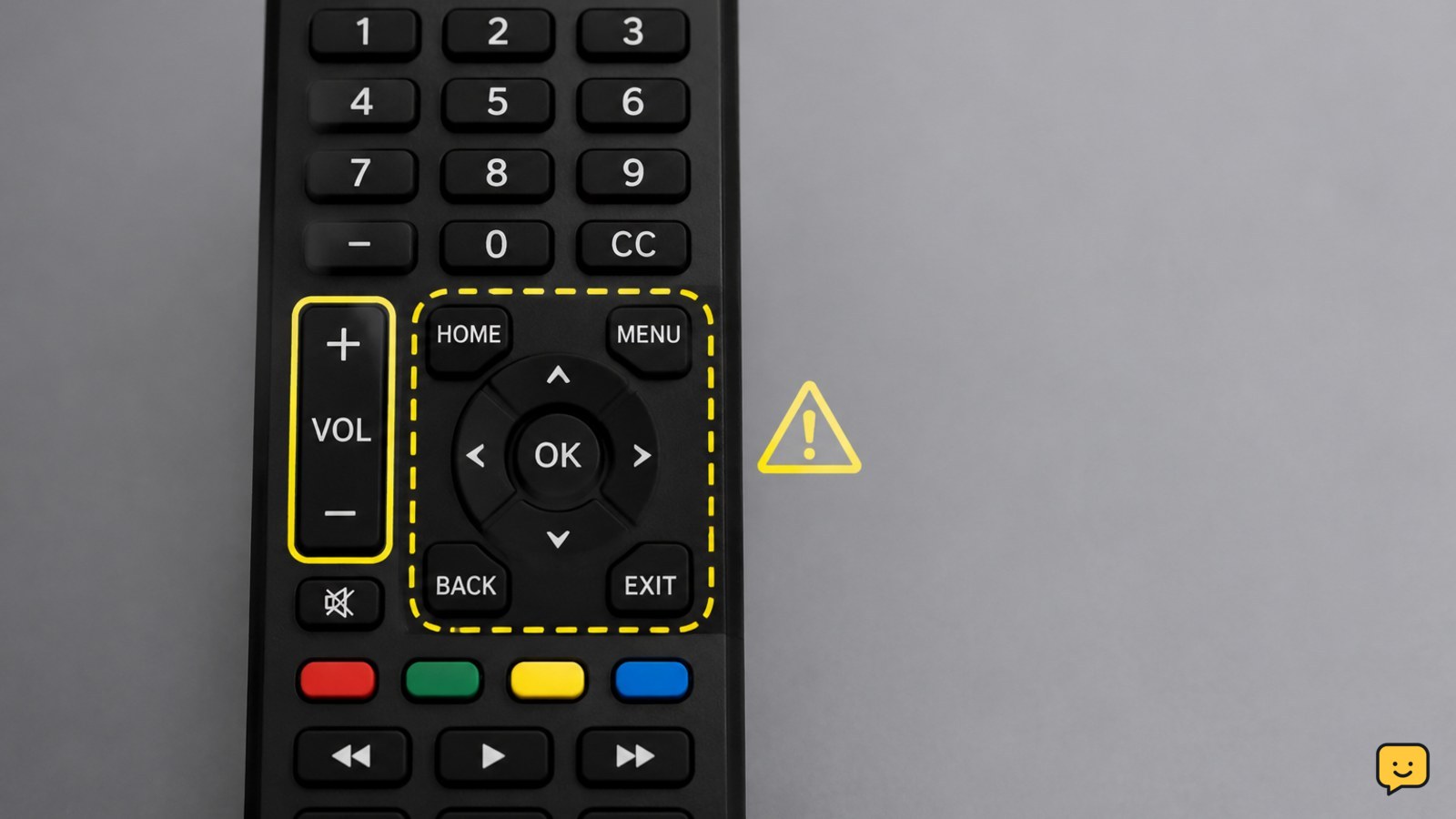
This symptom usually means the remote is sending at least one usable command, not that the entire remote is dead. Volume may use infrared or a separate control path, while Home, Menu, arrows, and OK may depend on the TV’s paired Bluetooth connection.
- Press Home, Menu, the four arrow buttons, and OK while watching the TV screen.
- Try the same buttons from a few feet away and from directly in front of the TV.
- Use the TV’s physical button or control joystick to open a menu, if available. This confirms whether the TV itself can display and navigate menus.
Verification: If the TV opens and moves through menus with its physical control, continue with the remote checks. If the TV is frozen, restart the TV first; do not assume the remote is faulty.
Replace and reseat the batteries
Volume buttons can appear to work when batteries are too weak for reliable communication. Remove both batteries, check the positive and negative markings, and install a matched pair of fresh batteries. Do not mix old and new batteries or different battery types.
- Remove the batteries and inspect the contacts for dirt, corrosion, or a loose spring.
- Wipe dry contact surfaces with a clean, dry cloth. Do not pour cleaner into the battery compartment.
- Install the fresh batteries in the direction shown inside the compartment.
- Press and hold a button for about 10 seconds, then test Home, an arrow, and OK.
Verification: The menu should open and the selection should move one step per press. If only volume works, continue rather than repeatedly pressing the failed buttons.
Check the remote’s control mode and line of sight
A remote can control volume through the TV while its navigation commands are directed at a cable box, streaming player, receiver, or another device. Look for a TV, STB, Aux, Input, or device-selection button and select the TV mode if your remote has one.
- Disconnect or move nearby devices temporarily so you can identify which device responds.
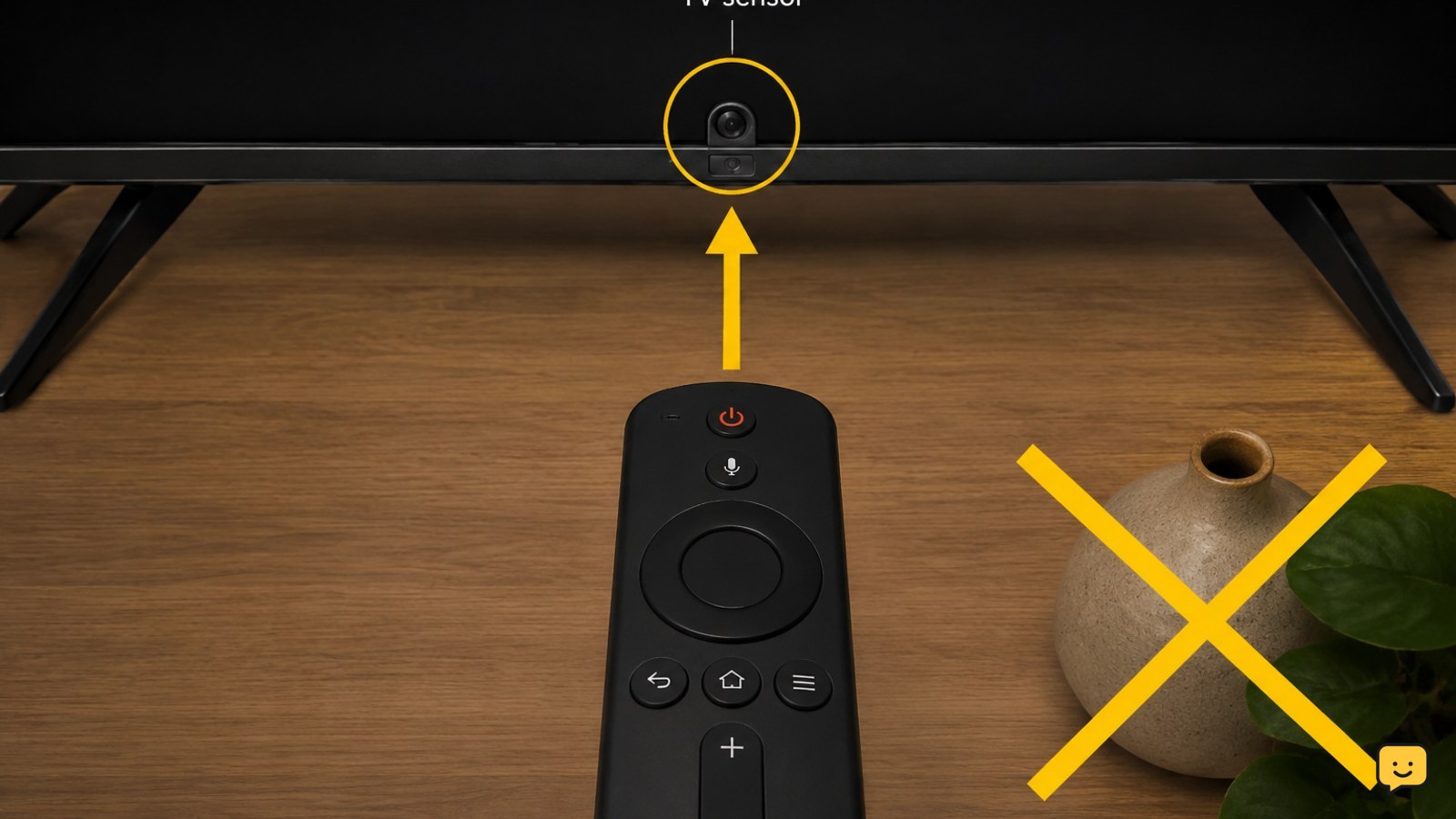
- Point the remote directly at the TV sensor and test Home, Menu, an arrow, and OK.
- If the remote has a control setting such as Auto, Bluetooth, or IR, test the manufacturer-supported TV mode. IR requires a clear path and normally works only when pointed at the TV.
- If a soundbar or receiver controls the audio, test menu navigation with the TV selected even if volume is routed to the audio device.
Verification: If navigation works only in TV mode or only when pointed at the screen, the earlier problem was a control-mode or connection issue. Leave the working mode selected.
Restart the TV, then reset and pair the remote
A restart can clear a temporary communication fault without removing your apps or settings. Turn the TV off, unplug it from the wall for about 60 seconds, plug it back in, and turn it on using the TV button if necessary.
- Wait until the TV finishes starting before testing the remote.
- Search the TV’s official support page or owner manual for the exact remote model and the terms reset remote and pair remote.
- Follow only the listed button combination for that model. Some remotes use a Home or pairing button; others use a combination involving a navigation or return button.
- Hold the remote close to the TV during pairing and wait for the on-screen confirmation.
For Apple TV remotes, Apple’s support guidance documents a specific reset sequence for volume problems, while user reports also describe changing device control and re-pairing. Those steps do not automatically apply to Samsung, Roku, LG, Google TV, or other remotes.
Verification: Test Home, all four directions, OK, Back, and volume. If the TV shows a pairing message but the buttons still fail, repeat the pairing process once with fresh batteries. Do not keep repeating a reset that produces no change.
Isolate the remote from the TV and connected devices
Use the TV’s physical controls to open Settings and check whether the TV responds normally. If possible, try the TV manufacturer’s official remote app or a known-compatible spare remote on the same network. This is a diagnostic test, not a permanent requirement.
- If a spare remote navigates menus, the original remote is the likely failure point.
- If no remote navigates menus but the TV’s physical controls work, check for a pending TV update and consult the manufacturer’s remote-compatibility list.
- If the TV’s physical controls also fail to open or move through menus, restart the TV again and seek TV-specific support.
Final check: Navigation is restored when Home or Menu opens, the arrows move the highlight, and OK selects an item in at least two different TV screens. If volume remains the only working function after these tests, replace the remote with the exact compatible model or contact the TV manufacturer.
Frequently asked questions
Why does my TV remote control volume but not the menu?
The remote may have a weak battery connection, be set to control another device, or have lost its Bluetooth pairing. Volume can still work through infrared or an audio device while Home, Menu, arrows, and OK fail. Replace the batteries, select TV mode, restart the TV, and pair the remote again using the model-specific instructions.
Can I reset a TV remote without resetting the TV?
Yes, many remotes have a separate reset or re-pair procedure that does not erase TV settings. The button sequence depends on the remote model, so use the TV or remote manufacturer’s official manual. Avoid selecting Factory Reset in the TV menu unless you are prepared to set up apps, accounts, picture settings, and Wi-Fi again.
How do I test whether the remote is in the wrong mode?
Press the remote’s TV or device-selection button, if present, then aim at the TV and test Home, an arrow, and OK. Temporarily move cable boxes, streaming players, and receivers away from the test area. If menu navigation returns only after selecting TV mode, the remote was sending those commands to another device.
What should I do if a smart TV remote will not pair?
Restart the TV, install fresh batteries, hold the remote close to the TV, and follow the exact pairing sequence for that remote model. If pairing still fails, test the TV’s physical controls and a known-compatible spare remote. If the spare works, replace the original remote; if neither works, contact the TV manufacturer.
Browse more Home Electronics guides for help with this topic.