When Samsung TV apps fail even though the TV is connected, restart the TV first and run Network Status to identify whether the TV can reach Samsung services. Then update or reinstall the affected app, check automatic DNS and date/time settings, reset Smart Hub if several apps fail, and install any available TV software update.
Confirm whether this is an app problem or a connection problem
A Wi-Fi symbol or an “internet connected” message does not always mean the TV can reach every service needed by Smart Hub. Start by opening two different apps. For example, try one video app and one music or news app.
- If only one app fails, skip to the app repair steps below.
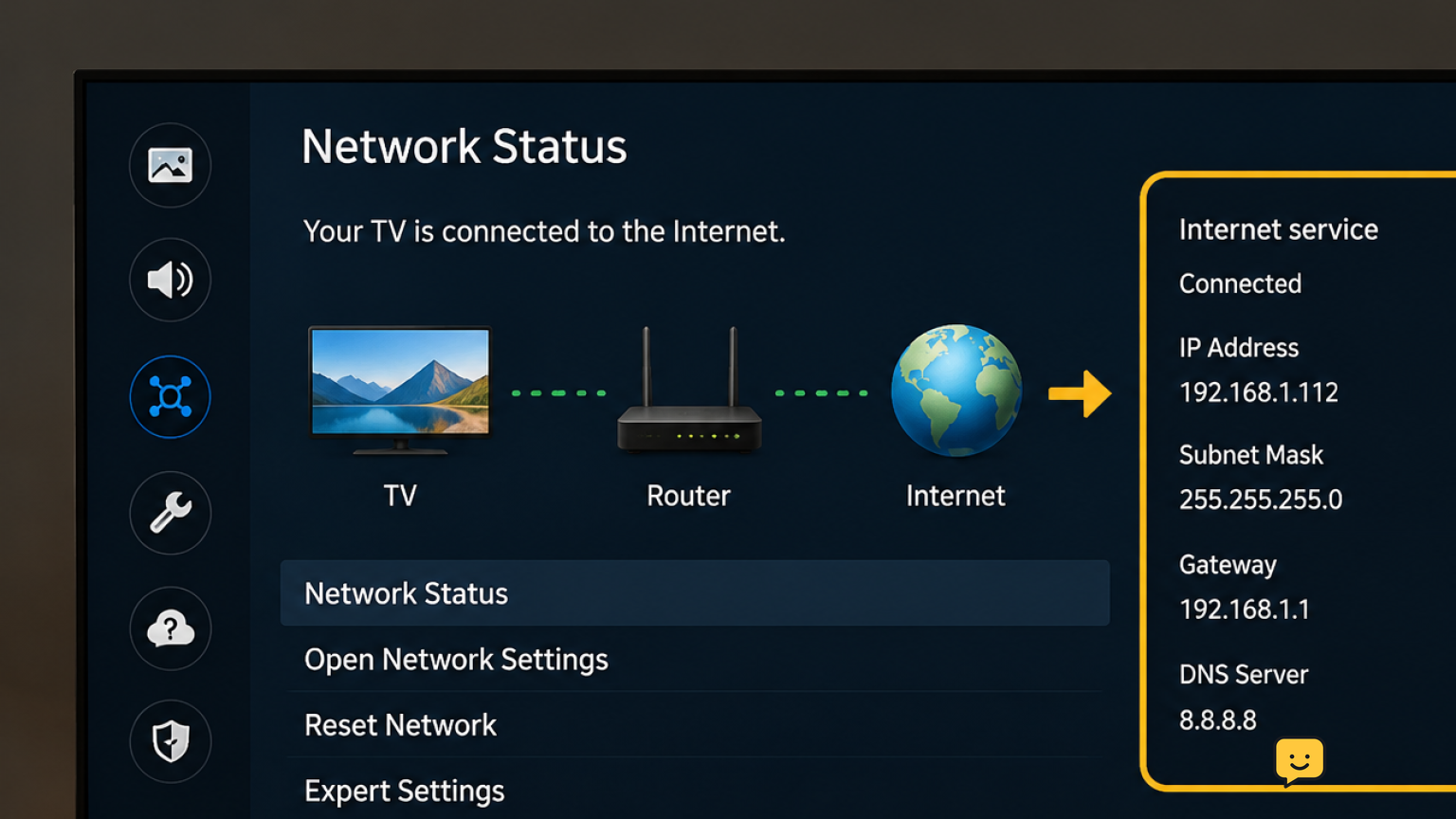
- If every app fails, press Home and open the TV’s network connection test. On many Samsung TVs, this is under Settings > General > Network > Network Status. Menu names vary by model and software version.
- Follow the on-screen connection diagram to see where the test stops: TV-to-router, router-to-internet, or service connection.
Verify: Continue only if the test shows the TV connected to the router and internet. If it fails before reaching the internet, reconnect the TV to Wi-Fi or restart the router before working on Smart Hub.
Fully restart the Samsung TV
Putting a TV in standby is not always the same as restarting its operating system. A full restart can clear a temporary Smart Hub or app session problem.
- Turn the TV off.
- Unplug it from the wall outlet for at least 60 seconds.
- Plug it back in, turn it on, and wait for the Home screen to finish loading.
- Open the app that failed and try to play a short video.
Verify: If the app loads normally, stop here. If the app still freezes, shows a network error, or returns to the Home screen, continue.
If the remote is not responding: Use the TV’s physical power button if your model has one, then complete the same unplug-and-restart test.
Repair one affected app before resetting Smart Hub
If other apps work, the problem is more likely limited to the affected app or its signed-in session. Samsung TV software does not show the same cache controls on every model, so do not rely on finding a “clear cache” button.
- From the Home screen, highlight the affected app and open its options or settings menu.
- Look for an available Update, Reinstall, or Delete option. The wording and location differ by model.
- Install the available update. If updating does not help, delete and reinstall the app when the TV offers that option.
- Open the app and sign in again only through its normal sign-in screen.
Verify: Play a short title, not just the app’s home page. If one app still fails after reinstalling while other apps work, check that service’s account and outage information from another device.
Check DNS and automatic date and time
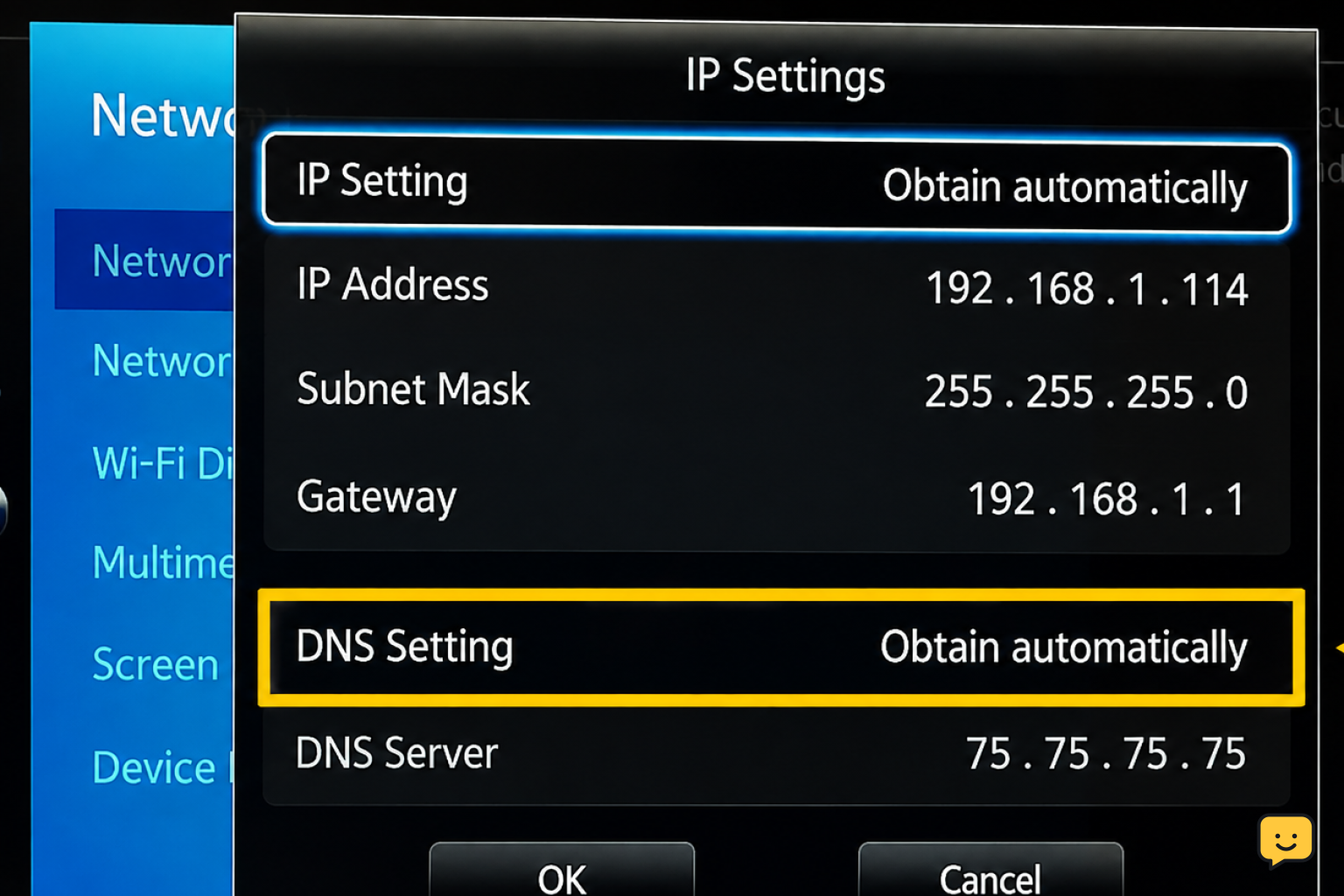
Incorrect network name-resolution settings or an incorrect TV clock can prevent apps from reaching online services even when the TV says it is connected. Check these settings only after the basic Network Status test and restart.
- Open the TV’s network settings and select the connected network. Look for IP Settings or DNS Settings.
- If DNS was manually entered, change it back to Obtain automatically, then run Network Status again. If your network requires a specific DNS server, use the address supplied by your internet provider or network administrator.
- Open Settings and find Time, Clock, or Date and Time. Set the time source to automatic when that option is available.
- Restart the TV and retest an app.
Verify: The connection test should complete and the correct local date and time should display. If manual DNS is required on your home network, do not substitute an unknown address; restore the network’s required setting instead.
Reset Smart Hub when several apps will not load
Resetting Smart Hub is the focused repair for a Samsung TV where multiple apps fail despite a successful internet test. It refreshes the Smart Hub service setup without making a full TV factory reset your first move.
- Open Settings and look under Support, Device Care, or Self Diagnosis for Reset Smart Hub. The menu location varies by TV generation.
- Enter the TV PIN if requested. If you have never changed it, check your TV documentation rather than repeatedly guessing.
- Let the reset finish, then open Smart Hub and accept any required terms.
- Install or open the apps you use and sign in through the services’ normal screens.
Verify: Test at least two apps after the reset. If they now load, reinstall only the apps you want and stop. If Smart Hub will not open at all, move to the software update check.
Update the TV software
Samsung recommends keeping TV software current when resolving connectivity and app issues. Use the built-in update option while the TV has a stable connection.
- Open Settings > Support > Software Update. Some models place this under a similar Support menu.
- Select Update Now if it is available.
- Do not turn off or unplug the TV while an update is installing.
- After the TV restarts, open the failing app and test playback again.
Verify: Return to Software Update and confirm the TV reports that it is up to date, then test more than one app. If the update cannot download even though Network Status says connected, try a different known-working network if available. If it still fails, contact Samsung Support with the Network Status result and any on-screen error code.
Know when not to factory reset
A factory reset is broader than an app repair and removes TV setup choices. Do not use it merely because one streaming app is unavailable. First confirm the service works on another device, repair or reinstall the affected app, and reset Smart Hub if multiple apps fail.
If every app fails after a successful Network Status test, a full restart, automatic DNS and time checks, Smart Hub reset, and current software, Samsung Support can help identify a model-specific service or software issue. Have the TV model number, software version, app names, and exact error messages ready.
Frequently asked questions
Why does my Samsung TV say it is connected but apps will not work?
The TV may be connected to your Wi-Fi router but still be unable to reach a required internet or Smart Hub service. Run Network Status to see where the connection test stops, then restart the TV. If the test completes, repair the individual app or reset Smart Hub when several apps are affected.
Will resetting Smart Hub delete my Samsung TV settings?
Reset Smart Hub is a more targeted step than a full factory reset. It can remove Smart Hub setup and require you to accept terms, reinstall apps, or sign in again. Use it when multiple apps fail after a restart and successful network test, not as the first step for one failing app.
How do I clear an app cache on a Samsung TV?
Many Samsung TV models do not provide the same visible per-app cache control found on phones. Update the app first, then use the available Delete or Reinstall option if the problem is limited to one app. If several apps are failing, reset Smart Hub rather than repeatedly deleting apps.
Should DNS be automatic on a Samsung TV?
Yes, automatic DNS is the safest normal setting for most home networks. If a manual DNS address was entered and apps stopped loading, return DNS to Obtain Automatically and rerun Network Status. Keep manual DNS only when your internet provider or network administrator specifically requires it.
What should I do if Samsung TV apps still do not work after a Smart Hub reset?
Check for a TV software update and test two apps after the update finishes. If the same streaming service fails on other devices too, the issue is likely with that service or account. If all TV apps fail despite a successful network test and current software, contact Samsung Support with the exact error message.
Browse more Home Electronics guides for help with this topic.