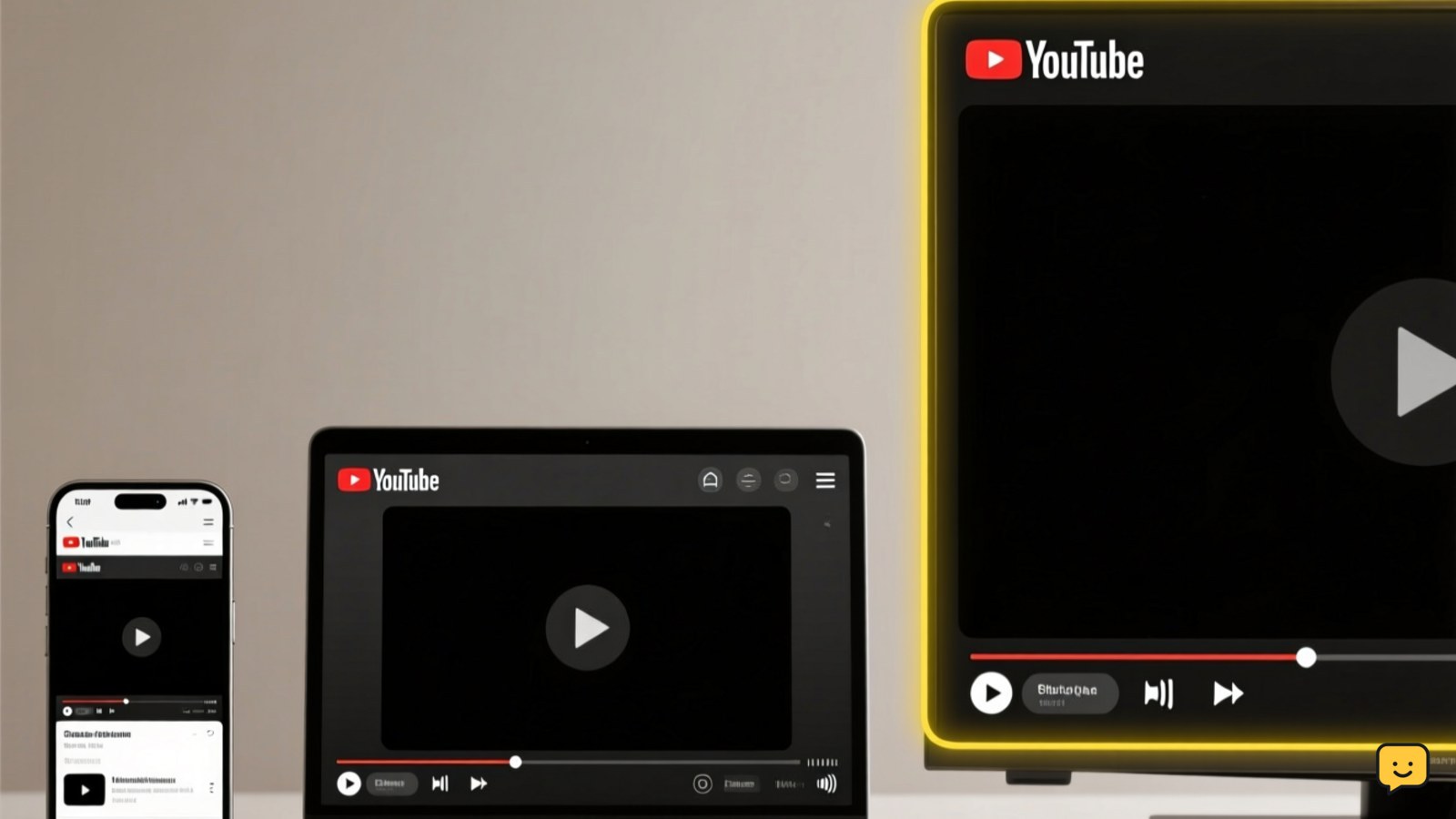
A YouTube screen blackout usually clears after you close and reopen YouTube, restart the phone, computer, or TV, and test another video. If only one video stays black, the problem may be limited to that playback item. If every video is black, compare the app, browser, connection, and display to find where playback fails. Carlcare also lists restarting the phone as the general first fix for a black YouTube screen.
For more help with this topic, use the Home Electronics guides.
Check whether one YouTube video or every video is black
YouTube screen blackout affecting only one video is different from a blackout affecting the entire app or display. Start playback on another video, then leave YouTube and open a separate app or the device settings screen.
- If the second video plays, the original video is the likely boundary of the problem. Reopen it later rather than changing device settings immediately.
- If every YouTube video is black but menus and other apps work, continue with the app or browser checks below.
- If YouTube audio plays but the picture is black, continue troubleshooting playback. If audio and video both stop, include the connection and app state in your checks.
- If the device’s own menus are also black, switch attention to the display, cable, input, or hardware rather than repeatedly reinstalling YouTube.
This comparison tells you whether the failure follows the video, YouTube, or the screen.
Restart YouTube and the device completely
Restarting YouTube and then the device is the safest first repair for a temporary playback or rendering failure. Close YouTube fully, reopen it, and test the same video; if the blackout remains, restart the phone, computer, streaming device, or TV. Carlcare identifies restarting the phone as the general first solution for a black YouTube screen on a phone.
- Exit the video and remove YouTube from the device’s recent-apps or open-program view.
- Power the device off using its normal power control, wait until the screen is fully off, and turn it back on.
- Open YouTube and play a different video first.
Success means the picture appears normally and remains visible while the video continues. If the screen blacks out again immediately, record whether it happens on one video or all videos before moving on.
Test the app, browser, and connection separately
A YouTube blackout that survives a restart should be compared across playback routes instead of changing several settings at once. On a phone or TV, compare the YouTube app with another available playback route; on a computer, compare the current browser with a private window or another supported browser.
- Reload the video or reopen the browser tab.
- Try another YouTube video and, where practical, another internet connection.
- On a computer, temporarily disable extensions that alter video, ads, privacy, or page appearance, then reload YouTube.
- On a TV or streaming device, check whether the blackout occurs only in YouTube while the device home screen and other apps remain visible.
If another browser or connection works, the original route is the useful clue. Restore extensions one at a time, and avoid changing network or display settings when other apps already stream normally.
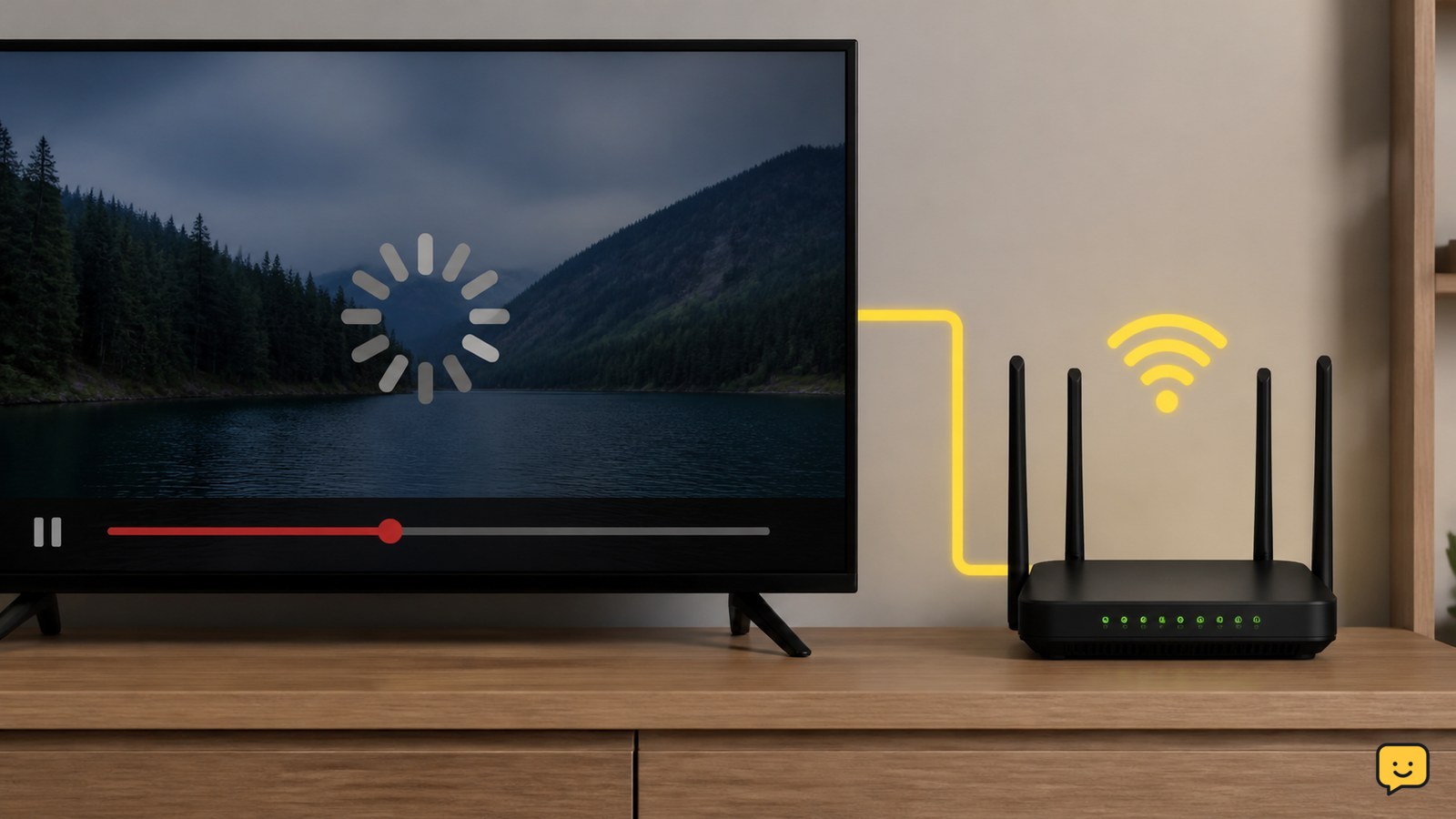
If other streaming services also pause or lose playback, use these Spotify playback troubleshooting checks as a related way to separate connection and app symptoms.
If another streaming app also fails, use these Spotify playback troubleshooting checks to compare connection and app symptoms.
Check the display path on a TV or computer
A YouTube picture that disappears while the TV or computer menus remain visible can indicate a playback-rendering or display-path issue rather than a dead screen. Confirm that the correct input is selected and reseat an external HDMI connection only when the device and cable are cool and undamaged.
- Press the TV or monitor menu button. A visible menu means the panel is still producing an image.
- Switch away from YouTube and back to the correct input or app.
- For an external streaming device, disconnect and reconnect its HDMI cable at both ends, then select that input again.
- For a computer, move the YouTube window to another display if one is connected. If video works on only one display, inspect that display path rather than YouTube.
Success is a visible device menu followed by a stable YouTube picture. If menus remain black, flicker, or vanish across inputs, stop and arrange display or hardware support.
What to do if the blackout returns
A recurring YouTube screen blackout needs a boundary check before any reset or repair. Write down the device type, whether audio continues, whether other videos work, and whether another app displays normally.
Use that record to decide the next safe action: an app-only failure can be reported or updated through the device’s normal software controls; a browser-only failure can be investigated through its extensions and site data; a display-wide failure needs the TV, monitor, cable, or streaming device checked.
Do not factory-reset a phone, TV, or streaming device for a single YouTube blackout unless the manufacturer or platform support specifically directs it and your important data and account access are protected. If the device becomes hot during playback, first follow these phone overheating safety steps and stop using it if the heat is abnormal.
If the device becomes unusually hot, follow these phone overheating safety steps before continuing playback.
Frequently asked questions
Why is YouTube black but the sound still works?
A black picture with continuing audio usually limits the failure to video rendering, the app, browser, or display path rather than the whole connection. Restart YouTube and the device, then test another video. On a computer, compare another browser; on a TV, check whether menus and other inputs remain visible.
Why does only one YouTube video show a black screen?
If other videos play normally, the blackout is probably limited to that video or its playback state. Close and reopen it, reload the page or app, and test it again later. Avoid resetting the whole device when the symptom does not appear on other videos.
What should I do when YouTube is black on my TV?
First check whether the TV menu and another input are visible. If they are, restart YouTube and the streaming device, then reseat an undamaged HDMI cable if an external device is involved. If menus are also black, flicker, or disappear, stop treating it as a YouTube-only fault and seek display or hardware support.