
If Windows 11 search misses files that are clearly on your PC, the folder may not be indexed, Windows may not have access to it, or the search index may be damaged. First search from the file’s actual folder, then check indexed locations and permissions. Restart Windows Search before rebuilding the index as a final repair.
1. Test the file from its actual folder
Open File Explorer and browse directly to the folder that contains the missing file. Click the search box in that folder and search for the complete file name without changing any settings.
- Press Windows key + E to open File Explorer.
- Open the known folder, such as Documents, Downloads, Pictures, or a folder on another internal drive.
- Search for the file name, then try the extension alone, such as
.pdfor.docx. - In the search results, select Search options if available and confirm the search is aimed at the current folder.
If the file appears when searching from its containing folder but not from the taskbar, the wider search scope or index locations are the likely cause. If it does not appear even in its own folder, continue with the location and access checks below.
2. Check which folders Windows is indexing
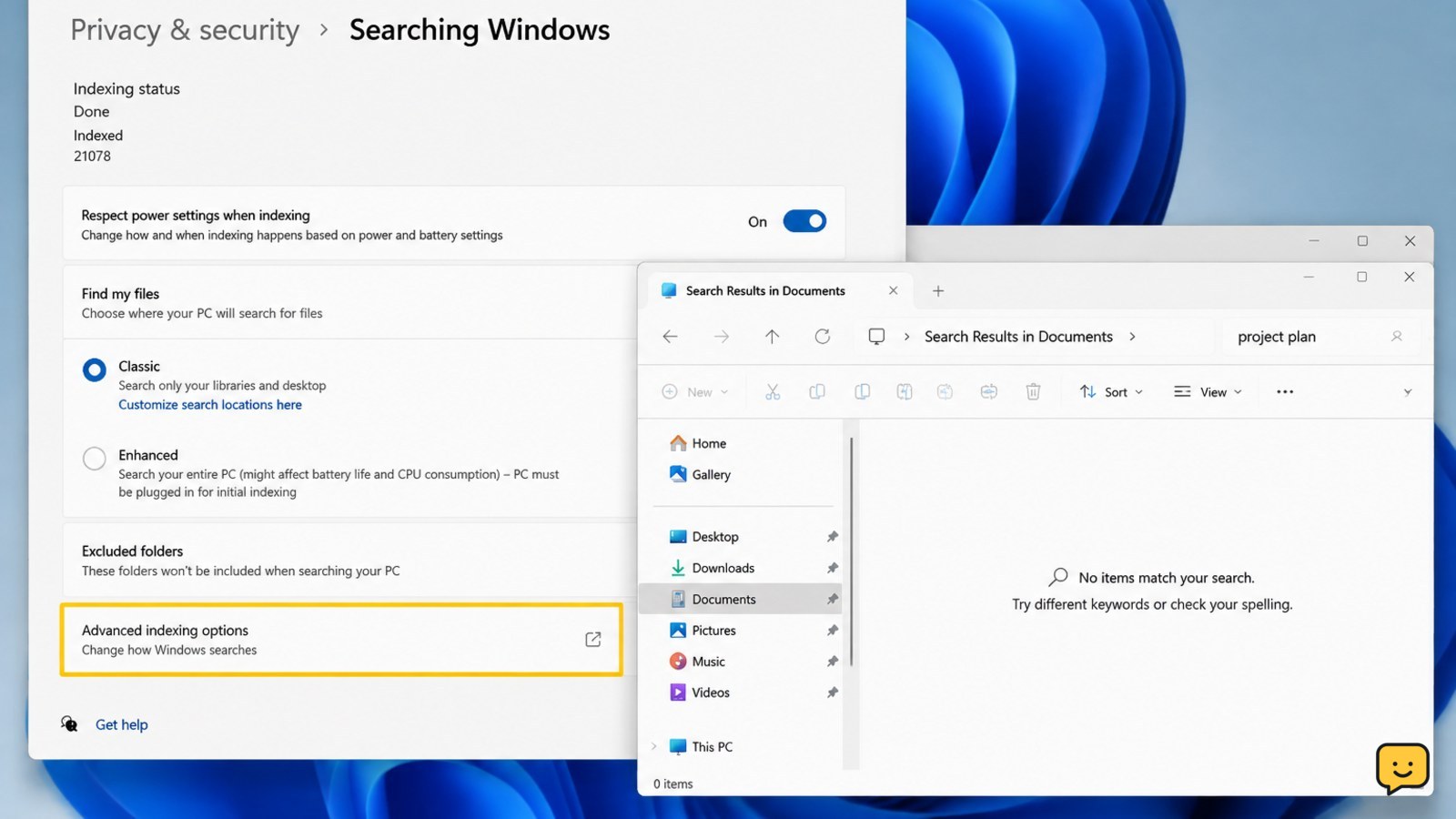
Windows Search can return incomplete results when the file’s location is outside the indexed locations. Windows 11 offers Classic and Enhanced search modes; Enhanced searches more locations, while Classic is limited to common user locations and selected folders.
- Open Settings from the Start menu.
- Select Privacy & security, then Searching Windows.
- Review the search mode. If the missing file is stored outside your normal user folders, select Enhanced if that option is available and appropriate for your PC.
- Under related indexing settings, open Advanced indexing options.
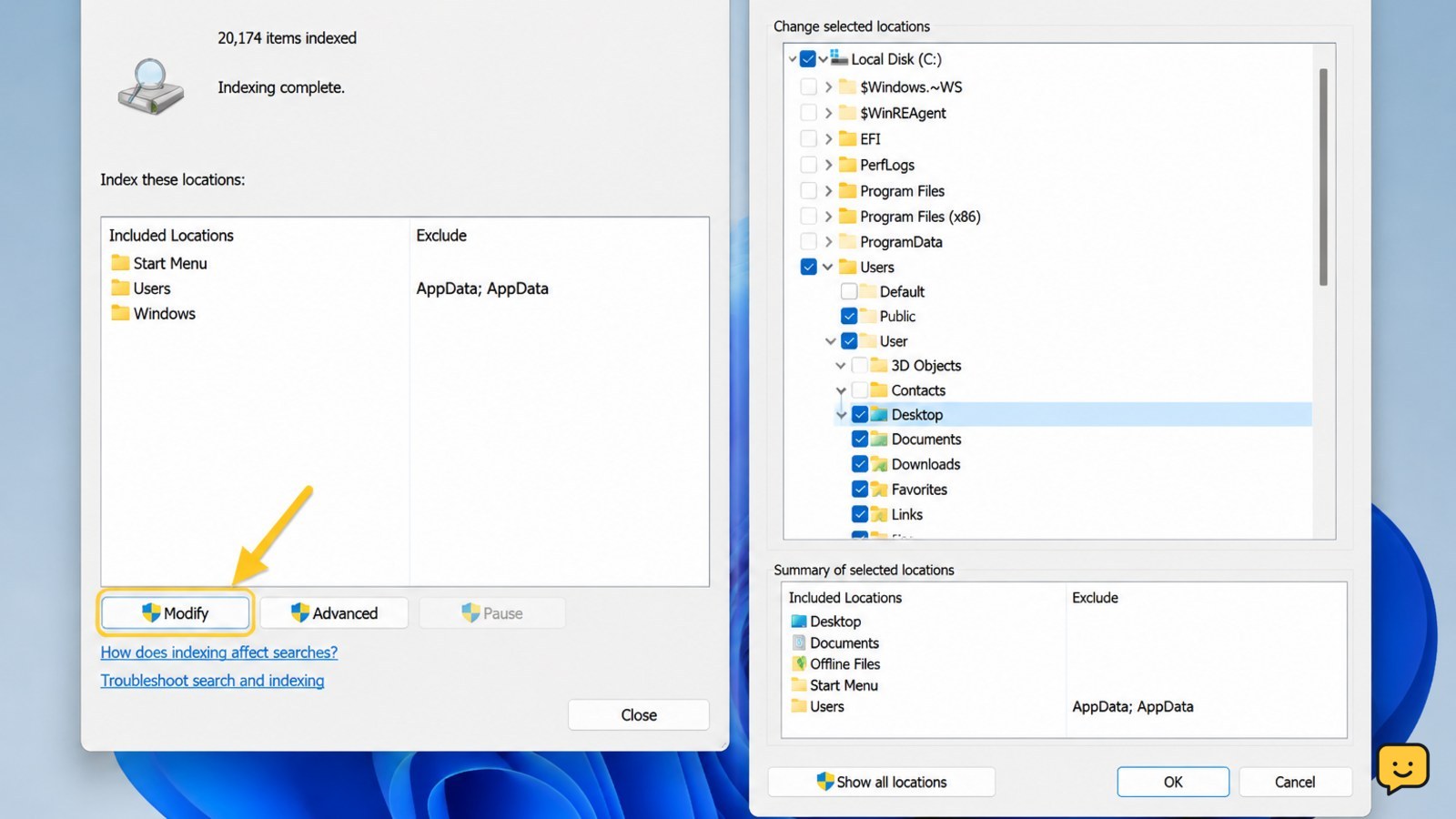
- Select Modify and expand the drive and folders until the file’s containing folder is selected.
- Select OK, then allow Windows time to process the new location.
Do not add the entire drive just to find one file unless you need broad searching. Including fewer folders reduces indexing work and keeps results focused.
Verify: Return to the missing folder and search for the file name again. If it appears there but not in the taskbar search, the taskbar search scope may still be limited. Use File Explorer in the specific indexed location when you need a complete folder search.
3. Confirm that you can access the folder
Windows Search cannot reliably return files from a location that your Windows account cannot open. This commonly affects protected folders, folders belonging to another account, and managed work or school locations.
- In File Explorer, right-click the file’s containing folder and select Properties.
- Open the Security tab and select your Windows account under Group or user names.
- Check whether your account has permission to read the folder and its contents.
- Close the dialog without changing anything if the permissions are unclear or the folder is managed by someone else.
Also check whether the file is hidden. In File Explorer, select View, choose Show, and enable Hidden items. This does not repair indexing, but it can explain why a file seems absent when browsing.
Verify: Open the file directly and confirm that you can read its folder. If Windows displays an access-denied message, ask the folder owner or administrator to grant the required access. Do not take ownership of a managed folder just to improve search results.
4. Restart the Windows Search service
A stalled Windows Search service can prevent new files and changed file names from appearing. Restarting the service is a low-risk step and does not remove your documents.
- Press Windows key + R, type
services.msc, and press Enter. - Find Windows Search in the list.
- Right-click it and select Restart. If it is stopped, select Start.
- Open the service’s Properties and check that Startup type is not set to Disabled.
- Close Services and wait several minutes before testing a recently created or renamed file.
If Restart is unavailable, the service may already be stopping or controlled by system policy. Restart Windows once, then check the service again. Do not change other services while troubleshooting this problem.
Verify: Create a temporary text file inside an indexed folder, wait a few minutes, and search for its exact name. Delete the test file after it appears. If the test file is found but the original is not, recheck the original file’s location, name, and permissions.
5. Rebuild the Windows Search index
Rebuild the index when the correct folder is included, you can open the file, and restarting Windows Search did not restore results. Rebuilding removes the existing search catalog and creates it again; it does not delete the files being cataloged.
- Open Settings and go to Privacy & security > Searching Windows.
- Open Advanced indexing options.
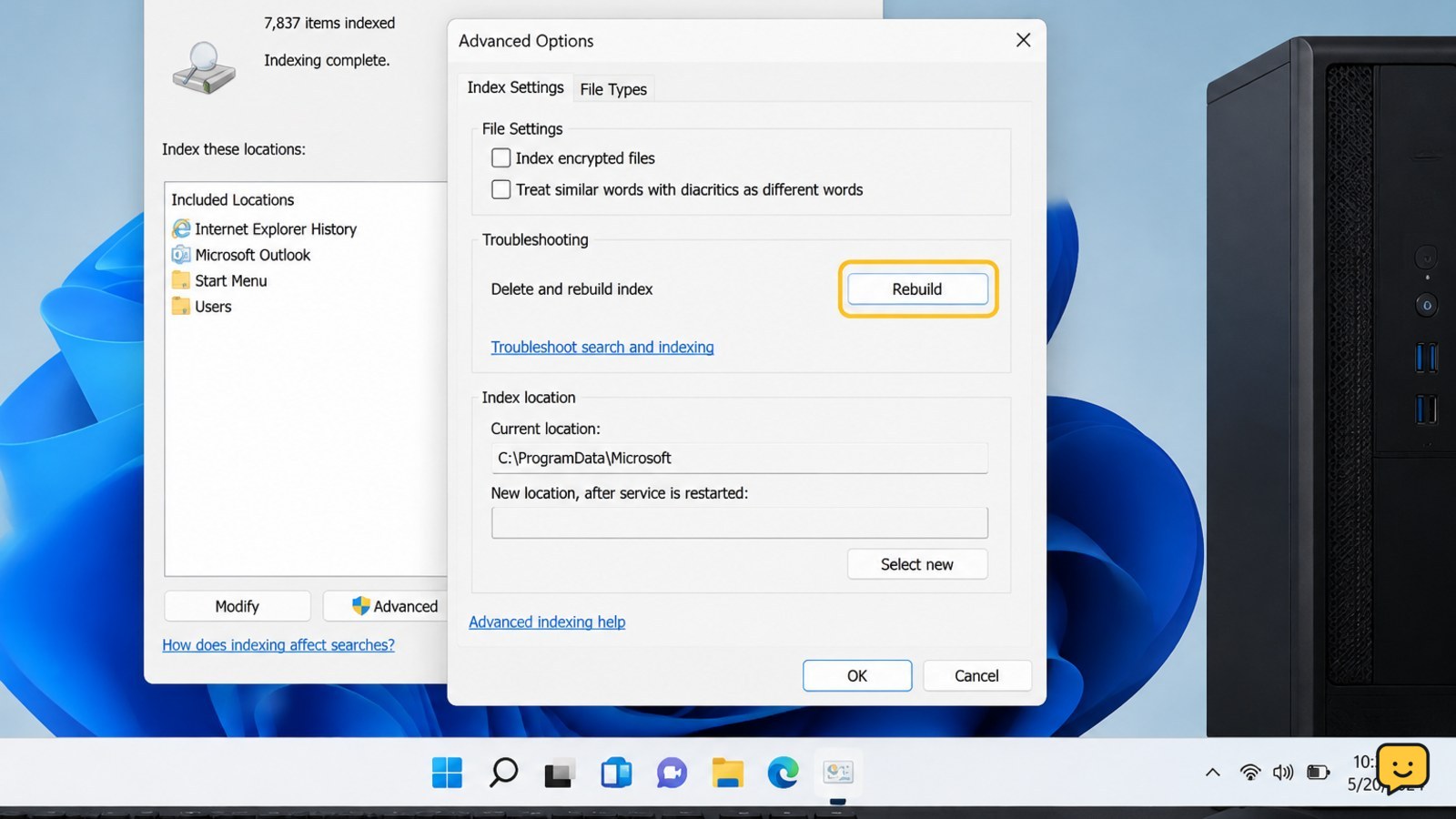
- In the Indexing Options window, select Advanced.
- On the Index Settings tab, select Rebuild, then confirm.
- Leave the PC powered on while Windows rebuilds the catalog. Large drives or many files can take considerably longer.
Search results may be incomplete during the rebuild. Avoid judging the repair until indexing has finished. You can return to Advanced indexing options to check the current indexed-item status.
Verify: Search for the known file by its full name after indexing finishes. Test a second file in the same folder. If both appear, the index was the cause. If neither appears but both open directly, the location may be excluded, inaccessible to your account, or affected by a system policy.
When these fixes do not work
Use the exact folder path in File Explorer to keep working while you isolate the remaining cause. Compare a missing file with a file that search can find in the same folder.
- Confirm both files are stored on the same drive and inside the same indexed folder.
- Compare their extensions and names. Search by the exact extension if a name contains unusual punctuation.
- Check whether the missing file is on a removable or disconnected drive. If the drive itself is missing from File Explorer, resolve that issue before repairing search.
- Run Windows Update, restart the PC, and test again after updates finish.
If only protected or managed folders are affected, contact the administrator rather than altering access settings. If ordinary local folders remain unsearchable after a completed rebuild, use Microsoft’s Windows Search troubleshooting guidance or Windows support for a deeper system-level repair.
Stop here: Do not reset Windows or delete personal files solely because Search is incomplete. Those steps are disproportionate until storage access and indexing have been checked.
Frequently asked questions
Why does Windows 11 search find some files but not others?
Windows 11 search usually finds some files but not others because their folders are not indexed, your account cannot read them, or the index has not updated. Search from the file’s own folder first, then check Searching Windows and Advanced indexing options. If the folder is included and accessible, restart Windows Search and rebuild the index only if needed.
How do I add a folder to Windows 11 Search?
Add a folder through Settings > Privacy & security > Searching Windows > Advanced indexing options. Select Modify, expand the correct drive, select the folder, and choose OK. Wait for indexing to process the location, then search for a known file in that folder. Add only the folders you need instead of indexing an entire drive unnecessarily.
Will rebuilding the Windows Search index delete my files?
No. Rebuilding the Windows Search index recreates the catalog used to locate files; it does not delete the files in your folders. Results can be incomplete while the rebuild is in progress, especially on a PC with many files. Keep the computer powered on and test again only after indexing has finished.
What should I do if Windows Search says access is denied?
If Windows says access is denied, do not change ownership or permissions unless you manage the folder. Confirm that the file opens under your account, then ask the folder owner or administrator for read access. Search cannot reliably return content from a folder that your account cannot access.
Browse more Computers & Internet guides for help with this topic.


