Skip to content
ShowU

Electronics

Fix everyday electronics with clear guides for phones, computers, Wi-Fi, TVs and smart devices. Browse practical troubleshooting, setup and performance help for the devices you use.

Sorry There Was an Error Licensing This Video: Fix
Computers & Internet

Sorry There Was an Error Licensing This Video: Fix

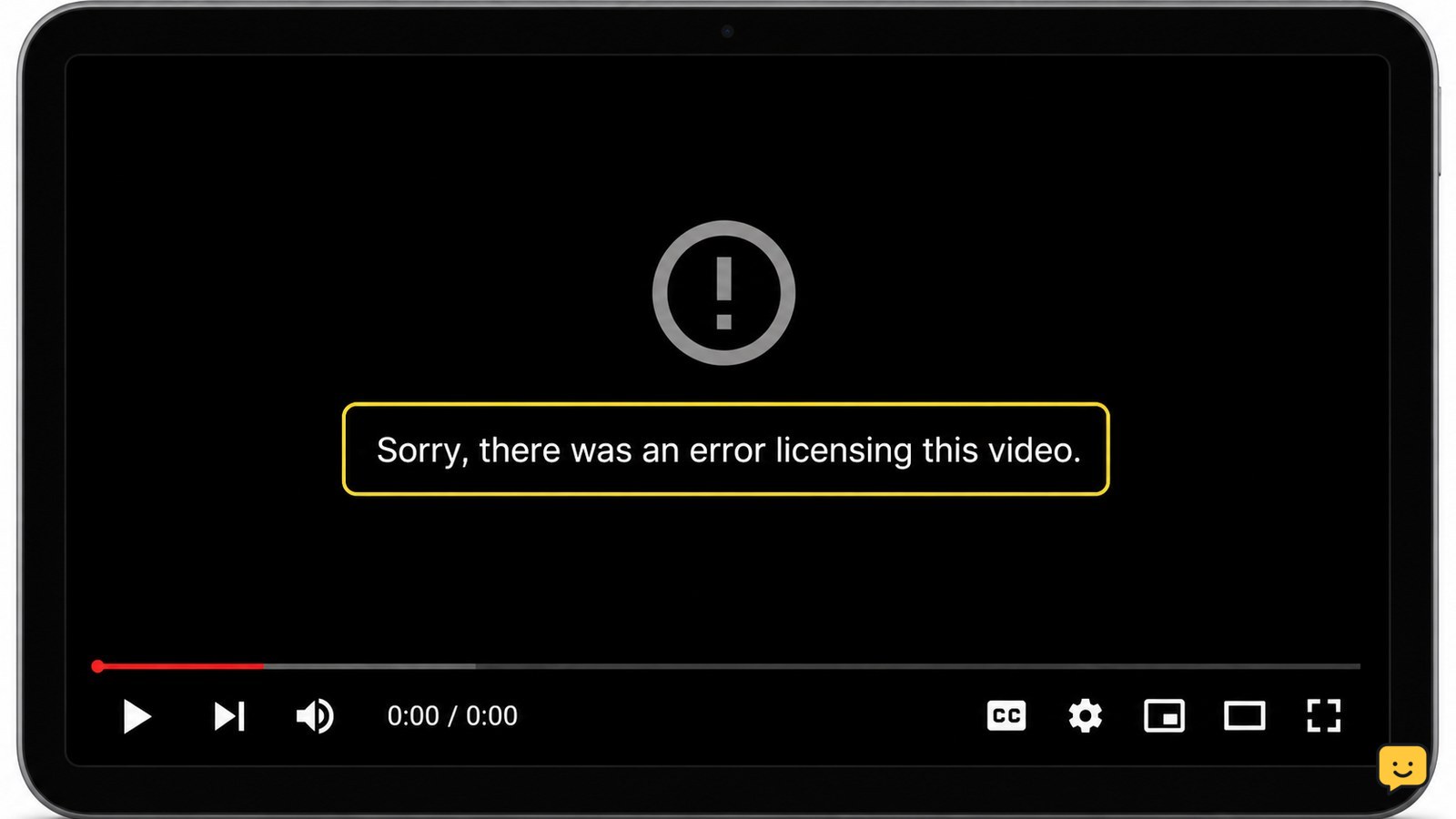
“Sorry, there was an error licensing this video” means YouTube could not authorize playback at that moment. First test another video, then refresh or restart YouTube, check your connection, update the browser or app, and temporarily disable extensions such as ad blockers. If only one title fails, the video may be unavailable for your region, account, or device; do not try to bypass that restriction.
How to Clear Temporary Files on a Windows PC Safely
Computers & Internet

How to Clear Temporary Files on a Windows PC Safely

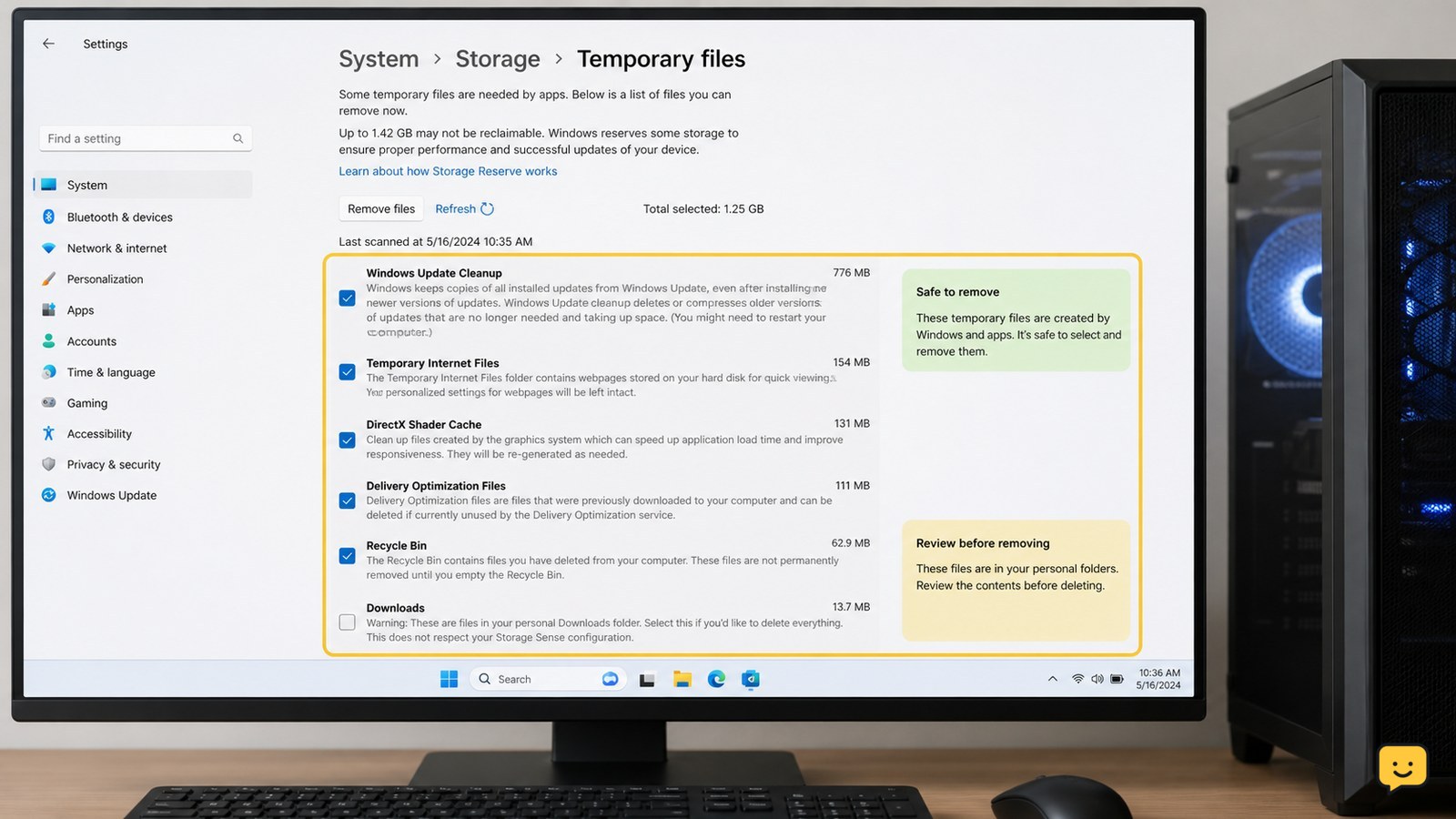
Use Windows Settings first: open System > Storage > Temporary files, review the categories, leave Downloads unchecked unless you have checked its contents, then select Remove files. For additional cleanup, run Disk Cleanup and clear your user Temp folder. Close open apps first, skip files Windows says are in use, and verify available space afterward.

Why Is My Laptop Webcam Not Working: Fixes
Computers & Internet

Why Is My Laptop Webcam Not Working: Fixes

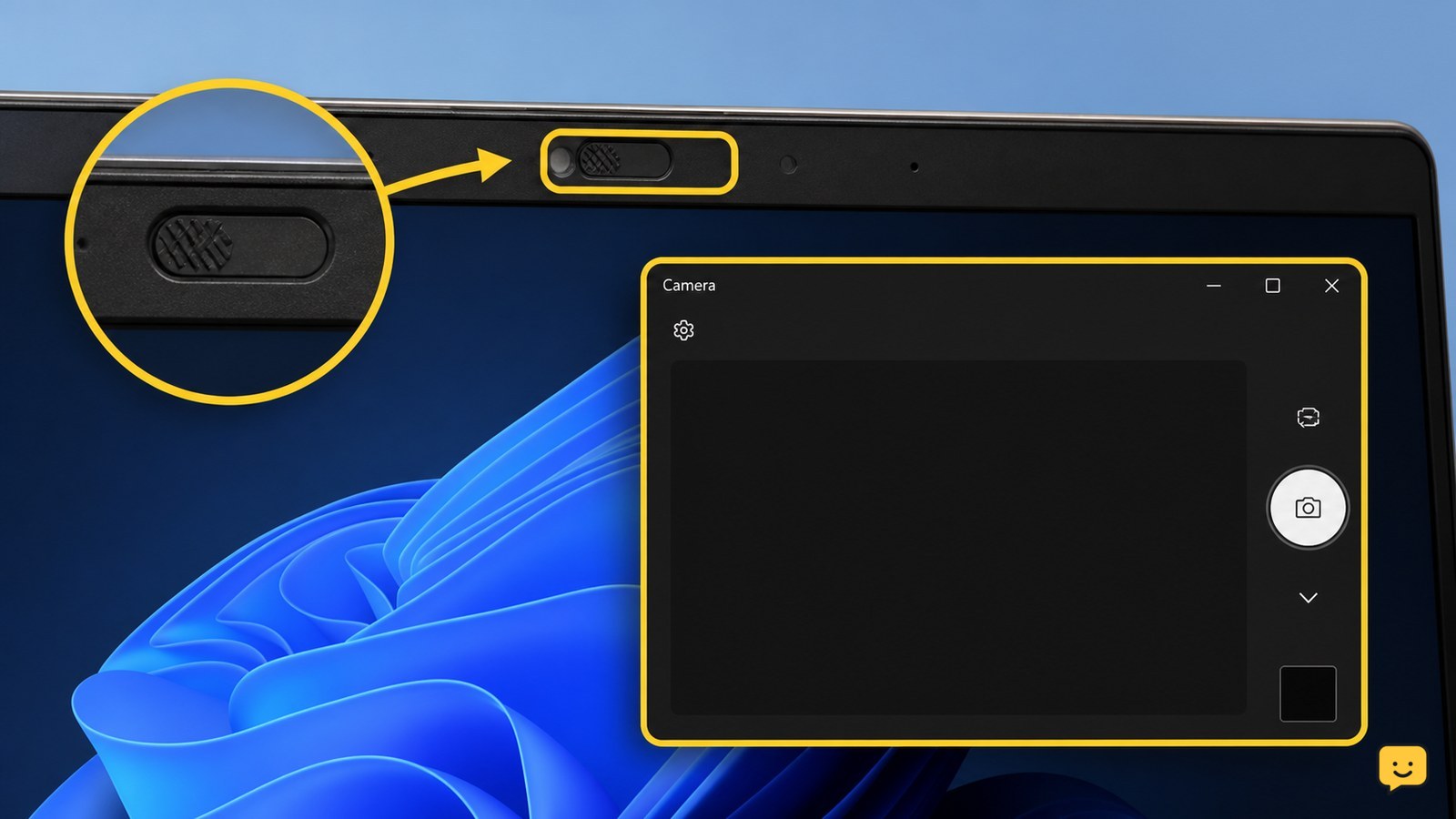
Your laptop webcam is usually unavailable because its privacy shutter or camera key is off, Windows camera access is blocked, another app has control, the driver is damaged, or the camera has failed. Open the built-in Camera app to test it, then check the physical cover, permissions, app conflicts, drivers, and hardware detection in that order.

Phone Overheating While Charging: How to Stop It
Mobile Devices

Phone Overheating While Charging: How to Stop It

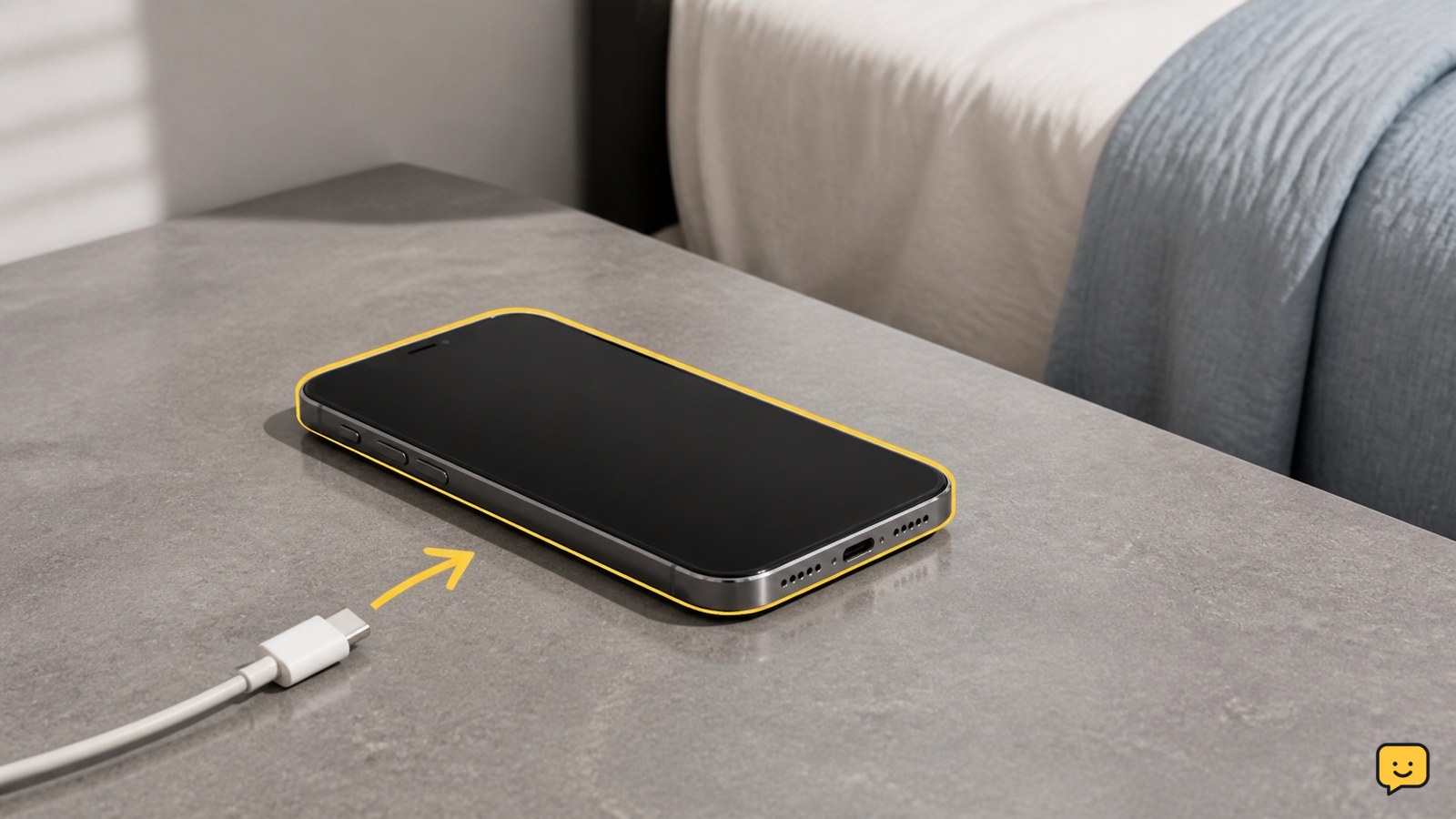
To stop a phone overheating while charging, unplug it immediately if it feels excessively hot, remove the case, and place it on a cool, hard surface with open airflow. Do not charge it on a bed, under clothing, or in direct heat. After it cools, try a compatible certified charger and cable. Stop using it and arrange service if overheating returns or the battery looks swollen.

Phone Storage Full: Find What Takes Space
Mobile Devices

Phone Storage Full: Find What Takes Space

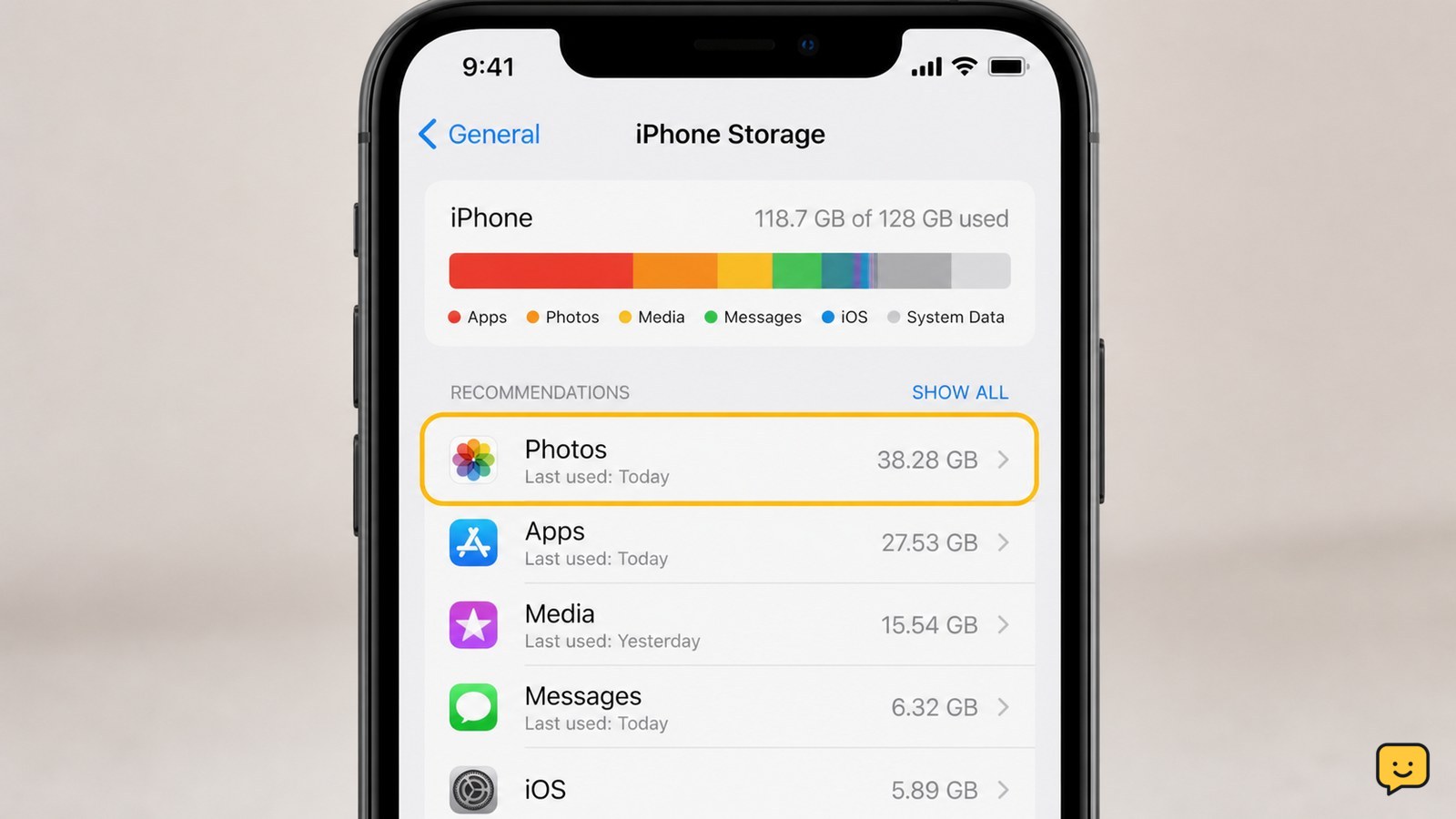
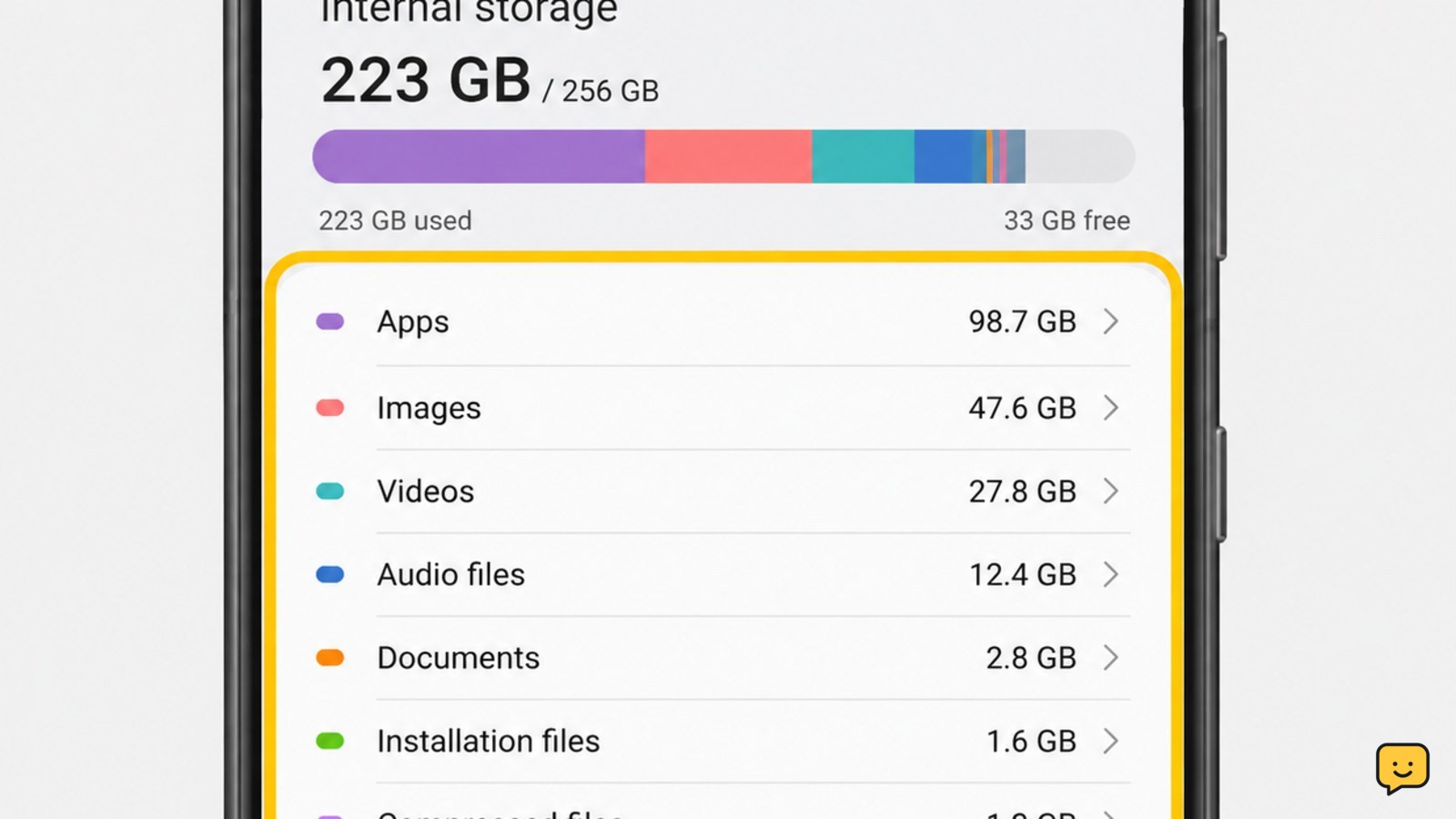
Open your phone’s storage settings and sort the breakdown by category or size. On Android, use Settings > Storage; on iPhone, use Settings > General > iPhone Storage. Check apps, photos and videos, downloads, messages, and recently deleted items. Back up anything important before deleting it, then reopen storage settings to confirm the available space increased.

Windows Wi-Fi Connected but No Internet: Fix It
Computers & Internet

Windows Wi-Fi Connected but No Internet: Fix It

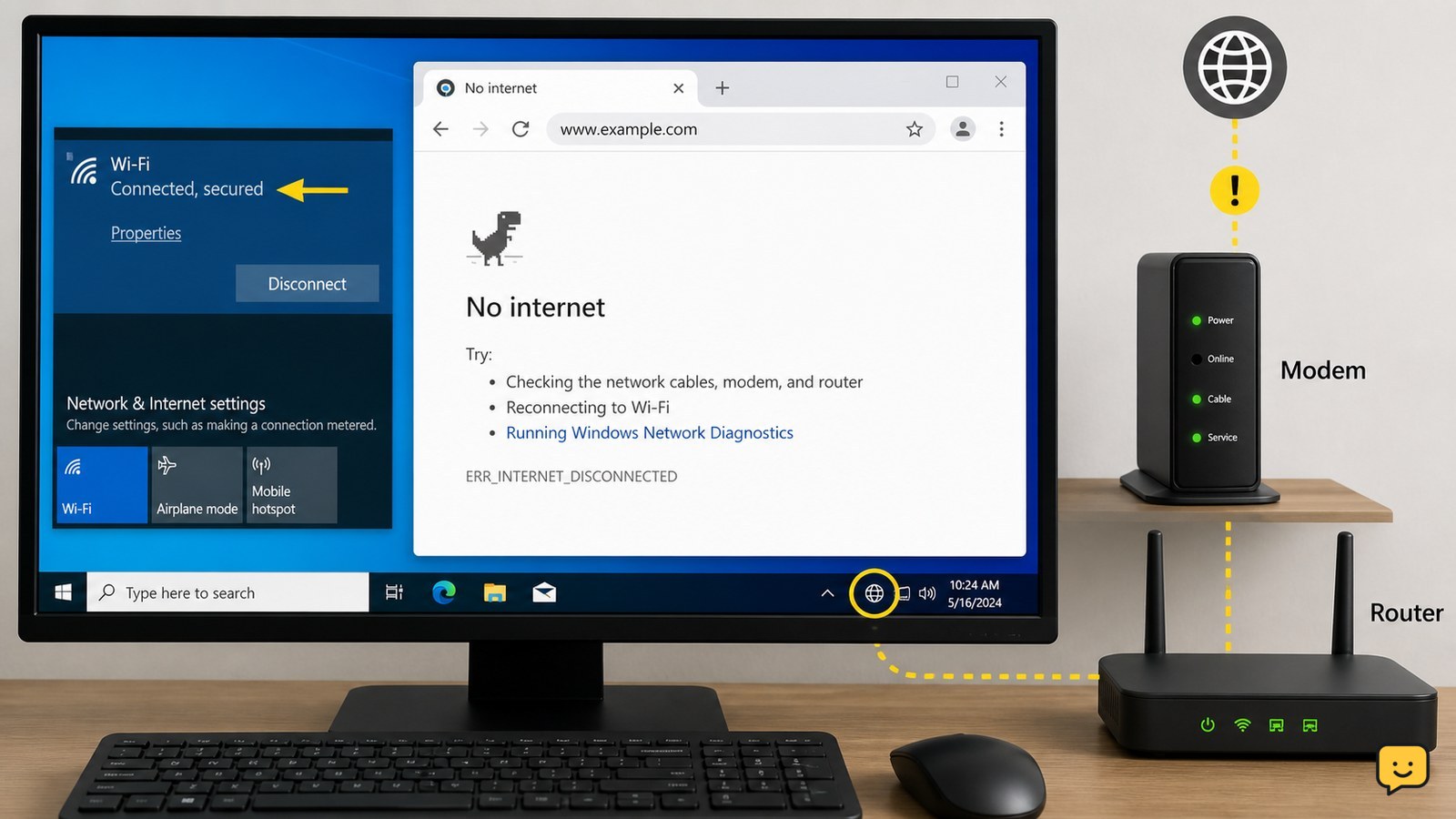
First test another device on the same Wi-Fi. If every device is offline, restart the modem and router, checking the modem first and the router second. If only Windows is affected, move closer to the router, reconnect Wi-Fi, restart the PC, and check DNS or network settings. Stop changing Windows settings when other devices also fail; contact your internet provider or network administrator.

Phone Microphone Not Working During Calls: Fixes
Mobile Devices

Phone Microphone Not Working During Calls: Fixes

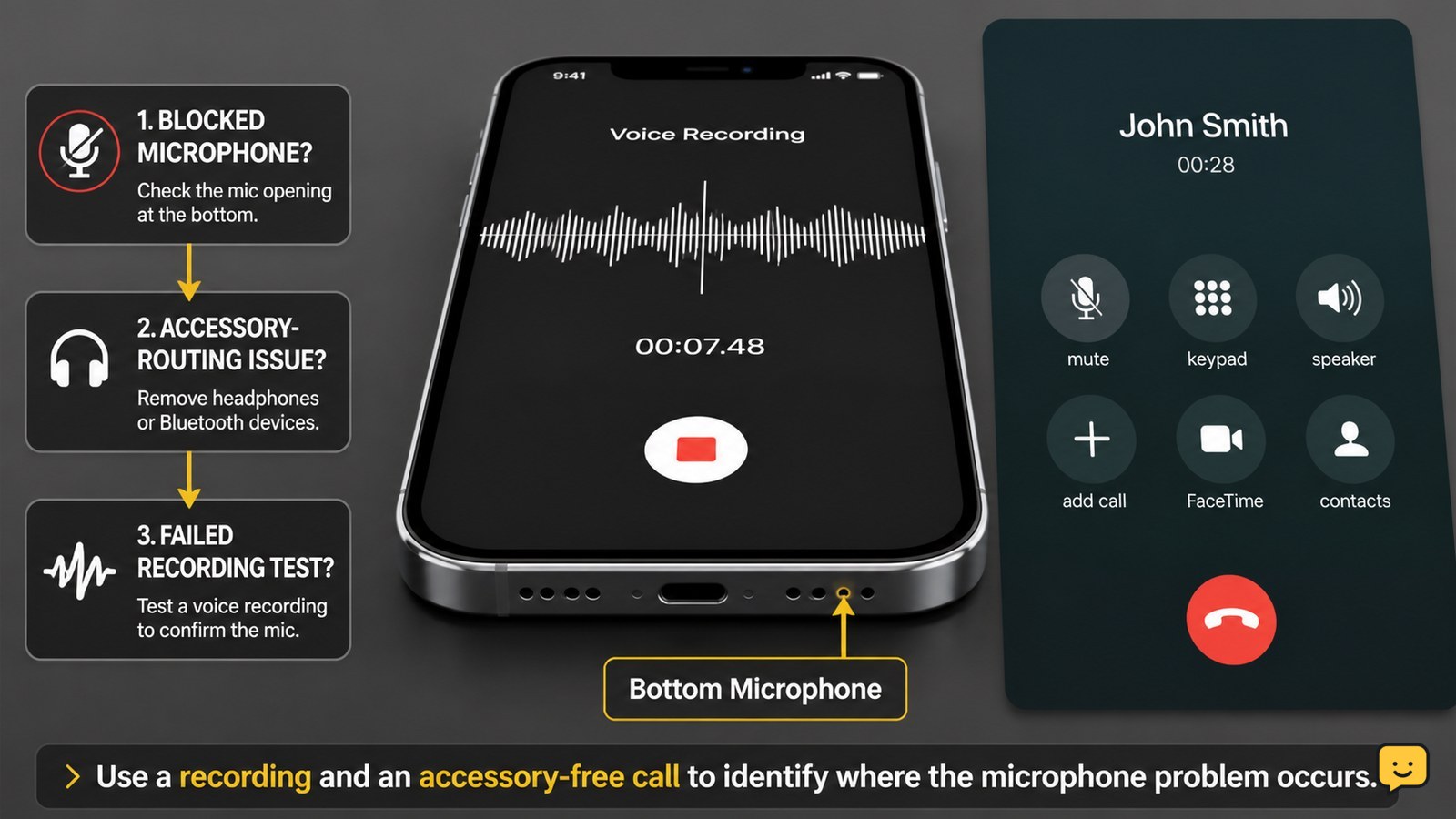
If your phone microphone is not working during calls, first turn off call mute, disconnect Bluetooth, remove any case or film covering the microphone, and gently clear the mic opening. Restart the phone, check microphone permission for the affected app, then record a voice memo. If recordings also have no sound, stop after basic cleaning and arrange service.

How to Uninstall Programs on Windows Completely
Computers & Internet

How to Uninstall Programs on Windows Completely

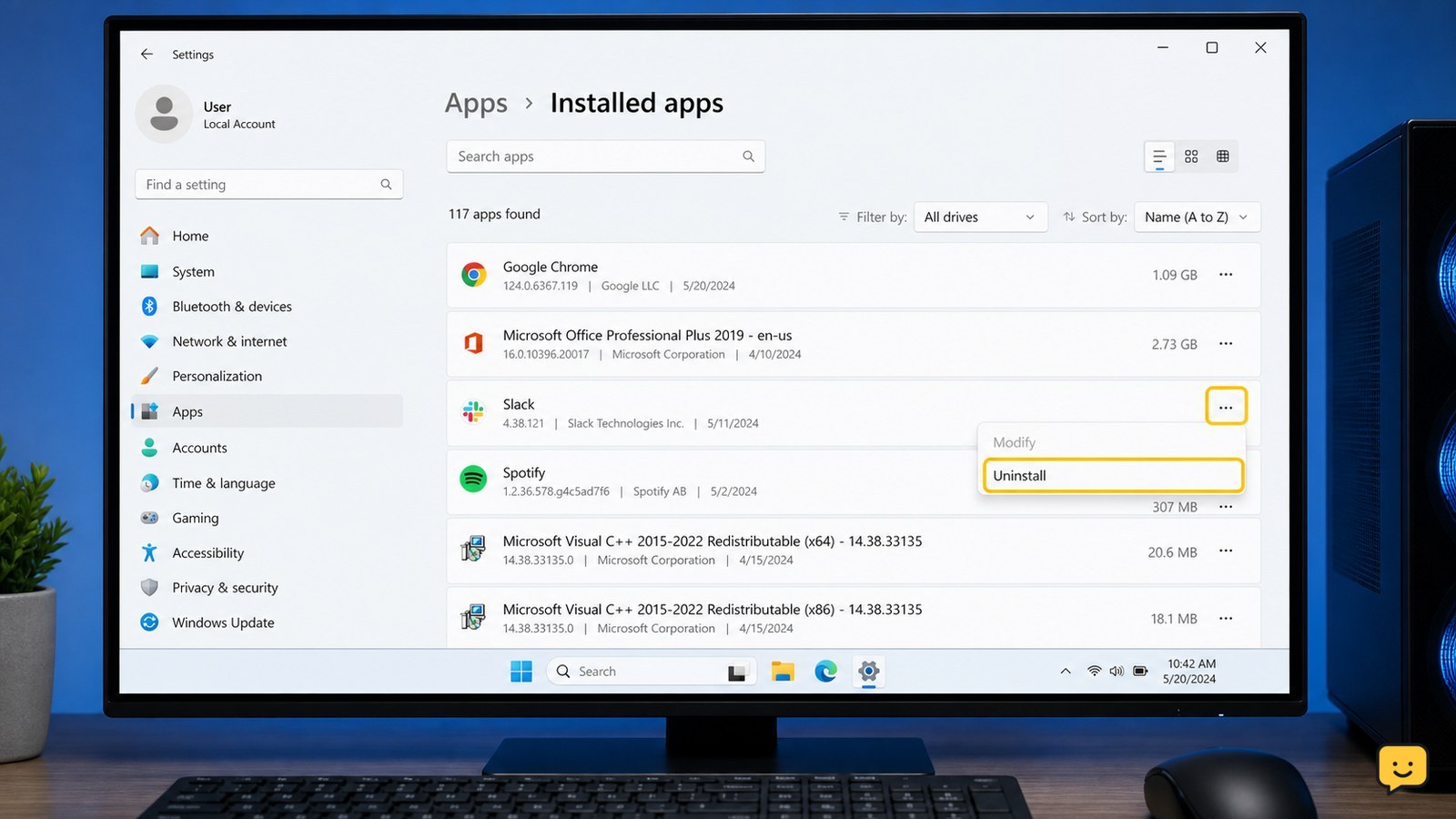
To uninstall a Windows program completely, first save its files and close it. Open Settings > Apps > Installed apps, choose the program, and select Uninstall. If it is missing, use Control Panel > Programs and Features. Restart Windows, then check only the program’s own leftover folders or data; do not delete shared system files or registry entries.

Phone Not Charging but Icon Appears: Fix It
Mobile Devices

Phone Not Charging but Icon Appears: Fix It

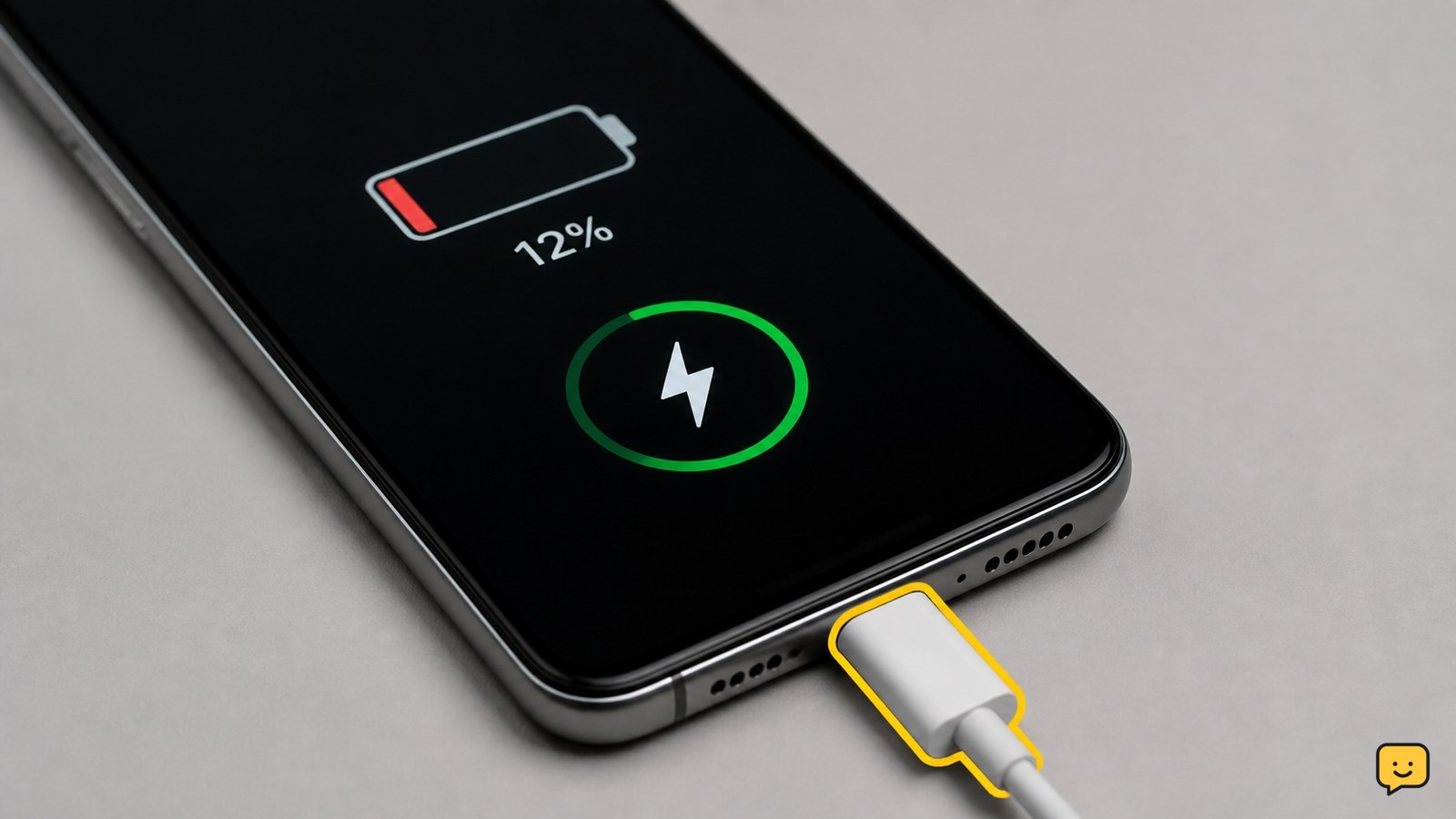
A charging icon only confirms that the phone detects a power connection; it does not prove that the battery is receiving enough power. Try a different wall outlet, compatible cable, and adapter, then inspect and safely clean the port. Remove the case, stop demanding apps, cool the phone, restart it, and verify whether the percentage rises after 30 minutes.