
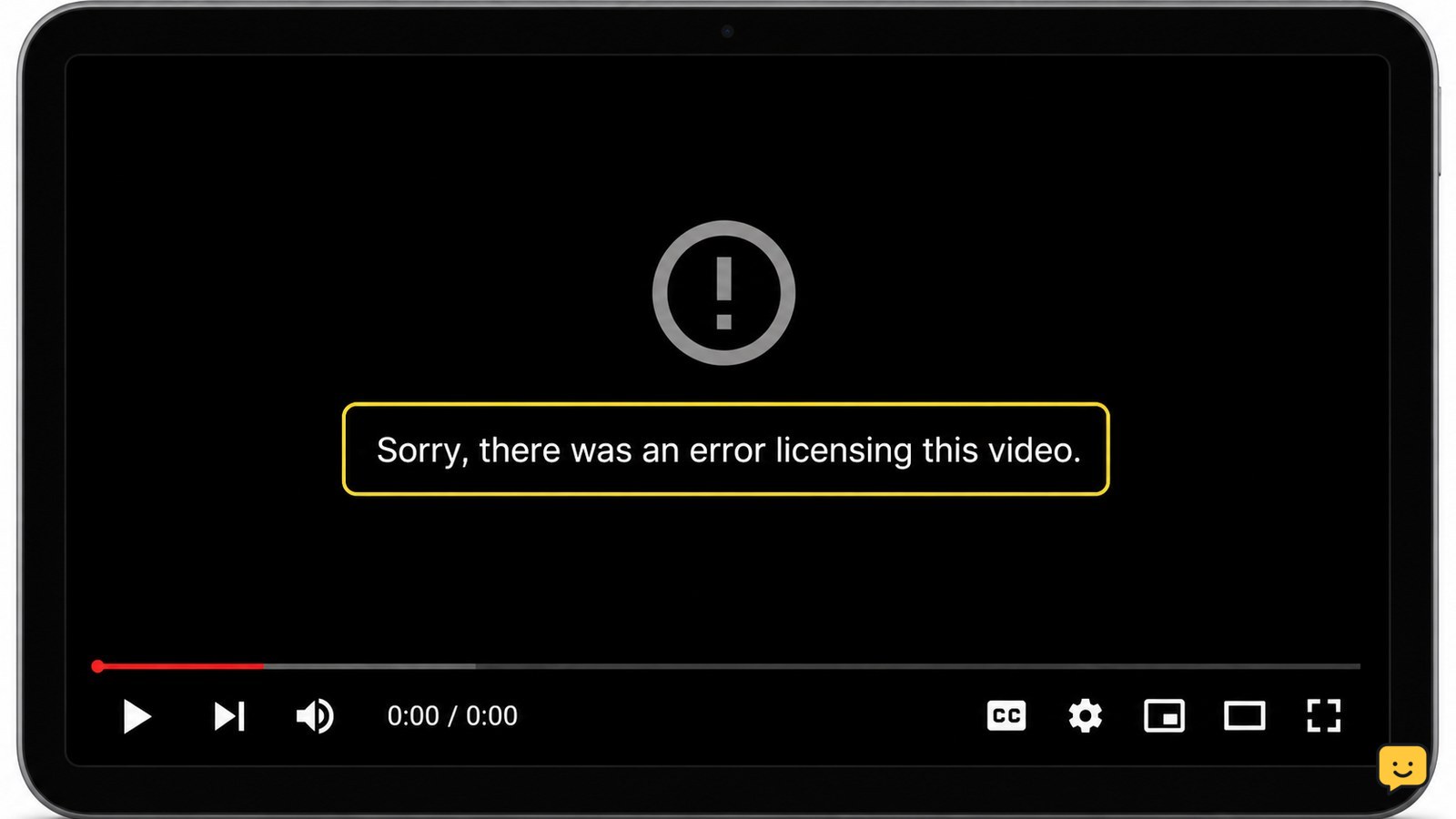
“Sorry, there was an error licensing this video” means YouTube could not authorize playback at that moment. First test another video, then refresh or restart YouTube, check your connection, update the browser or app, and temporarily disable extensions such as ad blockers. If only one title fails, the video may be unavailable for your region, account, or device; do not try to bypass that restriction.
Browse more Computers & Internet guides
Check whether one video or all videos fail
The fastest diagnosis is to play two or three unrelated YouTube videos in the same app or browser. If other videos play, the failure is probably limited to that title, its availability, or the current account and device authorization. If every video shows the licensing message, continue with the connection, app, browser, and device checks.
Also try the same video on a second device using the same network. A failure on only one device points toward local software or authorization; a failure on several devices points toward the network, account, video availability, or a temporary YouTube service problem.
Refresh YouTube and restart the playback device
Restarting YouTube can replace a failed playback authorization request. Close the browser tab or force-close the YouTube app, open it again, and load the video from its original page rather than an old embedded player.
- Pause the video, close YouTube completely, and reopen it.
- Restart the phone, computer, TV, or streaming device.
- Open YouTube again and test the same title plus another video.
Success means the video loads and plays beyond the point where the licensing error appeared. If the same message returns immediately, continue rather than repeatedly refreshing.
Check the connection without changing account settings
A licensing request needs a working connection in addition to enough bandwidth for playback. Open another website or app, then switch between Wi-Fi and a trusted mobile-data connection when possible. Do not use a public network that requires a sign-in page until that sign-in is complete.
- Move closer to the router or reconnect to Wi-Fi.
- Restart the router if other services also fail to load.
- Test YouTube on another network, such as a phone hotspot, only long enough to compare results.
If YouTube works on the second network, the original connection, DNS path, filter, or network policy is the likely cause. For Windows-specific connection checks, see Windows Wi-Fi connected but no internet.
If the error is unchanged on two working networks and affects only one video, stop treating it as a Wi-Fi problem and check availability or account scope instead.
Update the browser, YouTube app, and device software
YouTube Help recommends making sure the computer is up to date, closing and reopening the browser, and updating the browser when streaming or video playback fails. Apply the same principle to the YouTube app and the operating system on phones, TVs, and streaming devices.
- Install pending browser or YouTube app updates from the device’s normal update screen.
- Install an available operating-system or TV firmware update.
- Restart the device after updates finish.
- Test YouTube again before changing advanced settings.
Do not install unofficial app packages or firmware to solve a licensing message. If the device no longer supports the current YouTube app, use a supported browser or device rather than attempting to work around playback authorization.
Test browser extensions, cookies, and app data
Browser extensions can interfere with the player or with the request that authorizes playback. A community report specifically identified an ad blocker as the cause in one case, so use extension testing as a diagnostic step, not as a permanent security change.
- Open YouTube in a private window or a separate browser profile.
- Test the video without extensions, especially ad-blocking, privacy, script-filtering, or media-control extensions.
- If playback works, return to the normal window and disable extensions one at a time to find the conflict.
- Re-enable extensions that are not responsible.
If private browsing also fails, clear YouTube site data or browser cache using the browser’s normal privacy settings, then sign in again if needed. Clearing site data can remove local preferences, so do not use it as the first step if you are unsure which account is signed in.
On a phone or TV, use the system’s YouTube app settings to clear temporary cache if that option is available. If the only available choice is Clear data or Reset app, confirm that you know the account and settings you will need before proceeding.
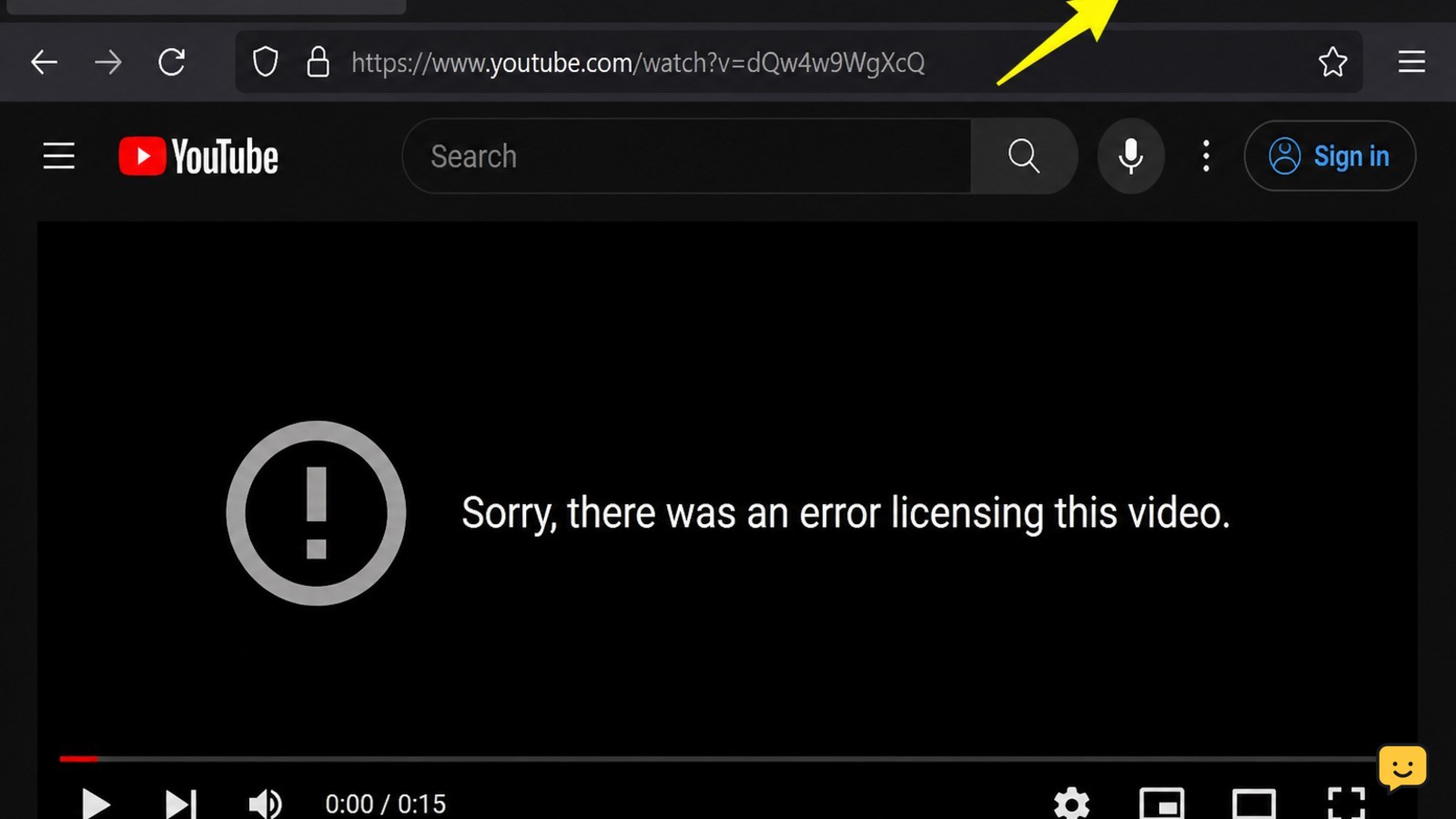
Choose the correct failure branch and stop safely
The result of the comparison tests determines the next action. Use the narrowest branch that matches what you observed:
| Observed result | Next action |
|---|---|
| Only one video fails | Check whether the title is available in your country, account type, subscription, or device. If other videos work, wait or contact YouTube or the content provider. |
| All videos fail in one browser | Use a private window, test another browser, update the browser, and check extensions and site data. |
| All videos fail in one app or device | Restart, update the app and device, then clear temporary app cache if the system provides that option. |
| Playback fails on several devices on one network | Check the router, network policy, DNS or filtering service, and another network. |
| Playback fails everywhere | Check YouTube’s current service status and contact YouTube support with the title, device, app or browser, region, and exact error text. |
Do not use a VPN, modified app, unofficial player, or other method intended to defeat geographic, subscription, or device restrictions. If playback authorization is being denied by the title, account, region, or service, the safe resolution is to use an officially supported access method or ask the provider to review the entitlement.
Frequently asked questions
What does the YouTube video licensing error mean?
It means YouTube could not authorize playback for that video at that time. The cause may be a temporary app or browser problem, a network request failure, an extension conflict, or a restriction involving the title, account, region, subscription, or device. Compare the failing video with several unrelated videos before choosing a fix.
Why does only one YouTube video show the licensing error?
If other videos play normally, the problem is probably specific to that title or its playback rights rather than your device. Check whether the video is available in your region and account, then try the official YouTube app or a supported browser. Do not attempt to bypass regional, subscription, or device restrictions.
Can an ad blocker cause this YouTube licensing message?
Yes, an extension can interfere with the player or its authorization request. Test the video in a private window or browser profile where extensions are disabled. If it works there, disable extensions one at a time to identify the conflict, then re-enable every extension that is not responsible.
Will clearing YouTube cache fix the licensing error?
It can fix stale local app or browser data, but it is not useful when the title is unavailable for your account, region, or device. Restart and update YouTube first. If you clear app data or site data, expect to sign in again and restore local preferences.


