
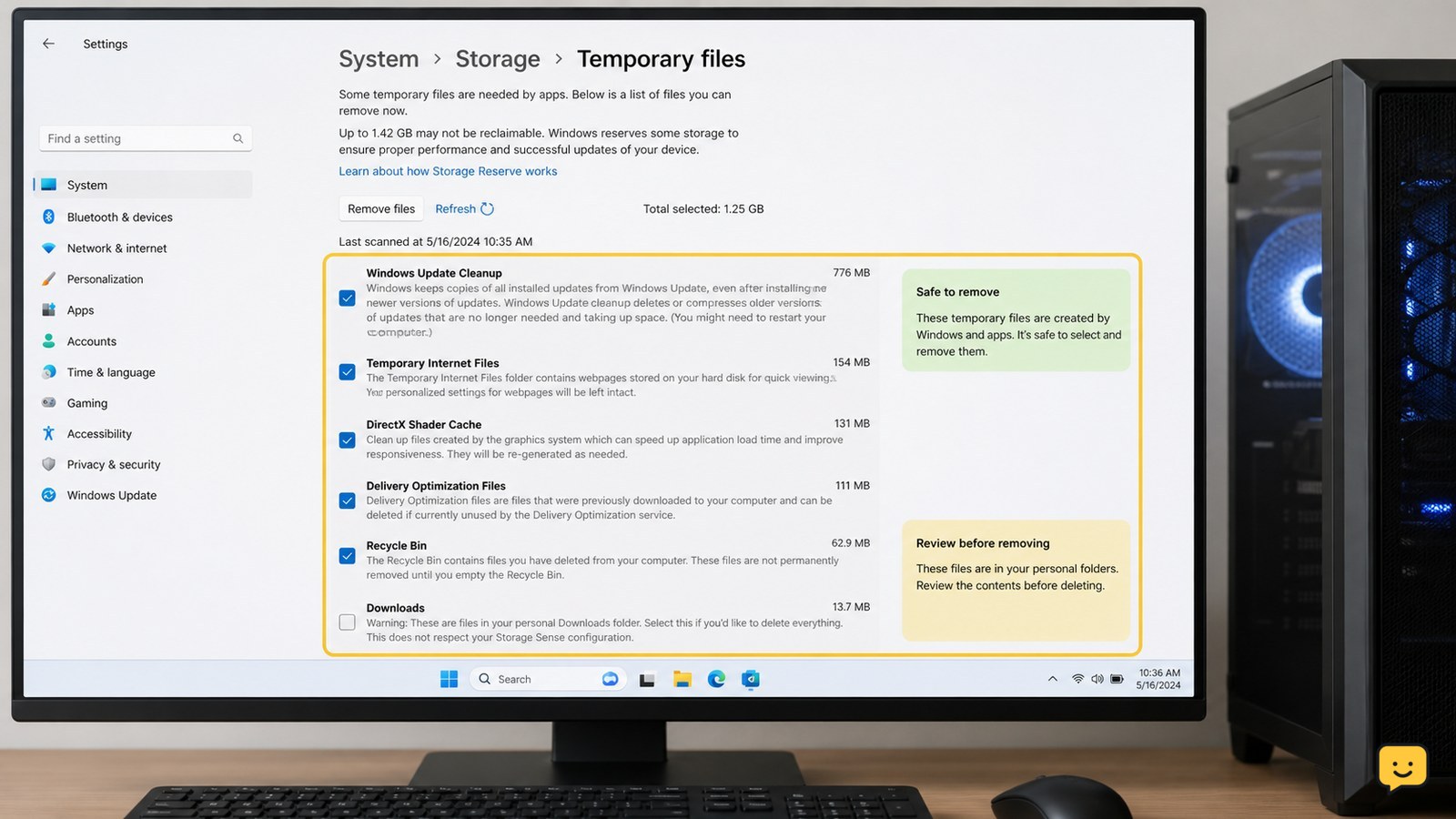
Use Windows Settings first: open System > Storage > Temporary files, review the categories, leave Downloads unchecked unless you have checked its contents, then select Remove files. For additional cleanup, run Disk Cleanup and clear your user Temp folder. Close open apps first, skip files Windows says are in use, and verify available space afterward.
Browse more Computers & Internet guides
Check the Windows drive and close open programs
Before clearing temporary files, close programs that may still be using them and record the free space on the Windows drive.
- Save open documents and close your apps.
- Open File Explorer, select This PC, and note the free space under the drive containing Windows, usually C:.
- Leave Windows Update, an application installation, or a large file transfer alone until it finishes.
Temporary files can be recreated by Windows and installed programs, but files that are open may be locked. A locked-file message is a reason to skip that item, not to force it closed or removed.
Remove reviewed categories in Storage settings
Windows Storage settings provide the safest first cleanup because they group removable system data by category before deletion.
- Open Settings.
- Select System, then Storage.
- Choose Temporary files and wait for the category list to finish calculating.
- Review each selected category. Leave Downloads unchecked unless you have opened that folder and confirmed everything there can be deleted.
- Select Remove files, then confirm if Windows asks.
Use the category name as the decision point. Temporary internet files, thumbnails, delivery optimization files, and cleanup data are different from personal documents. If a category is unclear or contains files you may need, leave it unchecked.
Verify: return to System > Storage after the cleanup finishes and compare the available space with the figure you recorded.
Run Disk Cleanup for additional Windows files
Disk Cleanup is a built-in Windows utility that can identify additional removable system files after you review the categories.
- Open the Start menu and search for Disk Cleanup.
- Open the utility and select the Windows drive if prompted.
- Review the list of file categories and select only items you recognize as disposable.
- Choose OK, then select Delete Files to confirm.
A supplied Windows community discussion also recommends Disk Cleanup as a way to remove multiple unneeded items, but the discussion is not an official Windows support source. Keep the decision conservative: do not select Downloads, Recycle Bin, or previous Windows installations unless you have checked what they contain and understand the recovery consequences.
If the utility finds little or nothing, stop there. A small result means Windows has limited removable temporary data; repeatedly deleting random folders is not a safer way to recover space.
Clear the current user Temp folder only
The current user’s Temp folder contains application and Windows working files, so clear its contents rather than deleting the folder itself.
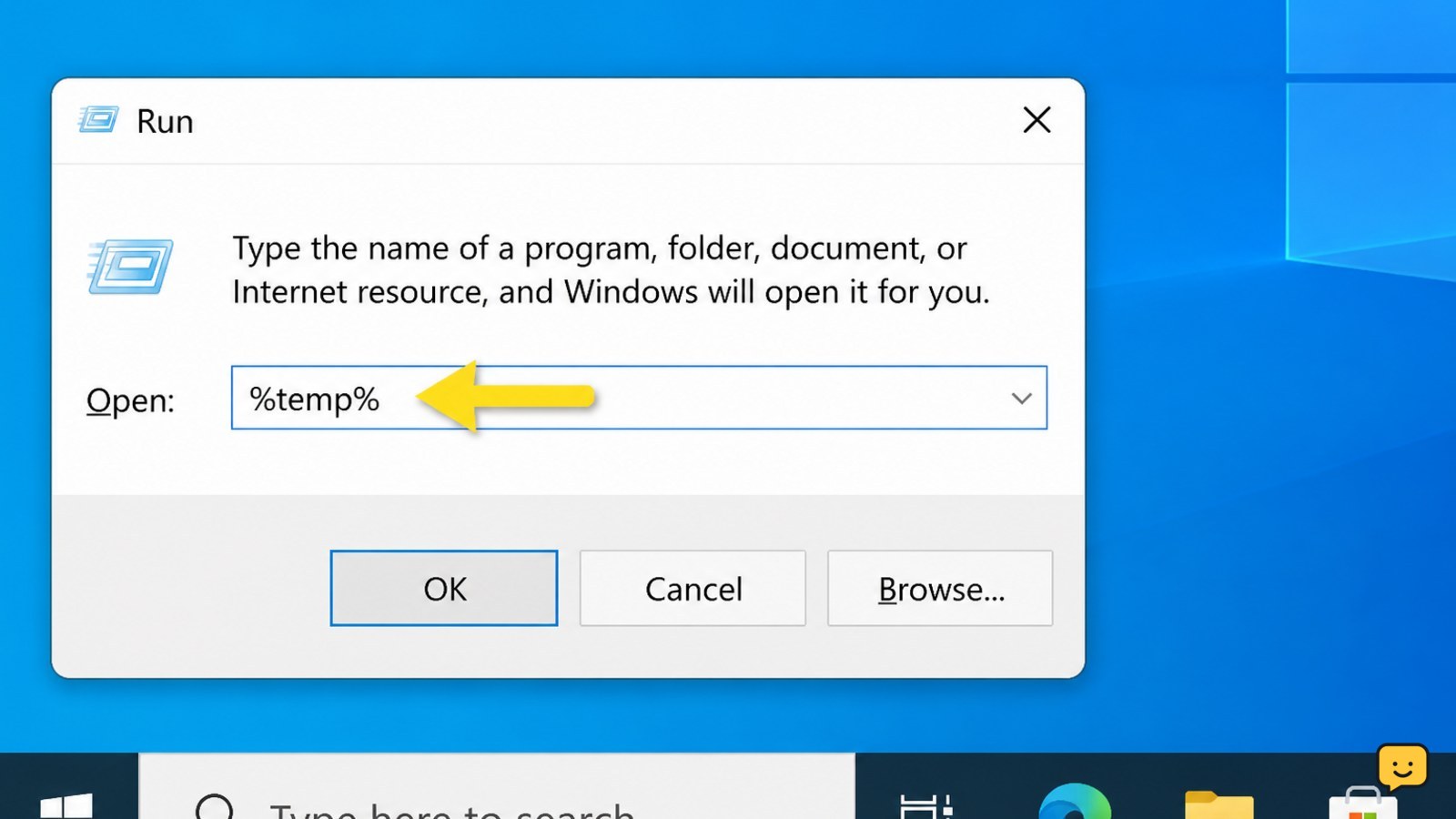
- Press Windows key + R to open the Run dialog.
- Type
%temp%and select OK. - Press Ctrl + A to select the contents, then press Delete.
- If Windows reports that some files are in use or access is denied, choose Skip for those files.
- Empty the Recycle Bin only if you have reviewed it and no longer need its contents.
Do not type a different path just because it looks similar, and do not delete the Temp folder itself. The safest boundary is the folder opened by %temp% for the signed-in Windows account.
Failure path: if the folder will not open, restart the PC and try once more after closing programs. If files remain locked after the restart, leave them in place.
Verify storage and restore normal operation
Successful cleanup should leave personal files unchanged and show either more free space or a smaller temporary-file category.
- Open File Explorer > This PC and compare the Windows-drive free space with your starting figure.
- Open Settings > System > Storage and check the updated storage breakdown.
- Open a few important applications and confirm that your documents, photos, and other personal folders are present.
- Restart Windows if an application behaves unusually or if cleanup was interrupted.
If the free-space increase is smaller than expected, use Storage settings to identify the largest category instead of deleting more system folders. Large personal files, installed applications, cloud-sync copies, or old backups may be responsible and require a separate review.
Frequently asked questions
Will clearing Windows temporary files delete my personal documents?
No, the normal Windows Storage and Disk Cleanup options do not target Documents, Pictures, Desktop, or other personal folders. The main exception is a category such as Downloads or Recycle Bin, which can contain personal files. Review those locations before selecting them.
Is it safe to delete everything in the Windows Temp folder?
Delete the contents of the current user’s Temp folder only after closing open programs. Windows may refuse to remove files that are in use; choose Skip for those items. Do not delete the Temp folder itself, and do not force removal of locked files.
Why did clearing temporary files recover very little space?
Temporary data may not be the largest storage category. Open Settings > System > Storage and check which category is using space. Installed apps, videos, downloads, cloud-sync copies, and backups often require a separate review. Do not delete random Windows folders to compensate for a small cleanup result.
Should I clear temporary files before a Windows update?
You can clear reviewed temporary-file categories before an update, but do not interrupt an update that is already downloading or installing. Leave previous Windows installation files alone if you may need to roll back. Keep the PC connected to power during the update.


