
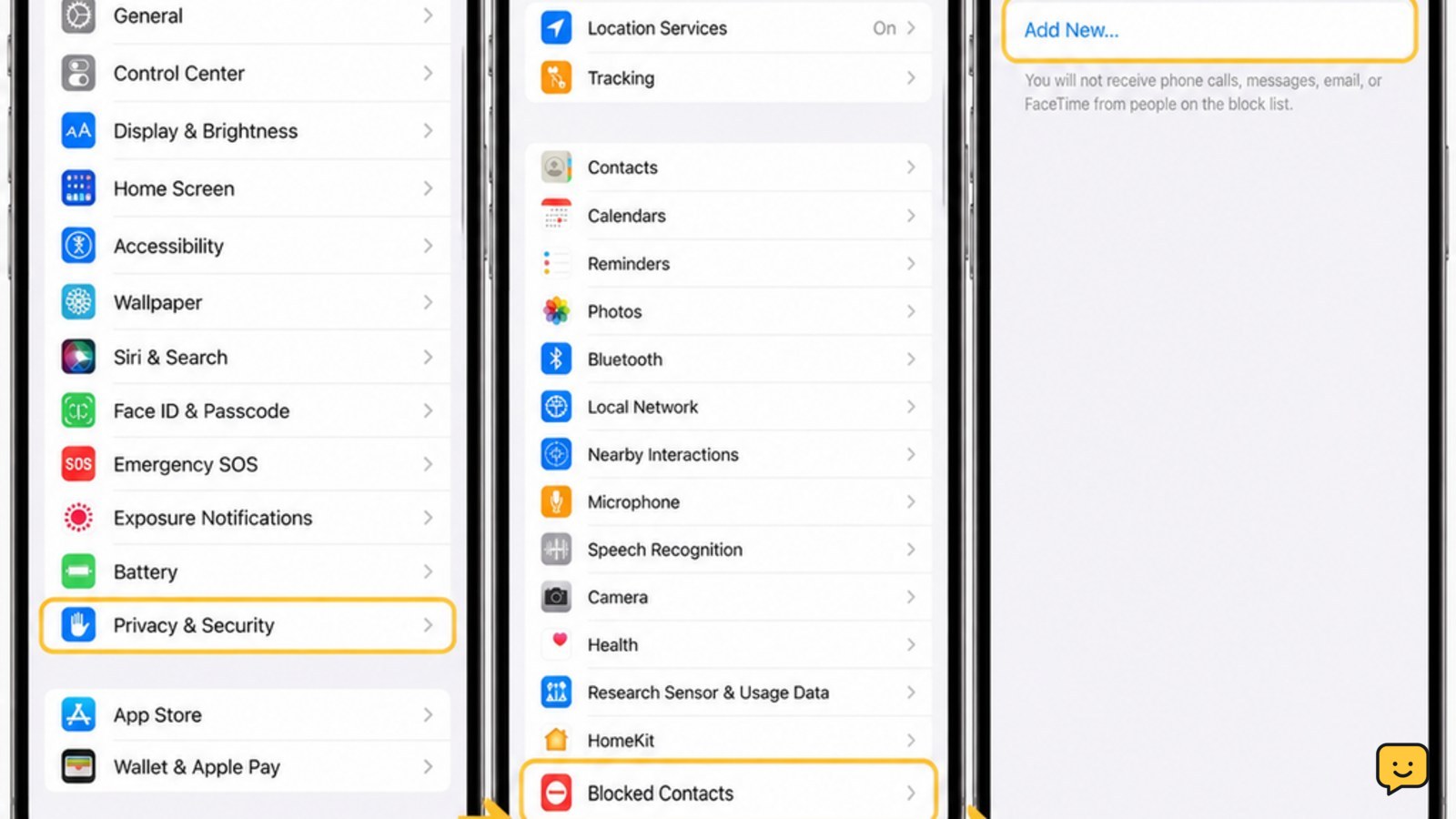
To unblock someone on a current iPhone, open Settings > Privacy & Security > Blocked Contacts. Swipe left on the person’s name or number, then tap Unblock. On some iOS versions, the list is under Settings > Phone > Blocked Contacts. Confirm the entry disappears, then have the person call or message you again.
For more help with this topic, use the Mobile Devices guides.
Find the blocked-contact list in Settings
On current iOS versions, the iPhone blocked-contact list is under Settings > Privacy & Security > Blocked Contacts. Apple has moved this control between iOS releases, so an older iPhone may instead show it at Settings > Phone > Blocked Contacts.
- Open Settings.
- Tap Privacy & Security.
- Tap Blocked Contacts.
If Blocked Contacts is not listed there, return to the main Settings screen, tap Phone, and look for the same option. The supplied ShowU guide on where to find blocked numbers on iPhone covers these menu-location differences.
Use this guide to where to find blocked numbers when your iOS version places the list in a different Settings section.
Remove the person or number from the list
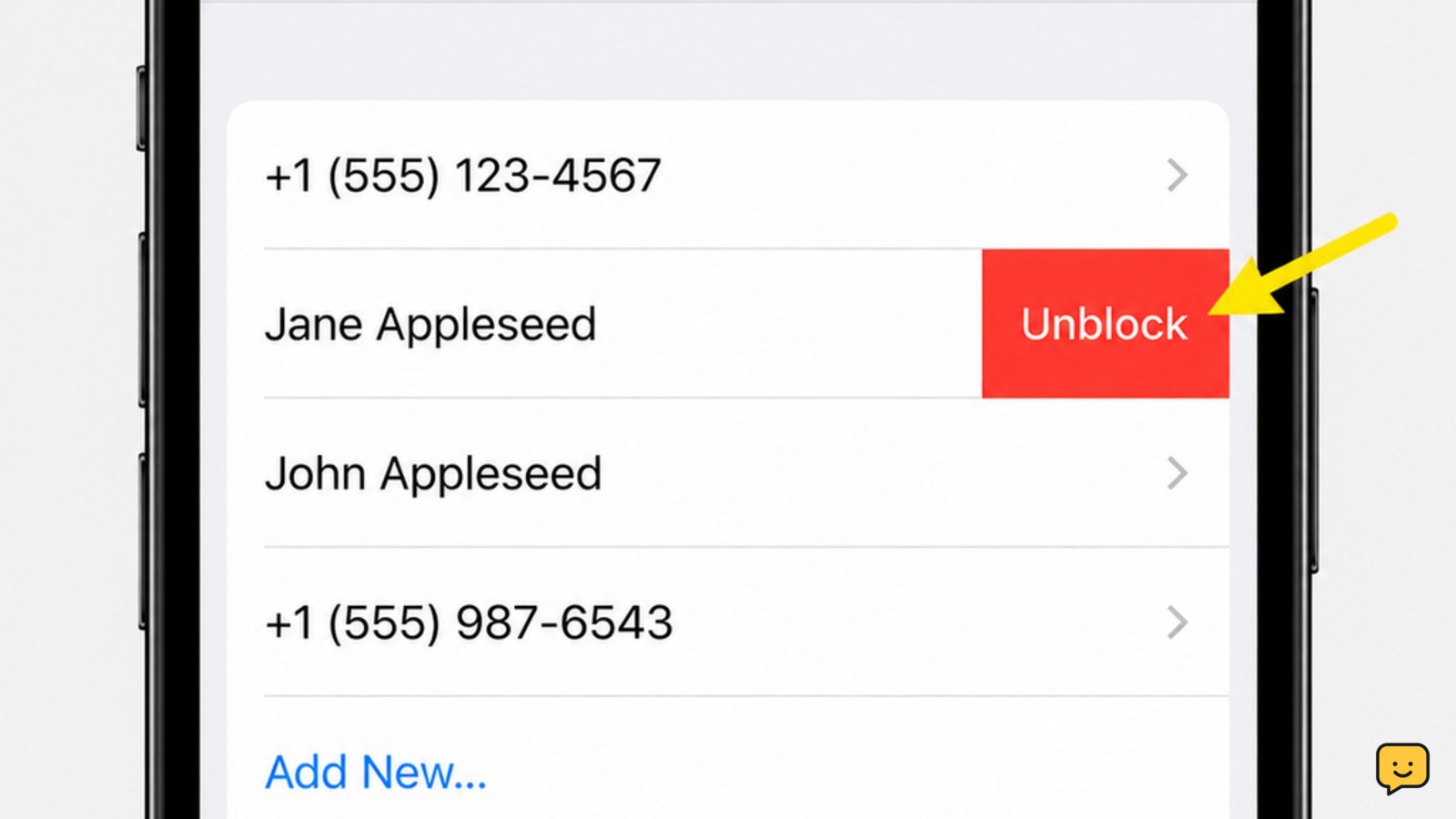
The iPhone removes a block when you delete the matching entry from Blocked Contacts. Find the contact name or phone number, then swipe left on that row and tap Unblock.
- Review the list and identify the correct name or number.
- Swipe left across the entry.
- Tap the red Unblock control.
Some iOS versions show Edit instead. If so, tap Edit, tap the red minus button beside the entry, and choose Unblock or the matching confirmation control. Do not remove an entry based only on a similar name; compare the full number or address first.
Verify that unblocking worked
Unblocking worked when the person’s name, number, or address is no longer present in Blocked Contacts. That list is the first observable check because it confirms the device-wide block was removed.
- Stay in Blocked Contacts and search the list visually for the entry.
- Open the Phone app and check the contact card if you need to confirm the exact number.
- Ask the person to place a normal phone call or send a new message.
A new call should ring or appear in Recents, and a new message should appear in Messages if the sender uses a reachable number or address. Unblocking does not retrieve messages sent during the block, so test with a new call or message.
Unblock from a recent call or message
You can also remove a block from a recent Phone or Messages entry when the contact is easier to identify there than in Settings.
- Open Phone and tap Recents, or open Messages and open the conversation.
- Tap the person’s phone number or contact name, then tap the Info button if it appears.
- Scroll through the contact details and tap Unblock this Caller or the equivalent unblock control.
If the unblock control is missing, use the Settings method instead. This is safer when the recent entry is an unknown number, because you can compare it with the full blocked-list entry before changing anything.
Fix calls or messages that still do not arrive
If the entry is gone but contact still does not arrive, the block may not be the remaining cause. Confirm that the person is contacting the same number, email address, or FaceTime address that you removed.
- Check the contact card for duplicate phone numbers or email addresses.
- Ask the person to send a new message rather than retrying one sent during the block.
- Check whether Focus, unknown-caller filtering, or a third-party call-filtering service is silencing or screening the contact.
- Restart the iPhone if the blocked list changed but the Phone or Messages apps still behave as though it did not.
Do not repeatedly delete and recreate the contact unless the contact record itself is wrong. If you are trying to determine whether someone else has blocked you, the result cannot be confirmed from one call or message; see signs you may be blocked on iPhone for the limits of those checks.
Review signs you may be blocked when the entry is unblocked but contact still cannot be confirmed.
Frequently asked questions
Will someone know that I unblocked them on iPhone?
No direct notification is sent when you unblock a contact. They may infer it if a new call rings or a new message reaches you, but the iPhone does not announce the change to them.
Do blocked messages appear after I unblock someone?
No. Unblocking allows new calls and messages, but messages sent while the person was blocked are not automatically delivered afterward. Ask them to send a new message after you confirm the block is removed.
Why can I not find Blocked Contacts in iPhone Settings?
The menu location depends on the iOS version. Check Settings > Privacy & Security > Blocked Contacts first, then check Settings > Phone > Blocked Contacts. If neither path exists, update iOS only after confirming the phone has enough battery and storage.
Can I unblock only texts but keep phone calls blocked?
The iPhone’s built-in blocked-contact control applies across supported Phone, Messages, and FaceTime contact methods for that entry. To manage interruptions separately, use Focus or call-filtering settings instead of leaving the contact partially blocked.
What if the person is still unable to call after I unblock them?
Confirm that you removed the exact phone number or address they are using, then test with a new call. Also check Focus, unknown-caller filtering, carrier call controls, and third-party filtering apps. Do not assume the block is still active just because one call fails.


