
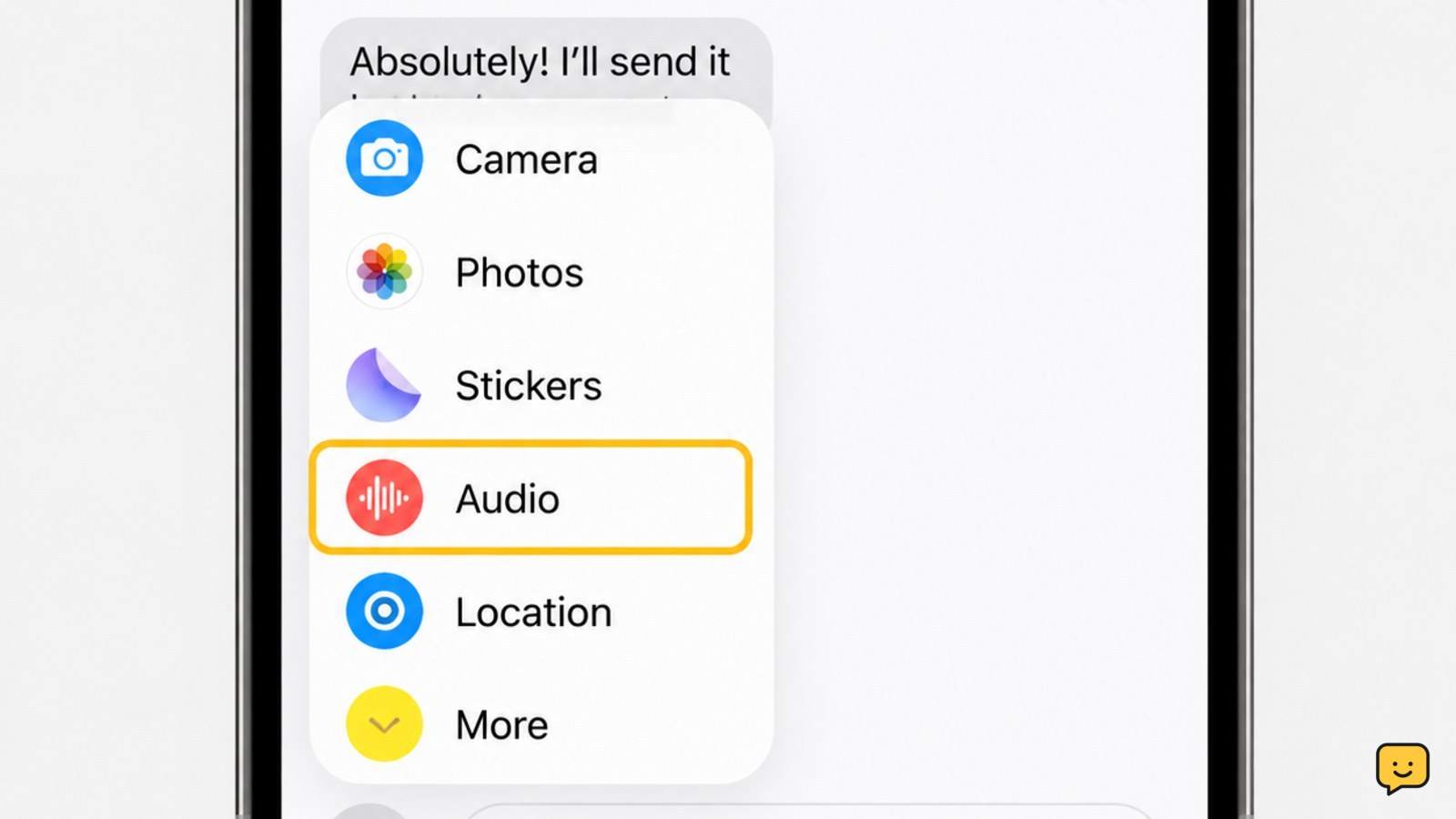
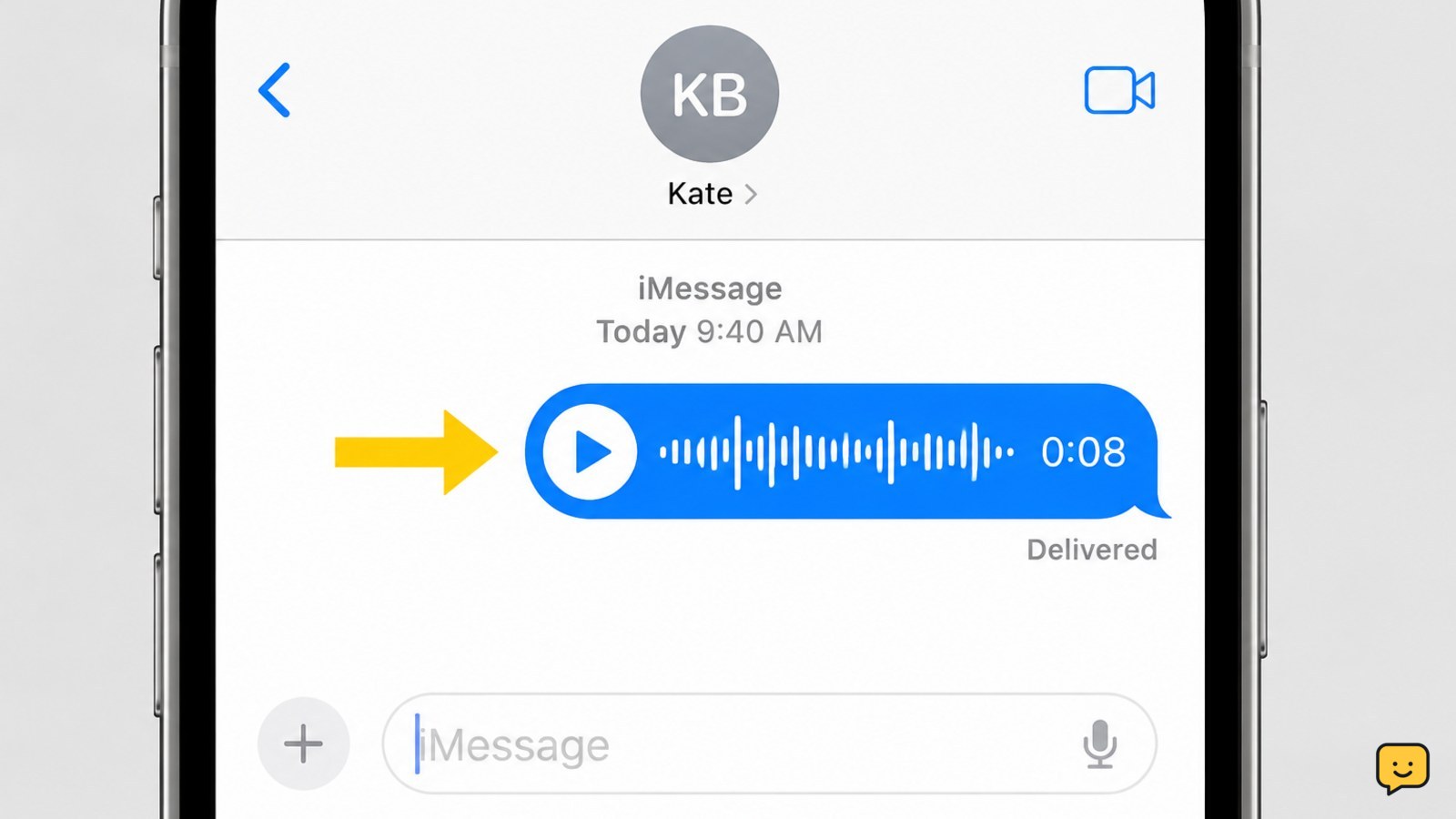
Open Messages and select the conversation. On current iPhones, tap the plus button, choose Audio, tap the record button, speak, stop recording, then tap Send. On some older layouts, touch and hold the audio-message button beside the text field instead. The sent clip appears as a playable audio bubble in the chat.
For more help with this topic, use the Mobile Devices guides.
Record and send an audio message in Messages
The Messages app lets you record a short audio clip directly inside a conversation and send it as a playable message.
- Open Messages, then open an existing conversation or start a new one.
- Tap the plus button beside the text field.
- Choose Audio.
- Tap the record button and speak normally into the iPhone.
- Tap the stop button when finished.
- Listen to the preview if it is available. Tap Send only when the clip is ready.
Apple’s iPhone Messages guide describes audio messages as recordings you create and send within a message conversation. The exact icons can shift slightly with iOS updates, but the Audio option is the control to use for a recording rather than the keyboard microphone.
Verify that the voice message was sent
A sent voice message appears in the conversation as an audio bubble with a play control and a recording length.
After you tap Send, look for that playable bubble below the newest message. In an iMessage conversation, you may also see a delivery status such as Delivered, depending on the recipient’s settings and connection. A regular text-message conversation may not show the same status, so the audio bubble itself is the first useful confirmation.
If the recording remains in a preview state, it has not been sent. Tap Send, wait for the bubble to move into the conversation, and check that no red exclamation mark or failed-send notice appears.
Use the older audio-message button if Audio is not shown
Some iPhone and iOS layouts place the audio-message control directly beside the message field instead of inside the plus menu.
- Open the conversation in Messages.
- Look beside the text-entry field for an audio-message or waveform-style button.
- Touch and hold the button while speaking.
- Release or follow the on-screen control to finish the recording, then review and send it.
Do not confuse this control with the microphone on the keyboard. The keyboard microphone turns speech into typed words through dictation; it does not create a playable voice-message clip.
Fix a missing Audio option or a recording that will not send
If Messages does not show Audio or cannot send the clip, first check the conversation, microphone access, and connection rather than repeatedly recording the same message.
| What you see | Likely next action |
|---|---|
| No Audio item in the plus menu | Look beside the text field for the older audio-message control, then update iOS if the Messages layout appears incomplete. |
| No sound in the preview | Make sure the iPhone is not connected to an unexpected Bluetooth headset, then test the microphone with Voice Memos or a phone call. |
| Red exclamation mark or failed-send notice | Check Wi-Fi or cellular service, then tap the failed message to retry only after the connection returns. |
| iPhone shows SOS or no service | Reconnect through Wi-Fi or restore cellular service before sending again. |
If your iPhone is showing SOS or SOS Only, use this guide to restore phone service safely before relying on cellular messages. Do not delete a failed audio bubble until you have a copy of the recording or are ready to record it again.
If your iPhone is showing SOS or SOS Only, use this guide to restore phone service safely before relying on cellular messages.
Send a longer recording from Voice Memos instead
Voice Memos is the better option when you need to record first, trim the clip, or keep a copy before sharing it.
- Open Voice Memos and make the recording.
- Stop the recording and play it back to confirm the sound is clear.
- Open the recording’s sharing options.
- Choose Messages, select a recipient, and send it.
This method creates a saved recording before it leaves your phone, which is useful for a longer explanation or a message you may need to send again. Apple’s Voice Memos documentation covers sharing recordings through available apps, including Messages.
Choose audio messages when timing matters
An audio message sends immediately once you tap Send, so use typed text instead if the message needs to arrive at a specific later time.
For example, record an audio clip when pronunciation, tone, or a quick spoken update matters. Use a text message when the recipient needs an easily searchable detail such as an address, confirmation number, or meeting time. If you need a future delivery time, learn how to schedule a text on iPhone instead.
If you need a future delivery time, learn how to schedule a text on iPhone instead.
Frequently asked questions
Can I send a voice message to someone who does not use an iPhone?
Usually, yes, if your carrier and the recipient’s messaging service support multimedia messages. The appearance and delivery status can differ from iMessage, and the recipient may receive the recording as an audio attachment rather than an iMessage audio bubble.
Why does the microphone on my iPhone keyboard type words instead of recording audio?
The keyboard microphone is Dictation, so it converts your speech into text. To send a playable recording, use Audio from the plus menu in Messages or the audio-message control beside the conversation’s text field on older layouts.
Can I listen to a voice message before sending it?
Yes. After stopping the recording, Messages can provide a preview with a play control before you send it. Listen for clear sound and confirm the intended recipient. If the recording is wrong, discard it and make a new one instead of sending it.
Why will my voice message not send on iPhone?
A voice message may fail when Wi-Fi or cellular service is unavailable, when the conversation has a sending problem, or when the recording did not finish properly. Check for a failed-send icon, reconnect to Wi-Fi or cellular service, and then retry the clip.
Can I save a voice message before sharing it?
Yes. Record it in Voice Memos first if you want a saved copy, need to trim it, or may need to send it to more than one person. Use the recording’s Share option and select Messages when you are ready.


