
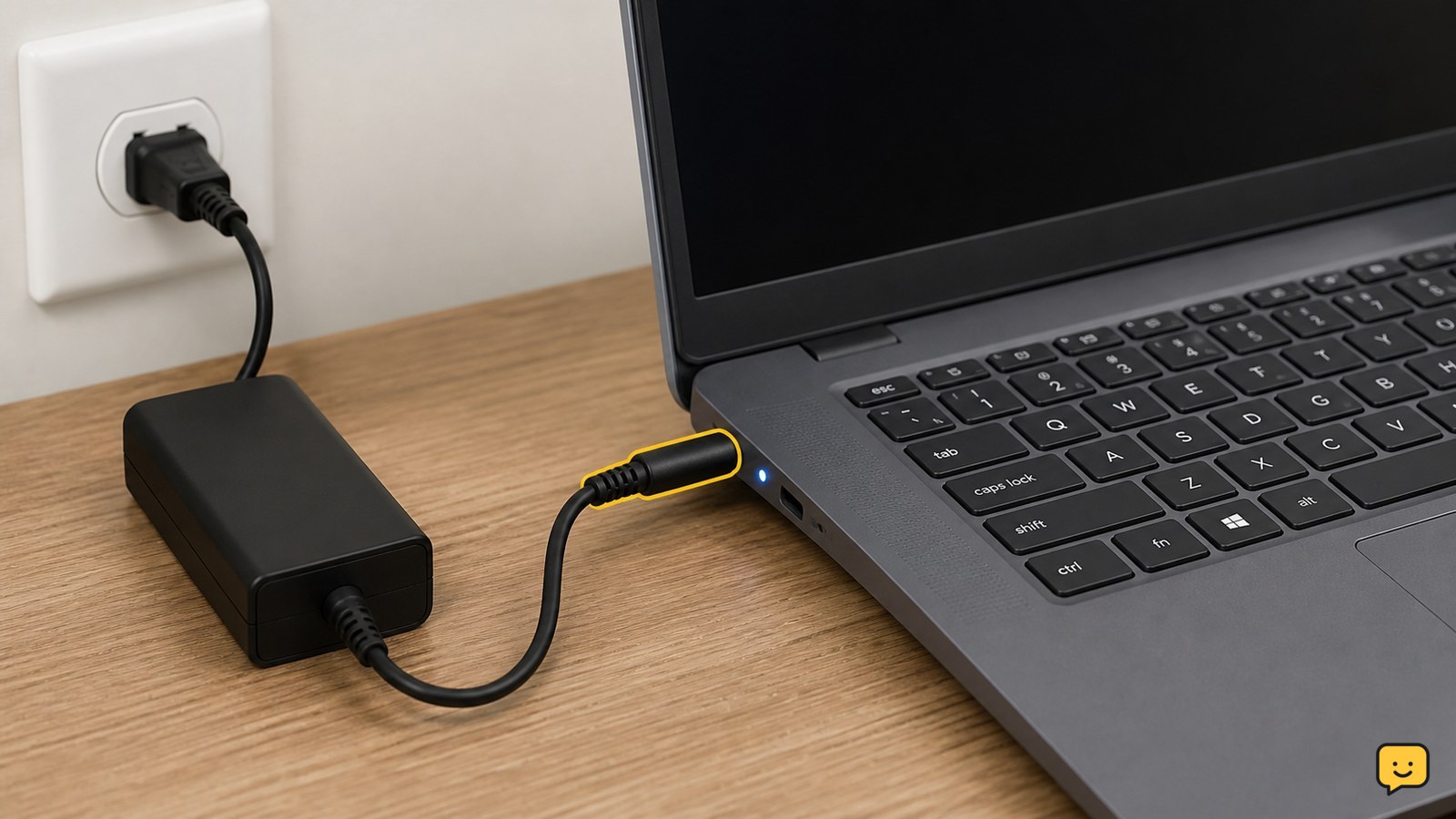
Your Dell laptop may not turn on because the outlet, AC adapter, charging port, battery, power button, or internal hardware is faulty. First remove accessories, test a known-good outlet, check the charger connection and light, then perform a power reset. If lights or fans work but the screen stays black, troubleshoot the display instead of repeating power resets.
For more help with this topic, use the Computers Internet guides.
Check whether the laptop has any power signs
A Dell laptop with no power shows no charging light, keyboard light, fan movement, or response to the power button; a black screen with lights or fan noise is a different problem.
- Disconnect the AC adapter and all accessories.
- Press the power button once and watch for any light, sound, fan movement, or Dell logo.
- If the power light comes on but the display stays black, skip to the display section below.
If there is no response at all, continue with the outlet and charger checks. This symptom commonly points to the power path, battery, power button, or internal hardware, but it cannot identify one failed part by itself.
Test the outlet, AC adapter, and charging port
A Dell laptop may not start when the wall outlet, adapter connection, charger, or charging port is not supplying power.
- Plug a lamp or another small device into the same outlet to confirm that it works.
- Connect the Dell adapter directly to the wall, not through a dock, surge strip, or extension lead.
- Push the adapter firmly into the laptop and wall outlet. Check the cable and plug for cuts, bent parts, or looseness.
- Look for the adapter’s indicator light, if your model has one. If it is off before connection or goes out when connected, unplug it and stop using that adapter until it has been checked.
- Leave the laptop connected for several minutes, then press the power button once.
Dell’s no-power guidance identifies the power source, AC adapter, battery, and power button as primary checks. If a compatible known-good Dell adapter works, replace or service the original adapter rather than repeatedly forcing startup.
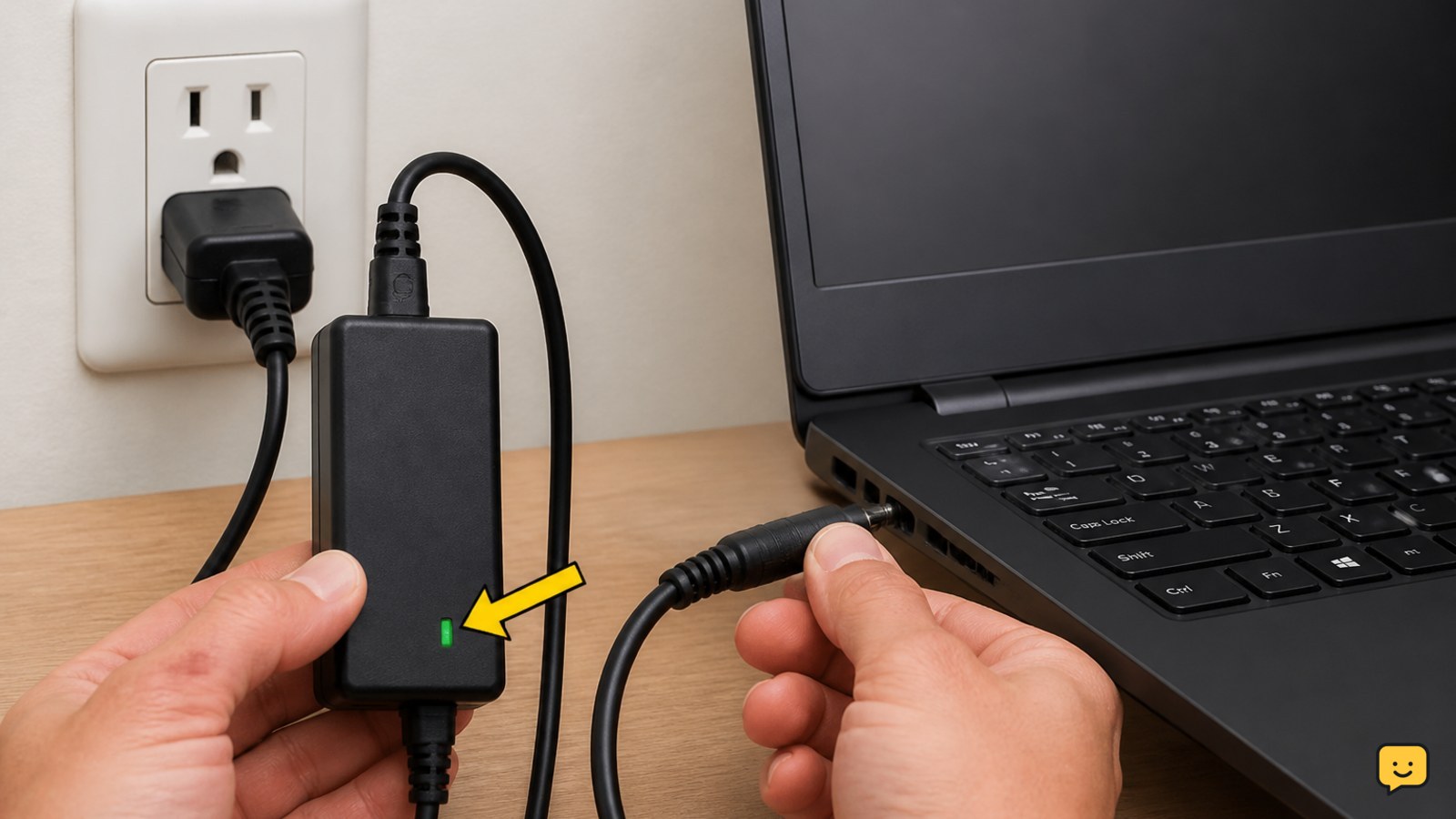
Remove accessories and perform a power reset
A disconnected USB device, dock, or residual electrical state can prevent a Dell laptop from responding normally to the power button.
- Unplug the AC adapter and remove every accessory, including USB devices, SD cards, external displays, and docking stations.
- With the laptop disconnected from power, hold the power button for about 15-30 seconds.
- Release the button, connect only the Dell AC adapter, and try to start the laptop.
Success means the charging indicator, keyboard, fan, or Dell logo appears. If it starts, shut it down normally and reconnect accessories one at a time. If it remains dead, continue without opening the case.
Decide whether the battery or charger is responsible
A Dell laptop that starts on AC power but not on battery has a battery, charging, or battery-connection problem rather than a total no-power condition.
- Connect the AC adapter and try to start the laptop.
- If it starts, check whether Windows reports charging and whether the charge percentage rises after several minutes.
- Shut down, disconnect the adapter, and try starting once on battery power.
If AC power works but battery power does not, keep using the adapter only if it and the laptop remain cool and undamaged, then arrange battery or charging service. Do not remove an internal battery unless the model’s official service documentation specifically supports it and you are qualified to work safely.
If neither AC power nor battery power produces any light or response after the reset, the fault may involve the adapter, port, power button, system board, or another internal component.
Run Dell diagnostics when the laptop shows startup activity
Dell diagnostics apply only when the laptop shows enough activity to display a logo or startup menu; they cannot repair a machine with no lights or response.
- Connect the AC adapter and remove external devices.
- Turn on the laptop and repeatedly tap F12 when the Dell logo appears.
- Choose the available diagnostics option and record any error code, validation code, or failing component shown.
If diagnostics complete without a hardware error but Windows does not load, the issue may be startup or storage related rather than a power failure. For a Dell drive that disappears from BIOS or diagnostics, use Dell hard disk detection checks. If diagnostics report a hardware failure, save the code and contact Dell Support.
If the laptop reaches diagnostics but cannot see its drive, use Dell hard disk detection checks before considering storage replacement.
What to do when lights or fans work but the screen is black
A Dell laptop with a power light, fan noise, or keyboard illumination is receiving some power, so a blank display may involve the screen, display cable, graphics hardware, or startup process.
- Disconnect external monitors and docks, then restart with only the AC adapter connected.
- Watch for a Dell logo, keyboard response, startup sound, or diagnostic screen.
- If an external display is available, test it only after the laptop has clearly powered on.
If the external display works while the built-in screen remains black, stop treating the symptom as a dead battery and arrange display or cable service. If there are no lights, fan sounds, or logo at all, return to the charger and power-reset checks instead.
For a persistent Windows display symptom after startup, see laptop display troubleshooting for additional screen checks.
Choose repair when the safe checks fail
A Dell laptop that remains completely unresponsive after a verified outlet, compatible adapter, accessory removal, and power reset needs hardware assessment.
- Record the model number, whether the adapter light stayed on, and every light or sound observed.
- Note any recent drop, liquid exposure, overheating, battery swelling, or charger damage.
- Contact Dell Support with the service tag or take the laptop to a qualified technician.
Do not repeatedly press the power button, use a damaged adapter, or open a swollen-battery laptop. If the computer contains important files, tell the technician that data preservation is a priority before approving storage replacement or system-board work.
Frequently asked questions
Why does my Dell laptop not turn on but show a charging light?
A charging light means the laptop is receiving at least some power, but the battery, power button, display, or internal hardware may still be faulty. Remove accessories, perform the power reset, and try starting with only the AC adapter connected. If the light remains on but there is no logo, fan, or keyboard response, arrange service.
How long should I charge a Dell laptop that will not start?
Leave the laptop connected to a working outlet and compatible Dell adapter for several minutes, then try the power button once. A long charge will not fix a failed adapter, damaged port, swollen battery, or system-board fault. If the adapter or laptop becomes hot, smells burned, or shows damage, disconnect it immediately.
Why does my Dell laptop turn on but have a black screen?
A black screen with lights or fan activity is usually not a complete power failure. Disconnect external displays and docks, restart with the AC adapter attached, and check whether the Dell logo appears. If an external display works while the built-in panel does not, the laptop may need display or cable service.
Can I remove the battery from a Dell laptop that will not turn on?
Only remove a battery when it is externally removable or the model’s official service instructions clearly support the procedure and you can work safely. Do not open a laptop with a swollen, separating, wet, or damaged battery. For an internal battery, use Dell Support or a qualified technician instead.


