
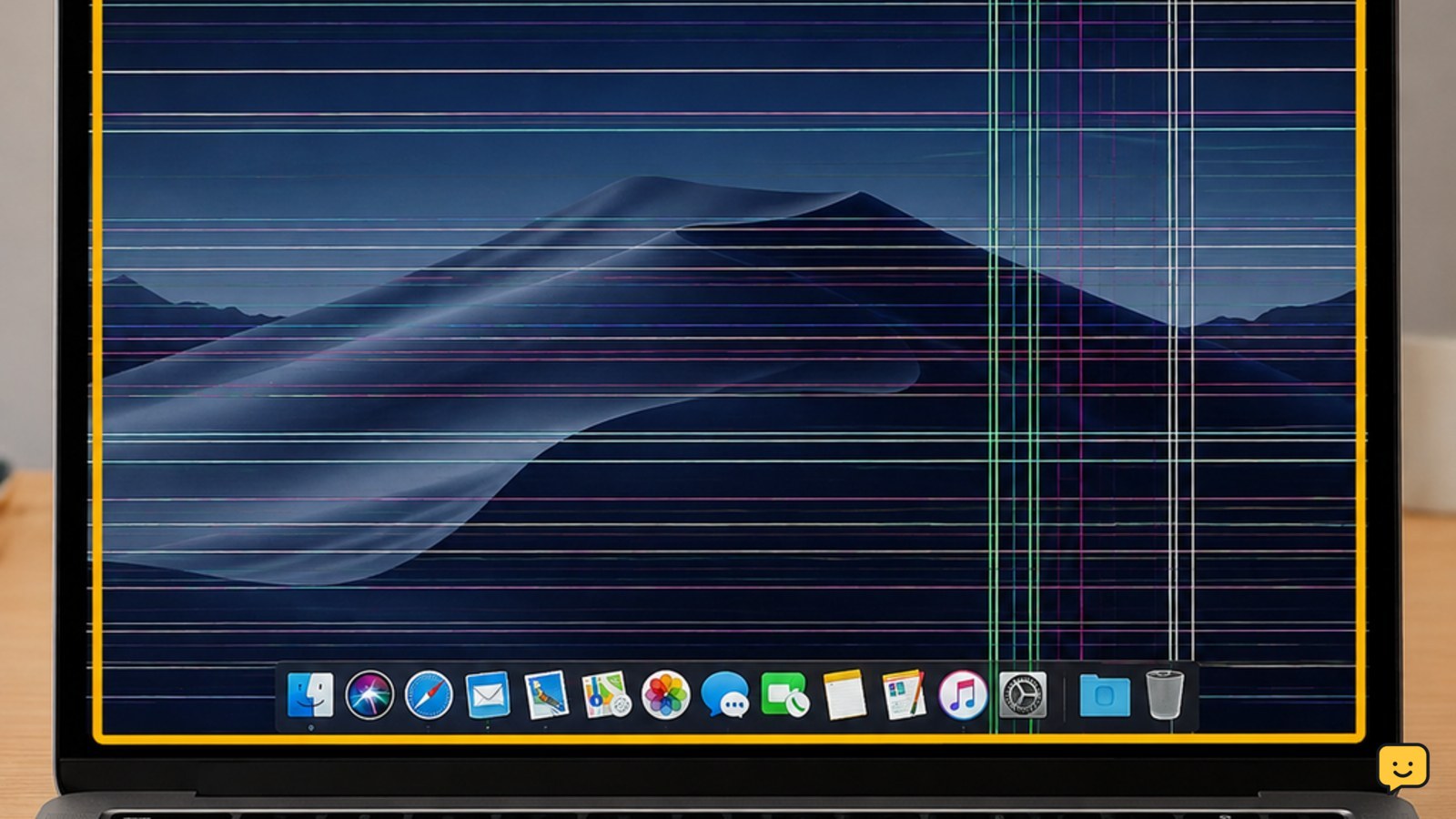
Lines on a Mac screen usually indicate a display connection, LCD panel, graphics hardware, or software problem. If the lines appear before login, change when you move the lid, or remain in every app, hardware is more likely. If they appear only in one app or vanish after a restart, check software first. Stop using the Mac if the screen is cracked, hot, wet, or rapidly worsening.
Browse more Computers & Internet guides
Check whether the lines appear before macOS loads
Lines that appear during startup or on the login screen are more likely to involve the Mac’s display hardware than a single app.
- Restart the Mac normally.
- Watch the screen from the first Apple logo or startup screen through the login window.
- After signing in, open a different app and display a plain white or dark window.
If the same lines appear in several apps and at startup, software is unlikely to be the only cause. A faulty display cable, damaged LCD panel, or graphics hardware can produce this pattern; Apple Community discussions and repair references from iFixit describe these as common possibilities, not a confirmed diagnosis for every Mac.
If the lines appear only inside one app, quit that app and test another. If the problem disappears after restarting, install available macOS updates and check the app for its own updates. If the lines return across the system, continue with the display comparison below.
Compare the built-in screen with an external display
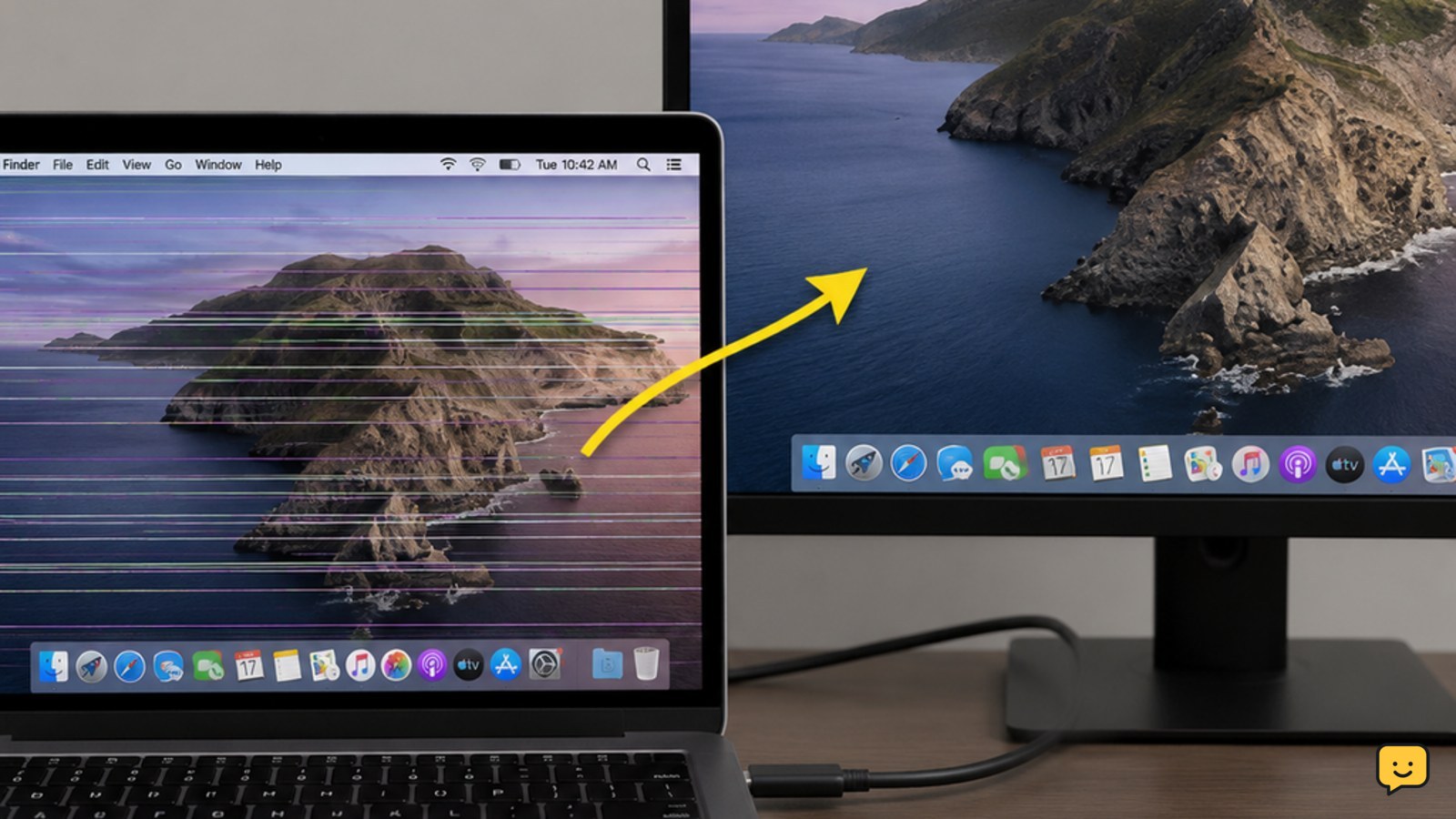
Comparing the Mac’s built-in display with an external monitor helps separate a screen assembly fault from a graphics or system fault.
- Connect the Mac to a known-good monitor or TV using a compatible cable or adapter.
- Set the external display to mirror or duplicate the Mac screen if macOS does not do so automatically.
- Look for the same lines on both displays.
| What you observe | Most likely direction | Next action |
|---|---|---|
| Lines appear only on the built-in screen | Display panel, connector, or internal display cable | Back up the Mac and arrange display inspection. |
| Lines appear on the built-in and external displays | Graphics hardware, macOS, cable, or adapter | Remove the adapter or hub, test another cable, restart, and seek service if the fault remains. |
| External display is clear but the Mac screen changes when the lid moves | Possible hinge-area cable or display assembly fault | Keep the lid in a stable position and stop flexing it; arrange repair. |
Do not treat a clear external display as proof that the Mac is safe to keep using indefinitely. It mainly shows that the computer can produce a usable image while narrowing the fault toward the built-in display path.
Look for physical clues without opening the Mac
Recent impact, pressure, liquid, heat, or lid movement can point toward physical display damage.
- Shut down the Mac if the lines are severe or the computer is hot.
- Inspect the screen for cracks, dark blotches, leaking-looking areas, or a line that stays fixed in one location.
- With the Mac powered on, move the lid only slightly and slowly; do not force it.
If the lines change when the lid angle changes, the hinge-area display cable or its connection becomes more suspicious. iFixit repair reports specifically describe display-cable faults as a possible cause of lines that vary with lid position. If the lines remain fixed after an impact or pressure event, panel damage is more likely.
Do not press the panel to test it, remove the bezel, or spray cleaner near the display. Those actions can worsen a damaged panel or cable. If liquid was involved, power the Mac off, disconnect power, and seek service rather than repeatedly testing it.
Rule out a temporary software or connection problem
Software is a reasonable first check when lines are limited to one app, appear after waking, or disappear after a restart.
- Restart the Mac and test the screen before reopening the problem app.
- Disconnect docks, hubs, adapters, and external displays, then test the Mac by itself.
- Install available macOS updates through the current Software Update controls.
- Open a different app and move a window across the affected area.
If the lines vanish after disconnecting an accessory, reconnect devices one at a time to identify the cable, hub, adapter, or monitor involved. If only one app shows the fault, update or reinstall that app using its supported installer.
If a restart, accessory check, and system update do not change lines that appear throughout macOS, stop repeating software resets. Persistent lines are then more consistent with a hardware path that needs inspection.
Back up files and choose the safest repair path
A Mac with persistent screen lines should be backed up before repair because the display symptom can worsen or prevent normal use.
- Back up important files to your normal backup destination while the Mac is stable.
- Photograph the screen and record whether the lines appear at startup, on an external display, or when the lid moves.
- Check the Mac’s model and warranty or service coverage information.
- Contact Apple or a qualified repair provider and describe the observed pattern rather than requesting a specific part.
Display-cable, panel, and graphics faults can require different repairs. Apple Community reports mention faulty display cables, LCD panels, and graphics cards as possible causes, while iFixit repair references show that some hinge-area cable problems may involve the complete upper display assembly. The exact repair depends on the Mac model and inspection.
Success means the lines no longer appear at startup or in normal apps, the display stays stable while the lid is gently adjusted, and an external monitor behaves normally. If the fault returns, worsens, or spreads to another display, stop using the Mac for routine work and arrange service.
Frequently asked questions
Can a Mac screen with lines fix itself?
A temporary software or accessory issue can disappear after a restart or after disconnecting a faulty cable, hub, or adapter. Lines caused by a damaged LCD panel or display cable generally do not repair themselves and may worsen. If the lines return across multiple apps or appear during startup, back up your files and arrange service.
Why do the lines change when I move my MacBook lid?
Lines that change with lid position can indicate a problem near the hinge, such as the internal display cable or display assembly. Avoid repeatedly opening and closing the lid to test it, because flexing a damaged cable can make the fault worse. Keep the screen in a stable position and seek repair.
Will an external monitor help diagnose Mac screen lines?
Yes. If an external monitor is clear while the built-in screen has lines, the fault is more likely in the MacBook’s panel, connector, or display cable. If both displays show the lines, investigate the graphics path, macOS, adapter, or cable. Test without a dock or hub before drawing a hardware conclusion.
Should I keep using my Mac if the screen has black lines?
Use it only long enough to save or back up important files if the Mac is otherwise cool and stable. Stop immediately if the screen is cracked, the Mac is hot, there is liquid damage, a burnt smell, smoke, sparks, or swelling. Persistent or spreading lines warrant professional inspection rather than continued testing.


