
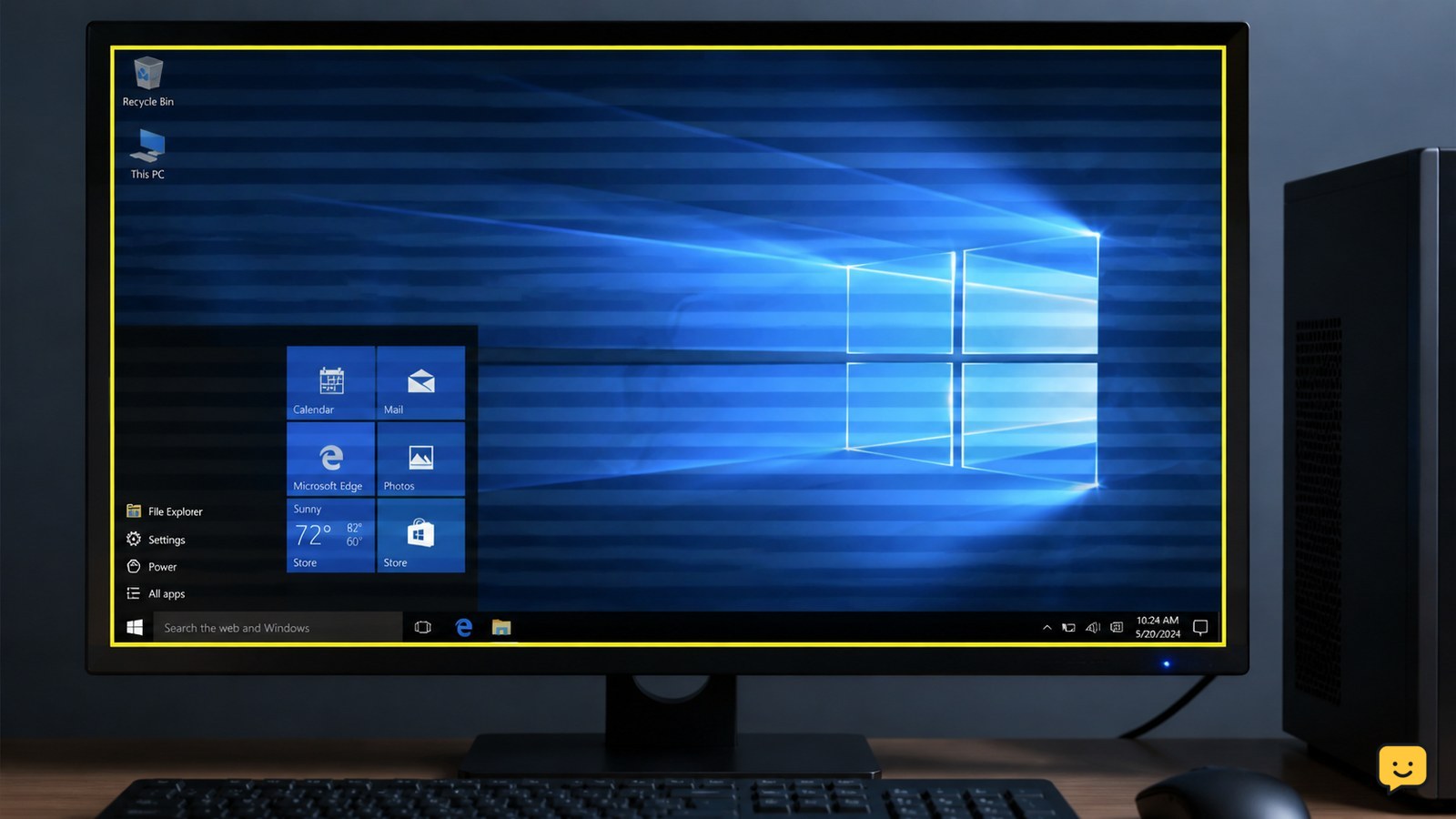
A flickering computer screen is usually caused by a loose or failing display cable, an incorrect refresh rate, a graphics driver problem, an incompatible app, or a failing monitor or laptop panel. On Windows, compare Task Manager with the rest of the display: if both flicker, suspect the driver; if only other content flickers, suspect an app.
For more help with this topic, use the Computers Internet guides.
Check whether the flicker is software or hardware
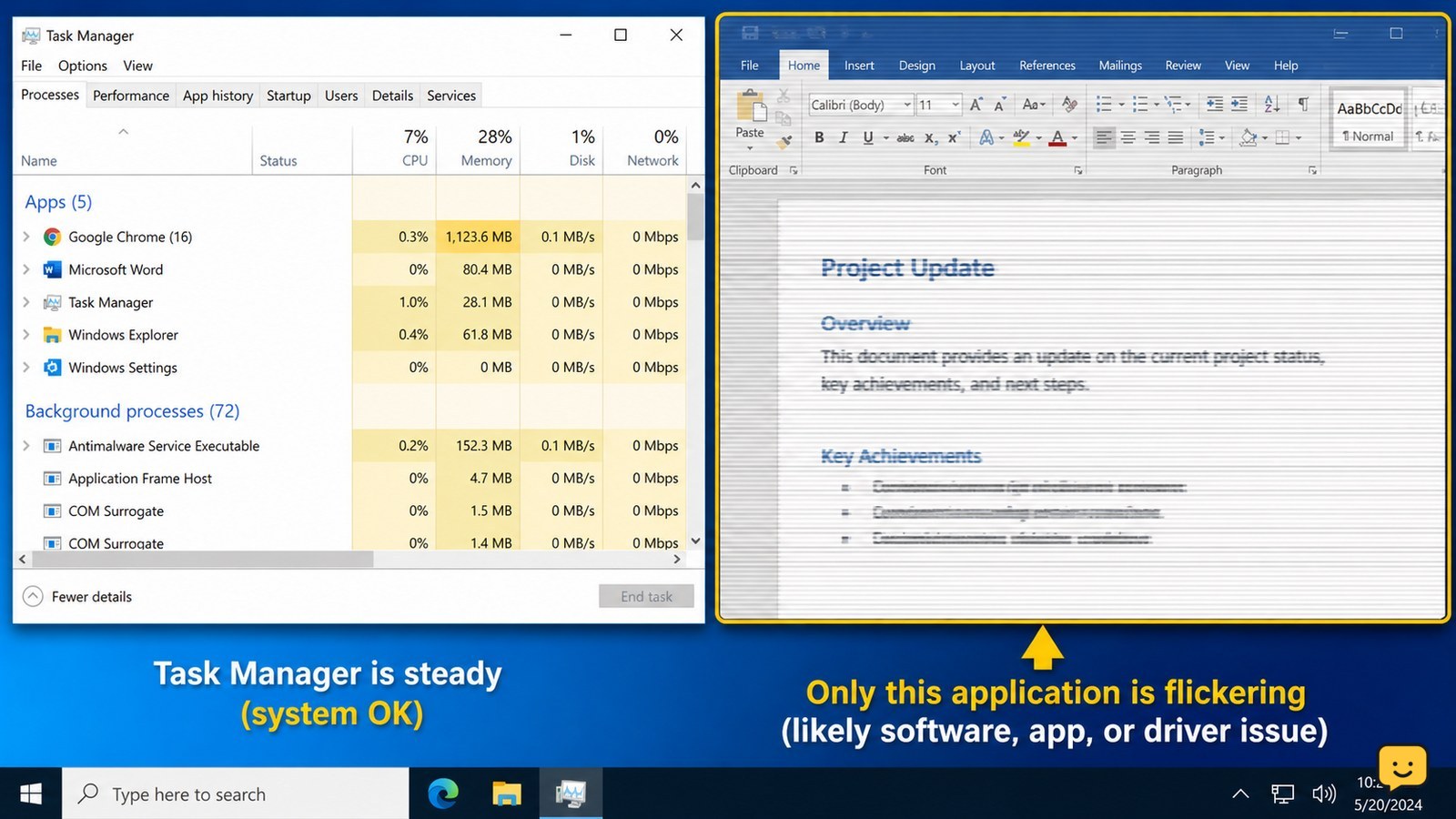
A Windows screen that flickers everywhere, including the desktop and Task Manager, usually points to the graphics driver or display hardware. A flicker limited to one application more often indicates an incompatible app or browser feature.
- Press Ctrl + Shift + Esc to open Task Manager.
- Watch Task Manager while the desktop and the affected application are visible.
- If Task Manager flickers with the rest of the screen, continue with the driver and cable checks. If Task Manager stays stable while another window flickers, update, disable, or uninstall the affected application.
Microsoft Support uses this Task Manager comparison as a primary way to separate an application problem from a display-driver problem in Windows.
Reset the graphics driver before changing settings
Resetting the Windows graphics driver can clear a temporary display-driver state without restarting the computer. Press Windows key + Ctrl + Shift + B once. The screen may briefly go dark or make a short notification sound.
Wait several seconds, then check whether the flicker has stopped. If the display remains black, wait up to one minute before forcing a shutdown. If the shortcut has no effect and the computer is otherwise responsive, restart normally and continue with the driver update steps.
Check the display cable, port, and power
A loose, damaged, or poorly seated cable can make an external monitor flicker, especially when the cable or connector moves. Shut down the computer and turn off the monitor before reseating connections.
- Disconnect and reconnect the video cable at both ends. Check HDMI, DisplayPort, USB-C, or the applicable connector for bent pins, crushed sections, or looseness.
- Make sure the monitor power cable is firmly connected and the monitor is using the correct input.
- Try another compatible video cable and another port on the computer or monitor.
- Connect the monitor to another computer, or connect your computer to another monitor.
If the flicker follows the monitor, cable, or port, that component is the strongest suspect. If a different monitor flickers from the same computer, continue with software and graphics checks. For a display that also has persistent lines or image defects, see how to check laptop LCD lines.
Persistent lines together with flicker may indicate a panel or cable fault; see check laptop LCD lines for the next safe checks.
Set a supported refresh rate
An unsupported or unstable refresh-rate setting can cause visible flicker on a monitor. In Windows, open Settings > System > Display > Advanced display, select the affected display, and choose a refresh rate marked as supported.
Apply the change and watch the screen for at least a minute. If the flicker stops, keep the supported setting. If the screen becomes unreadable, wait for Windows to revert the change or use another display to restore the previous rate. A monitor may also flicker when its cable or adapter cannot reliably carry the selected resolution and refresh rate, so test the cable before assuming the panel is failing.
Update or reinstall the graphics driver
A Windows display that flickers in Task Manager can have an outdated, corrupted, or incompatible graphics driver. First install pending Windows updates and restart. Then update the display driver through Device Manager > Display adapters, or download the driver from the computer or graphics-card manufacturer’s official support page.
- Right-click the Start button and open Device Manager.
- Expand Display adapters, right-click the graphics device, and choose Update driver.
- Restart and check the screen.
- If the flicker began immediately after a driver update, open the device’s Properties > Driver tab and use Roll Back Driver when available.
Microsoft Support lists updating or uninstalling the display driver as a Windows flicker remedy. If the driver update does not help, avoid downloading drivers from unofficial sites. A recurring crash or display fault may require manufacturer diagnostics; related Windows hardware checks are described in this guide to fixing graphics-related Windows corruption.
Remove an incompatible app or display feature
If Task Manager remains steady while a particular program flickers, that program is the likely source. Update it from its official publisher, disable its hardware-acceleration or display-related option if the program provides one, and restart the program.
If the problem began after installing an app, overlay, screen recorder, remote-access tool, or graphics utility, close or uninstall that recent software and test again. Use Windows Settings to remove the app rather than deleting its files manually. If every application flickers, return to the graphics-driver, cable, refresh-rate, and hardware checks instead.
Identify a failing monitor or laptop panel
Flicker that appears before Windows loads, in the firmware setup screen, or on a monitor’s own menu is unlikely to be caused by a Windows app. A laptop screen that flickers when the lid moves can have a worn display cable or panel connection; an external monitor that flickers on multiple computers may have failing internal hardware.
Test the computer with another display and test the original display with another known-good source. If only the laptop panel flickers, use an external monitor temporarily and arrange repair. Do not pry open the bezel or disconnect an internal display cable unless the manufacturer’s service documentation specifically supports that repair and you are equipped to do it safely.
Verify the fix and choose the next step
The fix is confirmed when the screen remains stable through a restart, normal application use, and light movement of an external cable or laptop lid. Also check that the selected resolution and refresh rate remain supported after restarting.
- Restart the computer.
- Open Task Manager, a browser, and the application that previously flickered.
- Check the display at its normal brightness and refresh rate.
- Recheck the cable and monitor input if the flicker returns only on the external display.
If the flicker returns after a driver reinstall, appears across multiple displays, or occurs before Windows starts, stop repeated software changes and contact the computer, graphics-card, or monitor manufacturer. Back up important files before any repair or reset.
Frequently asked questions
Why does my monitor flicker only in one application?
A flicker limited to one application usually indicates an incompatible app, overlay, browser feature, or hardware-acceleration setting rather than a failing monitor. Update the application, close overlays, and disable its hardware-acceleration option if available. If Task Manager and other windows remain stable, focus on that application. If the entire desktop begins flickering, return to the driver and cable checks.
Why does my laptop screen flicker when I move the lid?
A laptop screen that flickers when the lid moves may have a worn display cable, loose connection, or failing panel. Test an external monitor: if it stays stable while the built-in screen reacts to lid movement, the laptop display assembly is the likely problem. Stop opening the laptop if it is under warranty, shows physical damage, or has been exposed to liquid, and arrange manufacturer service.
Can a bad HDMI or DisplayPort cable cause screen flickering?
Yes. A damaged or poorly seated HDMI, DisplayPort, USB-C, or adapter connection can interrupt the video signal and cause flicker. Power off the monitor, reseat both ends, then test another compatible cable and port. If the problem follows the cable or monitor, replace or service that component. If multiple displays flicker from one computer, investigate the graphics driver or graphics hardware.
Why does my screen flicker before Windows starts?
Flicker visible in the startup logo, firmware settings, or the monitor’s own menu is unlikely to be caused by a Windows application. Test another cable, port, monitor, and power outlet where practical. If the fault remains on the same display or appears across multiple displays, stop repeated driver changes and contact the computer, graphics-card, or monitor manufacturer.


