
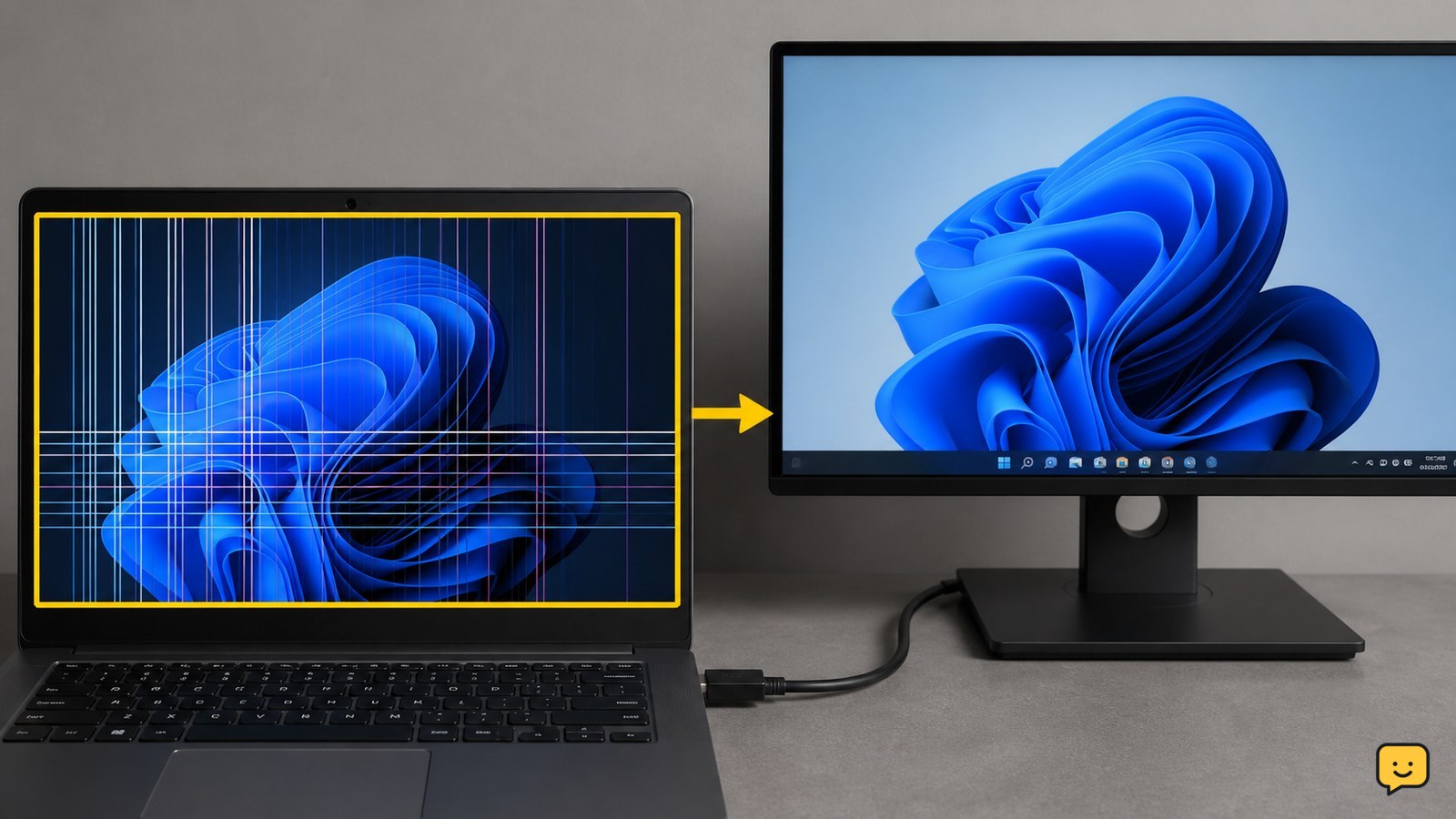
Laptop LCD lines are usually a hardware problem, especially when they appear on the startup logo or change as the lid moves. Restart the laptop, compare the built-in screen with an external monitor, and check whether the lines respond to lid movement. If the lines remain, do not press the panel; arrange a cable or screen inspection.
Browse more Computers & Internet guides
Check whether the lines appear before Windows loads
Laptop LCD lines that appear on the manufacturer logo, firmware screen, or startup diagnostics are unlikely to be caused by a Windows setting; this is a troubleshooting inference based on the lines appearing before the operating system loads.
- Shut the laptop down completely.
- Turn it on and watch the first logo or startup screen.
- Look for the same vertical, horizontal, flickering, or multicolored lines.
If the lines are already visible, continue with the hardware checks below. If the startup screen is clear but lines begin only after Windows opens, continue to the software checks instead.
Test the laptop with an external monitor
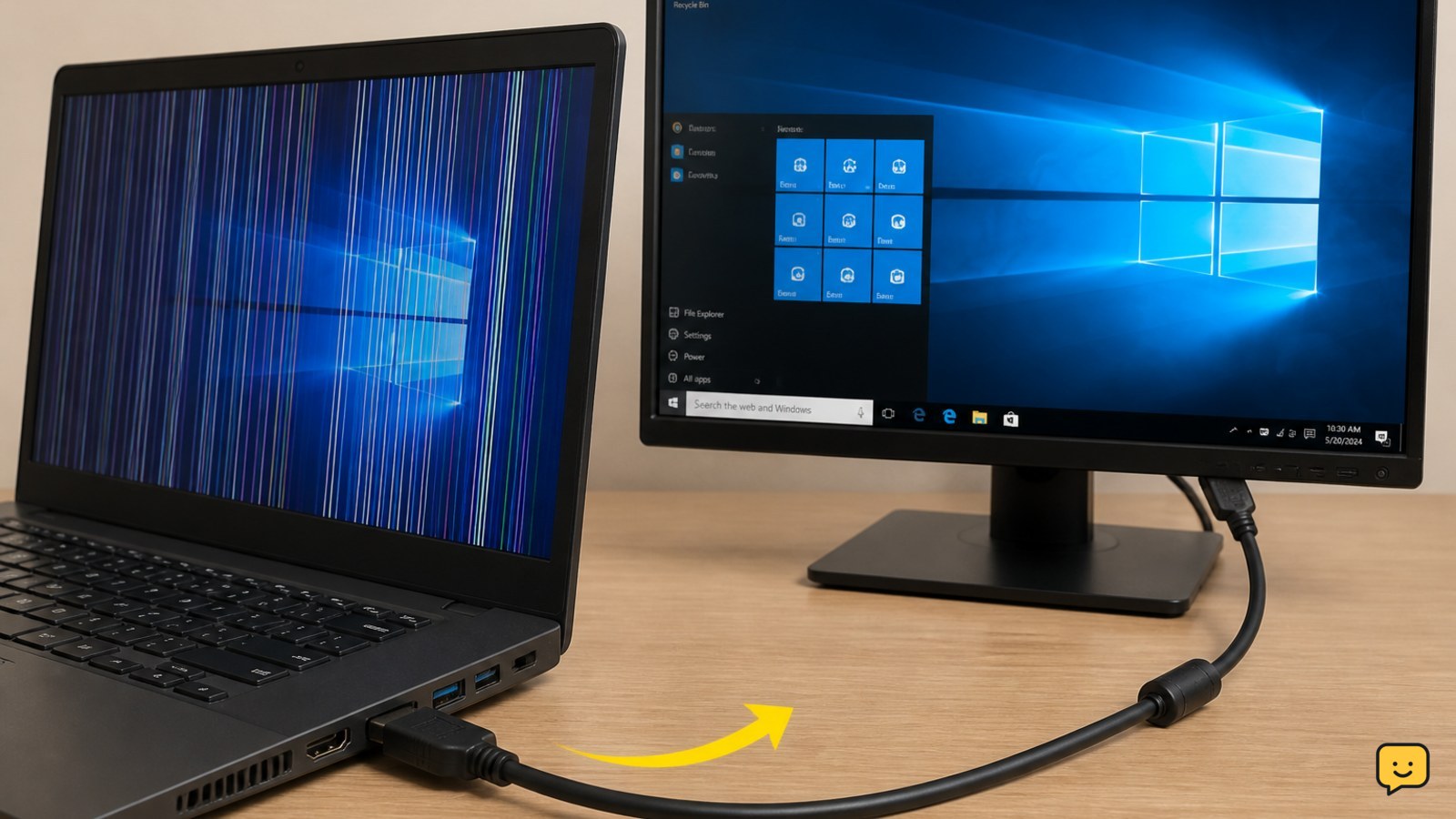
An external monitor separates the built-in LCD path from the laptop’s graphics output and is the most useful comparison test.
- Connect a known-good monitor or television using a compatible video cable or adapter.
- Select the correct input on the external display.
- Press Windows + P, then choose Duplicate or Second screen only.
- Display a plain white page, a dark page, and a moving window on both screens.
If the external display is clear while the laptop screen still has lines, the internal panel, display cable, or hinge-area connection is the likely fault. That conclusion is a diagnostic inference, not a guarantee. If both displays show the same lines, suspect a graphics driver, graphics hardware, or system-board fault and avoid buying an LCD panel before professional diagnosis.
For Windows display-detection problems unrelated to visible lines, see the external-monitor detection checklist.
Check whether lid movement changes the lines
Lines that appear, disappear, or change when the lid angle changes point toward the display ribbon cable or its hinge-area connection, although only an inspection can confirm it.
- Keep the laptop on a stable surface.
- Open and close the lid slowly through its normal range.
- Watch whether the lines flicker, change color, vanish, or multiply.
If the display changes, leave the lid at the angle that gives the clearest image and back up important files. Do not repeatedly flex the hinge or press around the bezel. A technician may need to reseat or replace the cable, and forcing the bezel can damage clips or the panel.
If lid movement has no effect and the lines stay fixed in the same columns or rows, a failed LCD panel becomes more likely. HONOR’s explanation of laptop screen lines also identifies display-panel faults as a typical hardware cause.
Apply safe software checks when startup is clear
Software checks apply only when the lines are absent during startup and appear after Windows loads.
- Restart the laptop and check whether the pattern changes.
- Open Settings > System > Display and confirm the recommended display resolution and refresh rate.
- Install pending Windows updates, then restart.
- Open Device Manager, expand Display adapters, right-click the graphics adapter, and choose Update driver if an approved update is available.
- Take a screenshot while the lines are visible, then view that screenshot on another device. If the lines are not present in the screenshot, the fault is probably in the physical display path rather than the rendered image.
If the lines disappear after a restart or driver change, monitor the laptop for another session. If they return, revert only a recently changed setting or driver through the available Windows recovery option; do not install random driver packages from unofficial sites.
Choose the safest repair option
The correct repair depends on which test failed: a clear external monitor with fixed lines suggests the internal screen assembly, while lines on every display require graphics diagnosis.
- Panel likely: fixed lines, no response to lid movement, and a clear external display. Ask for a replacement panel that exactly matches the laptop model and connector specification.
- Cable or connection likely: lines change with normal lid movement and the external display is clear. Ask a repair technician to inspect the display cable and hinge path.
- Graphics or system board possible: the external display shows the same corruption, or lines appear across startup and connected displays. Back up data and seek diagnosis before replacing the screen.
Verify the repair by checking the startup logo, a white and dark background, several lid angles, and an external display if the original fault affected more than one screen. If lines remain after a cable or panel replacement, stop further part-swapping and request board-level diagnosis.
Frequently asked questions
Can laptop LCD lines be fixed without replacing the screen?
Sometimes. If the lines change when the lid moves, a damaged or poorly seated display cable may be responsible. If the lines stay fixed and the external monitor is clear, the LCD panel is more likely to need replacement. Software fixes generally help only when the startup screen is clear and the problem begins after Windows loads.
Why do laptop screen lines disappear when I move the lid?
Lines that respond to lid movement usually indicate an intermittent display-cable connection or cable damage near the hinge. Keep the lid still, back up your files, and arrange an inspection. Do not keep flexing the hinge to make the image return, because repeated movement can worsen the connection.
Are colored vertical lines on a laptop screen serious?
Colored vertical lines commonly indicate a display-panel or cable fault, particularly when they are visible before Windows starts. They may remain stable for a while but can spread or become permanent. Avoid pressing the panel and check an external monitor before deciding whether the screen or graphics hardware needs repair.
How can I tell whether the graphics card or LCD is faulty?
Connect an external monitor and compare both displays. A clear external image with lines only on the laptop screen points toward the internal panel or cable. Matching lines on both displays point toward the graphics driver, graphics hardware, or system board. This test narrows the fault but does not replace a technician’s diagnosis.


