
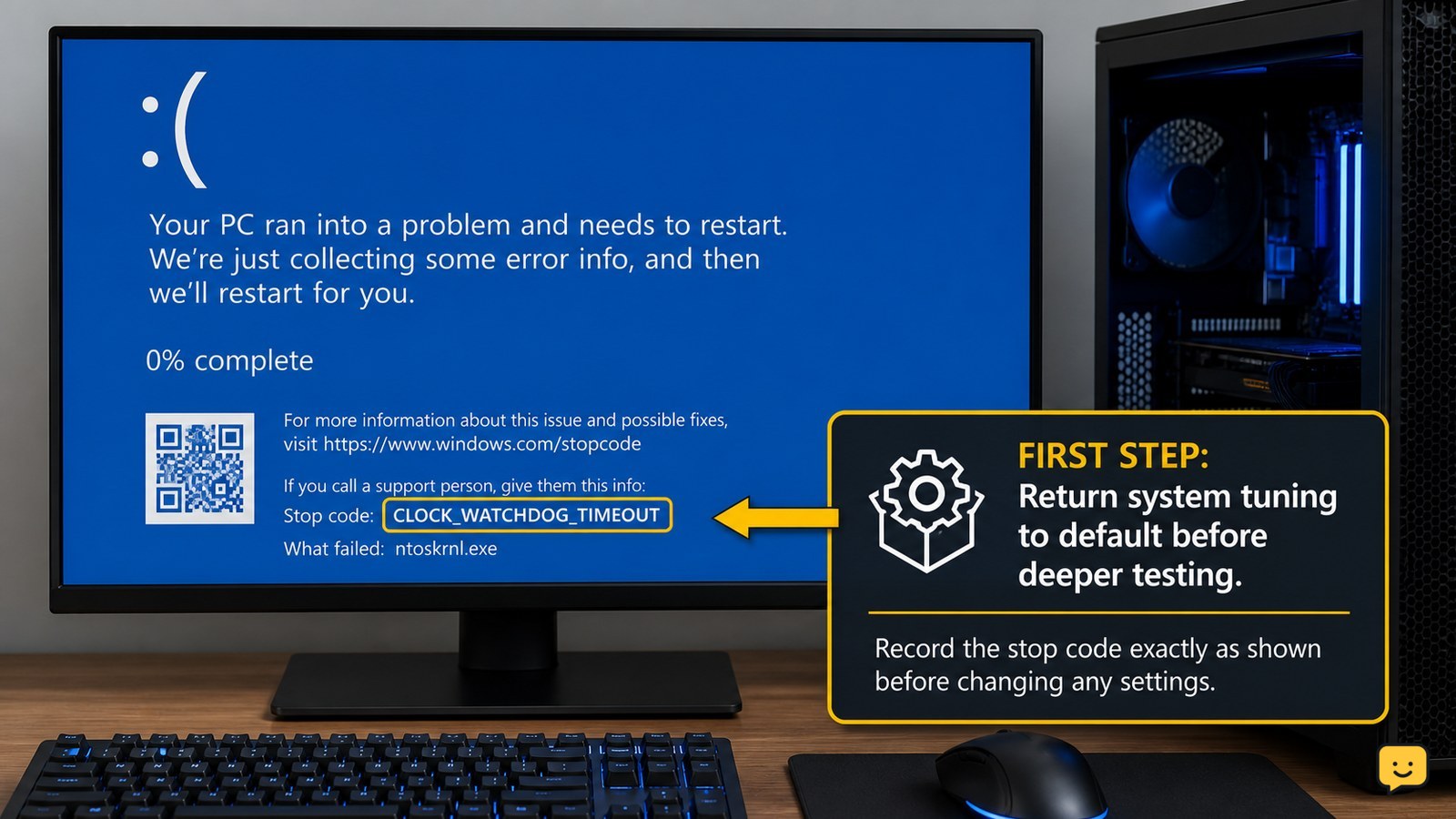
CLOCK_WATCHDOG_TIMEOUT is a Windows blue-screen stop error that commonly indicates a processor core did not respond in time. Start by removing CPU, RAM, or firmware overclocking, then install Windows, BIOS/UEFI, chipset, and driver updates. If the error continues at default settings—or the PC overheats, freezes repeatedly, or cannot boot—stop intensive use and arrange hardware service.
For more help with this topic, use the Computers Internet guides.
Confirm the stop code and protect your files
Confirm that the blue screen shows CLOCK_WATCHDOG_TIMEOUT or stop code 0x101; a different code may require a different repair path. If Windows opens normally, copy important documents to an external drive or trusted cloud location before making firmware changes.
- Photograph the blue-screen message if it disappears quickly.
- Note when the crash occurs and what changed beforehand, such as a new RAM kit, processor setting, BIOS update, or driver.
- Restart once normally. If the system reaches the desktop, avoid gaming, rendering, or other sustained heavy workloads until the cause is checked.
Verification: You should have the exact stop-code text and a current backup. If the code is different, follow guidance for that code instead.
Return CPU and memory settings to default
Reset CPU, RAM, and related firmware tuning before testing anything else. Overclocking or unstable memory profiles are recognized troubleshooting possibilities for this stop error, and specialist guidance also identifies processor, driver, and firmware problems as common areas to investigate.
- Enter BIOS or UEFI setup during startup using the key shown by the computer or motherboard maker; common keys include Delete, F2, or F10.
- Choose the manufacturer’s option named Load Optimized Defaults, Load Setup Defaults, or similar.
- Disable manual CPU overclocking, undervolting, and memory profiles such as XMP or EXPO for the first test.
- Save changes and restart.
Verification: Windows should boot at the processor’s standard settings, and the crash should not return during ordinary use. If the error began immediately after a tuning change, this is the strongest first checkpoint.
If the default-setting reset leaves Windows unstable, use the documented Windows BSOD file-safety checks before attempting more repairs.
If the default-setting reset leaves Windows unstable, use the documented Windows BSOD file-safety checks before attempting more repairs.
Install Windows, BIOS, chipset, and driver updates
Update the software layers that control processor scheduling and motherboard hardware, but use only files intended for the exact computer or motherboard model. The available troubleshooting evidence specifically points to driver conflicts and firmware issues as possible causes.
- Open Settings > Windows Update and install available updates, then restart.
- Visit the computer or motherboard manufacturer’s support page and compare your model and revision with the listed BIOS or UEFI release.
- Install the manufacturer’s chipset and platform drivers for your exact Windows version.
- Update graphics and other recently changed device drivers from the computer maker or component manufacturer.
Do not install a BIOS file for a similar-looking model. Keep power connected, close other programs, and do not turn off the computer during firmware flashing.
Verification: Confirm that Windows reports no pending restart and that the installed BIOS, chipset, and driver versions match the manufacturer’s support records. Test normal browsing and file work before returning to demanding applications.
Check heat, airflow, and recent hardware changes
Check cooling and physical changes when the crash appears during demanding work or after a component installation. A processor that becomes unstable under load can produce symptoms similar to firmware or tuning problems, although temperature alone does not prove the cause.
- Power off the computer and disconnect the charger or power cable before inspecting vents.
- Clear dust from external vents with the device manufacturer’s recommended method; do not open a laptop or power supply unless you are qualified and the service instructions allow it.
- Make sure desktop CPU fans, case fans, and the graphics card fan can spin freely without cables blocking them.
- Undo one recent hardware change at a time, starting with newly installed RAM or expansion hardware, and use the manufacturer’s installation guidance.
Verification: The computer should remain responsive during ordinary use without sudden fan surges, thermal shutdowns, or freezes. If the crash returns only during heavy workloads, stop stress testing and arrange a cooling or hardware inspection.
Test stability and choose the next repair path
Test the computer at default settings after updates and cooling checks. Use ordinary work first, then a short, familiar workload; do not use repeated stress tests to force a crash.
- Restart the computer several times across normal sessions and check whether the stop error returns.
- If Windows crashes during startup, try Windows Recovery or Safe Mode to remove a recently installed driver or utility.
- If the system remains stable in Safe Mode but not normal Windows, suspect a recently added driver, hardware utility, or tuning program.
- If it crashes in Safe Mode or before Windows loads, suspect firmware, RAM, processor, motherboard, power delivery, or another hardware-level fault.
Microsoft’s Windows community guidance describes this error as a system-level blue-screen problem rather than a normal application failure. If it continues after default settings, current firmware, and driver updates, software-only fixes are unlikely to be a safe assumption.
Final decision: A single isolated crash that never returns can be monitored. Recurring crashes at default settings, failed memory checks, boot loops, or unexplained shutdowns warrant manufacturer diagnostics or a qualified repair technician.
For a broader performance or heat investigation before service, use these computer slowdown diagnostic checks to record CPU, memory, storage, and startup symptoms.
For a broader performance or heat investigation before service, use these computer slowdown diagnostic checks to record CPU, memory, storage, and startup symptoms.
Frequently asked questions
What does CLOCK_WATCHDOG_TIMEOUT mean?
CLOCK_WATCHDOG_TIMEOUT means Windows waited for a processor response and did not receive it within the expected time. The stop error can be associated with unstable CPU or memory settings, firmware, drivers, heat, or failing hardware. The code identifies a serious system stability problem, but it does not identify one failed component by itself.
Can overclocking cause a clock watchdog timeout?
Yes. Unstable CPU overclocking, undervolting, or memory profiles can contribute to this blue screen. Return BIOS or UEFI settings to their defaults, disable XMP or EXPO temporarily, and test the computer before re-enabling any performance profile. If the error remains with all tuning disabled, investigate firmware, cooling, drivers, and hardware.
Is CLOCK_WATCHDOG_TIMEOUT caused by Windows?
Windows reports the failure, but the underlying cause is not necessarily Windows itself. Firmware, processor stability, RAM, cooling, motherboard power delivery, and drivers can all be involved. Install current Windows and manufacturer updates, then test at default firmware settings. Persistent crashes outside normal Windows operation point more strongly toward hardware or firmware.
What should I do if Windows will not boot after this error?
Use Windows Recovery to reach Safe Mode or System Restore if available, and remove a recently installed driver or tuning utility. If the computer cannot reach recovery, repeatedly loops, or shows additional errors, stop repeated restart attempts. Protect accessible data and use the computer manufacturer’s diagnostics or a qualified repair service.


