
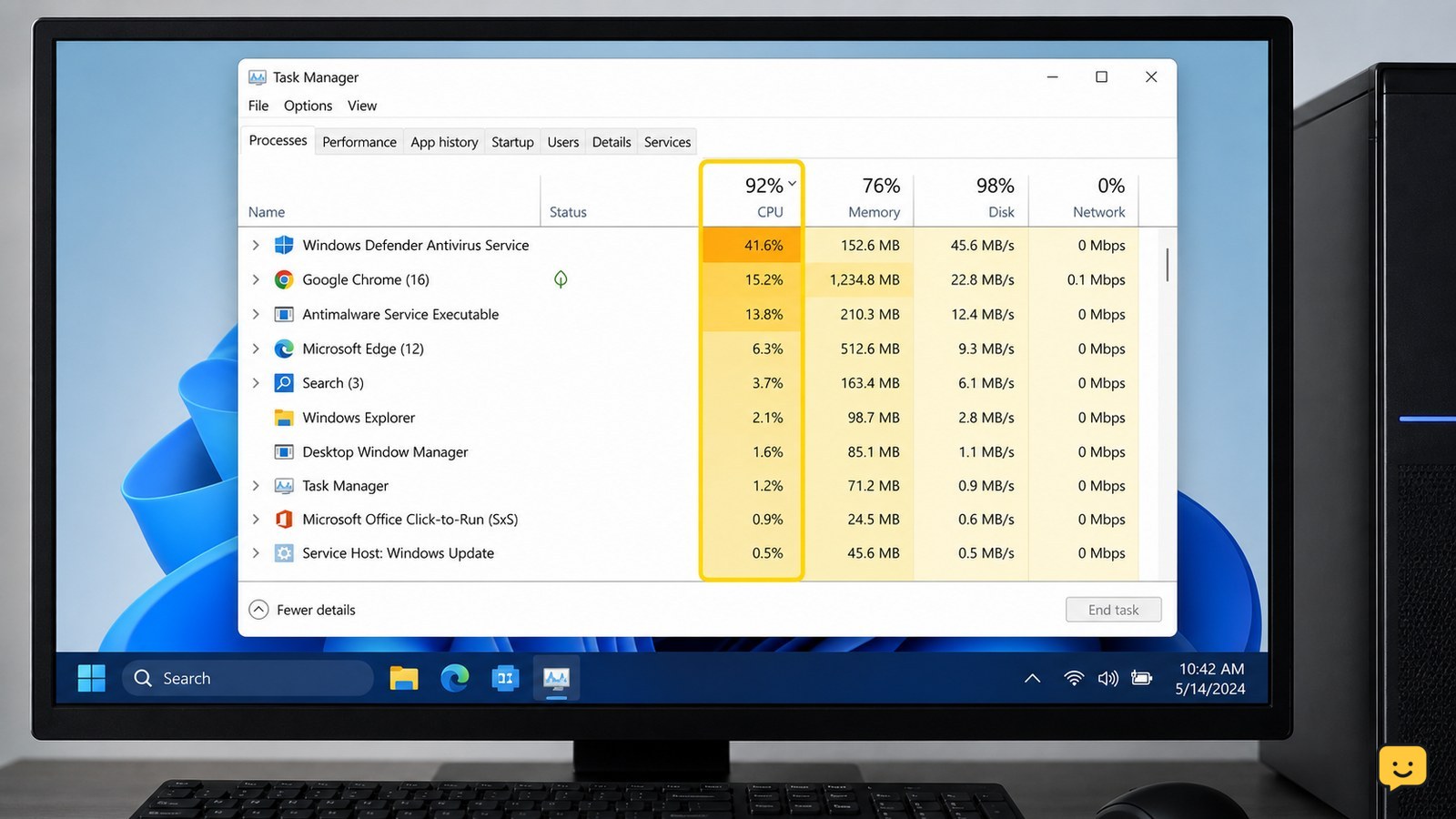
Your computer is usually slow because the CPU, RAM, or storage drive is overloaded—or because an update, background app, malware, nearly full drive, overheating, or aging hardware is involved. First compare the slowdown across several apps, then use Task Manager to identify the resource at or near 100%. The highest sustained resource points to the next fix.
Check whether the slowdown affects the whole computer
A Windows computer that is slow everywhere has a different likely cause from one with a single slow app or website. Open two or three local programs, move between windows, and try a file already stored on the computer.
- If only one program is slow, close and reopen it, check for that program’s updates, and reduce its open files or browser tabs.
- If local programs respond normally but websites are slow, test another site and check the network separately; a slow internet connection is not the same as a slow computer.
- If the desktop, File Explorer, several programs, and local files all lag, continue with Task Manager.
Success check: you should be able to identify whether the problem follows one app, online activity, or the entire Windows session. If the slowdown began immediately after an update or software installation, record that timing before changing anything.
Use Task Manager to find the overloaded component
Task Manager shows whether a Windows computer is being limited mainly by CPU, memory, disk, or background processes. Press Ctrl + Shift + Esc; if the compact view appears, select More details, then open the Processes tab.
- Click the CPU, Memory, and Disk column headers one at a time to sort the list.
- Watch the totals for about a minute while the slowdown is happening rather than relying on one brief spike.
- Note the process at the top and whether the related resource stays close to 100%.
Intel identifies RAM, CPU, and the disk drive as the components that most directly determine PC performance; an overloaded one can slow the whole experience. If one known app is consuming the resource, close it normally first. Do not end a process labeled Windows, System, or Service Host just because it is unfamiliar.
Decision rule: sustained CPU use points toward a demanding app, update, scan, or heat-related slowdown; high memory use points toward too many apps or insufficient RAM; high disk use points toward background activity, a full or aging drive, or a storage problem.
Reduce background load and restart safely
Background applications, updates, and startup programs can consume CPU, RAM, or disk time before you open anything. Close unused programs and browser tabs, then restart the computer from Start > Power > Restart rather than only closing the lid.
- After the restart, wait a few minutes for normal startup activity to settle, then check Task Manager again.
- In Task Manager, open Startup apps and disable only programs you recognize and do not need immediately when Windows starts.
- Open Settings > Windows Update and allow a pending update to finish when the computer is connected to power and you have saved your work.
HP lists recent Windows updates and background applications among common causes of sudden slowdowns. If performance improves after restarting but degrades again after a particular app opens, update or uninstall that app through its normal settings. If an update fails repeatedly, record its error code before attempting repair; Windows update errors need a different troubleshooting path.
Success check: Task Manager should show lower sustained usage when no demanding app is open, and programs should launch more consistently after the restart.
Check free storage, malware, and overheating
A nearly full drive, unwanted software, or excess heat can make a Windows computer feel slow even when no single app appears responsible. Check these causes without deleting personal files or opening the case.
- Open Settings > System > Storage and review the largest categories. Empty the Recycle Bin and remove only files you recognize. Keep a backup of important documents before making large deletions.
- Open Windows Security > Virus & threat protection and run a scan. If the computer is slow during the scan, let it finish before judging performance.
- Place the computer on a hard, clear surface. Keep vents unobstructed, and check whether the fan runs constantly or the slowdown appears after several minutes of demanding work.
HP notes that nearly full storage and malware can contribute to slow performance, while Microsoft Community guidance identifies dust buildup and overheating as possible hardware-related causes. These are useful troubleshooting indicators, not proof of a failed component.
If the result is unexpected: storage cleanup that removes little space means the problem may be memory, CPU load, or hardware age. A clean scan does not rule out heat or a failing drive. If the machine is hot enough to cause discomfort, shuts down, or makes a failing-drive noise, stop using it and back up what you can.
Choose between maintenance, repair, and an upgrade
The right fix depends on the resource that stayed high and whether the slowdown returns after a restart. Use the observed pattern instead of installing a generic “PC booster.”
- CPU remains high: close or update the process responsible, finish legitimate updates, and check for heat. Persistent high use with no clear process needs professional diagnosis.
- Memory remains high: reduce simultaneous apps and browser tabs. If normal workloads repeatedly consume nearly all available memory, adding compatible RAM may help.
- Disk remains high: free space, allow updates or scans to finish, and back up important files. An older hard disk may benefit from replacement with a compatible SSD, but confirm the computer supports the drive and preserve the old drive until the backup is verified.
- Everything is slow on an older computer: compare the cost of compatible RAM, an SSD, or service with replacement. Hardware upgrades cannot fix a damaged drive, severe overheating, or unsupported software.
Intel and HP both point to CPU, RAM, storage, background software, and hardware condition as major performance factors. Verify the fix by restarting once more, opening the same apps that exposed the slowdown, and checking whether the same resource is still saturated. If it is, stop making changes and seek repair before the problem risks data loss.
Frequently asked questions
Why did my computer suddenly become slow?
A sudden slowdown often follows a Windows update, a newly installed program, a background process, malware, or a storage drive that is nearly full. Check when the change began, restart once, and use Task Manager while the slowdown is occurring. If the issue started after a hardware noise, heat spike, crash, or file error, back up your data before troubleshooting further.
Can low storage make a computer slow?
Yes. A nearly full storage drive can leave Windows and applications less room for temporary files and background work. Open Settings > System > Storage to see what is using space, then remove only recognized items after backing up important files. If freeing space makes no difference, check CPU, memory, and disk activity in Task Manager instead of deleting more files.
How can I tell whether I need more RAM?
More RAM may help when Memory stays very high during normal work, especially with several programs or browser tabs open. Close unused apps and check Task Manager first. If memory use repeatedly approaches the available limit while CPU and disk use are comparatively moderate, check your computer’s model specifications before buying compatible RAM.
Can overheating cause a slow computer?
Yes. A computer may reduce performance when heat builds up, particularly during demanding work. Keep vents clear, use a hard surface, and observe whether the slowdown appears after the fan runs continuously for several minutes. If the computer becomes unusually hot, shuts down, smells burnt, or has a swollen battery, stop using it and arrange service.
For more help with this topic, use the Computers Internet guides.


