Your smart TV may not turn on because the remote is not sending a power command, the TV is stuck in standby, or a hardware fault is preventing startup. Try the TV’s physical power button, replace or reseat the remote batteries, disconnect external devices, and perform a full power cycle. If the TV still does not respond, arrange manufacturer service.
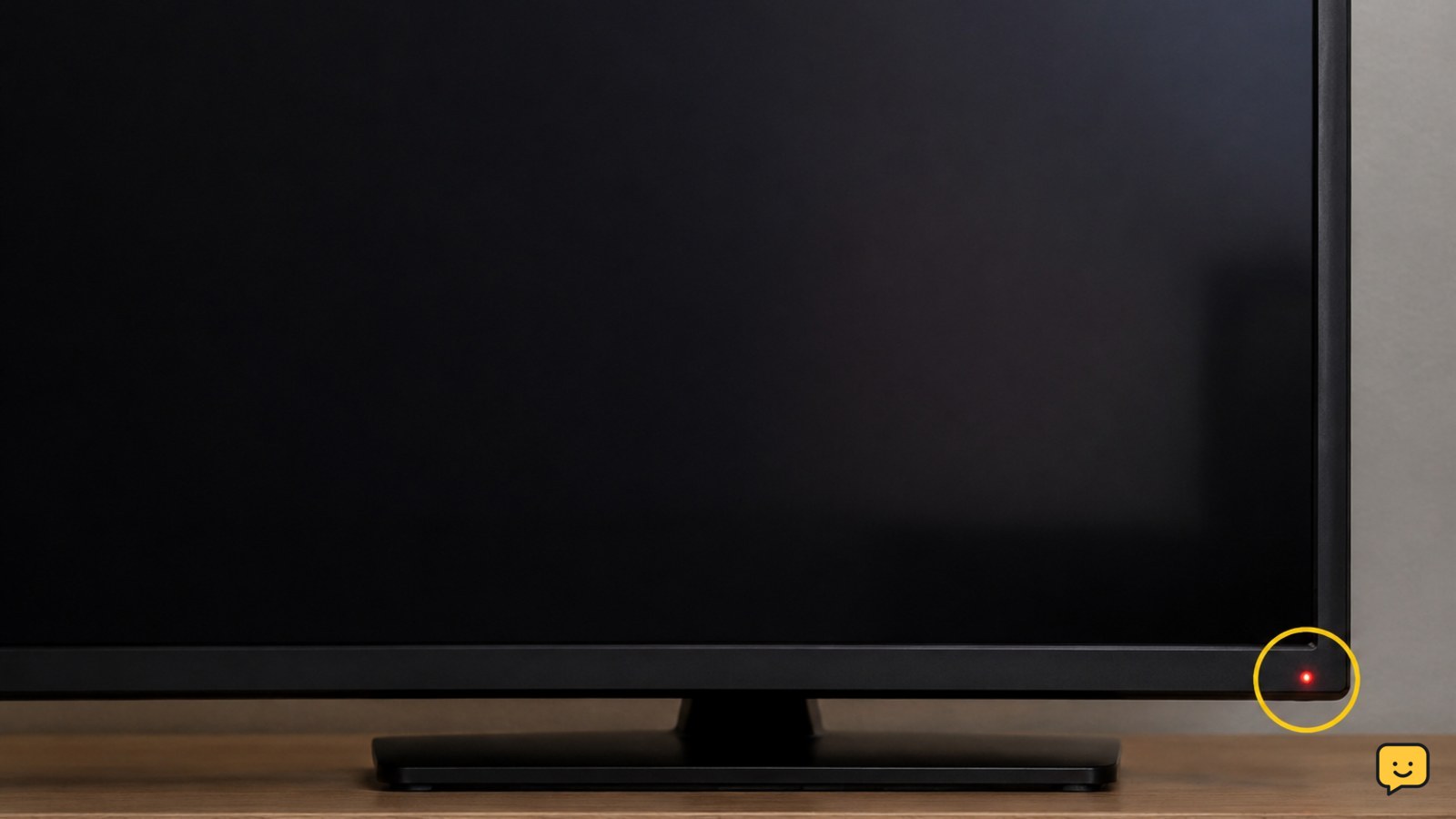
What the standby light tells you
A steady standby light generally shows that the TV is receiving a low-power standby supply. It does not prove that the TV can complete its startup sequence. The remote receiver, control board, power supply, display system, or software can still be preventing the TV from starting.
First observe the light while pressing Power. If it changes color, goes out, blinks, or stays completely unchanged, note that behavior. Light patterns vary by brand and model, so use the owner manual before treating a blink code as a diagnosis.
1. Test the remote control
Point the remote directly at the TV’s sensor and press Power once. Remove anything blocking the lower bezel or sensor area. If the remote has a device mode, select the TV mode before trying again.
- Replace both batteries with the correct type, matching the positive and negative markings.
- Remove the batteries for about one minute.
- Press and hold the remote’s Power button for a few seconds, then reinstall the batteries.
- Try Power again from close range.
Verification: the standby light should react, or the TV should show a startup logo, sound, or screen illumination. If the TV’s light never reacts, test the physical button next rather than repeatedly pressing the remote.
If the remote controls other functions but will not start the TV, use the troubleshooting steps in our guide to a smart TV remote that controls volume but not the menu.
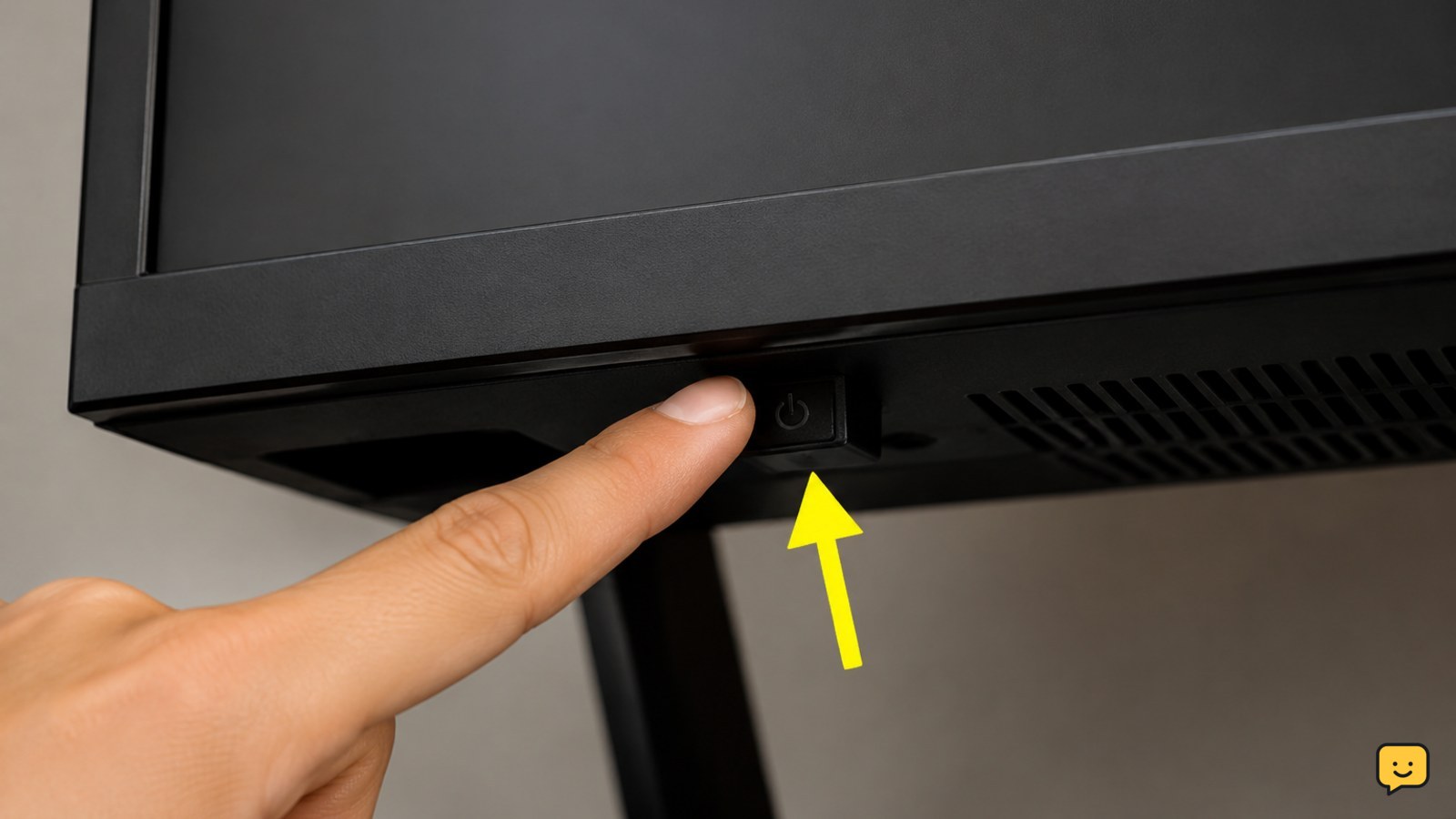
2. Press the TV’s physical power button
Locate the TV’s built-in control. It may be underneath the lower edge, on the rear side, or behind a small panel. Look for a button marked Power or a small joystick-style control. Press it once; do not hold it down unless the owner manual specifically says to do so.
Verification: if the TV starts with the physical control, the remote, its batteries, pairing, or the remote sensor is the likely cause. If nothing changes, the problem is probably not limited to the remote.
Do not press hidden controls with sharp objects, and do not remove the television from a wall mount just to reach a button unless you have safe assistance.
3. Perform a complete power cycle
A TV can remain stuck in standby after a software or control-state error. A full power cycle clears temporary state without erasing your apps, accounts, or picture settings.
- Unplug the TV from the wall outlet.
- Wait at least 60 seconds.
- While it is unplugged, press and hold the TV’s physical Power button for about 15 seconds.
- Reconnect the TV directly to a known-working wall outlet, not a surge strip or switched extension.
- Wait several seconds, then press the physical Power button once.
Verification: watch for a change in the standby light, a startup sound, or a logo. If the TV starts, reconnect external equipment one device at a time. If it immediately returns to standby, continue with the connection and hardware checks.
4. Check the outlet, cord, and connected devices
The standby light makes a total loss of power less likely, but an unstable outlet, loose plug, or damaged cord can still cause startup failure. Confirm that the plug is fully inserted at both ends and that any wall switch is on. Test the outlet with a lamp or another safe appliance.
Disconnect every HDMI, USB, antenna, soundbar, and set-top-box cable from the TV. Leave only the TV’s power cord connected, then try the physical Power button again. An external device can interfere with startup or make the TV appear unresponsive.
Verification: if the TV starts with all other cables removed, reconnect devices individually until the problem returns. Replace the faulty cable or disconnect the device that causes the failure. If the TV remains stuck in standby, proceed to the input check only if the screen or sound shows signs of startup.
5. Rule out an input or blank-screen problem
Sometimes the TV has started, but the selected input is producing no picture. Listen for startup sound, watch for a brief change in the standby light, or press Volume. If the volume indicator or other on-screen message appears, the TV is running.
Press Home or Source and select the TV’s built-in home screen or a known-working input. Turn on the connected source separately and verify its HDMI cable. A TV that has sound but no picture needs a different diagnosis; check the source, cables, settings, and display system rather than treating it as a power failure.
Verification: a visible home screen confirms that the original problem was the input or external source. If there is no light change, sound, logo, or on-screen response after the earlier tests, return to the hardware decision below.
When the standby light points to a hardware fault
If the standby light stays on but the remote and physical button produce no response after a full power cycle, a fault in the main board, power circuitry, or another startup component becomes more likely. A light that repeatedly blinks, changes pattern, or turns off when you press Power is also useful information for the service technician, but it is not a universal diagnosis.
Write down the brand, model, light behavior, sounds, recent power outage, and whether the TV was moved or exposed to moisture. Check the warranty before paying for repair. Contact the manufacturer or a qualified repair service with these details.
Stop here: do not open the TV, probe the power board, replace internal parts based only on the standby light, or continue using it after heat, smoke, burning odor, or repeated clicking. A professional should inspect the set.
Frequently asked questions
Does a red standby light mean the TV is getting power?
Yes, a steady standby light usually means the TV is receiving standby power. It does not confirm that the main board, display system, or startup sequence is working. Test the physical Power button and complete a power cycle before assuming the TV needs repair.
Why will my TV turn on with the button but not the remote?
The remote may have weak batteries, the wrong device mode, a lost pairing, or a blocked or faulty infrared signal. Replace the batteries, point the remote directly at the TV, and try the TV’s physical button. If the button works, the TV itself is probably able to start.
Can an HDMI device stop a smart TV from turning on?
Yes, a connected HDMI device or cable can interfere with startup or make the TV appear unresponsive. Unplug all HDMI, USB, antenna, and soundbar cables, then test the TV by itself. Reconnect each device one at a time if the TV starts.
What should I do if the standby light blinks but the TV will not start?
Record the blink pattern and check the owner manual for your exact model. Then perform one complete power cycle and try the physical Power button. If the light continues blinking with no startup response, stop troubleshooting and contact the manufacturer or a qualified repair service.
Should I open the TV to fix a standby problem?
No. Do not remove the rear cover or probe internal boards. Television power components can retain dangerous voltage, and replacing a board without confirming the fault can cause further damage. Use the external checks in this guide, then arrange professional service if they fail.
Browse more Home Electronics guides for help with this topic.