
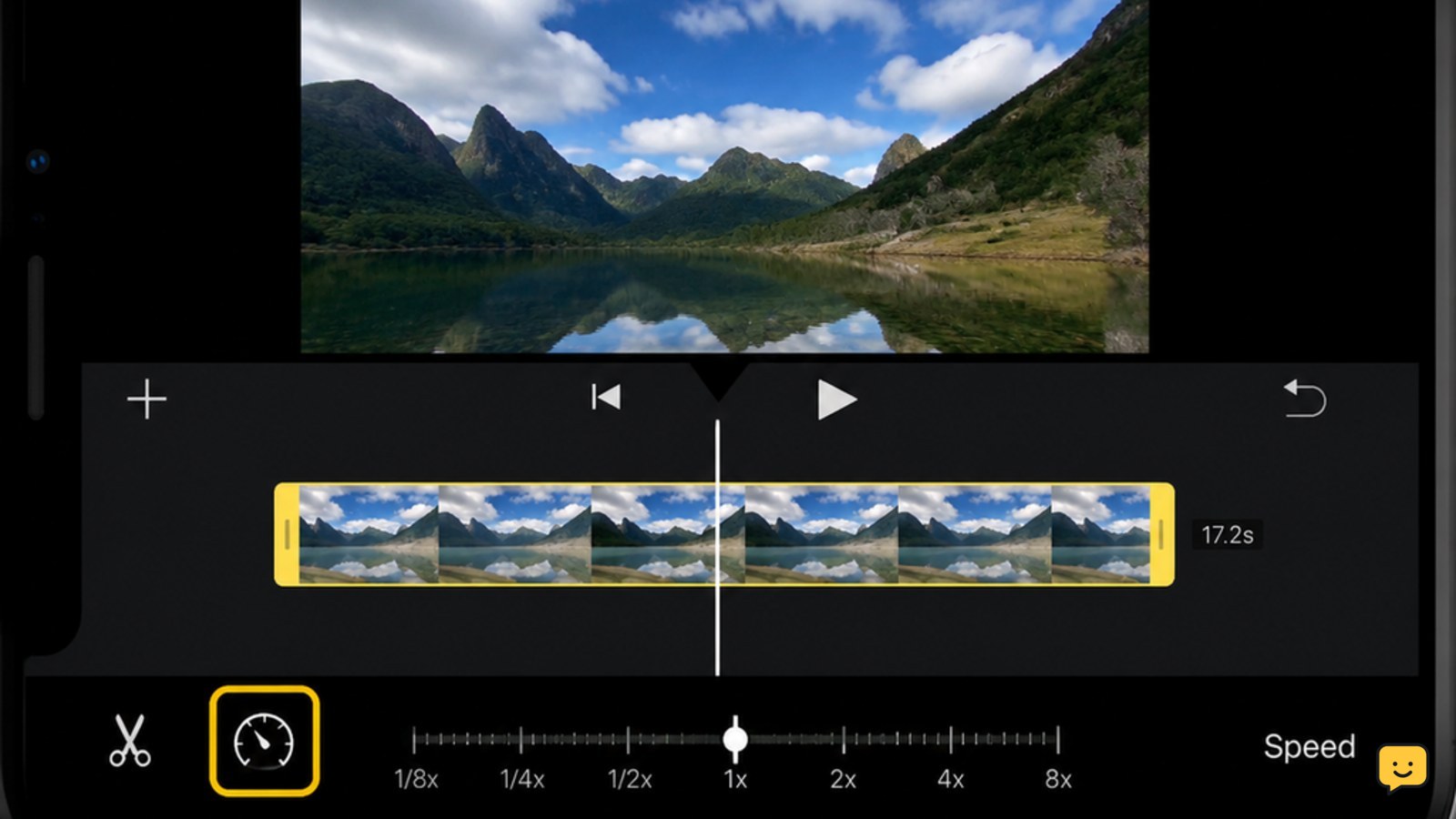
To speed up a video on iPhone, open iMovie, create a movie project, add the video, tap the clip in the timeline, tap the speedometer button, drag the speed slider to the right, and preview it. Tap Done, then share or save the edited video as a new copy.
For more help with this topic, use the Mobile Devices guides.
Use iMovie to speed up the entire video
iMovie changes the playback speed of a selected video clip from its timeline speed control. The control is available after the clip has been added to a movie project.
- Open iMovie on your iPhone.
- Tap Start New Project, choose Movie, select the video, and tap Create Movie.
- Tap the video clip in the timeline so it is highlighted.
- Tap the speedometer button in the editing controls.
- Drag the speed slider to the right of the normal-speed position. A farther-right position produces faster playback.
- Tap the play button to preview the entire clip or move the white playhead to check a specific moment.
A successful change is visible in the timeline: the clip becomes shorter as its playback speed increases. The preview should also reach the same ending content sooner.
If the speedometer control does not appear, tap the clip again and confirm that the video—not the project background or another item—is selected.
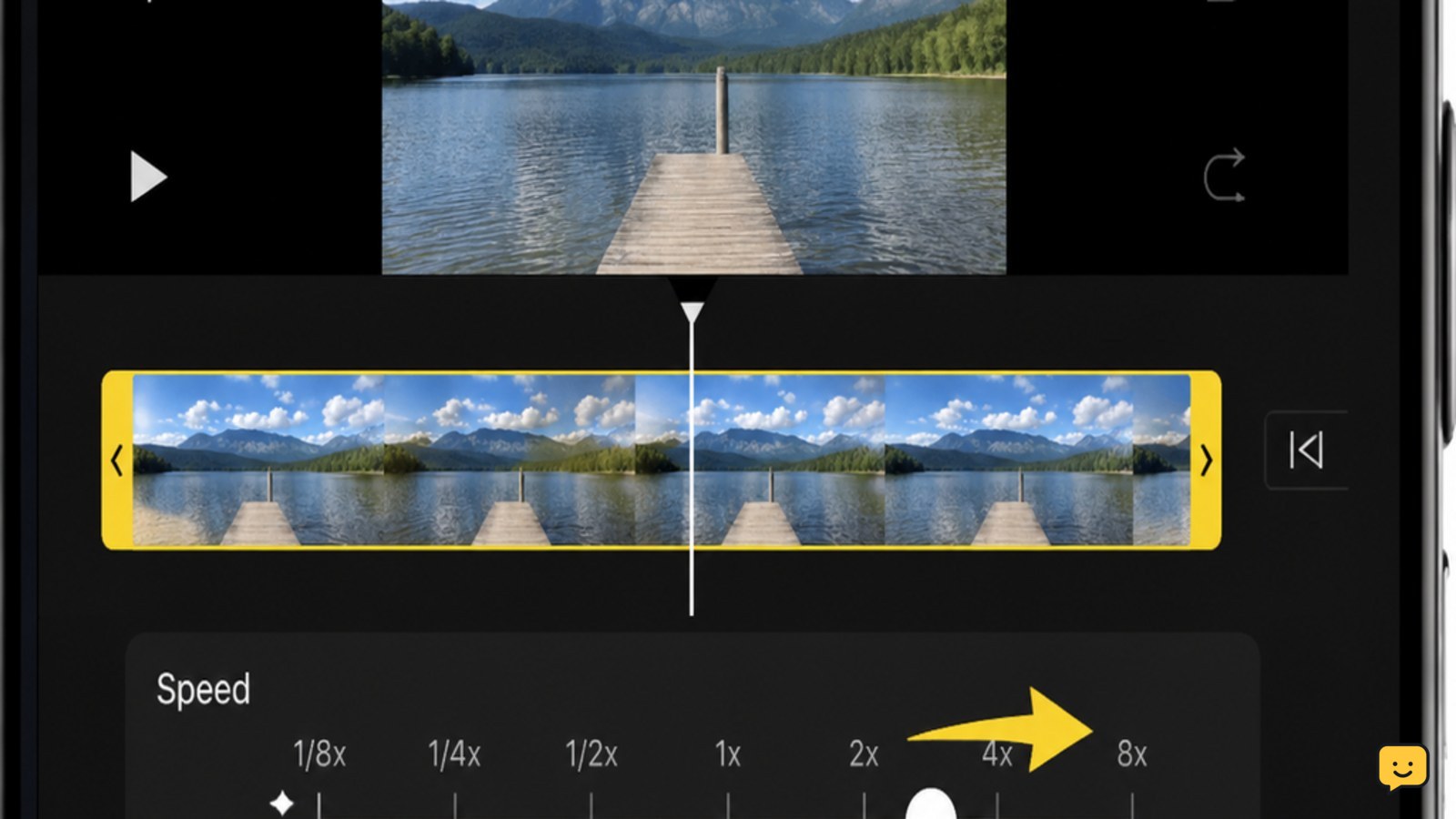
Speed up only one part of the iPhone video
To speed up a specific section, split the clip at the section boundaries before changing its speed.
- Move the playhead to where the faster section should begin.
- Tap the clip, then tap Actions and choose Split, if that control is shown in your iMovie version.
- Move the playhead to where the faster section should end and split the clip again.
- Tap only the middle segment, choose the speedometer control, and drag the slider to the right.
- Preview the transition before exporting.
Verify that the sections before and after the selected segment play at their original pace. If the whole video speeds up, undo the change and select just the separated middle segment.
For more complex speed changes, a video editor with keyframes can mark several speed-change points along one clip. Pinnacle’s iPhone editing guidance describes using keyframes to identify separate sections that need different speeds.
Export the sped-up clip as a new video
Exporting from iMovie creates a finished video that you can check in Photos while leaving the source clip available for another edit.
- Tap Done in the iMovie project.
- Tap the Share button.
- Choose Share Video or Save Video, depending on the options shown.
- Select a resolution if iMovie asks you to choose one, then wait for the export to finish.
Open Photos and play the newly saved clip from beginning to end. Check that the action is faster, the ending is present, and the audio is acceptable. A shorter duration in Photos is a useful confirmation, but the full preview is the final check.
Keep the original until this verification is complete. If export fails because the iPhone is nearly full, use these iPhone storage cleanup steps before trying again.
If export needs more space, use these iPhone storage cleanup steps before deleting the source video.
Fix missing speed controls or an unchanged result
A missing control or unchanged playback usually means the wrong timeline item is selected, the preview was not exported, or the video has a special format that needs a different workflow.
- No speedometer button: tap the video directly in the timeline and look for the row of clip-editing controls.
- Preview still plays at normal speed: move the slider farther right, then replay a section that clearly shows motion.
- Only part should be faster: split the clip first and select the individual segment.
- Saved video seems unchanged: open the newly exported file in Photos rather than replaying the original clip or the iMovie project.
- Audio sounds unnatural: reduce the speed change, mute the clip, or add replacement audio before exporting.
Menu names and available export choices can vary with the installed iMovie and iOS versions. If the speed control is still unavailable after selecting a video clip, update iMovie through the App Store and retry with a duplicate of the original video. Stop instead if the phone overheats or storage warnings continue.
Frequently asked questions
Can I speed up a video without iMovie on iPhone?
Yes, but iMovie is the built-in Apple editing route covered here. Some third-party video editors also provide a speed slider or keyframes. Check the finished file in Photos after exporting, and avoid deleting the original until the result is confirmed.
Why is the speed button missing in iMovie?
The speed button appears after you select a video clip in the timeline. Tap the clip until it is highlighted, then check the editing controls. If it remains missing, update iMovie and try a duplicate of the source video.
How do I speed up only part of a video on iPhone?
Split the video at the beginning and end of the section, select the separated segment, and adjust its speed with the speedometer control. Preview both boundaries to confirm that the surrounding sections remain at normal speed.
Does speeding up an iPhone video shorten its length?
Yes. Increasing playback speed makes the edited video finish sooner, so the exported file should have a shorter duration than the original. Compare the two files in Photos and play the export to confirm that no content was lost.


