
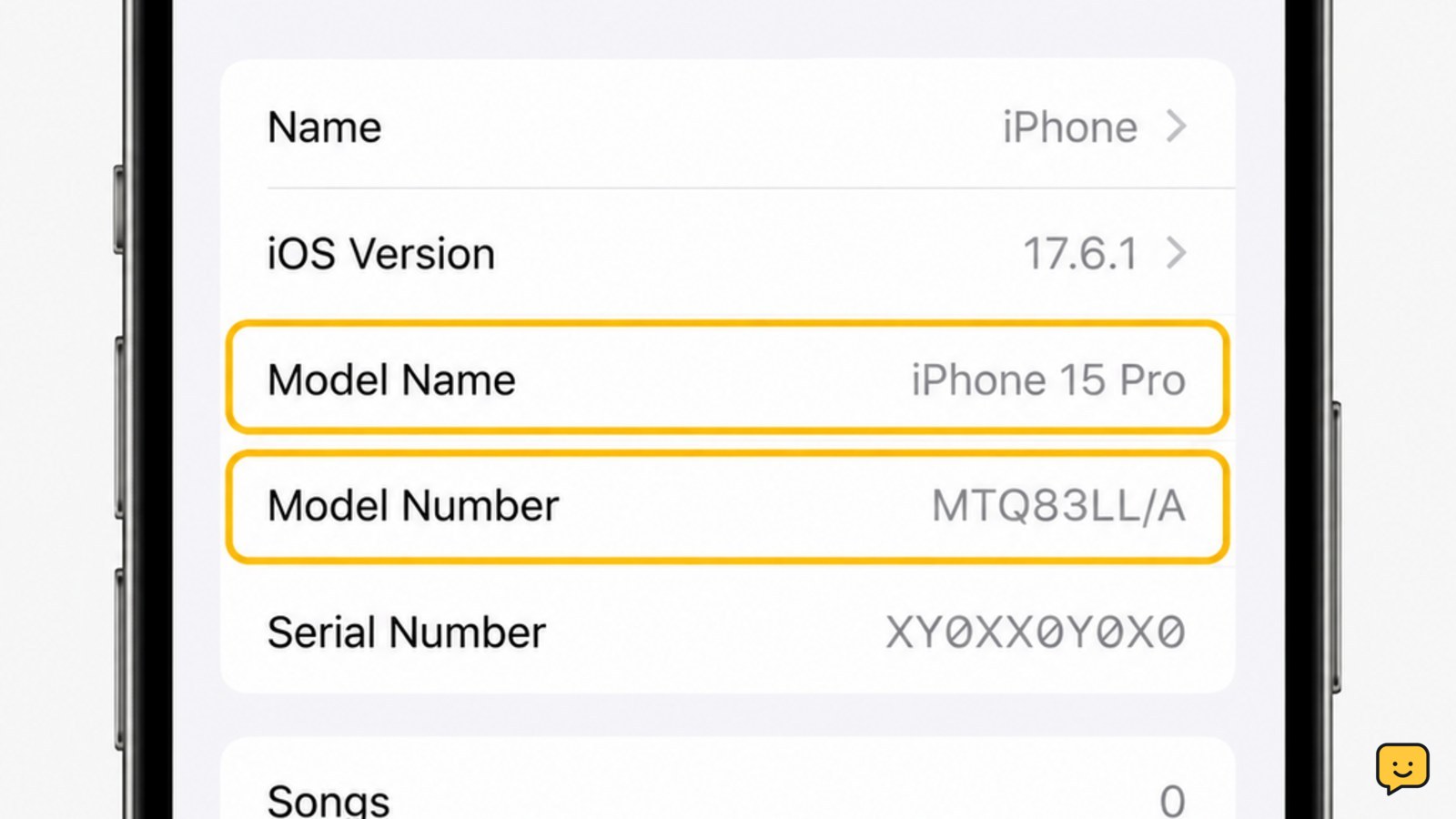
Open Settings, tap General, then About. Read the Model Name to see the iPhone you have, such as iPhone 13 or iPhone 15 Pro. For stronger confirmation, tap the value beside Model Number to switch from the part number to the A-number model identifier, then compare it with Apple’s official iPhone model list.
For more help with this topic, use the Mobile Devices guides.
Find the model name in Settings
The fastest way to identify an iPhone is to read Model Name in the About screen.
- Open Settings.
- Tap General.
- Tap About.
- Find Model Name.
The value should state the product family and model, such as an iPhone 11, iPhone 13 mini, or iPhone 15 Pro Max. This is the useful answer when you need to choose a case, check software compatibility, or describe the phone to a retailer.
Verify the result: the displayed name should be a specific iPhone model, not just “iPhone.” If Model Name is present and clear, no additional hardware check is needed for ordinary identification.
Confirm the model with the model number
The model number provides a second way to confirm which iPhone you have, especially when two models look similar.
- Stay on Settings > General > About.
- Locate Model Number.
- Read the value shown beside it.
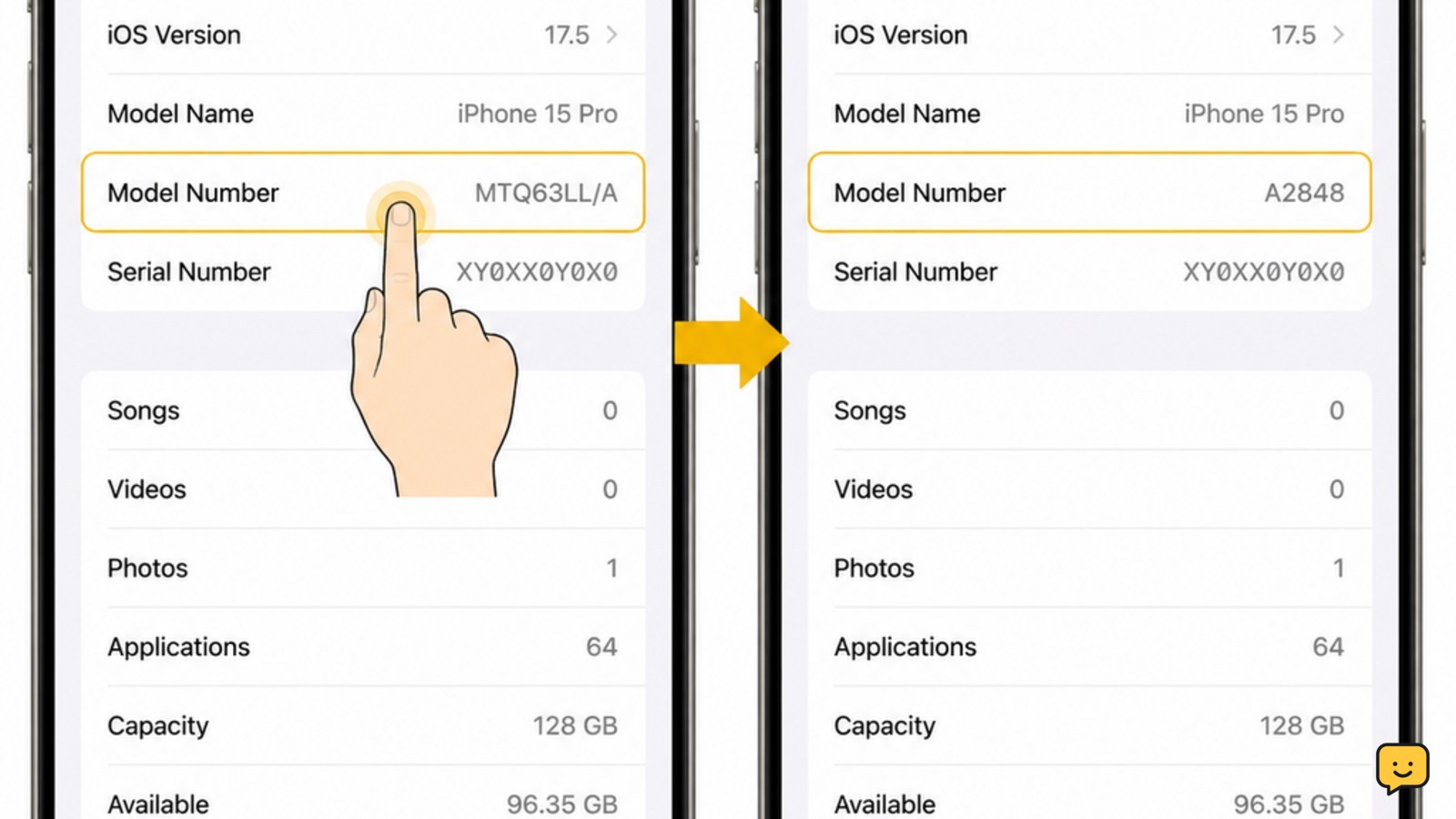
- Tap the value once if you need to switch between the part number and the model identifier that begins with the letter A.
Apple explains that the About screen initially shows the part number; tapping it reveals the model number. Compare that identifier with Apple’s Identify your iPhone model page rather than relying only on camera layout, color, or screen size.
Verify the result: the Apple entry should name the same model shown under Model Name. If the two results disagree, use the A-number and Apple’s list as the deciding reference.
Identify an iPhone that will not unlock or turn on
If Settings is unavailable, identify the iPhone from its external model details instead of trying to open the device.
- Remove the case and inspect the outside of the phone in good light.
- Check the SIM-tray area, the charging connector, camera arrangement, buttons, and overall shape.
- Look for a model number on the device or its original packaging, if available.
- Compare those details with Apple’s official model-identification page.
The exact location of a printed identifier and the available physical clues vary by iPhone generation. Apple’s identification guide covers model-specific details, including side layout and connector information.
Failure path: if the phone has no readable identifier and the physical features match several models, do not choose a model based on appearance alone. Use the original receipt, carrier or retailer record, Apple Account device list, or Apple Support.
Use the result for cases, repairs, and resale
The model name is enough for broad compatibility, but the exact model number is safer when buying accessories or arranging service.
- Case or screen protector: match the complete model name and size, including labels such as mini, Plus, Pro, or Pro Max.
- Repair or parts: provide the model name and A-number when requested.
- Resale or trade-in: confirm the model, storage capacity, and carrier status separately; identifying the model does not prove the phone is unlocked.
If carrier status is your next concern, use this guide to check whether your phone is unlocked before changing service or listing the device.
If you also need carrier information, check whether your phone is unlocked before changing service or selling it: check whether your phone is unlocked
What to do when the model information is missing
When Model Name or Model Number is missing, first return to Settings > General > About and scroll through the page carefully.
If the iPhone is managed by a school or workplace, some information may be restricted or the device may have an unusual configuration. Do not erase it to reveal the model. Check its packaging, purchase record, or connected computer’s device details instead.
Stop and get help when the identifier cannot be read, Apple’s model list produces no match, or the device has physical damage near the battery. A correct identification is safer than ordering incompatible parts or opening the phone.
Frequently asked questions
Can I identify my iPhone from the serial number?
Yes, the serial number can help Apple or a retailer identify the device, but the clearest on-device method is Settings > General > About > Model Name. Use the model number or A-number when you need to distinguish closely related models.
What is the difference between Model Name and Model Number on iPhone?
Model Name is the readable product description, such as iPhone 14 Pro. Model Number is the more precise identifier used to match the device to Apple’s model list. Tap the Model Number field to switch from the part number to the A-number identifier.
How can I tell what iPhone I have if the screen is broken?
Check the original box, receipt, carrier record, or Apple Account device list. You can also compare the phone’s camera layout, buttons, connector, SIM-tray position, and other physical details with Apple’s identification page. Do not open a damaged phone just to find its model.
Does identifying my iPhone show how much storage it has?
Not always. The model name identifies the hardware generation, while storage is a separate detail. In Settings > General > iPhone Storage, check the capacity and available space. For a phone that will not turn on, use its purchase record or retailer information.


