
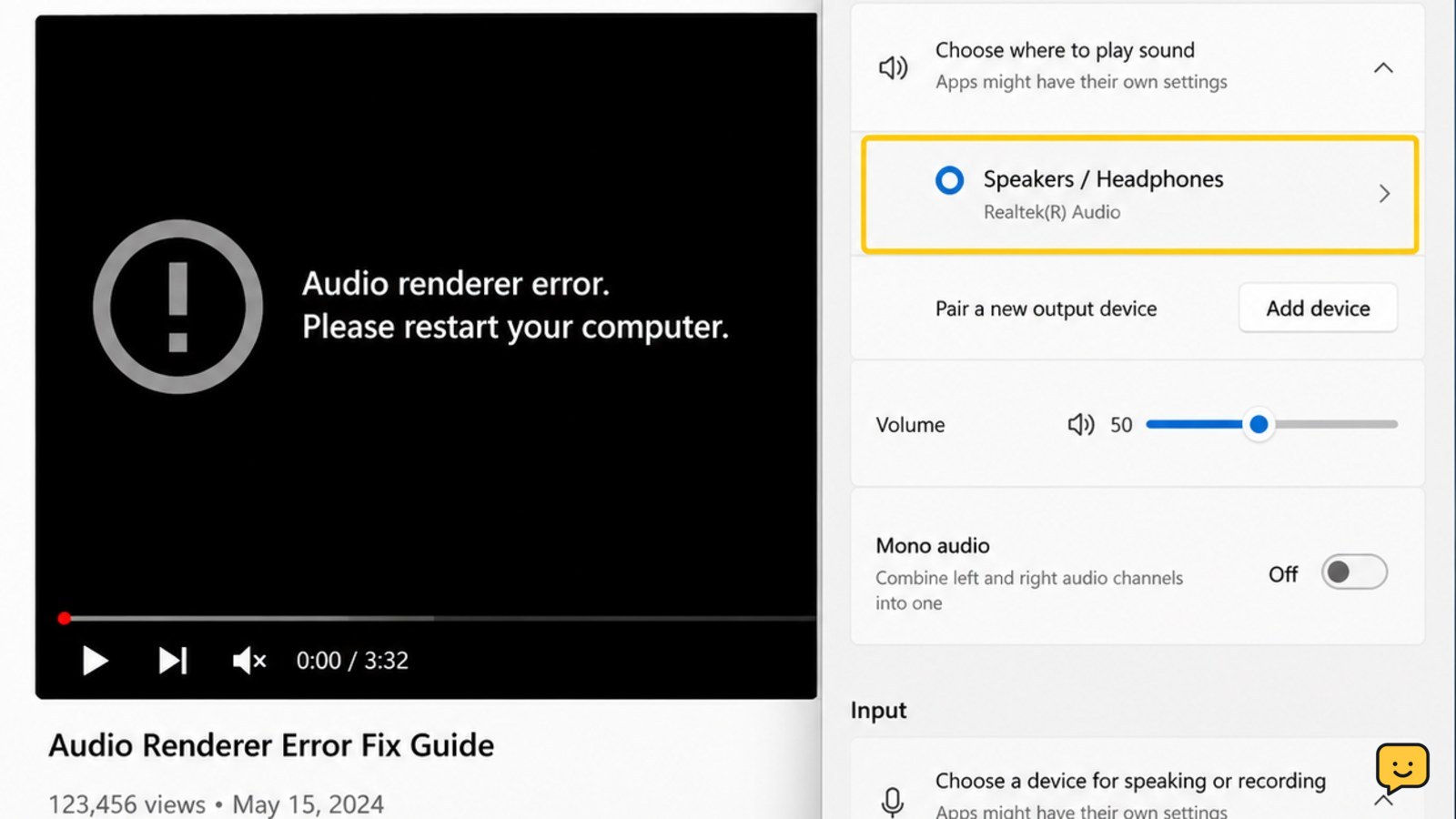
The YouTube audio renderer error usually means Windows and YouTube cannot share or reach the selected audio device. First restart the computer, then select the correct output in Settings > System > Sound, reconnect headphones or speakers, and restart the Windows Audio service. If the error remains, test another browser and update the audio driver.
For more help with this topic, use the Computers Internet guides.
Restart Windows and reload the YouTube video
Restarting the Windows computer clears a temporary audio-device conflict and is the first action shown in the error message itself.
- Close the YouTube tab.
- Choose Start > Power > Restart.
- After Windows loads, open YouTube and play a different video.
Verify: the video plays with sound for at least 30 seconds and the error does not return when you pause and resume.
If it fails: continue without assuming the computer needs a factory reset. The next check identifies whether Windows is sending sound to the wrong device.
Choose the correct Windows audio output
Windows must send audio to the same headphones, speakers, monitor, or USB device that you are trying to hear.
- Right-click the speaker icon on the taskbar and select Sound settings.
- Under Output, select the device you expect to use.
- Raise the output volume and confirm that the device is not muted.
- Play YouTube again.
Switching to another listed output can also isolate the fault. For example, test the laptop speakers instead of a monitor or headset.
Verify: the selected device changes and Windows produces sound through that device. A reported Edge troubleshooting case was resolved after changing the selected output device, so this is a useful early discriminator rather than a random setting change.
If the device is missing: reconnect the cable, turn Bluetooth headphones off and on, or move a USB audio device to another port. Do not force a damaged connector into place.
Reconnect headphones, speakers, or monitor audio
A disconnected or newly switched audio device can leave YouTube attached to an unavailable renderer.
- Pause YouTube and close other apps that are playing audio.
- Unplug wired headphones, speakers, or the monitor cable carrying audio.
- Wait about 10 seconds, then reconnect it securely.
- For Bluetooth audio, disconnect the device in Settings > Bluetooth & devices, then connect it again.
- Return to Settings > System > Sound and select the reconnected device.
Verify: the device appears as connected, Windows lists it under Output, and a YouTube video plays without the renderer message.
If only one accessory fails: test the computer’s built-in speakers or another headset. If the second device works, the original accessory, cable, port, or its driver is the likely fault.
Restart the Windows Audio service
Restarting Windows Audio can restore the audio pipeline without restarting the entire computer.
- Press Windows key + R.
- Enter
services.mscand press Enter. - Find Windows Audio.
- Right-click it and choose Restart. If Restart is unavailable, choose Start.
- Close the Services window and reload YouTube.
Verify: Windows still lists the intended output device and YouTube starts playing after a refresh.
If Windows Audio will not start: restart the computer once. If it still will not start, stop changing services and use Windows audio troubleshooting or manufacturer support; a service failure can affect every application.
Separate a browser problem from a system audio problem
Testing another browser shows whether the renderer error is limited to the current browser session or affects Windows audio generally.
- Open YouTube in another installed browser.
- Play the same video or a different public video.
- If the second browser works, close all windows of the first browser and reopen it.
- Temporarily test YouTube in a private or incognito window, where extensions are less likely to interfere.
Verify: sound works in the second browser or private window.
If only the original browser fails: disable recently added audio, enhancement, privacy, or media-control extensions one at a time. Avoid deleting all browsing data until you have confirmed that the browser is the cause.
If every browser fails but other apps play sound: reload YouTube, test another video, and check whether the issue is limited to one video or account session. A video-specific playback problem is different from a computer-wide renderer failure.
Update the audio device driver only after basic checks
An outdated or incompatible Windows audio driver can keep the selected device from responding correctly after the simpler checks have passed.
- Right-click Start and open Device Manager.
- Expand Sound, video and game controllers.
- Right-click the listed audio device and choose Update driver.
- Choose the option that lets Windows search for an available driver.
- Restart Windows if a driver is installed.
Verify: the audio device remains present in Device Manager, Windows Sound settings shows it as an output, and YouTube plays normally.
If the update changes nothing: check the computer or motherboard manufacturer’s support page for a driver that matches the exact model. Do not install a driver for a different model. If the device has a warning icon, record its name and error status before seeking support.
Confirm whether the failure is YouTube-only
Playing audio outside YouTube is the final useful checkpoint before treating the issue as a broader Windows or hardware fault.
- Play a local music file or a system notification sound.
- Try the built-in speakers and the affected external device if both are available.
- Return to YouTube and test more than one video.
Verify: at least one Windows sound and one YouTube video play through the chosen output.
If local audio works but YouTube fails in every browser, check for a temporary YouTube-side playback issue and use another network or device as a comparison. If local audio also fails, stop focusing on YouTube and troubleshoot Windows audio, the driver, the port, or the accessory.
If the message changes to a licensing problem, use these YouTube licensing error checks for video-specific playback failures.
Frequently asked questions
Does the YouTube audio renderer error mean my speakers are broken?
No. The message often reflects a temporary conflict between YouTube, Windows, and the selected output device. Test built-in speakers or another headset. If another output works, the original accessory, cable, port, or driver needs attention. If no application produces sound, the problem is broader than YouTube.
Can changing the audio output fix the renderer error?
Yes, changing the output can fix it when Windows is sending audio to a disconnected or unavailable device. Open Settings > System > Sound, select a different listed output, and test YouTube. If the error disappears, reconnect or replace the original device before switching back.
Should I restart my computer every time this error appears?
Restarting is a safe first response, but it should not be the only fix for a recurring error. If the problem returns, check the selected output, reconnect the accessory, and restart Windows Audio. A repeated failure may indicate a driver, browser extension, Bluetooth, USB, or hardware problem.
Why does YouTube work in one browser but not another?
The failing browser may have a stuck media session, extension conflict, or damaged temporary data. Close and reopen it, then test a private window. Disable recently added media or audio extensions one at a time. If the second browser also fails, investigate Windows audio instead.
What should I do if the audio device is not listed in Windows?
Reconnect the device, try another USB or audio port, and restart Windows. For Bluetooth equipment, disconnect and pair it again. If the device remains absent from Sound settings and Device Manager, do not repeatedly reinstall random drivers; check the manufacturer’s support instructions or arrange hardware service.


