
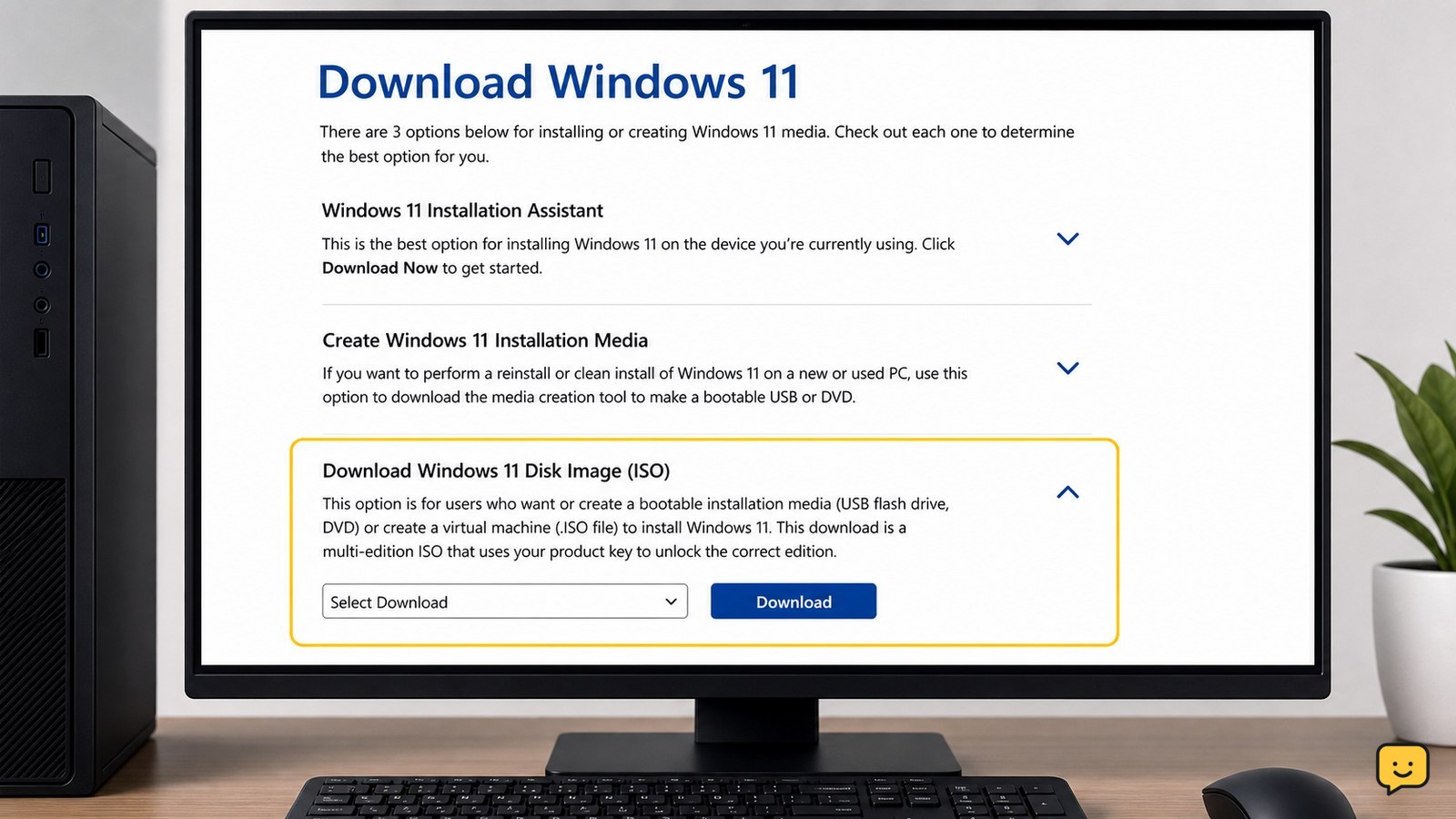
Download the Windows 11 ISO from Microsoft’s official software-download page, not a third-party mirror. Choose the matching language and device architecture, then use the ISO either by mounting it for an in-place upgrade or by writing it to a USB drive for a clean install. Back up important files before either installation path.
For more help with this topic, use the Computers Internet guides.
Download the official Windows 11 ISO
The official Windows 11 ISO comes from Microsoft’s Windows 11 software-download page. Open the page, find the section for downloading a Windows 11 disk image, select the requested edition or download option, and continue to the language and architecture choices shown there.
- Choose the Windows 11 disk-image option rather than a search-result mirror.
- Select the product language you intend to use during setup.
- Choose the architecture offered for your computer, such as x64 or Arm64.
- Start the download and save the file somewhere with several gigabytes of free space.
Success check: the download finishes as a single file ending in .iso. If the page redirects to an unfamiliar download host, or the file arrives as an executable with a different name, cancel it and return to Microsoft’s page.
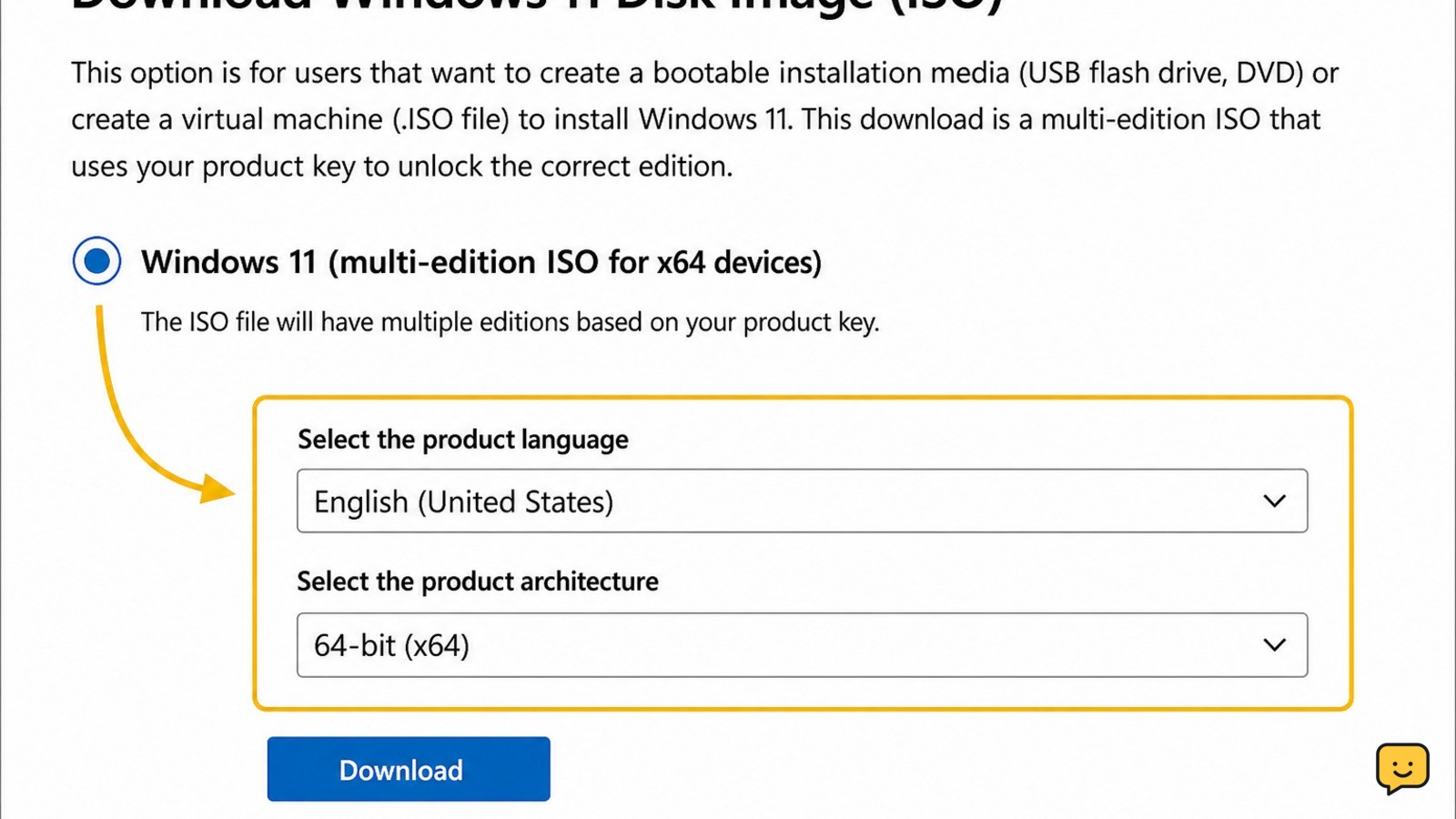
Choose x64 or Arm64 before using the ISO
The correct Windows 11 ISO architecture is determined by the processor platform, not by the screen size or brand of the computer. On an existing Windows installation, open Settings > System > About and check System type or the processor information.
Most conventional Intel and AMD Windows PCs use x64. Devices built around an Arm processor need an Arm64-compatible download when Microsoft provides that option. If the architecture does not match, Setup may refuse the upgrade or the resulting installation may not boot correctly.
Microsoft’s Windows 11 requirements page also lists supported hardware and security requirements. If the computer does not meet those requirements, do not assume that downloading an ISO makes it supported. Check the requirements before changing partitions or replacing the current installation.
Mount the ISO for an in-place upgrade
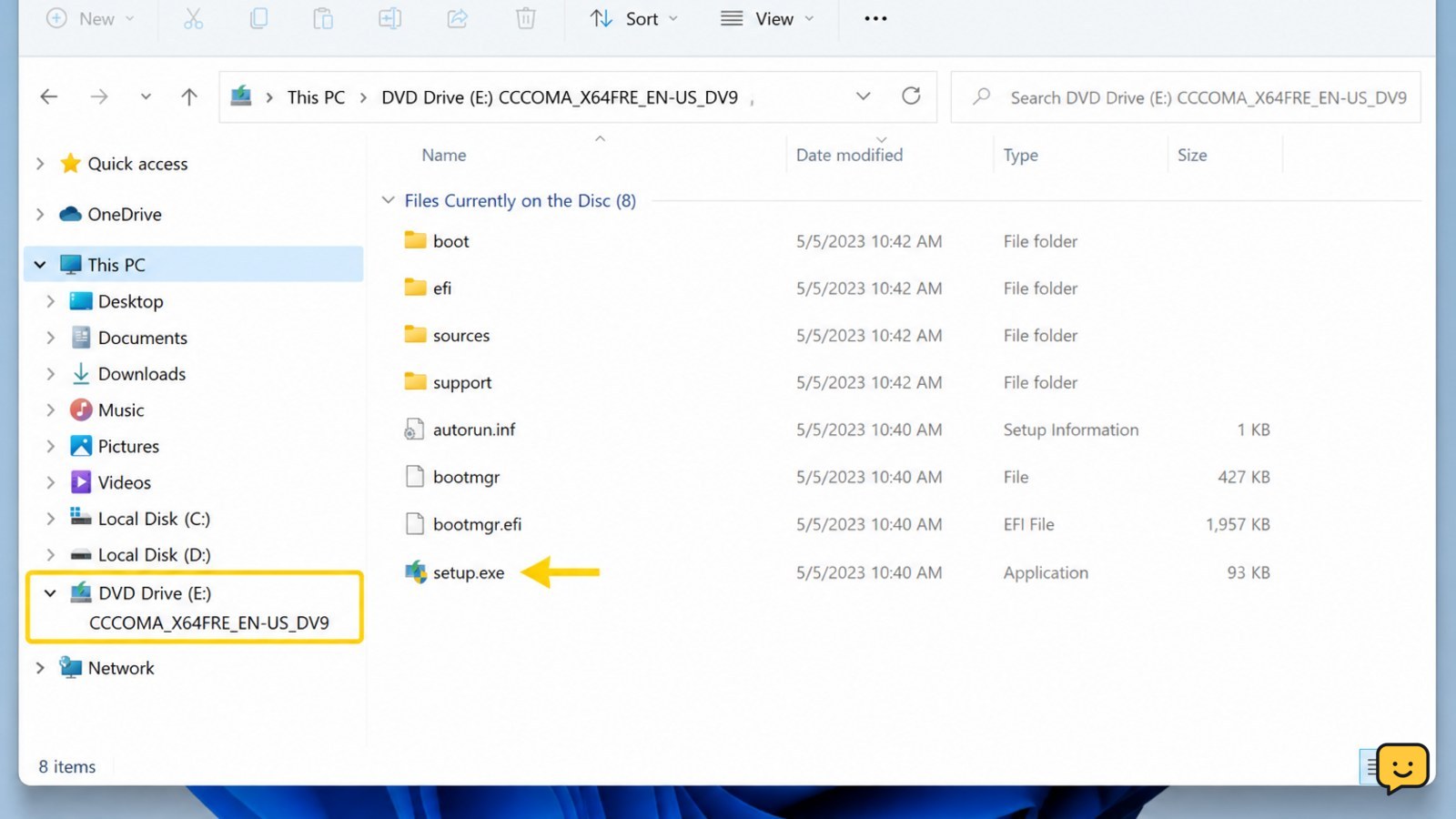
Mounting the Windows 11 ISO is the least destructive installation route when you want to keep the current Windows installation, applications, and personal files. In File Explorer, right-click the downloaded ISO and choose Mount. Windows should display it as a temporary DVD drive under This PC.
- Open the new DVD drive and double-click
setup.exe. - Allow Windows Setup to check for updates if that option appears.
- Review the license terms and choose the option that keeps your files and applications when it is offered.
- Confirm the summary before selecting Install.
Success check: after several restarts, Windows opens to the familiar account and desktop, and your expected files and applications are present. Check Settings > System > About to confirm that Windows 11 is installed.
If the keep-files option is missing, stop. That usually means the ISO language, edition, architecture, or installation path does not match the existing system, or Setup is being started from the wrong environment. Do not continue until you understand which data option Setup will use.
Create a bootable USB for a clean installation
A bootable USB made from the Windows 11 ISO is used when the PC cannot start normally, when you are replacing the current installation, or when you intentionally want a clean installation. Microsoft’s installation-media instructions provide an official alternative to downloading and writing an ISO yourself.
- Connect a blank USB drive and confirm that it contains no files you need.
- Use Microsoft’s recommended media-creation method or a trusted ISO-writing utility to write the image to the USB drive.
- Restart the target PC and open its boot-device menu using the manufacturer’s documented key.
- Select the USB device and wait for Windows Setup to load.
- Choose the installation type carefully. A custom installation can remove data from selected partitions.
Success check: the PC boots into Windows Setup from the USB rather than starting the existing Windows installation. Before deleting or formatting anything, identify the target disk by its capacity and confirm that backups are complete.
If the USB does not appear, try another USB port, recreate the media, or check the manufacturer’s boot-menu and firmware instructions. Do not format a disk simply because Setup lists it; an incorrect selection can permanently remove personal data.
Fix a failed download or setup check
A failed Windows 11 ISO download is usually a transfer, storage, compatibility, or media-creation problem. First delete the incomplete ISO, confirm free storage, and download again from Microsoft using a stable connection.
- Download stops: retry on a reliable network and avoid closing the browser before it completes.
- ISO will not mount: download it again; a damaged or incomplete file is more likely than a missing Windows feature.
- Setup rejects the PC: review Microsoft’s current Windows 11 hardware requirements instead of forcing the installation.
- Upgrade cannot keep files: check language, edition, architecture, and whether Setup was launched inside the existing Windows installation.
- USB will not boot: recreate the USB and verify the boot device in the firmware menu.
For a connection that repeatedly drops during the download, use the checks in Windows 11 Wi-Fi troubleshooting before trying the ISO again.
If the download repeatedly stops, use Windows 11 Wi-Fi troubleshooting before downloading the ISO again.
Frequently asked questions
Where should I download a Windows 11 ISO?
Download it from Microsoft’s official Windows 11 software-download page. Avoid third-party mirrors because the file may be modified, incomplete, or bundled with unwanted software. The official page provides the current disk-image choices and related installation tools.
Can I install Windows 11 from an ISO without a USB?
Yes. In an existing Windows installation, right-click the ISO, choose Mount, open the temporary DVD drive, and run setup.exe. This supports an in-place upgrade when Setup offers the option to keep personal files and applications. A mounted ISO does not replace the need for a valid Windows license.
Will using a Windows 11 ISO erase my files?
It can. An in-place upgrade may keep files and applications when that option is explicitly selected, while a custom installation from bootable USB can format or delete selected partitions. Back up important files and stop if Setup does not clearly show the data-preservation choice you expect.
Why does Windows Setup say my PC cannot run Windows 11?
The PC may not meet Microsoft’s current hardware or security requirements, or the ISO architecture may not match the device. Check the Windows 11 requirements, confirm x64 or Arm64 compatibility, and install firmware or manufacturer updates only when they are documented for that computer.


