
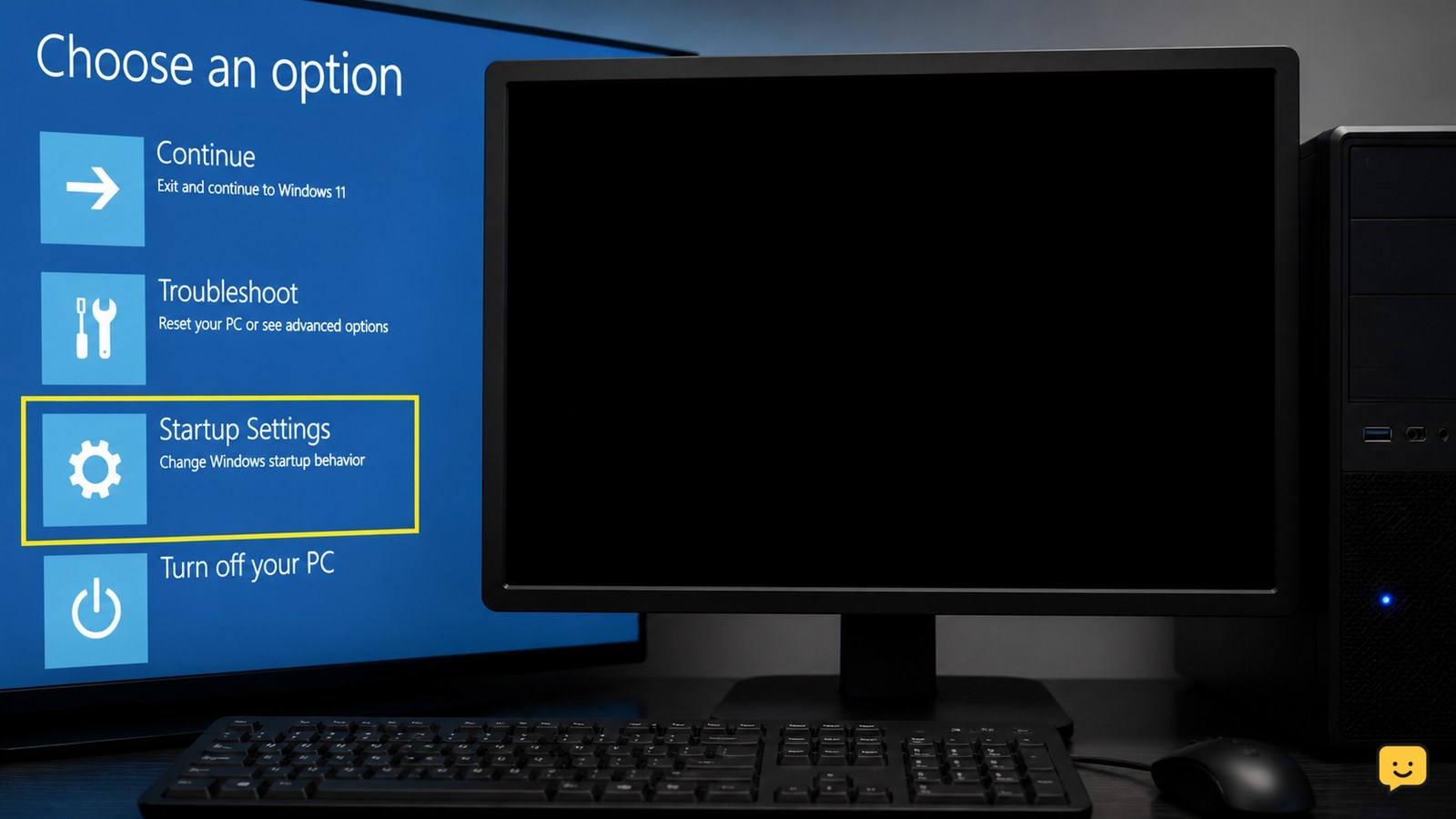
If Windows shows a black screen in Safe Mode, first press Win+Ctrl+Shift+B to restart the graphics driver, then test another display or cable and use Windows Recovery Environment if the picture never returns. If Safe Mode was forced through System Configuration, clear the Safe boot option from recovery or normal Windows. Stop if the screen stays black before the Windows logo or hardware diagnostics are also invisible.
For more help with this topic, use the Computers Internet guides.
Check when the black screen appears
A black screen before the manufacturer logo usually indicates a display, cable, graphics hardware, or power problem rather than Safe Mode itself. A black screen after the Windows logo points more often to the selected display output, a graphics driver, or a forced startup setting.
- Press a brightness-up key several times on a laptop and check whether the display backlight changes.
- Press Ctrl+Alt+Delete. If a security screen appears, Windows is running and the problem is likely the desktop shell or graphics output.
- Press Win+P, then press the P key once and Enter. Repeat slowly to cycle through display modes if Windows may be sending the picture to another screen.
If nothing appears, continue with the graphics reset and display checks below.
Reset the Windows graphics driver
Windows can restart the active graphics driver with Win+Ctrl+Shift+B, even when the desktop is not visible. Press the four keys together once and wait up to 15 seconds.
A successful reset may produce a short beep, a brief flicker, or a returning picture. If the screen remains black, listen for Windows sounds or check whether the Caps Lock indicator responds. Those signs suggest the computer is operating while the display path is failing.
AVG’s Windows black-screen guidance also places keyboard checks and cable or monitor checks early in the process, because they can distinguish a running computer from a failed display connection.
Test one display, cable, and input at a time
An external monitor or television can reveal whether the laptop panel or the Windows display output is the cause.
- Turn the computer off. Disconnect docks, adapters, splitters, and extra monitors.
- Reconnect one known-good display cable directly to the computer and select the matching input on the monitor.
- Start the computer and try Win+P again after Windows has had time to load.
- If the external display works, use Windows normally long enough to update or roll back the graphics driver, then test the built-in screen.
If neither display shows the manufacturer logo or recovery screen, do not keep changing Windows settings; the fault may be outside the operating system.
For a second-screen failure outside Safe Mode, use these external monitor checks to confirm cables, input, and projection mode: external monitor checks
Open Windows Recovery Environment without the desktop
Windows Recovery Environment provides Safe Mode and startup repair controls when the normal desktop is unavailable. Start the computer and, when Windows begins loading, hold the power button to turn it off. Repeat this startup-and-shutdown interruption up to two times; on the next start, allow Automatic Repair to load.
- Select Advanced options.
- Choose Troubleshoot, then Advanced options.
- Select Startup Settings and choose Restart.
- On the numbered list, choose Enable low-resolution video first if available. If that does not help, return and choose Safe Mode or Safe Mode with Networking.
The expected result is a visible recovery menu or a desktop with “Safe Mode” displayed in the screen corners. If Recovery Environment itself is also black, try another monitor and stop before resetting Windows.
Undo a forced Safe Mode setting
A computer configured with the Safe boot option in System Configuration can return to Safe Mode on every restart. If you can reach the desktop, press Win+R, enter msconfig, and press Enter. Open the Boot tab, clear Safe boot, select Apply, choose OK, and restart.
If the desktop is inaccessible, open Troubleshoot > Advanced options > Command Prompt in Windows Recovery Environment. The exact drive letter may differ in recovery, so first check it with dir C:\Windows, then try dir D:\Windows if the folder is not found. Stop if you cannot identify the Windows folder; using commands against the wrong installation can change the wrong startup configuration.
After locating the correct Windows drive, use the recovery command to remove the forced Safe Mode setting: bcdedit /deletevalue {default} safeboot. Close Command Prompt and choose Continue. If the command reports that the element was not found, Safe Mode may not be forced through that entry; return to Startup Settings instead.
If you are working from a command prompt, review these safe cleanup commands before removing any configuration: safe cleanup commands
Repair or change the graphics driver after Windows starts
If normal Windows starts but Safe Mode remains black, the graphics driver or display configuration is a likely software cause. Open Device Manager, expand Display adapters, right-click the graphics device, and choose Properties to check its status.
- Use Roll Back Driver if the problem began immediately after a driver update and the button is available.
- Use Update Driver through Windows Update or the computer or graphics-chip manufacturer’s support page.
- Restart and test both normal Windows and Safe Mode.
Do not download drivers from unofficial driver sites. If the screen works only with low-resolution video or an external monitor, keep that working display connected while changing the driver.
Verify the result and choose the next repair
The fix is confirmed when Windows reaches the sign-in screen or desktop, the correct monitor is selected, Safe Mode appears only when deliberately chosen, and the screen remains stable through one normal restart.
If Windows starts normally but Safe Mode is still black, leave Safe Mode unused and repair the display driver from normal Windows. If every Windows and recovery screen is black but the computer’s power lights and fans operate, test the monitor and cable on another device. If the manufacturer logo is missing too, arrange professional diagnosis for the panel, cable, graphics hardware, or system board.
Frequently asked questions
Why does Safe Mode work but normal Windows show a black screen?
A graphics driver, startup program, display mode, or recently installed update may be loading only during normal startup. Use Safe Mode to remove a recent display driver or update, then restart normally. If the screen is black in both modes, test another display and check whether the manufacturer logo appears.
What should I do if Safe Mode is selected but the screen stays black?
Press Win+Ctrl+Shift+B once and wait. Then disconnect extra displays and try Win+P to cycle the output. If there is still no picture, enter Windows Recovery Environment and try low-resolution video or Startup Repair. If recovery is also invisible, stop changing Windows settings and check the display hardware.
How do I exit Safe Mode when Windows keeps returning to it?
Clear the Safe boot setting. In Windows, open msconfig, select Boot, clear Safe boot, apply the change, and restart. If the desktop is unavailable, use Recovery Environment’s Command Prompt only after identifying the correct Windows drive, then remove the safeboot value from the matching boot entry.
Can a black Safe Mode screen mean the monitor is broken?
Yes, especially if the screen is also black at the manufacturer logo, BIOS/UEFI, or hardware diagnostics. Test a known-good cable, monitor input, and external display. If another display works, the laptop panel, display cable, dock, or adapter becomes the more likely fault.


