
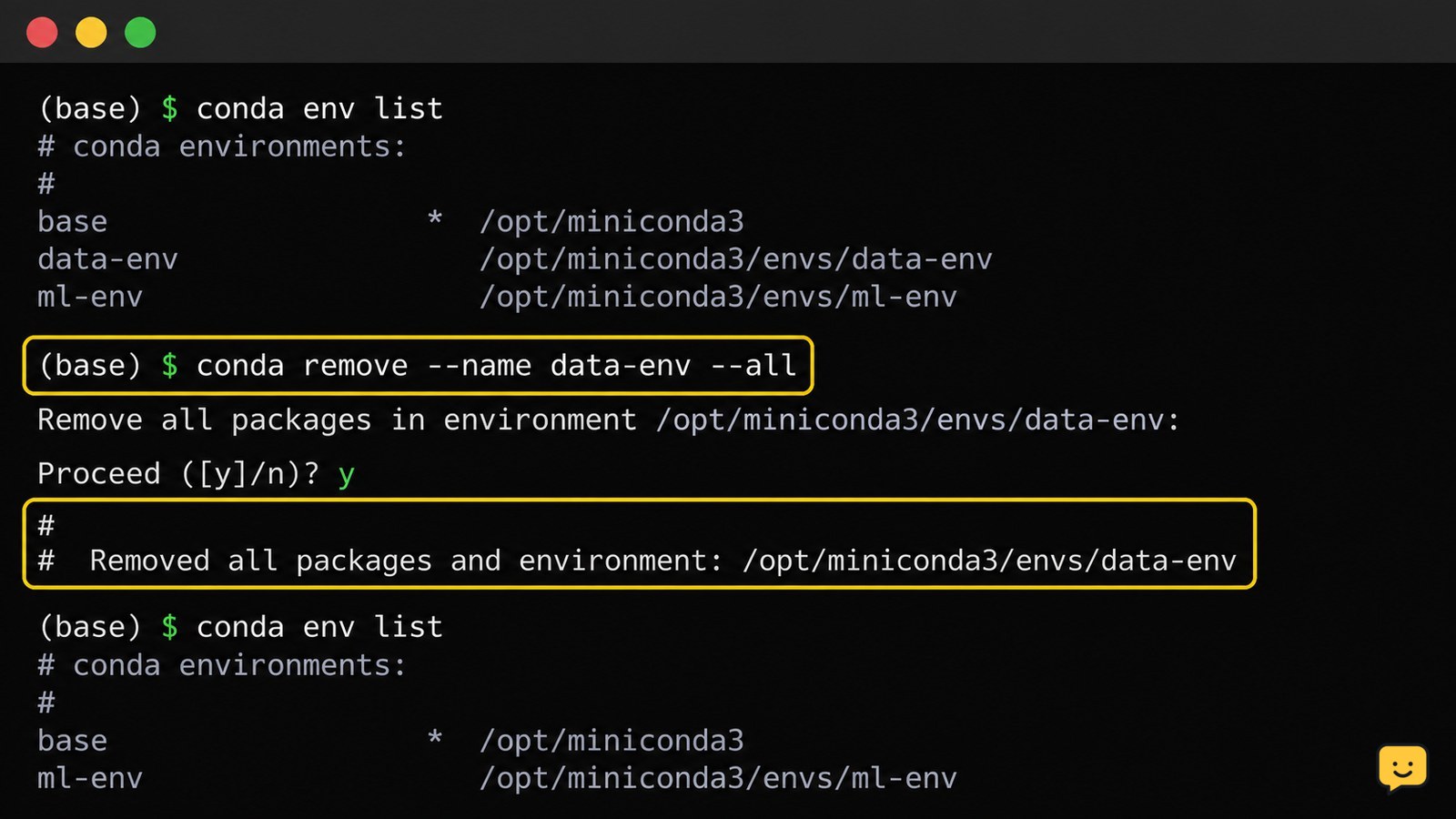
To remove a Conda environment, first deactivate it, then run `conda remove –name ENV_NAME –all`, replacing `ENV_NAME` with the environment’s exact name. Confirm the prompt, then run `conda env list` to check that the environment is gone. For a path-based environment, use `–prefix PATH` instead of `–name`.
For more help with this topic, use the Computers Internet guides.
Find the exact Conda environment name or path
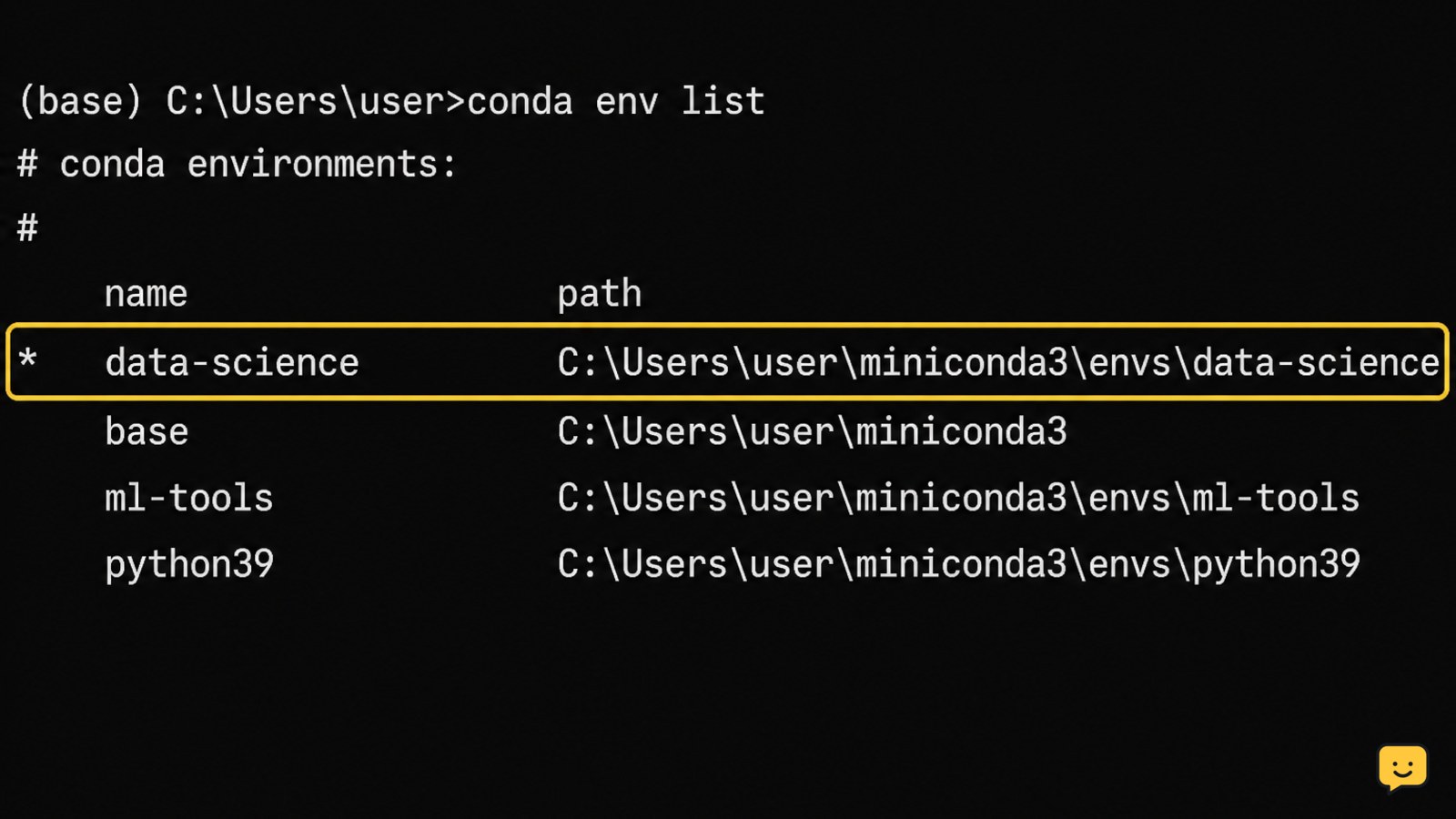
Conda lists the environment names and installation paths with conda env list or conda info --envs. The active environment normally has an asterisk beside it.
conda env listRecord the exact name, such as demo-project, or copy the full path if the environment was created with a custom location. Names and paths are different targets, so do not substitute one for the other.
Check before continuing: the environment you plan to remove is not base, and you have confirmed that no required files are stored only inside it.
Deactivate the environment before removing it
Conda should not remove the environment currently being used by the shell. Run:
conda deactivateIf you were inside a nested environment, repeat the command until the target name disappears from the shell prompt. You may see (base) or no environment name, depending on your Conda configuration.
Stop here if the target environment remains active, the shell returns an activation error, or you are unsure which environment the prompt represents. Open a new shell and check with conda env list rather than deleting files manually.
Preview and remove the named environment
For a named environment, preview the proposed package changes first when your Conda version supports the option:
conda remove --name demo-project --all --dry-runReview the target shown in the output. If it is correct, remove the environment with:
conda remove --name demo-project --allConda’s remove command uses --name or its short form -n to select an environment, while --all removes the environment and its packages. Confirm the transaction only when the displayed name or location matches your intended target.
If --dry-run is rejected, do not improvise with a filesystem delete. Run the removal command without --dry-run and inspect the confirmation details before accepting.
Remove an environment stored at a custom path
A path-based Conda environment must be removed with --prefix, not --name. Use the full path reported by conda env list:
conda remove --prefix /path/to/env --allOn Windows, quote paths containing spaces:
conda remove --prefix "C:\Users\YourName\conda-envs\demo-project" --allDo not combine an environment name and an unrelated path. If Conda shows a different location from the one you expected, cancel the confirmation and recheck the listing.
Verify that Conda no longer lists the environment
After the command finishes, run:
conda env listThe removed environment should no longer appear, and its directory should no longer be used as an environment location. You can also check the environment records with:
conda info --envsSuccessful removal means the target is absent from the listing and Conda does not report a failed transaction. If it still appears, close applications that may be using it, open a new shell, and run the listing again.
If the environment remains listed after a confirmed failure, preserve the directory and the error text. A permission or corrupted metadata problem needs repair before any manual cleanup.
What to do if the removal command fails
A failed Conda removal should be treated as an incomplete transaction, not as proof that the folder is safe to delete.
- Target not found: run
conda env listand use the exact name or path shown there. - Environment is active: run
conda deactivatein the shell using it, then retry. - Permission denied: close editors, terminals, notebooks, and applications using files in the environment. Retry only after confirming the target.
- Environment still listed: restart the shell and inspect the complete error output. Do not remove the directory by hand while Conda still recognizes it.
- Only selected packages should go: omit
--alland specify package names, but verify the proposed transaction carefully because dependencies may also be affected.
Stop if the output identifies base, a shared location, or an environment whose files have not been backed up.
Frequently asked questions
What is the difference between conda remove and conda env remove?
Both can remove an entire Conda environment. The commonly used forms are `conda remove –name ENV_NAME –all` and `conda env remove –name ENV_NAME`. Use one complete command, confirm the displayed target, and verify afterward with `conda env list`.
Can I remove the Conda environment I am currently using?
No. Deactivate the target first with `conda deactivate`. If its name remains in the shell prompt, repeat the command or open a new shell. Removing files while the environment is active can leave the shell and Conda metadata inconsistent.
How do I remove a Conda environment by path?
Use the full environment path with `–prefix`, followed by `–all`: `conda remove –prefix /path/to/env –all`. Quote the path if it contains spaces. Copy the path from `conda env list` and cancel if the confirmation shows a different location.
Why does the removed environment still appear in conda env list?
The removal may have failed, the shell may be showing stale state, or the environment’s metadata may be damaged. Open a new shell and run `conda env list` again. If it remains, keep the directory and error output intact instead of deleting the folder manually.


