
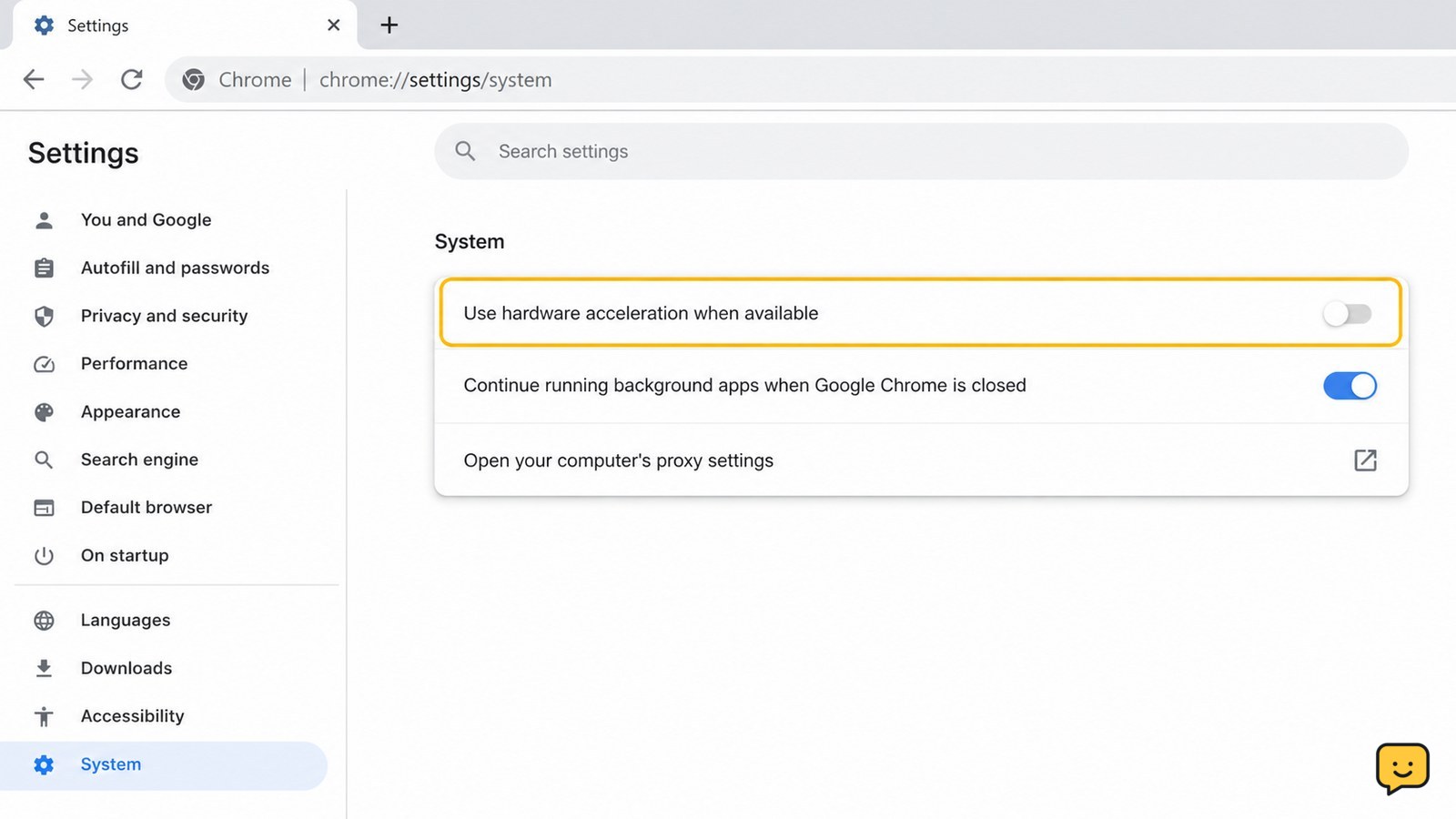
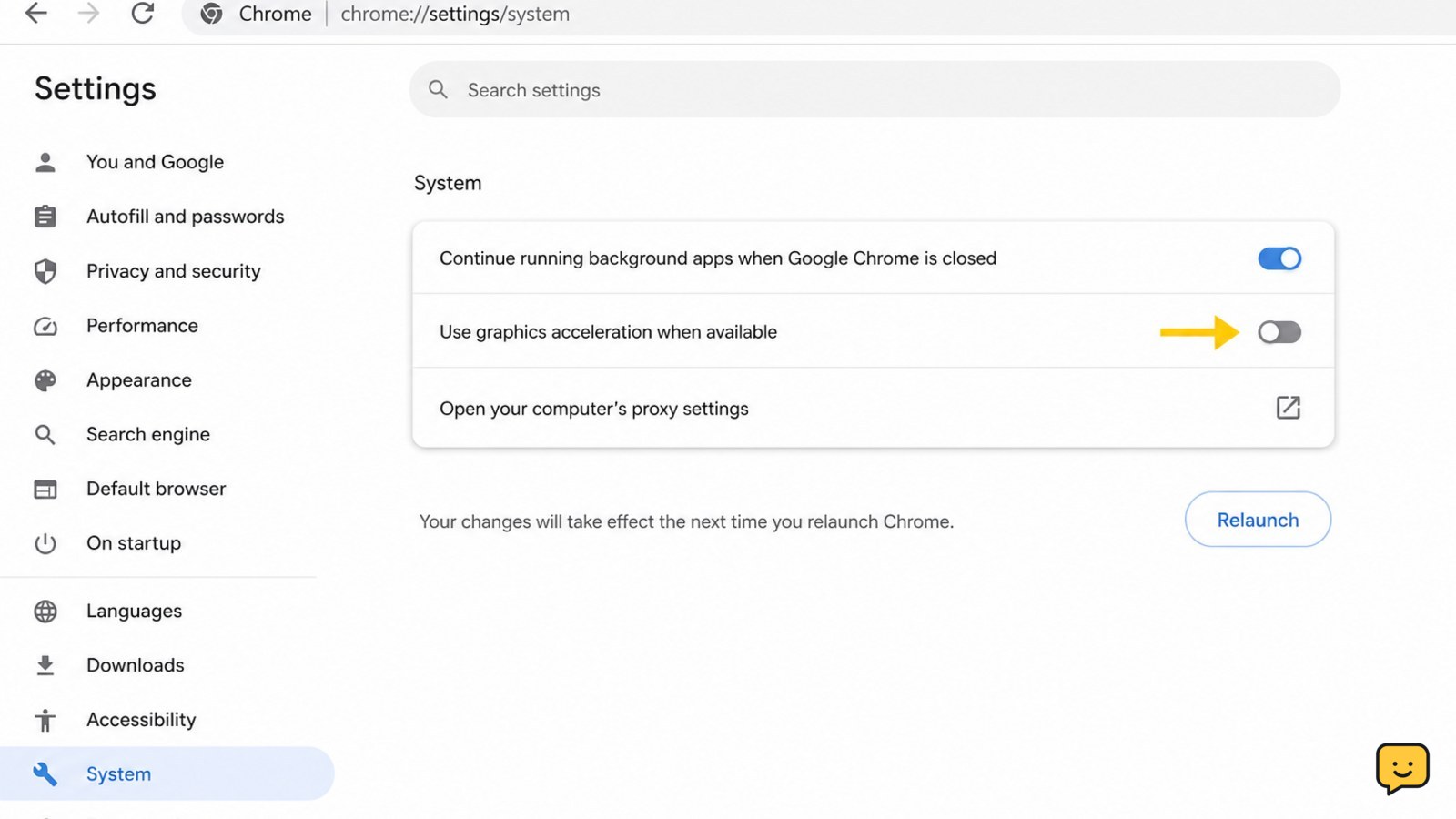
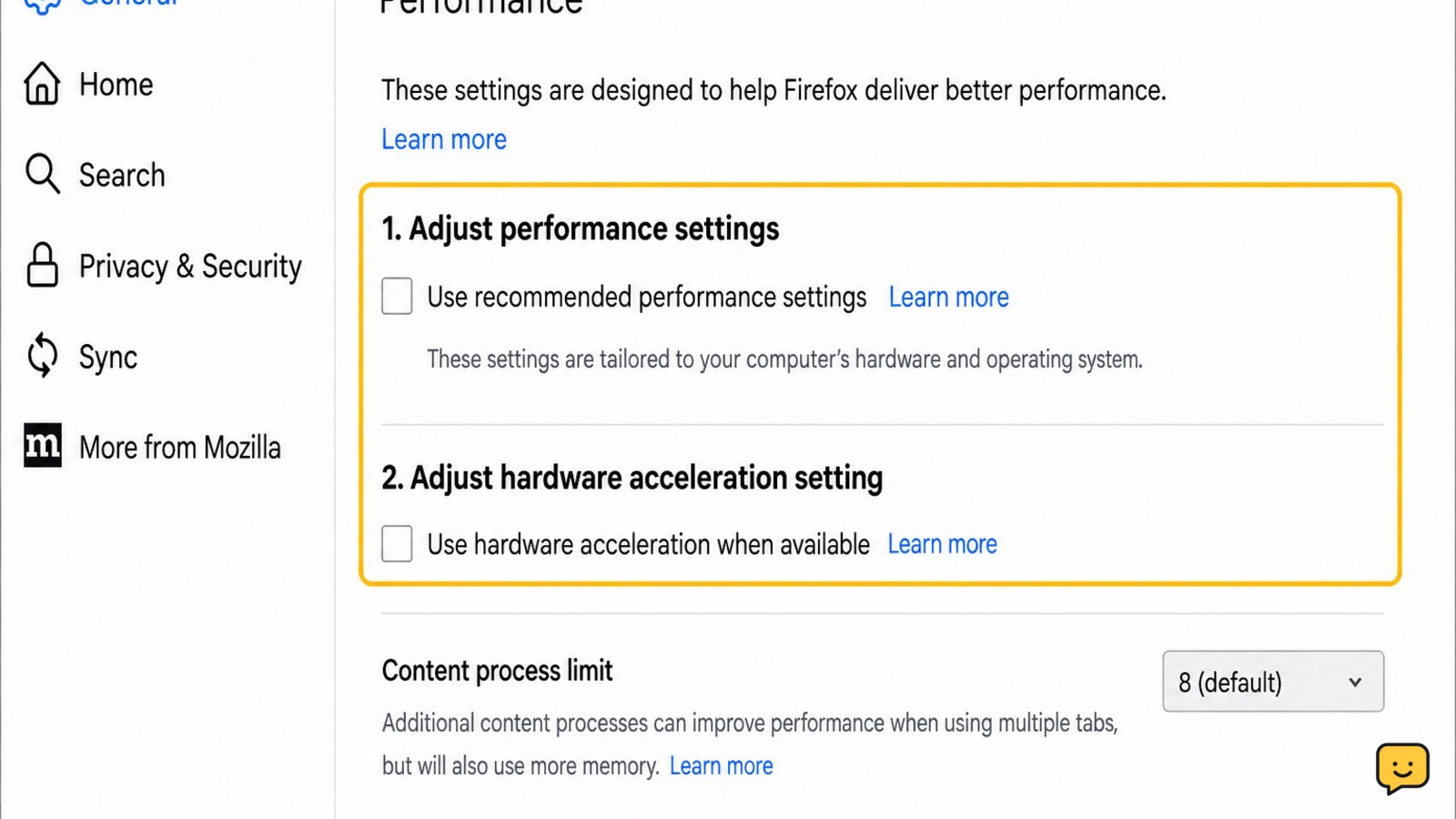
To disable hardware acceleration, open your browser’s Settings, find the System or Performance section, turn off the hardware-acceleration option, then restart the browser. In Chrome, use Settings > System and disable “Use graphics acceleration when available.” In Firefox, open Settings > General > Performance, clear recommended settings, then clear “Use hardware acceleration when available.”
For more help with this topic, use the Computers Internet guides.
Check whether hardware acceleration is the likely cause
Hardware acceleration is a likely browser cause when a visual problem appears only in the browser and disappears after switching applications or browsers. Common clues include flickering pages, black video areas, flashing controls, corrupted animations, sudden browser crashes, or a problem that began after a graphics-driver or browser update.
First, open the same page in a private window or a different browser. If the symptom remains across browsers and other applications, disabling one browser setting is unlikely to solve it. For broader display symptoms, use this guide to check computer screen flickering.
If the symptom also appears outside the browser, use this guide to check computer screen flickering before changing more browser settings.
Disable hardware acceleration in Google Chrome
Google Chrome stores its hardware-acceleration control under Settings > System. This is the current menu path described by Loyola University New Orleans Information Technology and other Chrome support instructions.
- Open Chrome on your computer.
- Select the three-dot menu in the upper-right corner, then choose Settings.
- Select System in the settings sidebar, or search Settings for hardware acceleration.
- Turn off Use graphics acceleration when available. Some Chrome versions use the wording Use hardware acceleration when available.
- Select Relaunch if Chrome displays that button. Otherwise, close every Chrome window and open Chrome again.
The change is not fully active until Chrome restarts. Do not confuse this browser option with Windows hardware-accelerated GPU scheduling, which is a separate operating-system setting.
Disable hardware acceleration in Mozilla Firefox
Mozilla Firefox places its hardware-acceleration control under Settings > General > Performance. The Udemy browser troubleshooting instructions identify the same two-part action: clear recommended performance settings, then clear the hardware-acceleration option.
- Open Firefox and select the three-line menu.
- Choose Settings, then stay on the General page.
- Scroll to Performance.
- Clear Use recommended performance settings.
- Clear Use hardware acceleration when available.
- Close and reopen Firefox.
If you cannot see the second checkbox, clear the recommended-settings checkbox first. If the option is still absent, your Firefox version or administrator policy may not expose it; do not edit configuration files just to force the change.
Verify that the setting changed
A browser has hardware acceleration disabled only after the option remains cleared after reopening and the original browser-only symptom changes during a repeat test.
- Return to the same Settings page and confirm the acceleration checkbox is still off.
- Reopen the page, video, or web application that caused the problem.
- Look for the specific result: no flicker, no black video area, fewer rendering artifacts, or no repeat crash during the same action.
- Test for several minutes with the same tabs and workload rather than judging from the settings page alone.
If the setting is off but nothing changes, hardware acceleration was probably not the cause, or the affected application has its own graphics setting. If the entire computer remains slow, check resource use and free storage with this guide to find the cause of a slow computer.
If disabling acceleration changes nothing, use this guide to find the cause of a slow computer and check for a wider performance problem.
Restore acceleration or choose a narrower fix
Restore hardware acceleration when disabling it reduces video quality, makes scrolling less smooth, increases CPU use, or does not improve the original fault. Return to the same browser menu, turn the option back on, restart the browser, and test again.
A narrower fix is safer when only one site or feature fails. Update the browser and graphics driver through the normal system or manufacturer update process, disable a recently added extension, test the site without extensions, or use another browser temporarily. If flicker or corruption appears in multiple applications, stop changing browser settings and investigate the display cable, monitor, graphics driver, or graphics hardware instead.
Frequently asked questions
Should I disable hardware acceleration in Windows or in my browser?
Start in the affected browser because browser hardware acceleration and Windows hardware-accelerated GPU scheduling are separate controls. Disable the browser option first when the problem is limited to Chrome or Firefox. Change the Windows setting only when a specific Windows graphics issue calls for it and you have current instructions for your Windows version.
Why can’t I find the hardware acceleration setting?
The control may have moved, been renamed, or been hidden by an administrator policy. In Chrome, search Settings for “hardware acceleration” and check System. In Firefox, open General and scroll to Performance, then clear recommended performance settings. If the control remains unavailable, do not edit the Registry or advanced configuration files as a first step.
Will disabling hardware acceleration improve browser performance?
Not necessarily. It can reduce graphics glitches caused by a browser, driver, or GPU interaction, but it may increase CPU use and make video or scrolling less efficient. Keep it disabled only if the original symptom improves and normal browsing remains responsive. Otherwise, turn it back on and investigate updates, extensions, or the display hardware.
Do I need to restart the computer after disabling it?
Usually, no. Restart the browser so its graphics process reloads with the new setting. Restart the computer only if the browser does not apply the change, the setting keeps reverting, or you are also applying a separate operating-system or graphics-driver change.


