
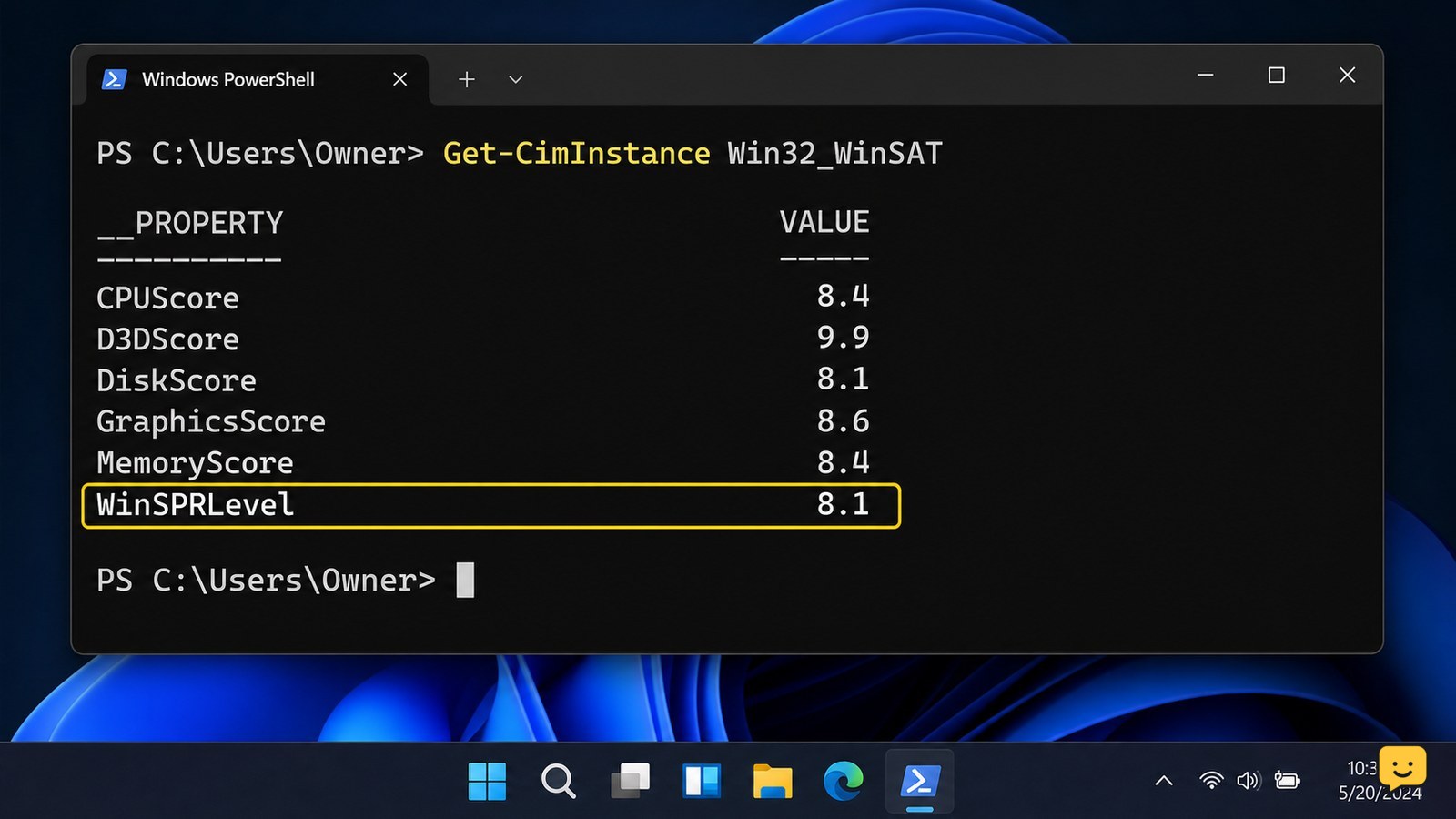
Windows 10 and Windows 11 do not normally show the Windows Experience Index in Settings. Open PowerShell and run `Get-CimInstance Win32_WinSAT`; this displays stored processor, memory, graphics, gaming-graphics, and primary-drive scores. If the result is blank, run `winsat formal` in an elevated PowerShell window, wait for it to finish, then run the query again.
For more help with this topic, use the Computers Internet guides.
Check whether Windows already has a score
The Windows Experience Index is available as stored WinSAT results even though Windows 10 and Windows 11 do not normally present the score in the Settings app. The quickest check is PowerShell.
- Press Windows, type PowerShell, and open Windows PowerShell or PowerShell.
- Paste this command and press Enter:
Get-CimInstance Win32_WinSAT - Look for values such as
CPUScore,MemoryScore,GraphicsScore,D3DScore,DiskScore, andWinSPRLevel.
Success means the command returns numeric values. WinSPRLevel is the base score, while the other values identify the individual hardware areas. The system’s base score is limited by its lowest subscore, according to NinjaOne’s explanation of the Windows Experience Index scale.
Run a fresh Windows assessment
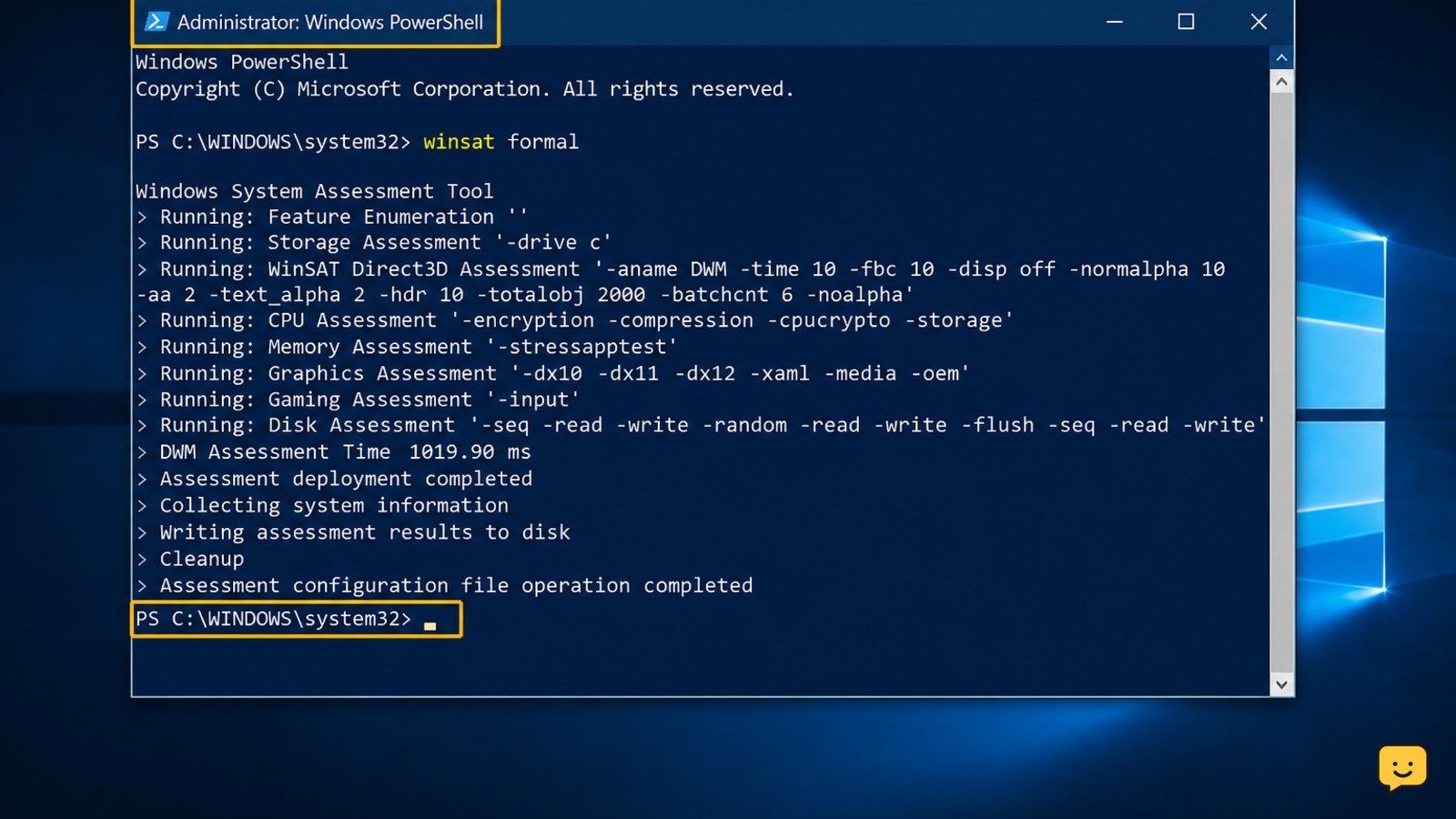
If Get-CimInstance Win32_WinSAT returns no useful values, run the built-in formal assessment and query the results again.
- Open Start, search for PowerShell, right-click it, and choose Run as administrator.
- Approve the User Account Control prompt if it appears.
- Enter:
winsat formal - Wait until the command returns to the prompt. Keep the PC connected to power and avoid closing the window while the tests run.
- Run:
Get-CimInstance Win32_WinSAT
The assessment may briefly exercise the processor, memory, graphics hardware, and system drive. A successful refresh produces numeric subscores and a base score. If the command reports that WinSAT is unavailable or fails immediately, do not download replacement executables from random websites; use the alternatives below.
Read each score without overstating the result
The Windows Experience Index rates the tested areas on a 1.0–9.9 scale, but the number is best used as a rough comparison of the PC’s assessed hardware rather than a complete performance rating.
- CPUScore: processor assessment.
- MemoryScore: installed memory assessment.
- GraphicsScore: desktop-graphics assessment.
- D3DScore: gaming-graphics assessment when reported.
- DiskScore: primary system-drive assessment.
- WinSPRLevel: base score, generally constrained by the lowest reported subscore.
For example, a PC can show a strong processor score but a lower disk or graphics score. That points to an area worth investigating; it does not by itself identify a failing component or guarantee a particular game frame rate.
For broader checks when the computer feels slow, compare these results with CPU, memory, disk usage, free storage, startup apps, and temperature checks in our computer slowdown guide.
For broader checks when the computer feels slow, compare the result with our computer slowdown guide.
What to do if the score is missing or unchanged
A missing or unchanged Windows Experience Index usually means Windows has no completed stored assessment, the command did not run with sufficient access, or the result is being read from an older assessment.
- Confirm the command spelling. Use
Get-CimInstance Win32_WinSATexactly, with the underscore and capitalization optional but the class name unchanged. - Retry from an elevated window. Run PowerShell as administrator and repeat
winsat formal. - Check for completion. If the window is still running, wait. If it closes with an error, note the exact message instead of repeatedly launching the test.
- Restart once. After a restart, query the class again. A numeric result confirms that Windows can read a stored assessment.
- Use another benchmark. For current application, storage, or gaming comparisons, use a reputable benchmark designed for that workload and follow its publisher’s instructions.
If WinSAT repeatedly fails while Windows is otherwise stable, the result may simply be unavailable on that installation. Do not modify system files or registry entries just to restore an old score.
Choose a safer alternative when you need current performance data
The Windows Experience Index is useful for a quick built-in snapshot, but Task Manager and hardware-specific diagnostics are better for identifying a present-day bottleneck.
- Press Ctrl+Shift+Esc to open Task Manager.
- Use the Performance tab to observe CPU, Memory, Disk, GPU, and network activity while reproducing the slowdown.
- Match the consistently busy component to the task. High disk activity during file loading differs from high memory use caused by too many open applications.
- Use the PC manufacturer’s diagnostic tool for storage, memory, cooling, or graphics faults when hardware failure is suspected.
Stop and arrange professional service if diagnostics report a drive or memory error, the PC shows repeated blue screens, or the screen displays persistent graphical artifacts. Back up important files before any repair or component replacement.
Frequently asked questions
Does Windows 11 have a Windows Experience Index screen?
No, Windows 11 does not normally provide a visible Windows Experience Index page in Settings. You can read stored WinSAT values with PowerShell using `Get-CimInstance Win32_WinSAT`, then run `winsat formal` as administrator if the values are missing.
What is a good Windows Experience Index score?
There is no single score that makes every PC suitable for every task. The scale runs from 1.0 to 9.9, and the base score reflects the lowest reported subscore. Judge the number against your workload and confirm it with current application or hardware-specific testing.
Why does WinSAT return no score?
WinSAT may not have completed an assessment, or Windows may not have usable stored results. Run `winsat formal` from an elevated PowerShell window, wait for the prompt to return, and query `Get-CimInstance Win32_WinSAT` again. If it still fails, use manufacturer diagnostics rather than altering system files.
Can the Windows Experience Index test prove that hardware is faulty?
No. A low score identifies a relatively weaker assessed area, but it does not diagnose a defect. Confirm suspected problems with Task Manager observations, storage or memory diagnostics, temperature checks, and the manufacturer’s support tools.


